
Upload a PDF Form (after Fields have been created)
Uploading a PDF allows an individual to create a customized output for form entries. In order to do so, the PDF must be created on Adobe Acrobat Pro (or comparable software) and have made use of form fields.
A PDF can be created and uploaded after a form is in use, however no additional fields can be created at this time.
To upload a PDF form to be used for form entry outputs, go to the Home Page of the Forms Module. Click the three-dot icon to the right of the form title opening the context menu and select “Upload PDF”.
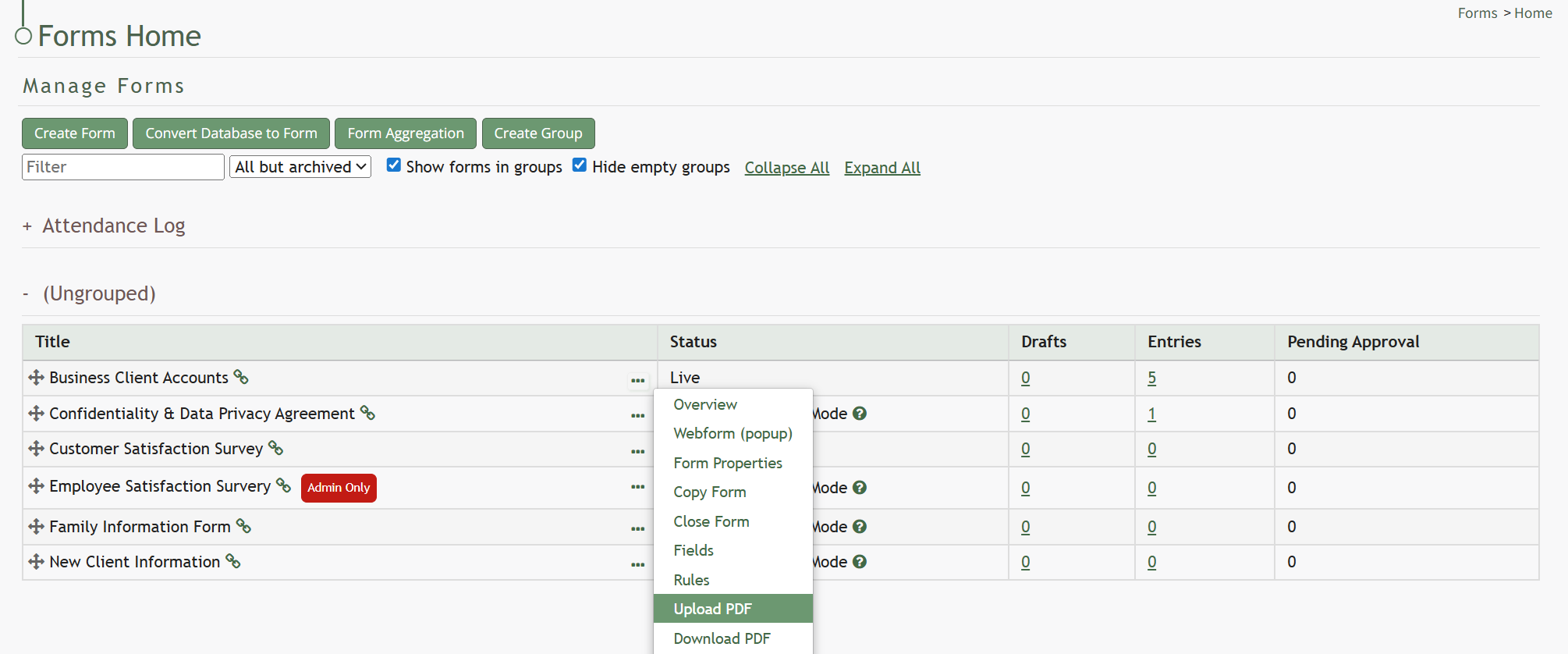
This will open the Upload PDF Form Modal.
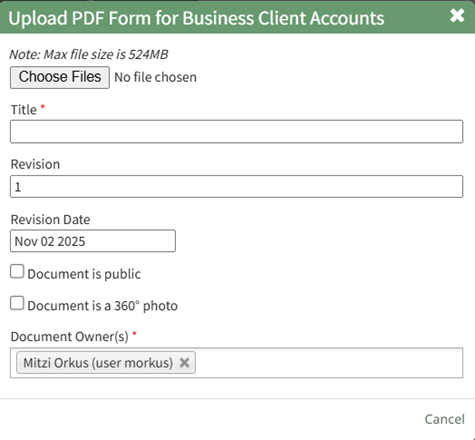
Select “Choose File” to retrieve the PDF from your personal device.
Input a title for the PDF or select the clickable “Use Filename” link to have the system use the filename as the title. The revision date will automatically show the current day, but can be altered. Select the appropriate checkbox if the document is to be public, or if it is a 360 degree photo.
You can select individuals or certification roles as the document owner(s).
Select “Save” and a confirmation modal will appear stating, “File was uploaded.”

No comments to display
No comments to display