
Send an Email in KAStrack
To send a system email in KAStrack, open the Send Communications Page in the Communications Module from the Main Menu.
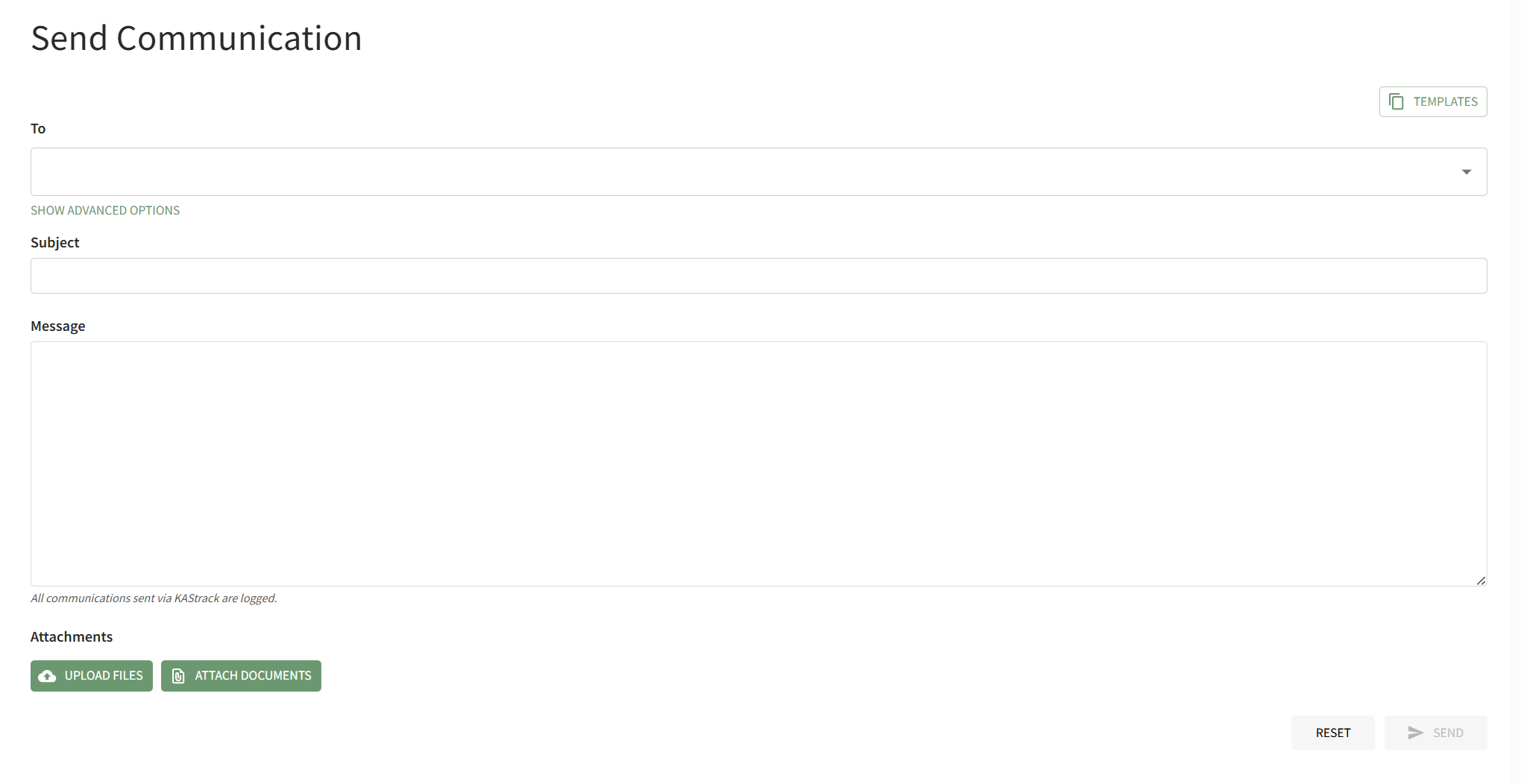
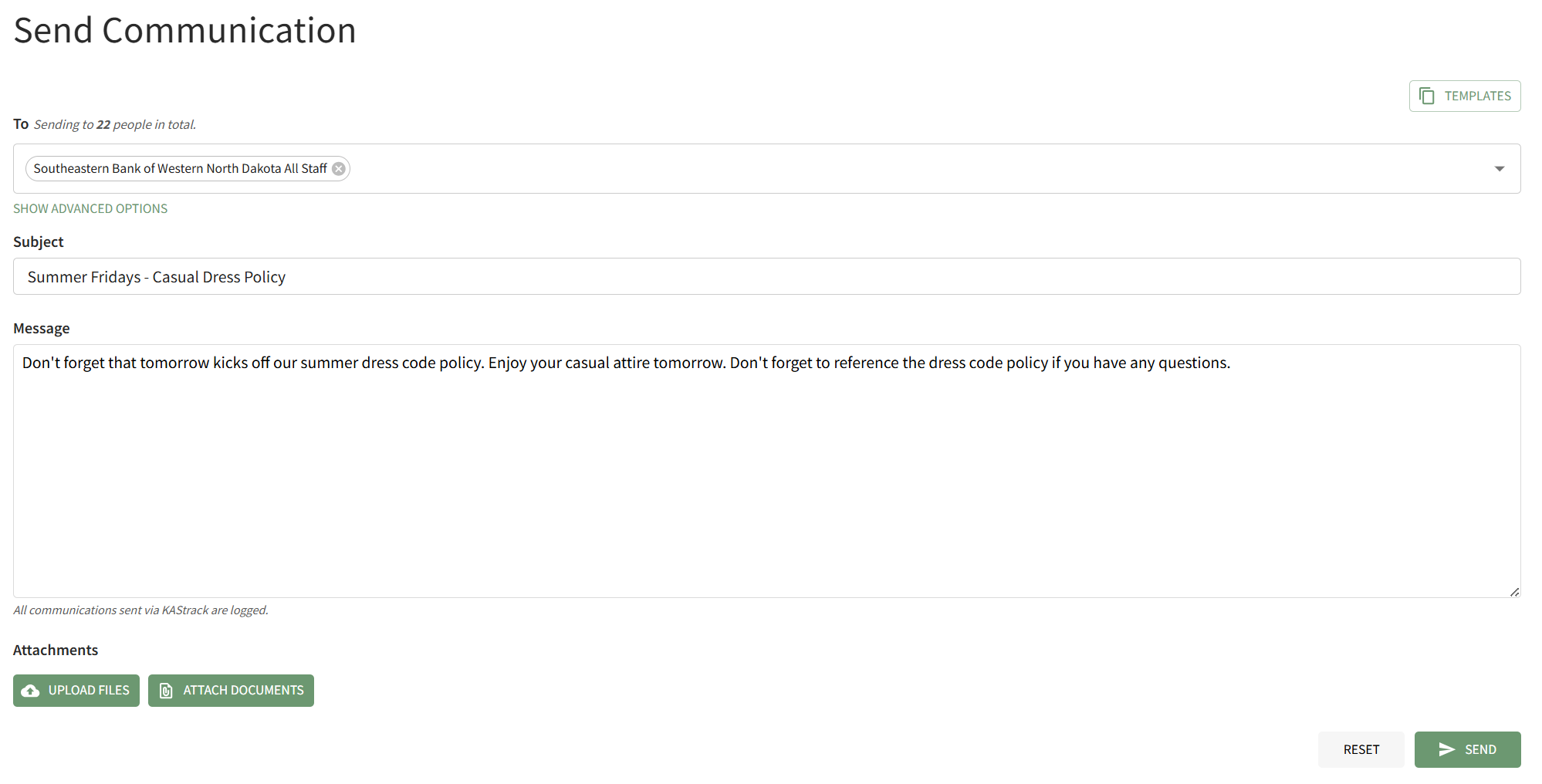
Select the individual users, certification roles or access levels you wish to send the message to from the dropdown menu in the "To" field. Input the Subject and Message.
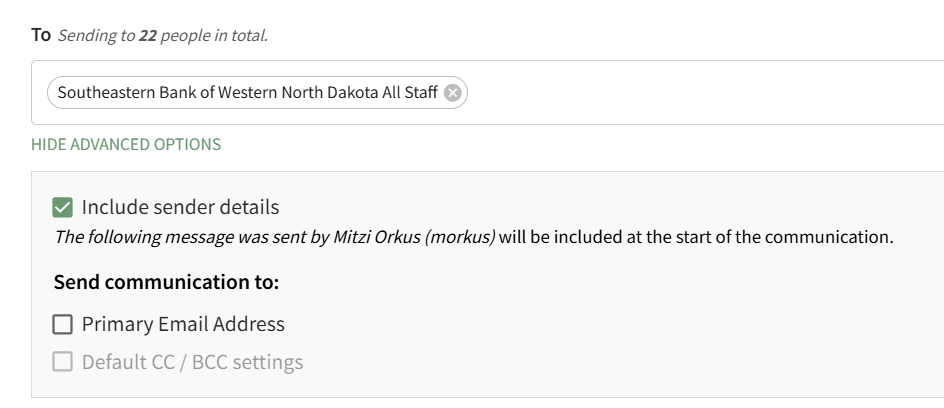
Individuals with an Admin Access Level have access to advanced options.
How To: Attach a File to an Email
To attach a file to a system message in KAStrack, open the Send Communications Page in the Communications Module on the Main Menu. After inputting all information, click the "Upload Files" button on the bottom left-hand side of the page.
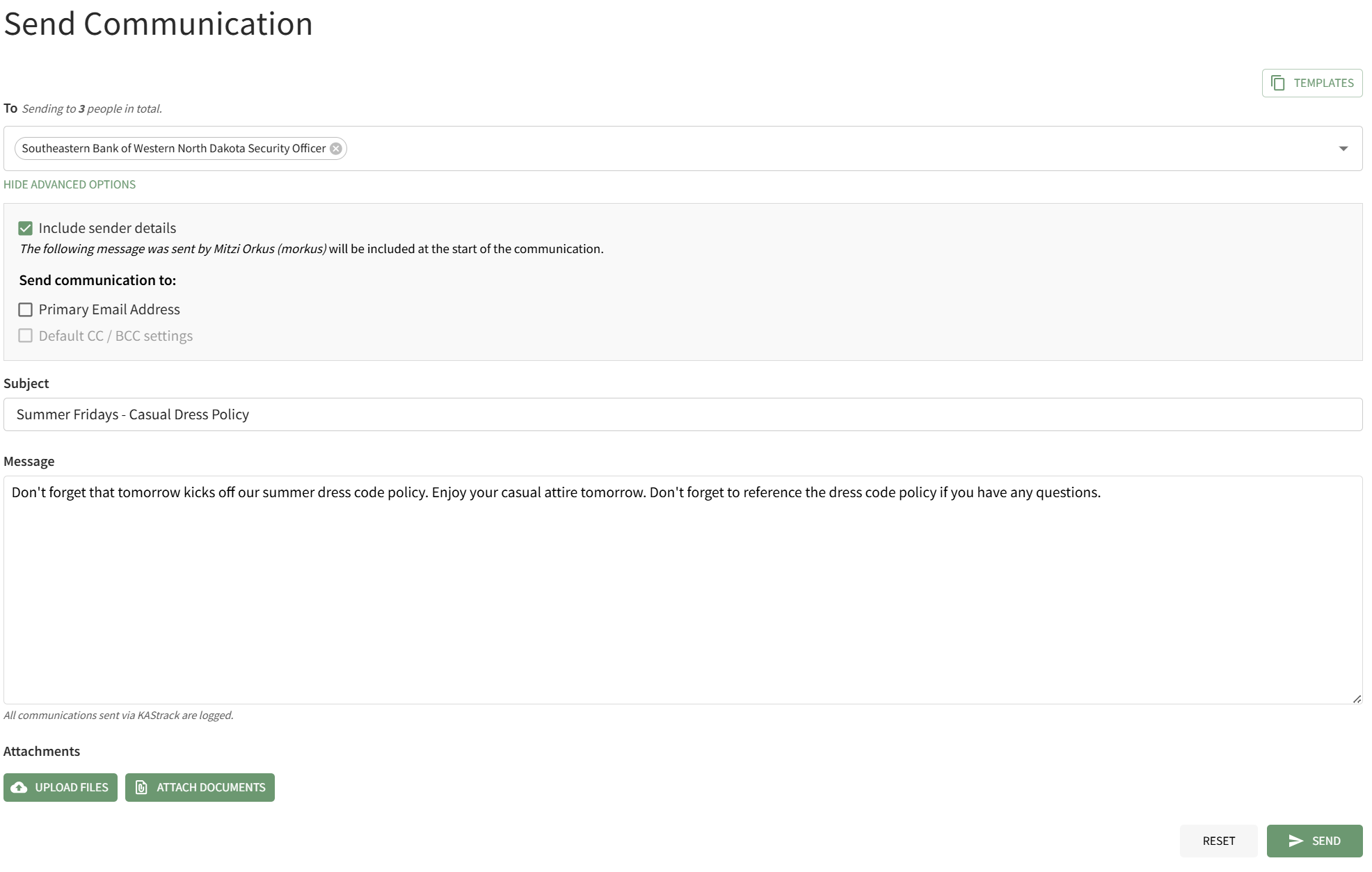
This will open your personal device so that you can access the file you wish to attach to the system message.
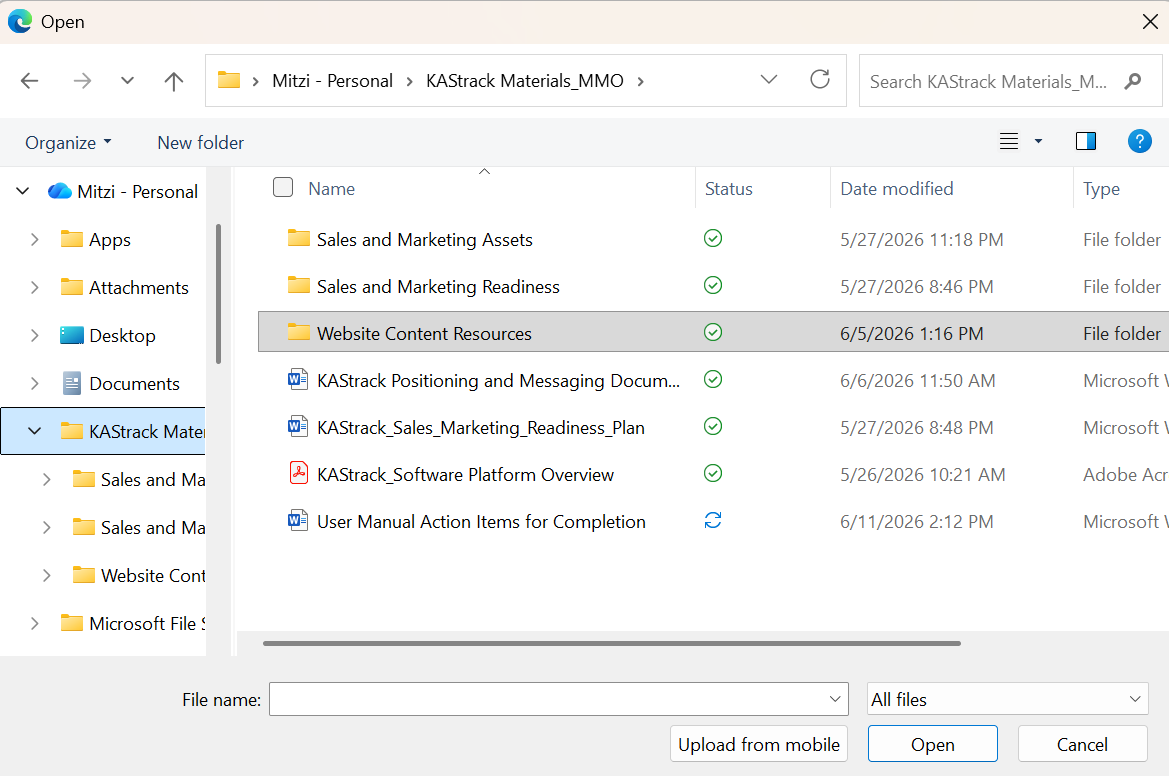
After selecting the appropriate file, it will be visible at the bottom of the Send Communications Page.
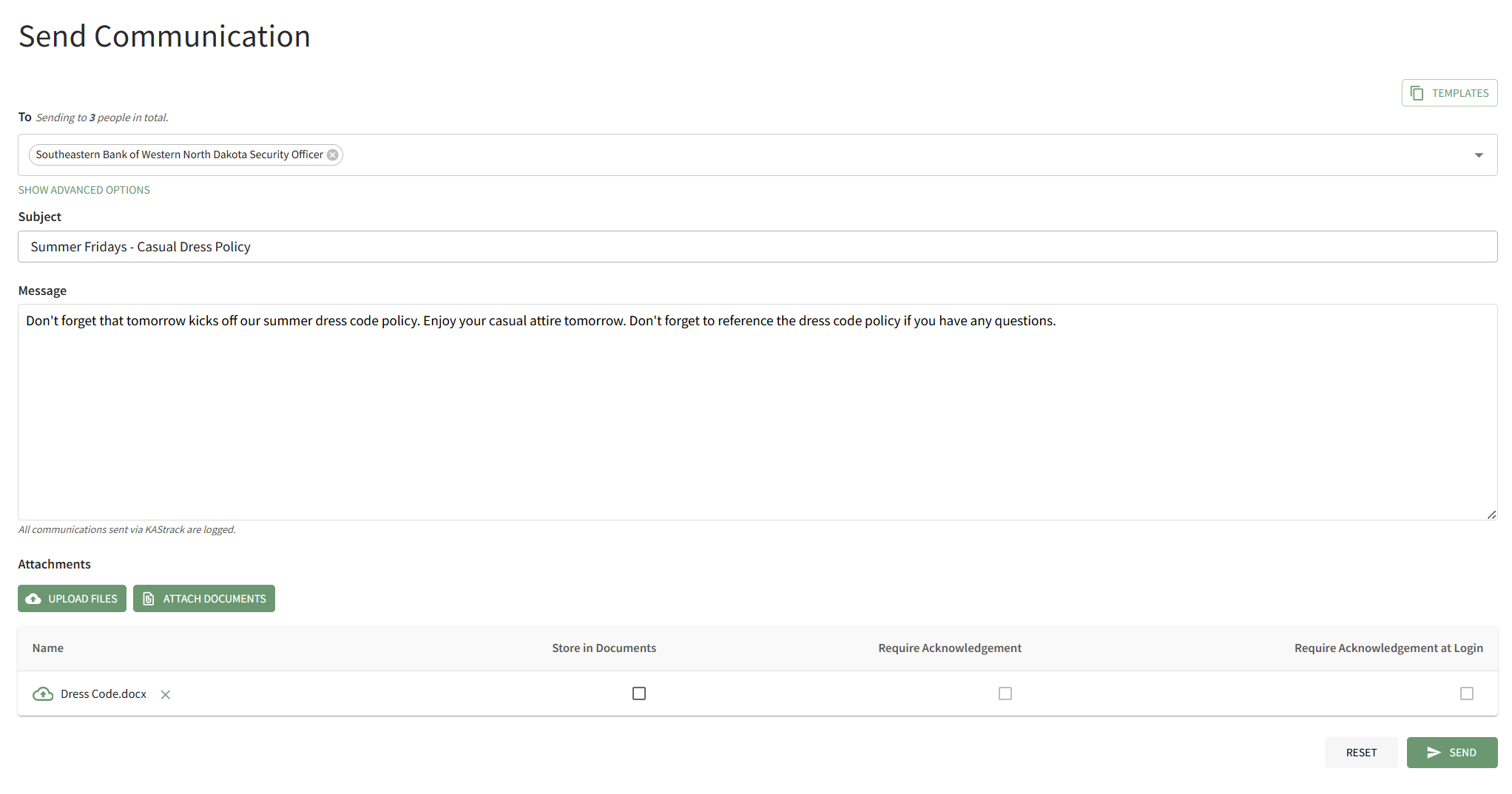
Checkboxes allow you to upload the file from your personal device to the Documents Module, to requirement acknowledgement of the document from the users who receive it, or to require acknowledgment of the document immediately when the user logs in to the system. After making the appropriate selections, press "Send" on the bottom right-hand corner of the page.
How To: Attach A Documents Module File to an Email
To attach a documents module file to a system message, open the Send Communications Page in the Communications Module from the Main Menu.
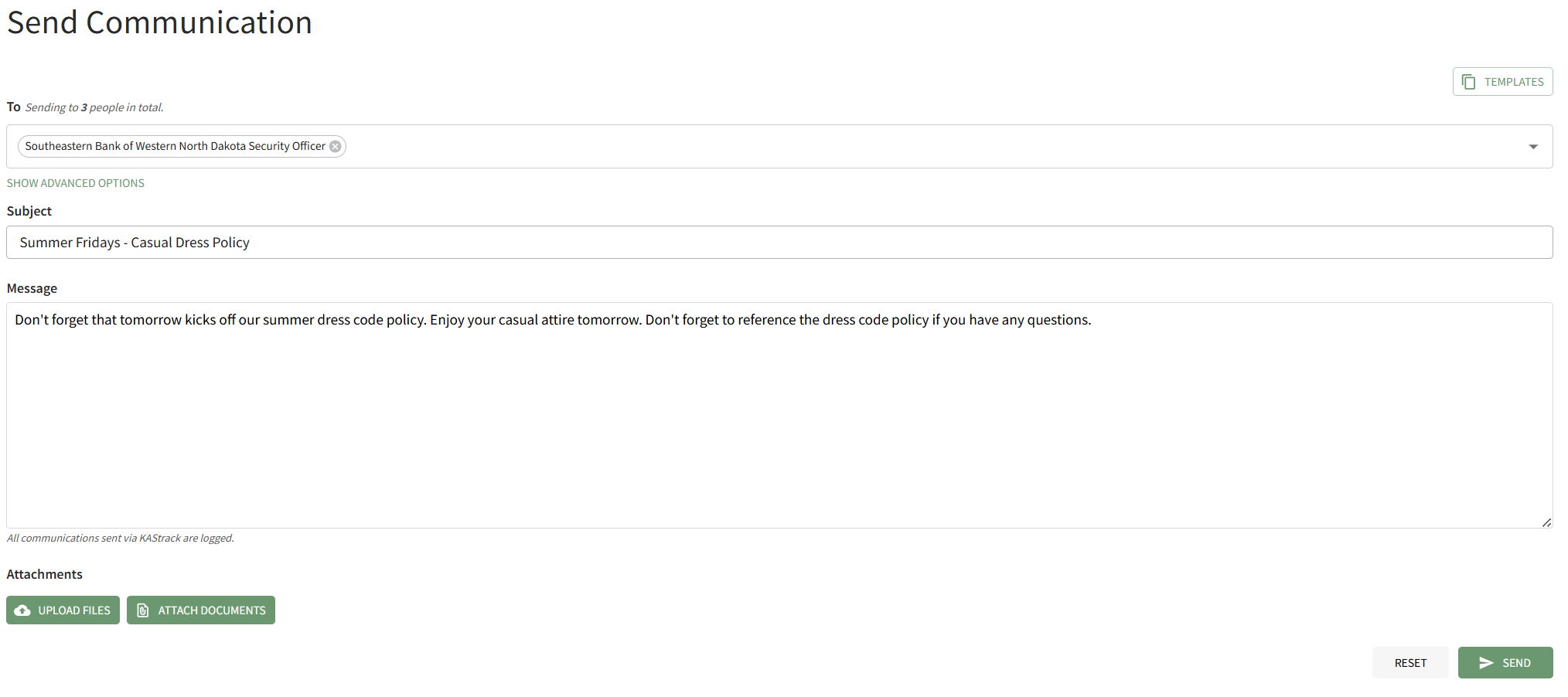
Click the "Attach Documents" button on the bottom left-hand side of the page opening the Attach Documents Modal.
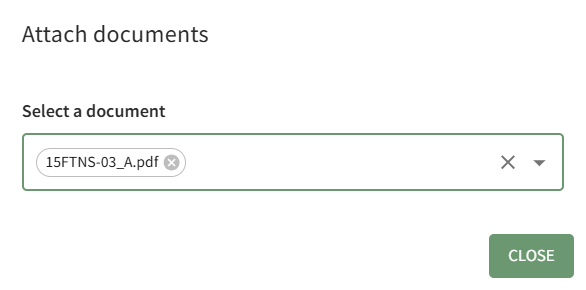
Choose the file you wish to attach to the system message from the dropdown menu. It will automatically attach it to the bottom of the Send Communication page. Click the"Close" button on the modal to return to the Send Communications Page.
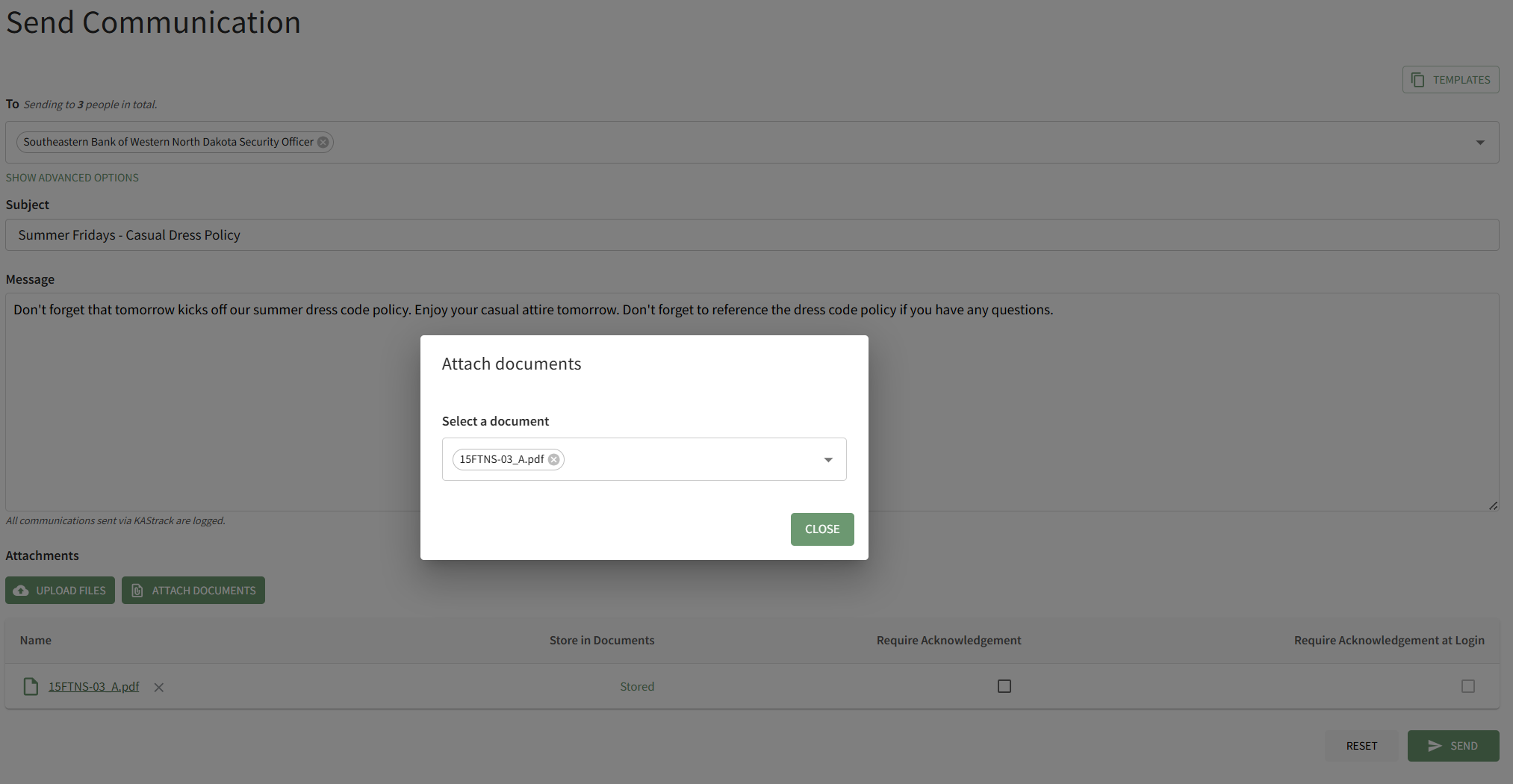
Checkboxes to the right of the attachment allow you to require acknowledgement of the attached file from the Documents Module, or to require acknowledgement of the attached file immediately when the message recipients login to the system next.

After make the appropriate selections, click "Send" on the bottom right-hand side of the page to send the system message.
When you are ready to send the system message, click the "Send" button in the bottom right-hand corner of the page.
If there is an error sending the message, the system will communicate that through a modal at the bottom of the page.

You will automatically return to the Send Communications Page so that the issue can be addressed.
No comments to display
No comments to display