
Assets Module How Tos
How To: Access an Asset's PDF Data Sheet
To access an asset's PDF data sheet, open the Manage Asset Page in the Assets Module on the Main Menu. Use filters as needed and identify the asset/component you want to run a report on. Click the three-dot icon to the right of the asset title opening the Asset Management context menu.
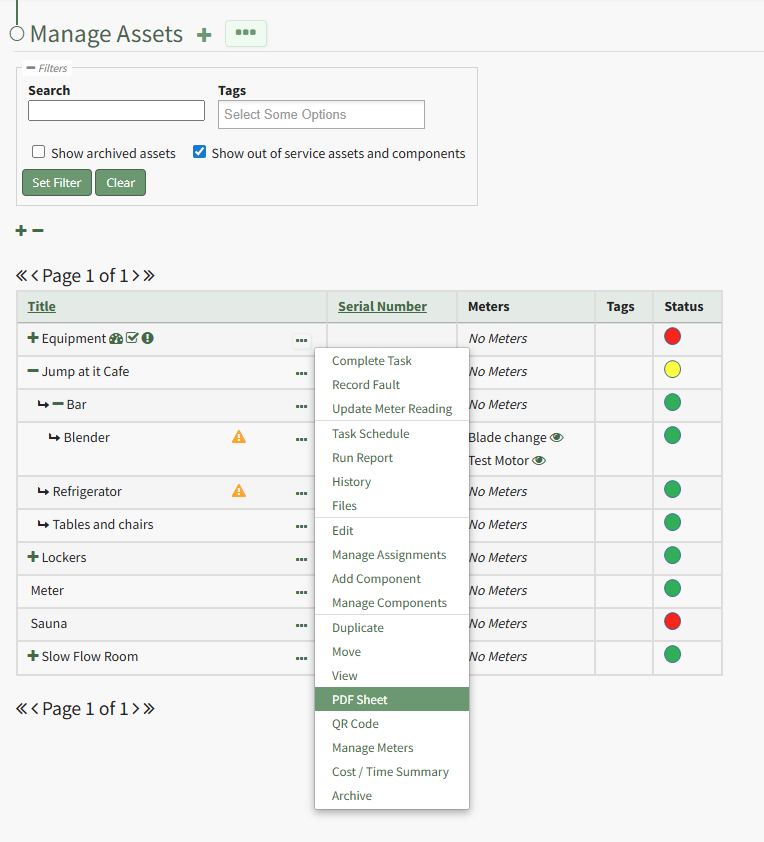
Select "PDF Sheet" from the context menu. This opens a PDF of the asset/component data sheet in the existing tab.
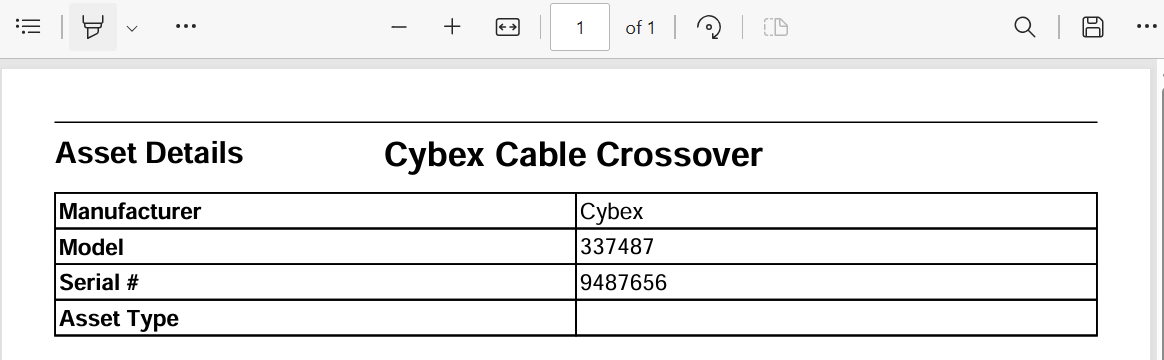
Select the back button on your browser to return to the My Assets Page.
How To: Access an Asset's QR Code
To access an asset's QR Code, open the Manage Asset Page in the Assets Module on the Main Menu. Use filters as needed and identify the asset/component whose QR Code you want to access. Click the three-dot icon to the right of the asset title opening the Asset Management context menu.
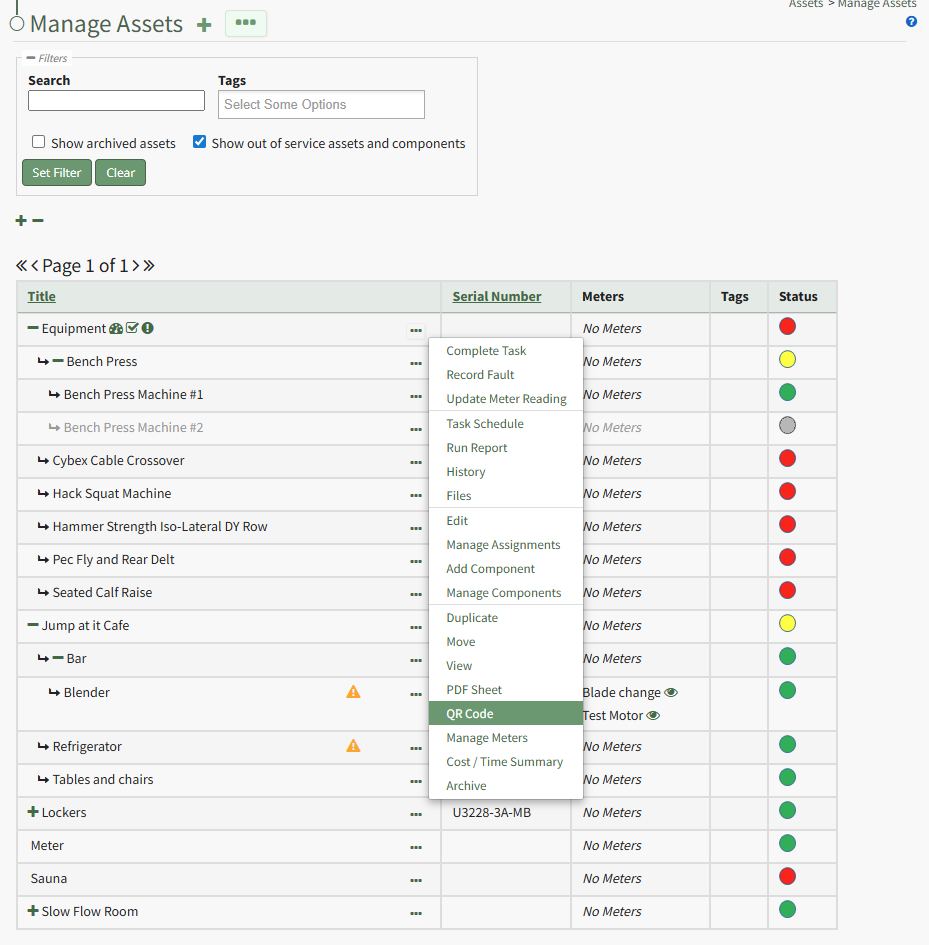
Select "QR Code" from the context menu. This opens the Asset Barcode Modal that displays an asset/component's QR Code that can be used for quick access to an asset.
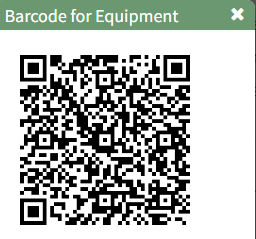
Close the modal when done to return to the Manage Assets Page.
How To: Add a Meter to an Asset
To add a meter to an asset, the Meter Type must already be created through the Assets Settings Page.
How To: Create a Meter Type
To create a new meter type, open the Meter Types Tab on the Settings Page of the Assets Module.
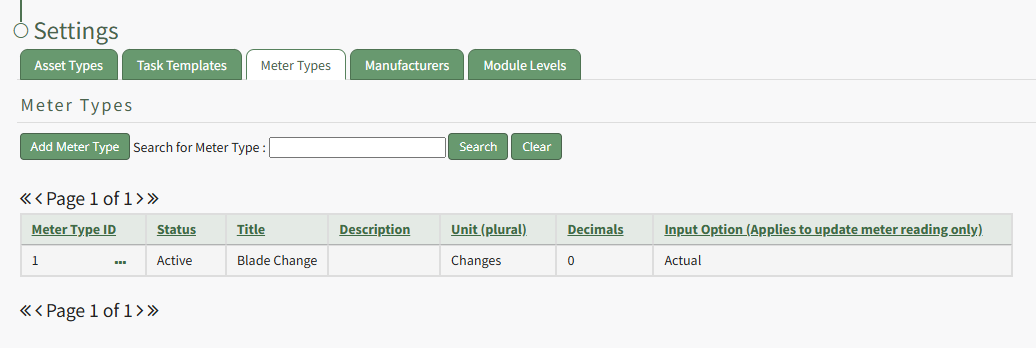
Select “Add Meter” opening the New Meter Type Modal.
This opens the New Meter Type modal.
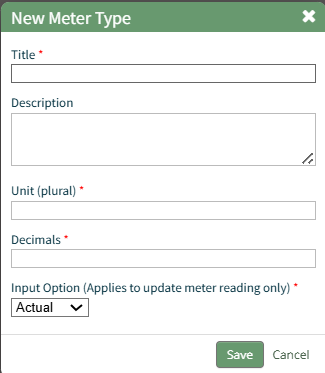
Input the desired meter type title and description.
Include the units associated with this meter type.
Meter units should always be entered in plural form.
Input an integer to determine the number of place values after the decimals you would like recorder. Input 0 if you do not want to see any values after the decimal.
The Input Option dropdown menu has three options: Actual, Elapsed, Both. If you select both, a user can input the actual reading and elapsed value will be calculated. A user can also input the elapsed reading and the actual will be calculated.
Select the “Save” button and the New Meter Type will be created and now shows on the Meters Tab on the Settings Page of the Assets Module.
To add a meter to an asset, select the Manage Assets Page from the Main Menu in the Assets Module. Use filters as needed and identify the asset/component you want to add a meter to. Click the three dot (…) icon next to the Asset/Component Title to open the Asset Management Context Menu.
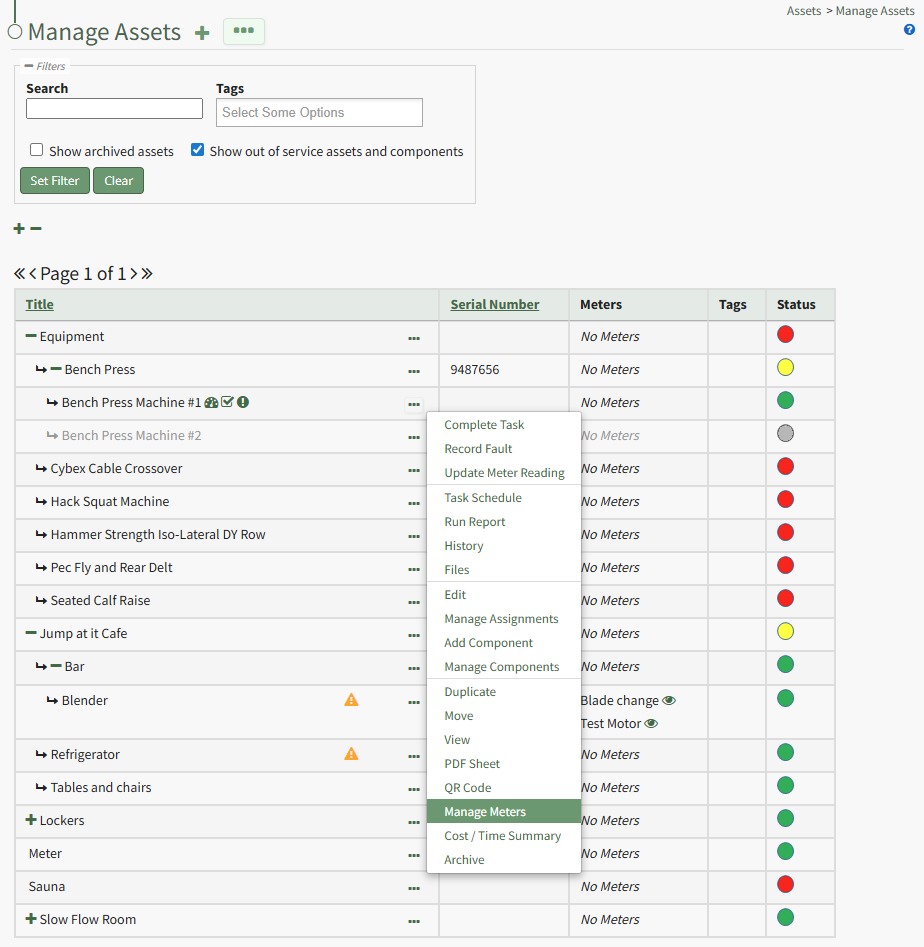
Selecting “Manage Meters” from the context menu opens the Asset Meters Modal.
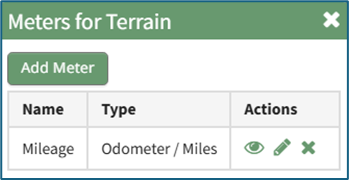
To add a new meter, select the “Add Meter” button opening the Add Meter to (Asset Name) Modal.
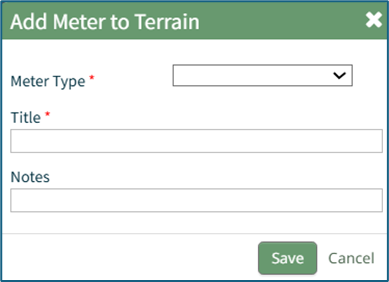
Select the Meter Type from the dropdown menu.
Input a title for the new Meter. Include any notes about the meter.
Select the “Save” button and the new meter is now shown when you select “Manage Meters” from the context menu.
How To: Add a New Manufacturer
To add a new manufacturer, open the Manufacturer Tabs on the Settings Page in the Assets Module from the Main Menu.
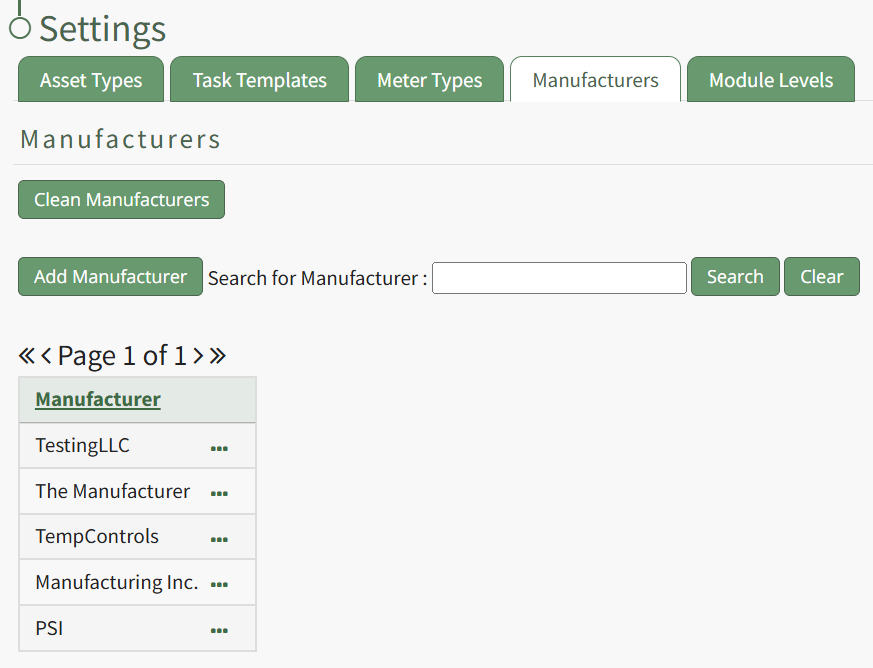
Select the Add Manufacturer button opening the New Manufacturer Modal.
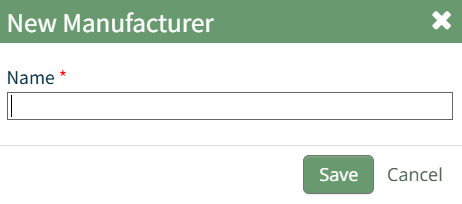
Input the name of the new manufacturer and click the "Save" button.
The new manufacturer will now show in the Manufacturer Table.
How To: Add Components to a Parent Asset
To add components to an asset, open the Manage Assets Page in the Assets Module from the Main Menu.
In order to create components, the parent asset must have already been created.
How To: Create a New Asset
To create a new asset, open the Manage Assets Page in the Asset Module and click the plus sign (+) icon to open the New Asset modal.
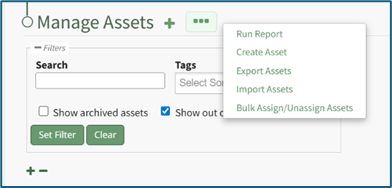
You can also access the New Asset Modal by clicking the three dot (…) icon and selecting “Create Asset” from the context menu.
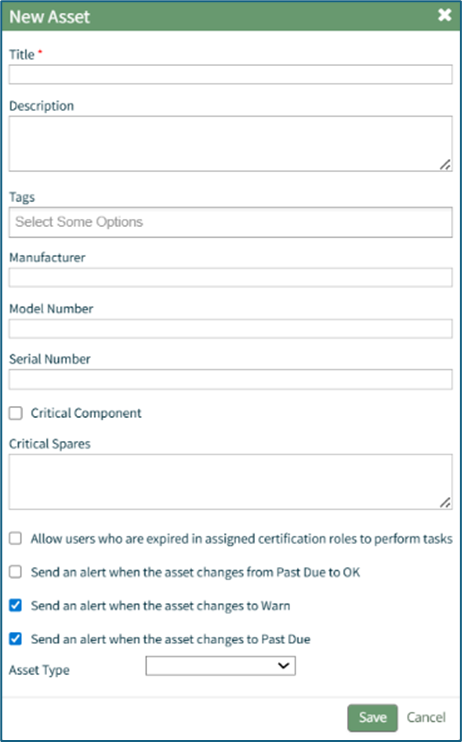
The New Asset Modal requires the entry of an Asset Title. Optional fields include an asset description, tags, manufacturer, model number, serial number, and critical spares.
Select the "Critical Component" checkbox to designate this asset as a critical component. This term is subjective for your organization to define. Designating an asset as a critical component will result in a hazard symbol being used as a visual indicator.

Critical items are prioritized and show separately on the Assets Module Summary.
An entire asset is designated as a critical. All components and associated tasks will also have a critical component designation.
KAStrack’s default setting prevents users with an expired certification role from performing tasks (such as completing tasks, recording faults, and updating meter readings. Select the “Allow users who are expired in assigned certification roles to perform tasks” checkbox to allow a user to perform tasks regardless of their assigned certification role status.
The remaining three checkbox options all relate to asset status alert preferences.
The “Send an alert when the asset changes from Past Due to OK” checkbox will send an alert via email to the assigned users when the task status changes from past due (red) to current/up to date (green).
The “Send an alert when the asset changes to Warn” checkbox will send an alert via email to all users assigned to the asset when the task status changes from current/up to date (green) to warn (yellow).
The “Send an alert when the asset changes to Past Due” checkbox will send an alert via email to all users assigned to the asset when the task status changes to past due (red).
Asset Types are customizable to your company and are created on the Settings Page of the Asset Module. Once an asset type has been created, you can select one from the dropdown menu in the New Asset Modal to enable additional filtering capabilities.
Asset Types allows your organization to add customizable fields unique to individual assets.
How To: Create a New Asset Type
To create a new asset type, open the Asset Types Tab on the Settings Page of the Assets Module.
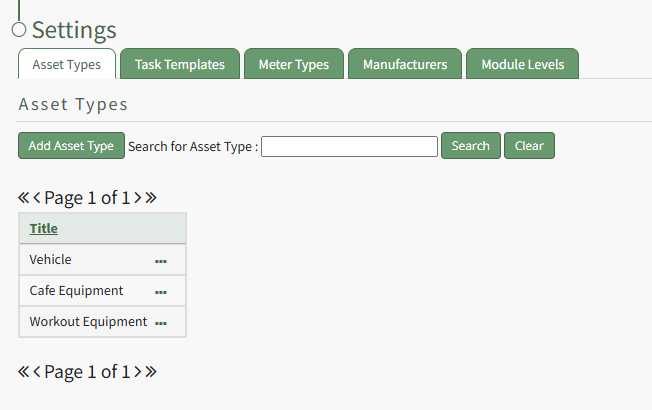
Selecting the “Add Asset Type” button opens the New Asset Type modal.
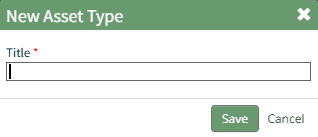
Input the title of the New Asset Type and click “Save”.
The newly created Asset Type will now show in the table on the Asset Type tab on the Settings page and is ready for you to add fields to.
How To: Add Fields to an Asset Type
{{@496}}
Select the “Save” button at the bottom of the New Asset Modal to create the new asset or click “Cancel” to close the modal without saving and return to the Manage Assets Page.
After an asset is created, it will appear in the Manage Asset Table where it can be managed.
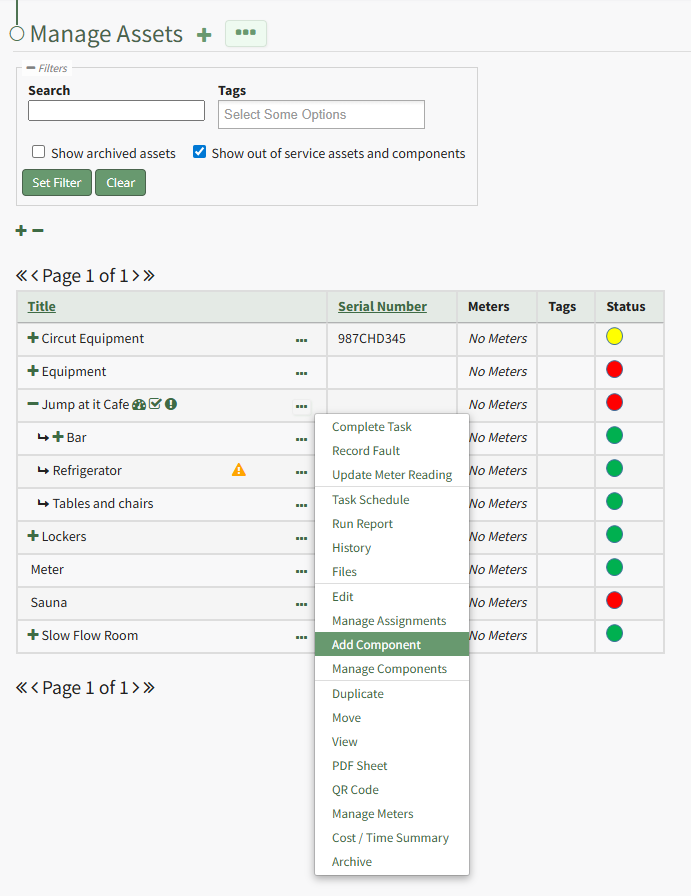
Identify the pre-existing asset (or component) that you would like to place this new component under, and click the three dot (…) icon to the right of the asset name in the Manage Assets table opening the Manage Asset Context Menu. Select "Add Component" opening the New Component Modal.
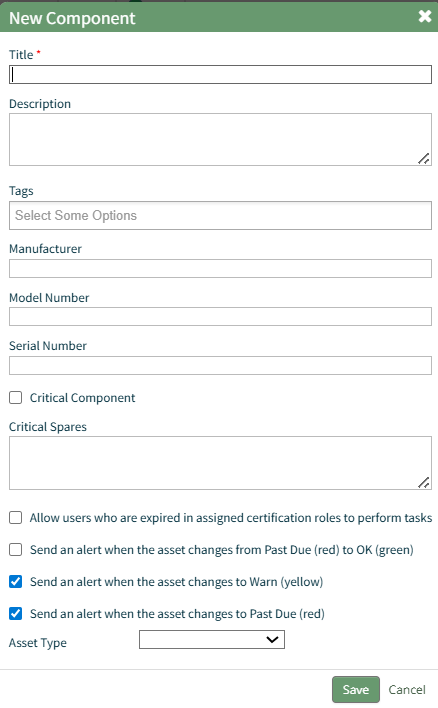
The fields on the New Component modal ask for the same information on the New Asset Modal. For a detailed description of the fields, refer to the How To Create a New Asset page.
Select the “Save” button and the component will appear underneath its asset in the Manage Asset table (if the view is expanded) where it can be managed. Subcomponents/additional child components can also be created for components if desired.
Select the three dot (…) menu to the right of the component you would like to add an additional subcomponent in the asset’s hierarchal structure.
How To: Add Fields to an Asset Type
In order to include unique, customized additional information regarding an Asset, you must first create an asset type and then add fields to it. This allows your organization to specify whatever information they choose to regarding their assets.
How To: Create a New Asset Type
To create a new asset type, open the Asset Types Tab on the Settings Page of the Assets Module.
Selecting the “Add Asset Type” button opens the New Asset Type modal.
Input the title of the New Asset Type and click “Save”.
The newly created Asset Type will now show in the table on the Asset Type tab on the Settings page and is ready for you to add fields to.
How To: Add Fields to an Asset Type
In order to include unique, customized additional information regarding an Asset, you must first create an asset type and then add fields to it. This allows your organization to specify whatever information they choose to regarding their assets.
How To: Create a New Asset Type
{{@470}}
To add additional fields to an asset type, go to the Asset Types Tab on the Settings Page of the Assets Module. Click the three-dot icon to the right of the Asset Type title to open the Asset Type Context Menu.
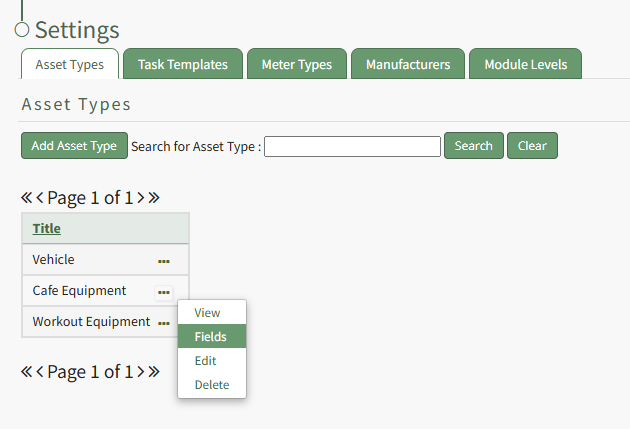
Select "Fields" from the context menu opening the Asset Type Fields Page.
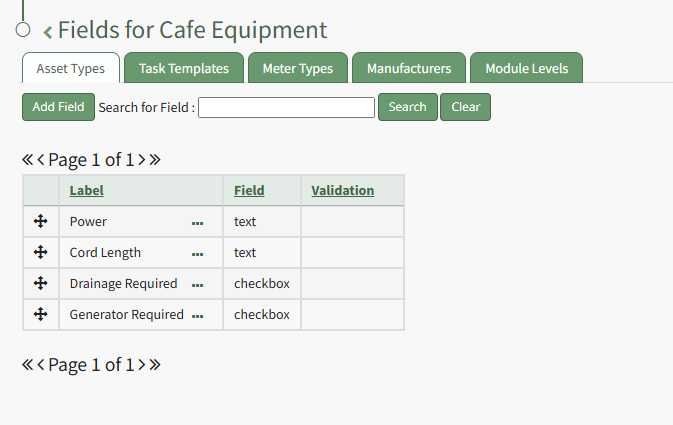
Click the "Add Field" button opening the New Field Modal.
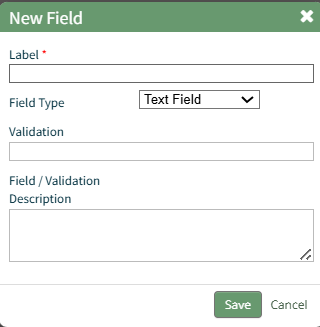
Input a label for the field and select the field type from a dropdown menu. Options include: text field, number, password field, text box, date field, and checkbox.
Validation uses standard JavaScript RegExp constructor for validating Field input values entered by end-users. Entering a RegExp validation string will check against the input value.
Include a description of the field of validation (optional).
Select “Save” and a popup confirms that the asset has been saved. The new field now shows on the Asset Type Field Page.
To add additional fields to an asset type, go to the Asset Types Tab on the Settings Page of the Assets Module. Click the three-dot icon to the right of the Asset Type title to open the Asset Type Context Menu.
Select "Fields" from the context menu opening the Asset Type Fields Page.
Click the "Add Field" button opening the New Field Modal.
Input a label for the field and select the field type from a dropdown menu. Options include: text field, number, password field, text box, date field, and checkbox.
Validation uses standard JavaScript RegExp constructor for validating Field input values entered by end-users. Entering a RegExp validation string will check against the input value.
Include a description of the field of validation (optional).
Select “Save” and a popup confirms that the asset has been saved. The new field now shows on the Asset Type Field Page.
How To: Add Interim Notes with a Task without Completion
To add interim notes to a task without completing the task, you will need to pull up the specific task you wish to add a note to. This could be done from the Upcoming Task Table or from an Asset's Task Schedule.
To Add Interim Notes from the Upcoming Task Table
To add interim notes to a task from the Upcoming Task Table, open the Assets Module Home Page from the Main Menu.
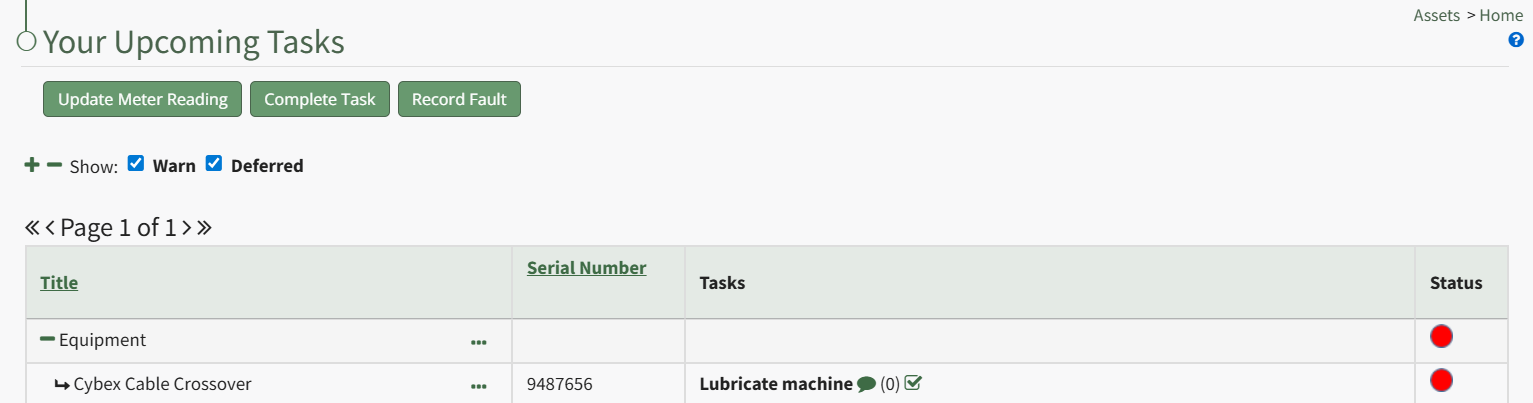
Click the dialogue icon to the right of the specific task title, which expands the Upcoming Task Table with a textbox for interim notes since the task was last completed. Input the interim notes and click the "Add" button.
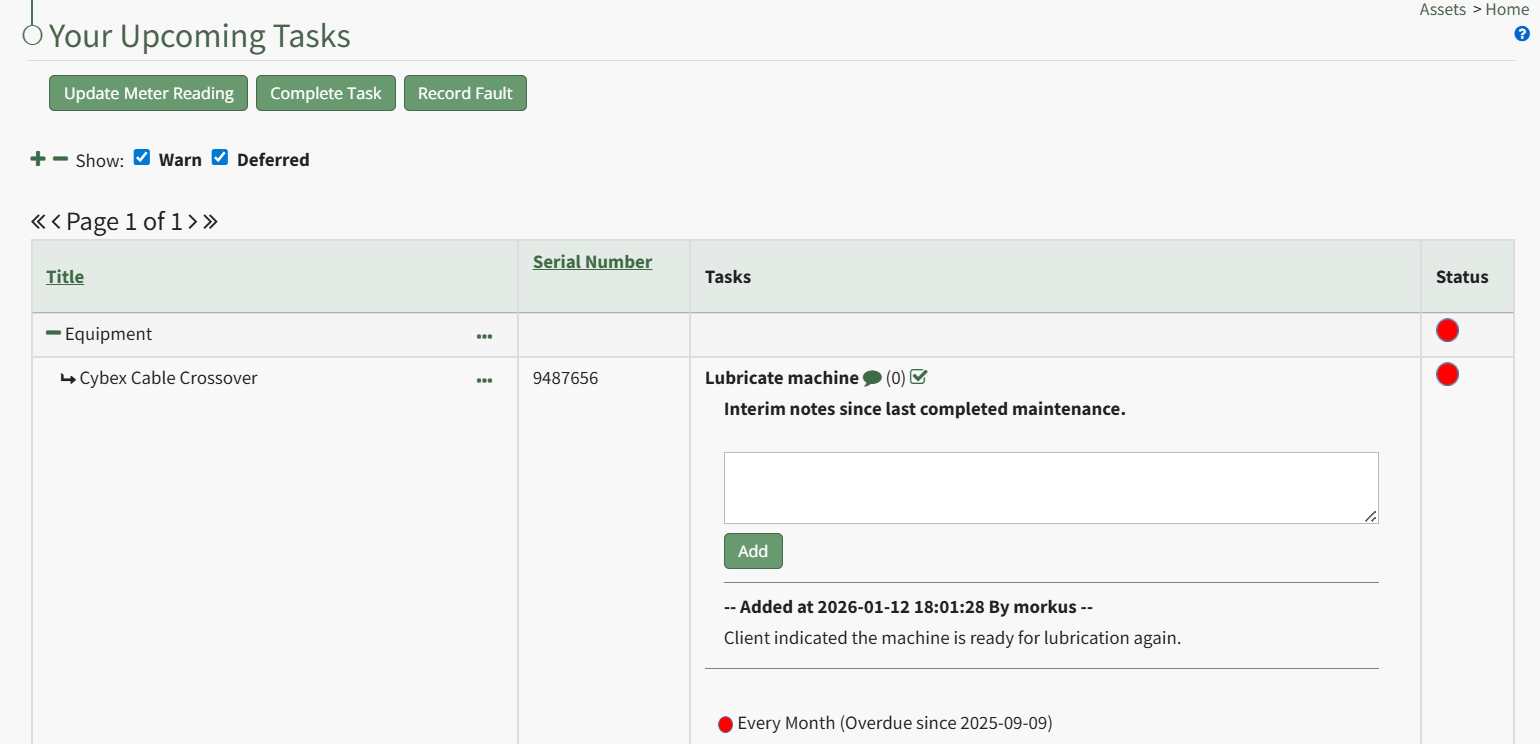
Any previously added notes will show beneath the text box, indicating the time, date, and user who made the interim notes.
To Add Interim Notes from an Asset's Task Schedule
To add interim notes to a task that is not visible on the Upcoming Task Table, select the My Assets Page in the Assets Module on the Main Menu. Identify the asset you wish you add interim notes to, and click the three-dot icon to the right of the asset/sub-component name opening the My Assets Context Menu.
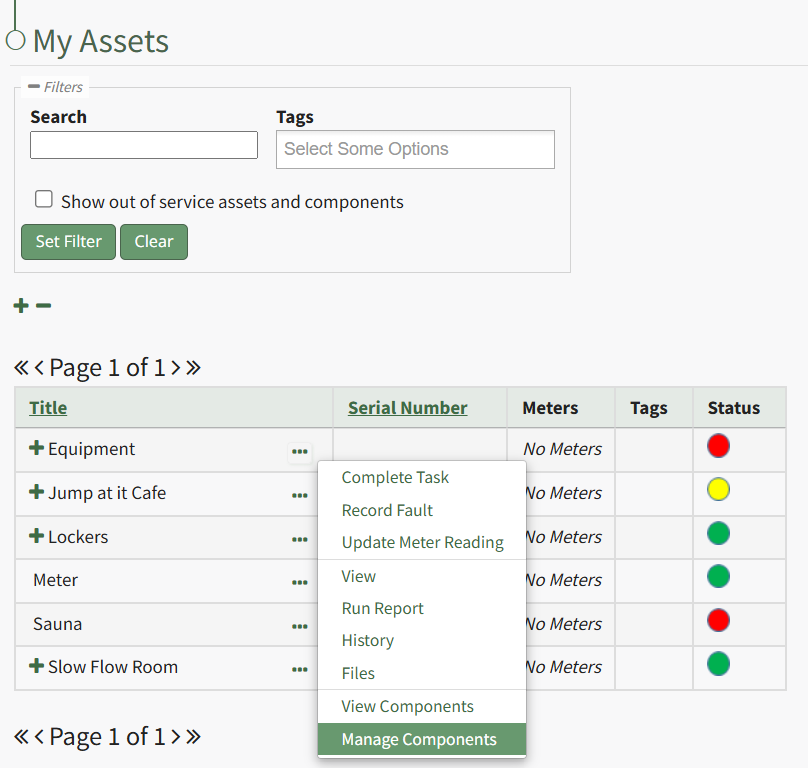
Select the "Manage Components" option, opening the Manage Asset Components Page.
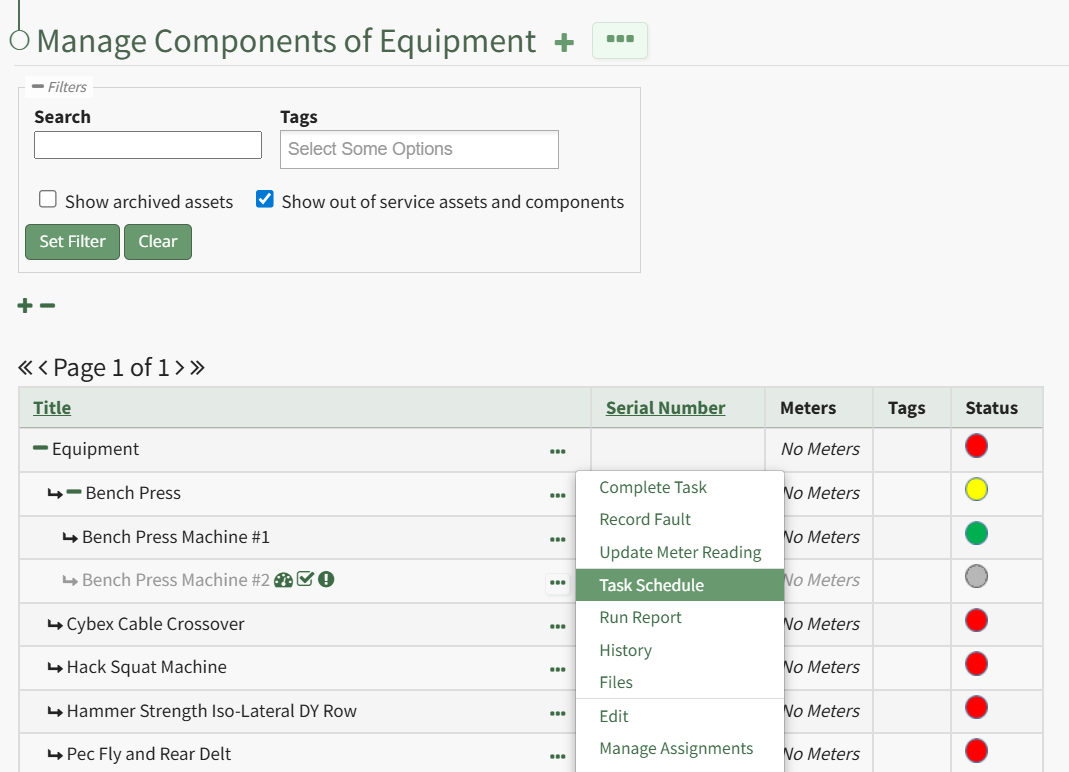
Select the three-dot icon to the right of the asset/component you wish to add interim notes to and select Task Schedule from the context menu.
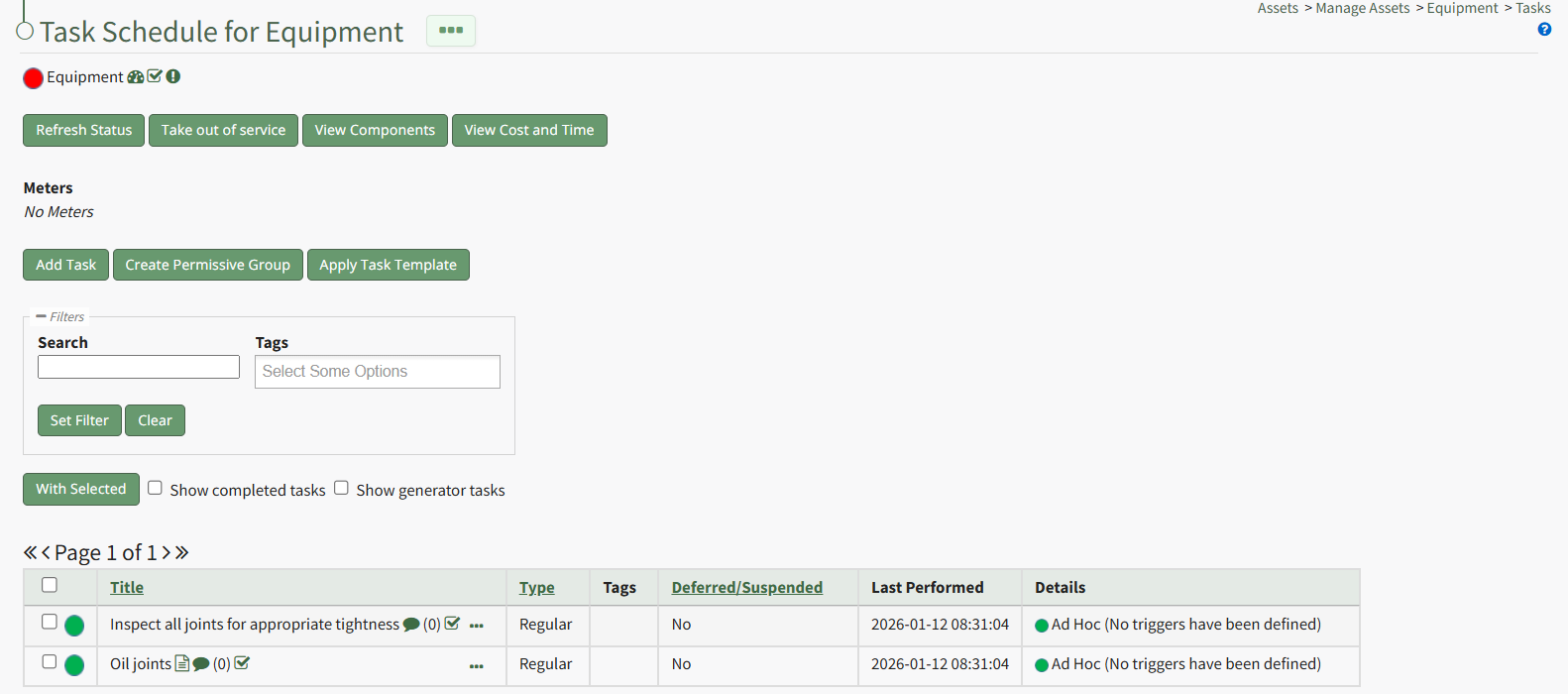
This opens the asset's Task Schedule Page.
Select the dialogue icon to the right of the task you wish to add a note to, expanding the task table to show a textbox for interim notes between maintenance.

Input the desired notes and select the "Add" button.
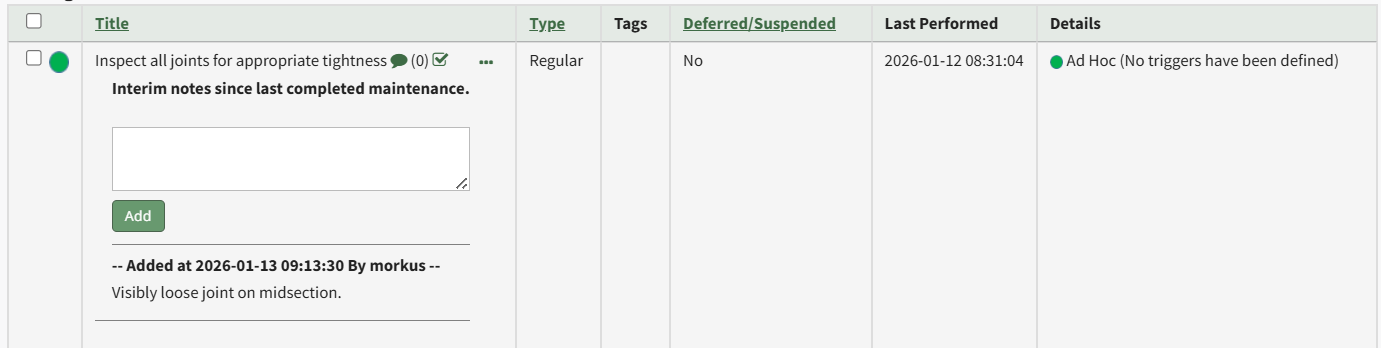
The note will now show beneath the textbox. The system automatically includes a time/date stamp and the User ID of the individual that added the note.
How To: Add Meters to a Task Template
To add a meter to a task template, go the the Task Template Tab on the Settings Page of the Assets Module.
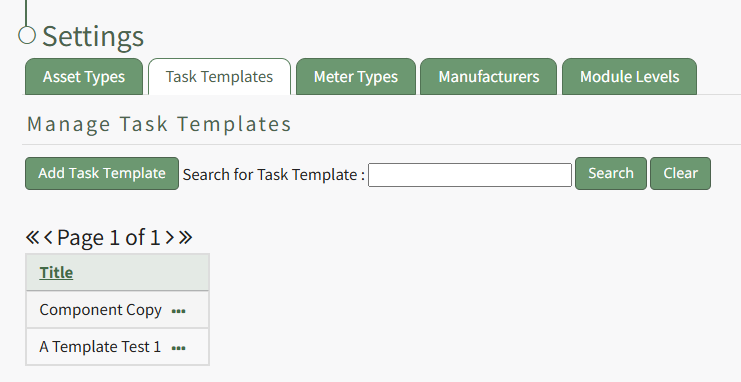
Select the three-dot icon to the right of the task template you wish to add a meter to, opening the task template context menu. Select "Meters".
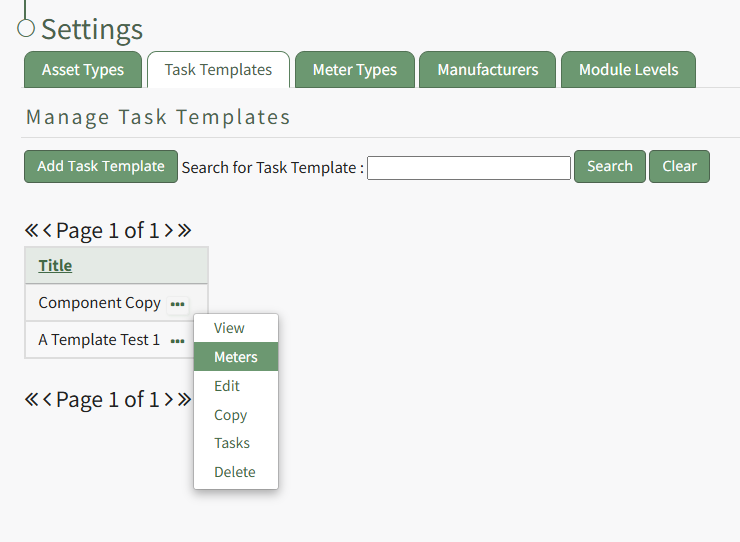
This opens the Meters for Task Templates Modal.
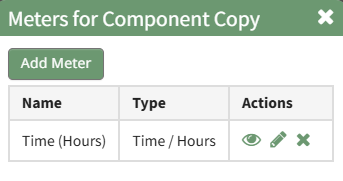
Select the "Add Meter" button, opening the Add Meter Modal.

Specify the Meter Type and input a title and any relevant notes regarding the new meter for the task template.
The fields visible on the Add Meter Modal will vary based on the meter type selected.
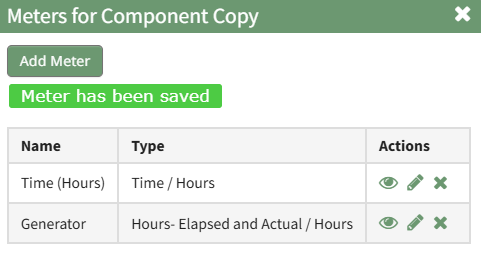
Select "Save" and the new meter will show on Meter Modal for the task template.
How To: Add Tasks to a Task Template
To add tasks to a task template, go to the Task Template Tab on the Settings Page of the Assets Module.
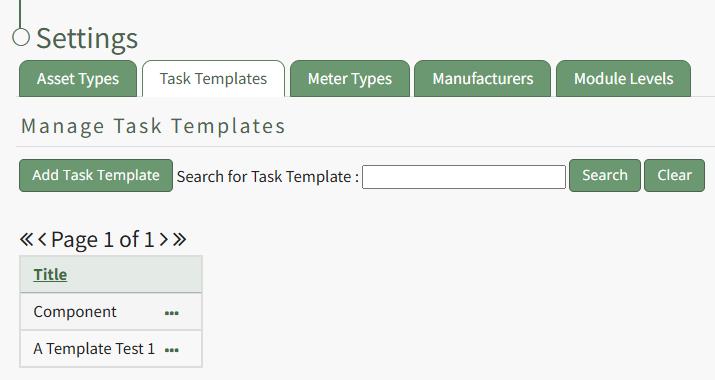
Select the three-dot icon to the right of the task template you wish to add a task to opening the Task Template Context Menu. Select "Tasks".
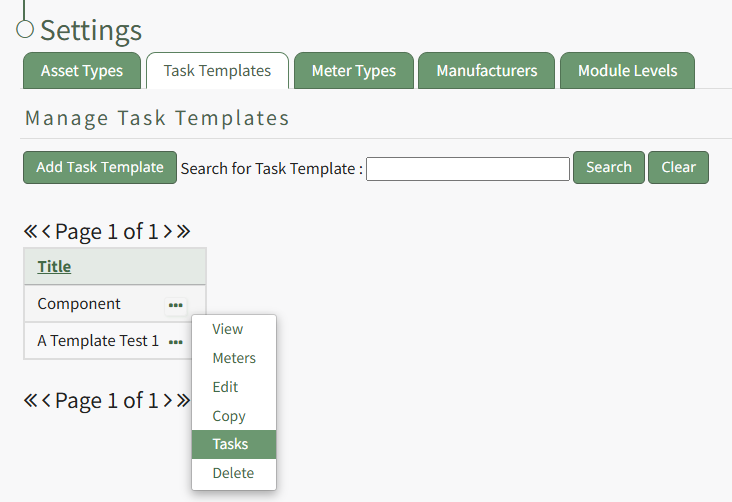
This opens the Task Template Task Schedule. Select the "Add Task" button beneath the page header.
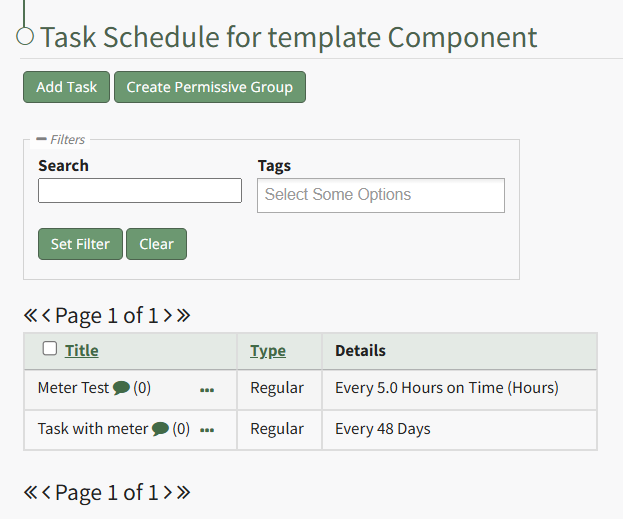
This opens the New Task Modal.
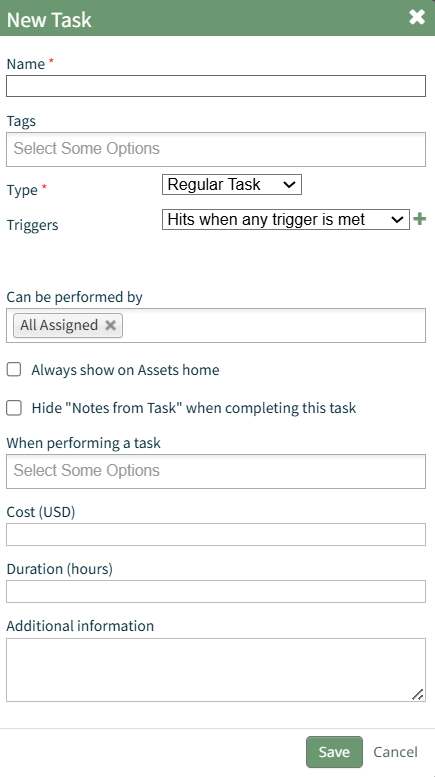
Input the information for the New Task and select the "Save" button.
For a detailed explanation on creating new tasks, refer to the How To Add a Task to an Asset.
How To: Create a New Task on the Task Schedule
There are three tables in the People Module than can be customized for your organization's specific needs.
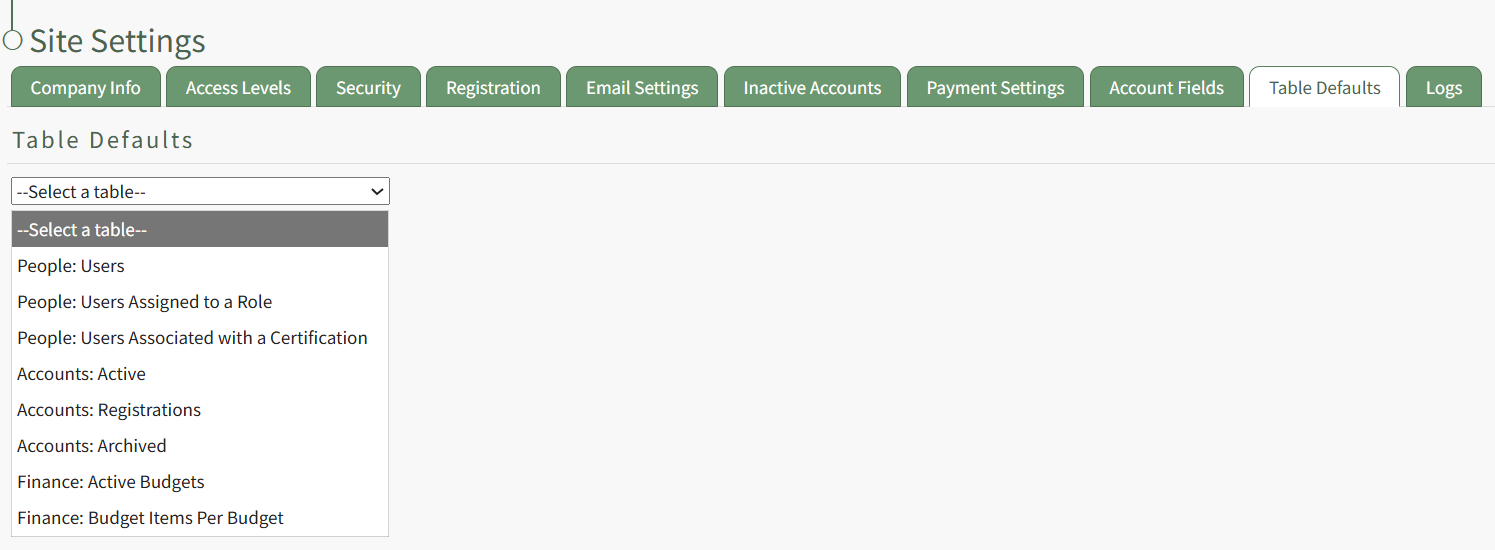
The Users Table (on the Users Page of the People Module), the Users Assigned to a Role Table (on the Assigned Users Tab of a certification role's Details Page), and the Users Associated with a Certification Table (on the Associated Users Tab of a certification's Details Page) are all customizable.
How To: Edit the People Module Users Table
To edit the Users Table in the People Module, go to the Table Defaults Tab in the Site Settings Module.
Select “People: Users” from the dropdown menu.
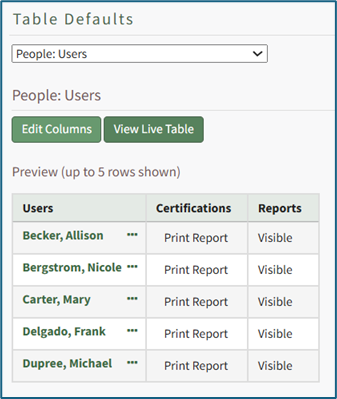
Select the “Edit Columns” button, opening the Choose Columns Modal. The default column choices include users, certifications, reports, username, email, first name, last name, employee ID, phone, Address 1, and Address 2.
Customizable account information fields can be created on the Account Fields Tab of the Site Settings Module.
How To: Add a Custom/Additional User Account Information Field
{{@856}}
The bars icon allows the columns to be positioned in the order of your choosing.
Click “Cancel” to return to the Table Defaults Tab without making any changes.
Select the “Save” button to make the desired changes and return to the Table Defaults Tab. A preview of the first five rows of the table is shown. Select the “View Live Table” button to be directed to the live table in the People Module.
How To: Edit the People Module Users Assigned to a Role Table
To edit the Users Assigned to a Role Table in the People Module, go to the Table Defaults Tab in the Site Settings Module.
Select “People: Users Assigned to a Role” from the dropdown menu.
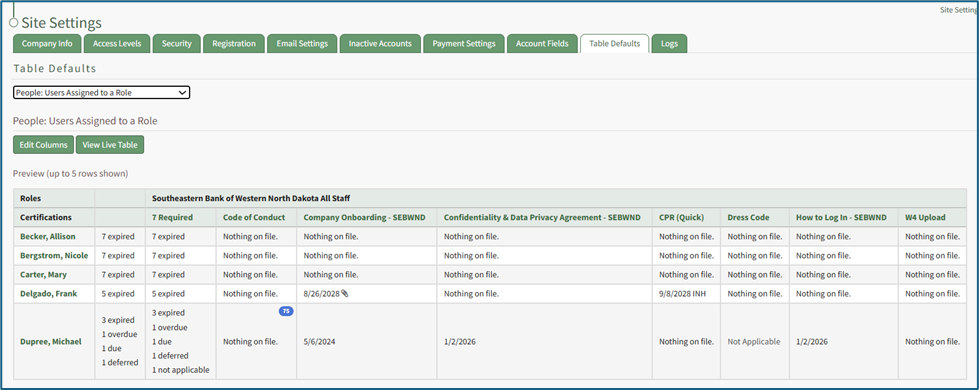
Select the “Edit Columns” button, opening the Choose Columns Modal. The default column choices include name, username, email, first name, last name, employee ID, phone, Address 1, and Address 2.
Customizable account information fields can be created on the Account Fields Tab of the Site Settings Module.
How To: Add a Custom/Additional User Account Information Field
{{@856}}
The bars icon allows the columns to be positioned in the order of your choosing.
Click “Cancel” to return to the Table Defaults Tab without making any changes.
Select the “Save” button to make the desired changes and return to the Table Defaults Tab. A preview of the first five rows of the table is shown. Select the “View Live Table” button to be directed to the live table in the People Module.
How To: Edit the People Module Users Associated with a Certification Table
To edit the Users Associated with a Certification Table in the People Module, go to the Table Defaults Tab in the Site Settings Module.
Select “People: Users Associated with a Certification” from the dropdown menu.

Select the “Edit Columns” button, opening the Choose Columns Modal. The default column choices include: name, username, certification expiration date, attachment(s), time until expiration, required, other required certification, email, first name, last name, employee ID, phone, Address 1, and Address 2.
Customizable account information fields can be created on the Account Fields Tab of the Site Settings Module.
How To: Add a Custom/Additional User Account Information Field
{{@856}}
The bars icon allows the columns to be positioned in the order of your choosing.
Click “Cancel” to return to the Table Defaults Tab without making any changes.
Select the “Save” button to make the desired changes and return to the Table Defaults Tab. A preview of the first five rows of the table is shown. Select the “View Live Table” button to be directed to the live table in the People Module.
Customizable user account information fields can be created and utilized in the tables as needed.
How To: Add a Custom / Additional User Account Information Field
To add a user account information field, open the Account Fields Tab in the Site Settings Module from the Main Menu.
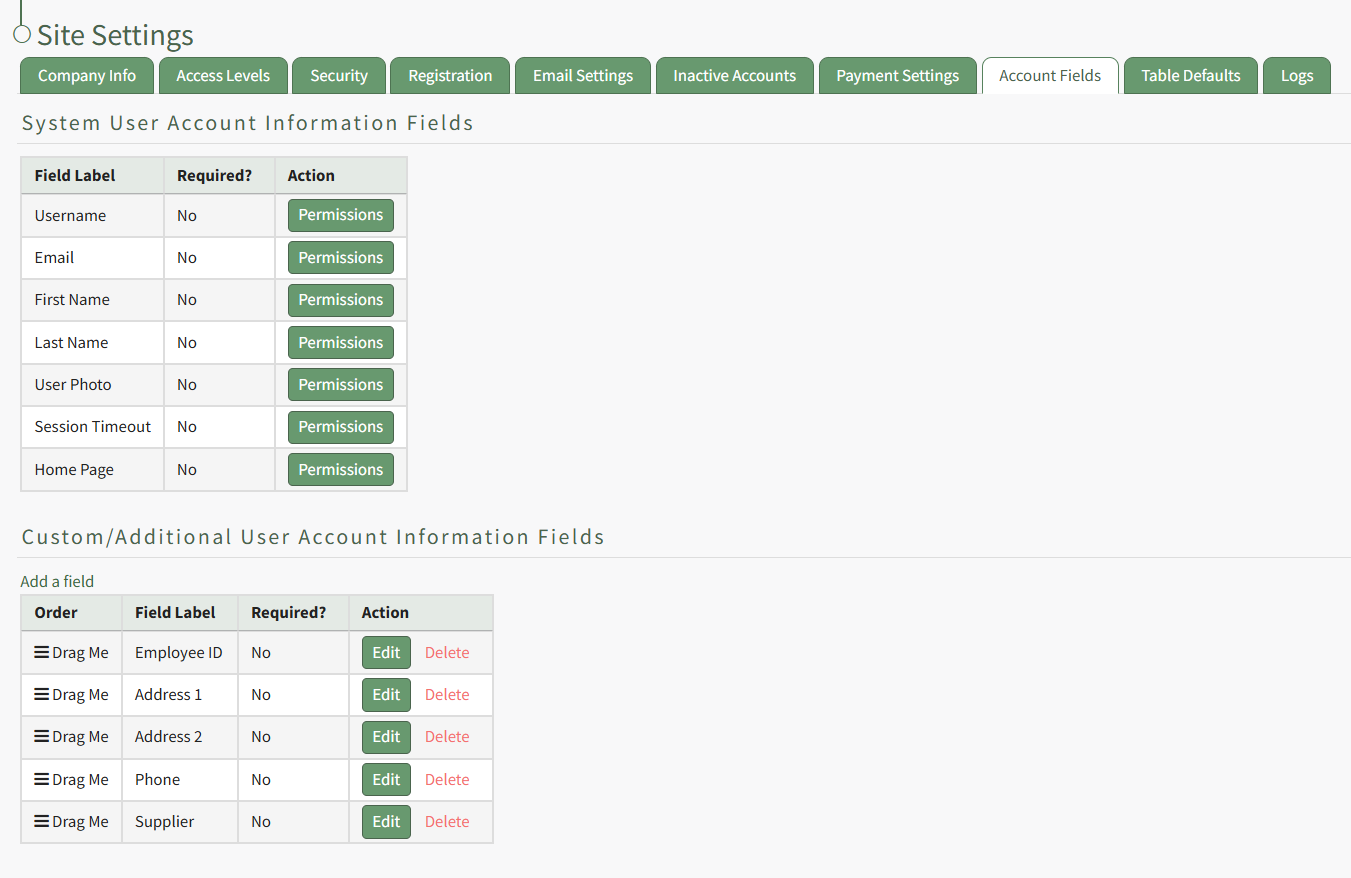
Click the "Add a Field" clickable link above the Custom / Additional User Account Information Fields opening the Add Field Modal.
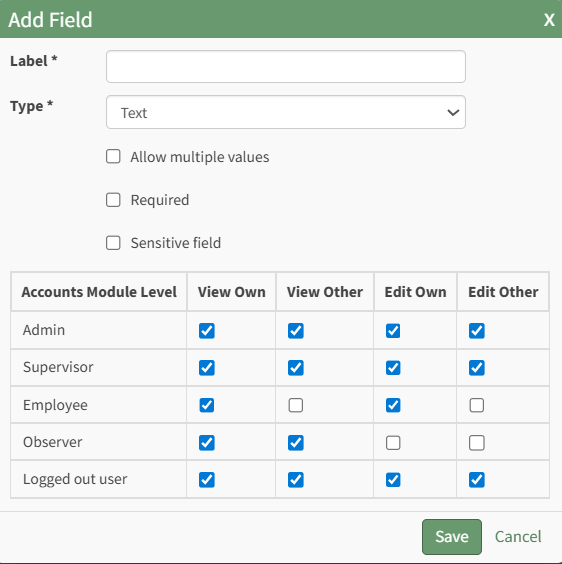
Input the label for the field.
Select the field type (text or email) from the dropdown menu.
Selecting the checkbox enables customization to "Allow multiple values," make the field "Required," or make it a "Sensitive Field."
Designating the field as a "Sensitive Field" allows an extra step in form security when integrating these fields within the Form module. The Form Designer must explicitly choose when they wish to use a sensitive field.
The Permissions Table determines who can view / edit their own and other user's fields. Selecting the checkbox gives the individual the specified permission. Deselecting the checkbox removed the permission.
Select the "Save" button and the custom field now shows in the table.
Use the Drag Me icon to drag and drop the field into your desired position of choice.
A pop up confirms that the task has been saved.

The new task now shows on the task schedule for the task template.
How To: Apply a Task Template to the Task Schedule
To apply a task template to the task schedule for bulk task creation, open the Task Schedule Page of the asset you want to apply a task template to.
How To: Apply a Task Template to the Task Schedule
To apply a task template to the task schedule for bulk task creation, open the Task Schedule Page of the asset you want to apply a task template to.
How To: Apply a Task Template to the Task Schedule
To apply a task template to the task schedule for bulk task creation, open the Task Schedule Page of the asset you want to apply a task template to.
How To: Apply a Task Template to the Task Schedule
{{@497}}
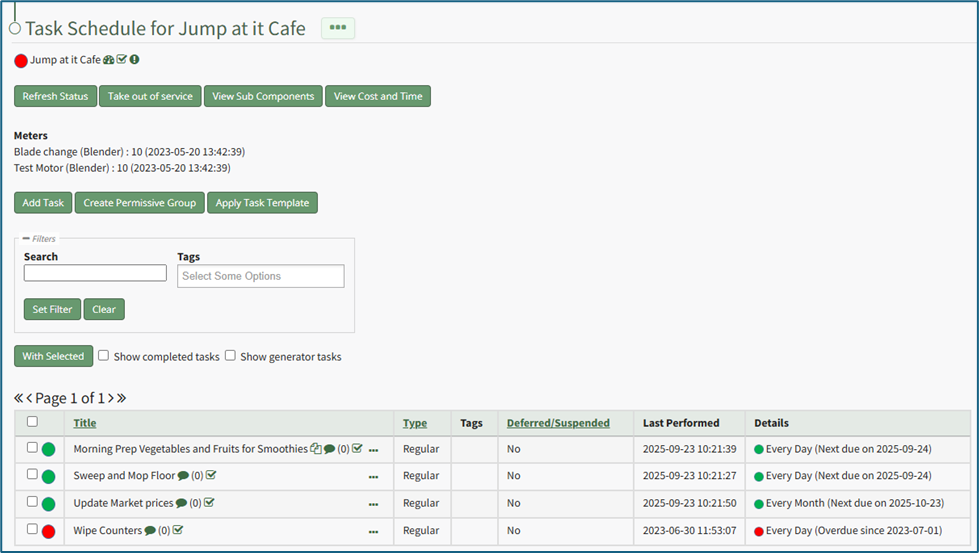
Selecting the “Apply Task Template” button opens the Apply Task Template Modal that allows the user to copy tasks from a template into the task schedule for an asset or its components. This feature allows a user to utilize bulk task schedule creation if they have to track several assets that share identical task schedules.
A user will still be required to establish meters, due dates, and meter readings for each individual task in the task template.
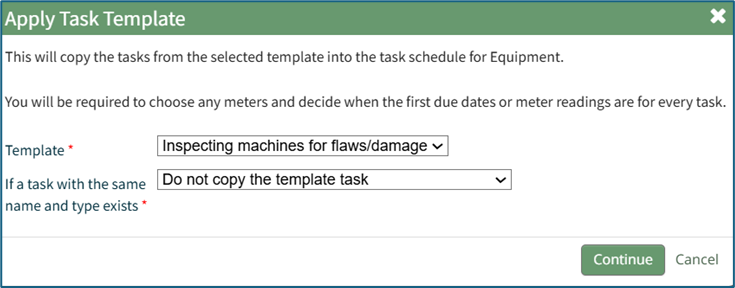
Select the template from the dropdown list that you with to utilize.
New Task Templates can be created on the Task Template Tab on the Settings Page of the Assets Module.
How To: Create a New Task Schedule Template
{{@471}}
Select the “Continue” button, opening the Configure Template Page.
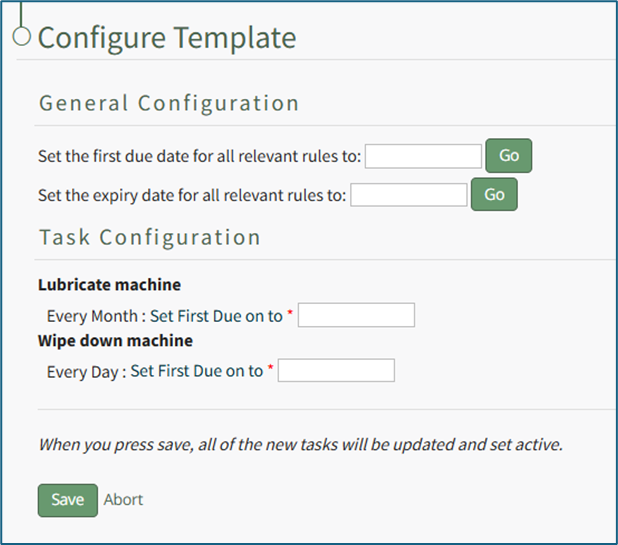
Input the first due date for all relevant rules under General Confirguration. Select the "Go" button to the right. The system will automatically input the dates for the Task Configuration.
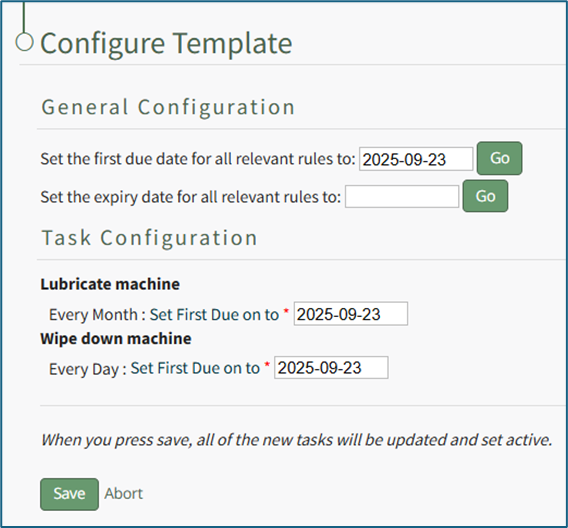
Once the task template has been configured, select “Save” and all of the new tasks will be updated and set active.
Select “Abort” and a Confirmation Modal opens, stating, “Are you sure you wish to abort this template configuration?”
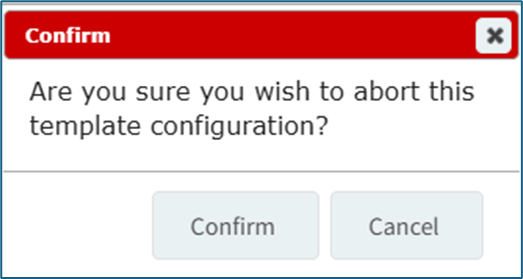
Select “Confirm” to return to the asset's Task Schedule Page without any changes made.
Selecting the “Apply Task Template” button opens the Apply Task Template Modal that allows the user to copy tasks from a template into the task schedule for an asset or its components. This feature allows a user to utilize bulk task schedule creation if they have to track several assets that share identical task schedules.
A user will still be required to establish meters, due dates, and meter readings for each individual task in the task template.
Select the template from the dropdown list that you with to utilize.
New Task Templates can be created on the Task Template Tab on the Settings Page of the Assets Module.
How To: Create a New Task Schedule Template
To create a new task schedule template, open the Task Template Tab on the Settings Page in the Assets Module.
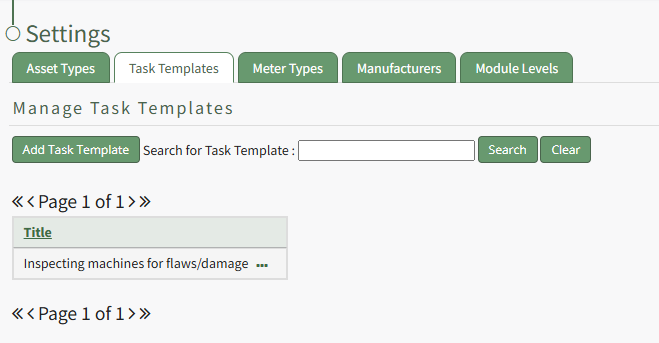
Click the “Add Task Template” button, opening the New Task Template modal.
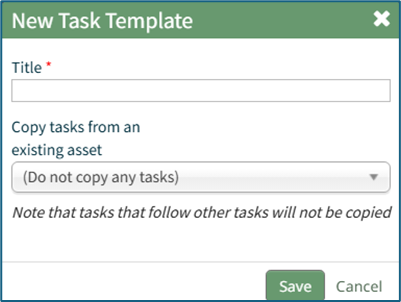
Input the desired Title for the new task template.
Select which asset or component whose task schedule you want to create the template from.
Click “Save” and the new task template will show in the Task Template Table.
Tasks that follow other tasks will not be copied into the Task Template.
Select the “Continue” button, opening the Configure Template Page.
Input the first due date for all relevant rules under General Confirguration. Select the "Go" button to the right. The system will automatically input the dates for the Task Configuration.
Once the task template has been configured, select “Save” and all of the new tasks will be updated and set active.
Select “Abort” and a Confirmation Modal opens, stating, “Are you sure you wish to abort this template configuration?”
Select “Confirm” to return to the asset's Task Schedule Page without any changes made.
Selecting the “Apply Task Template” button opens the Apply Task Template Modal that allows the user to copy tasks from a template into the task schedule for an asset or its components. This feature allows a user to utilize bulk task schedule creation if they have to track several assets that share identical task schedules.
A user will still be required to establish meters, due dates, and meter readings for each individual task in the task template.
Select the template from the dropdown list that you with to utilize.
New Task Templates can be created on the Task Template Tab on the Settings Page of the Assets Module.
How To: Create a New Task Schedule Template
To create a new task schedule template, open the Task Template Tab on the Settings Page in the Assets Module.
Click the “Add Task Template” button, opening the New Task Template modal.
Input the desired Title for the new task template.
Select which asset or component whose task schedule you want to create the template from.
Click “Save” and the new task template will show in the Task Template Table.
Tasks that follow other tasks will not be copied into the Task Template.
Select the “Continue” button, opening the Configure Template Page.
Input the first due date for all relevant rules under General Confirguration. Select the "Go" button to the right. The system will automatically input the dates for the Task Configuration.
Once the task template has been configured, select “Save” and all of the new tasks will be updated and set active.
Select “Abort” and a Confirmation Modal opens, stating, “Are you sure you wish to abort this template configuration?”
Select “Confirm” to return to the asset's Task Schedule Page without any changes made.
How To: Archive an Asset or Component
To archive an asset or component, go to the Manage Assets Page of the Assets Module on the main menu. Use filters as needed to identify the asset or component you want to archive and click the three-dot icon to the right of the asset title opening the Manage Asset Context Menu.
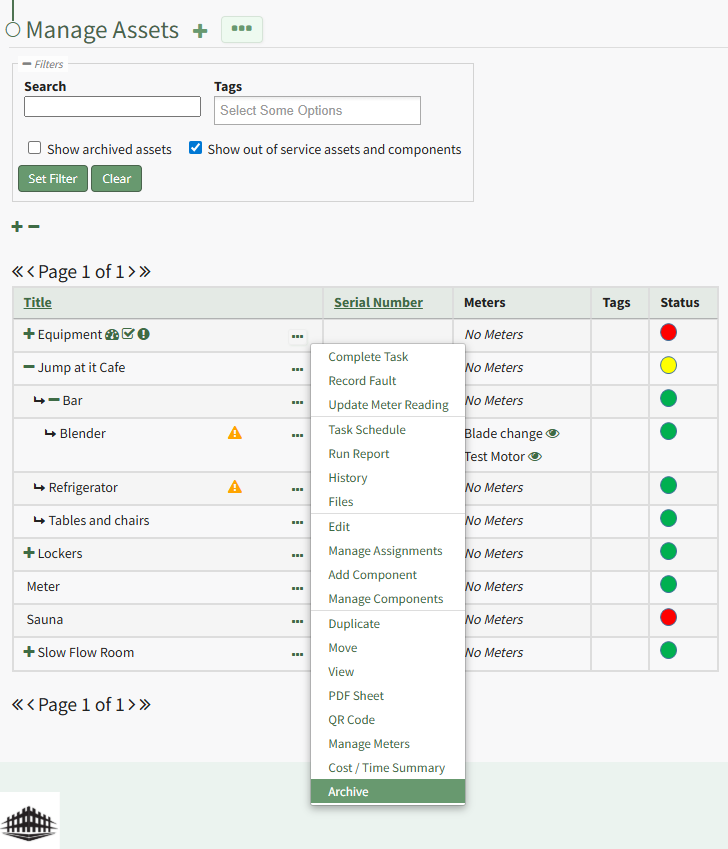
Select "Archive" from the context menu opening the Archive Asset Confirmation Modal which states, "Are you sure you want to archive this asset? This will also archive any components."
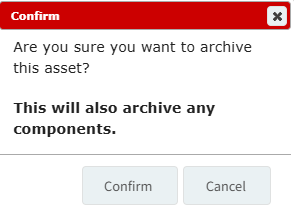
Click the "Confirm" button and the asset will not be assigned an archive status.
How To: Assign / Unassign Users and Certification Roles to an Asset
To assign or unassign users and certification roles for a specific asset, open the Manage Asset Pages in the Assets Module on the Main Menu. Use filters as needed and identify the asset/component you want to assign/unassign users and roles to. Click the three-dot icon to the right of the asset title opening a context menu.
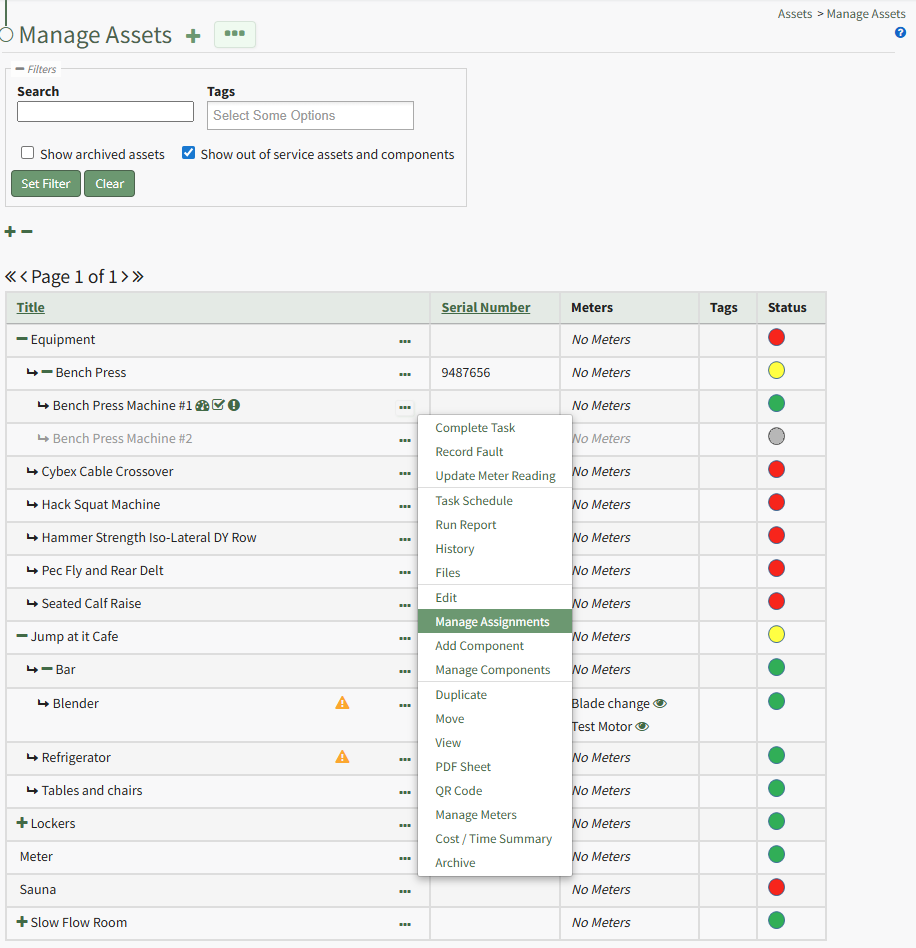
Select "Manage Assignments" from the context menu opening the Asset Assignments Modal.

Click in the textbox beneath Assignments and a dropdown menu will allow you to assign the asset to multiple individuals or certification roles.
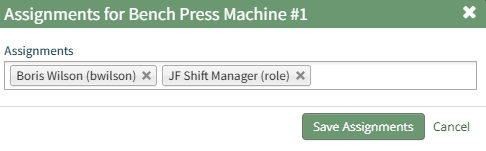
To unassign an individual, click the X icon to the right of the user name or certification role.
When done, select the "Save Assignments" button.

A popup confirms that the asset assignments were saved.
How To: Attach an Asset Library File to an Asset
To attach an Asset Module library file to an asset, open the Manage Assets Page in the Assets Module on the Main Menu. Click the three-dot icon to the right of the asset title opening the Asset Management Context Menu.
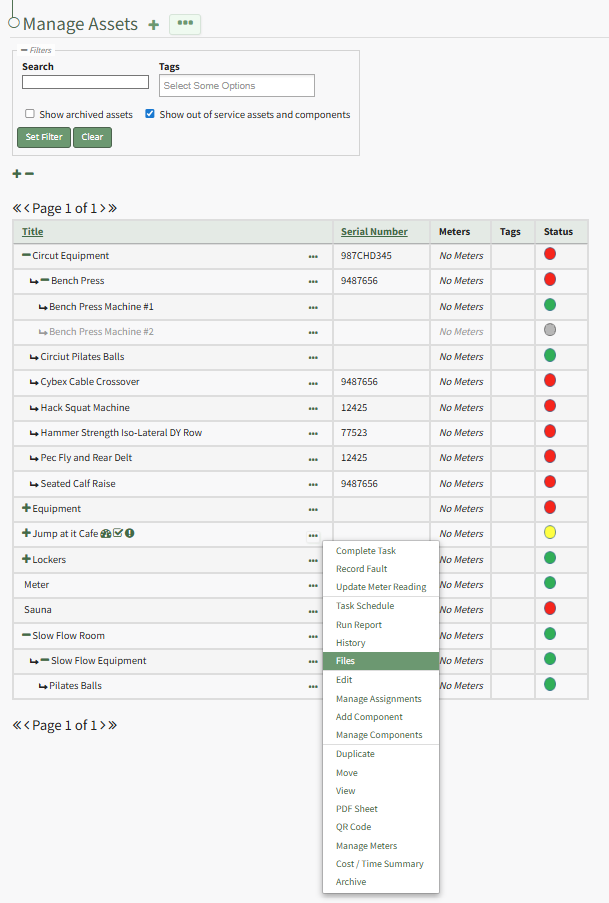
Select "Files" from the context menu opening the Asset Files Modal.
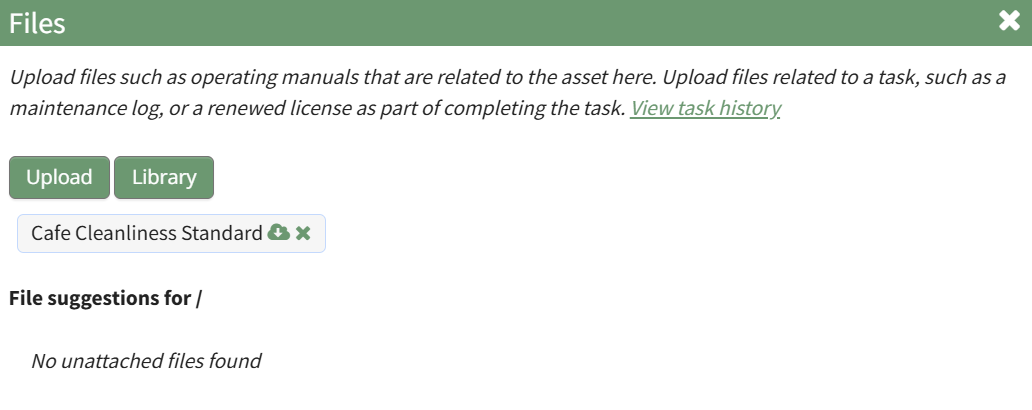
Select the “Library” button to open the Library Modal.
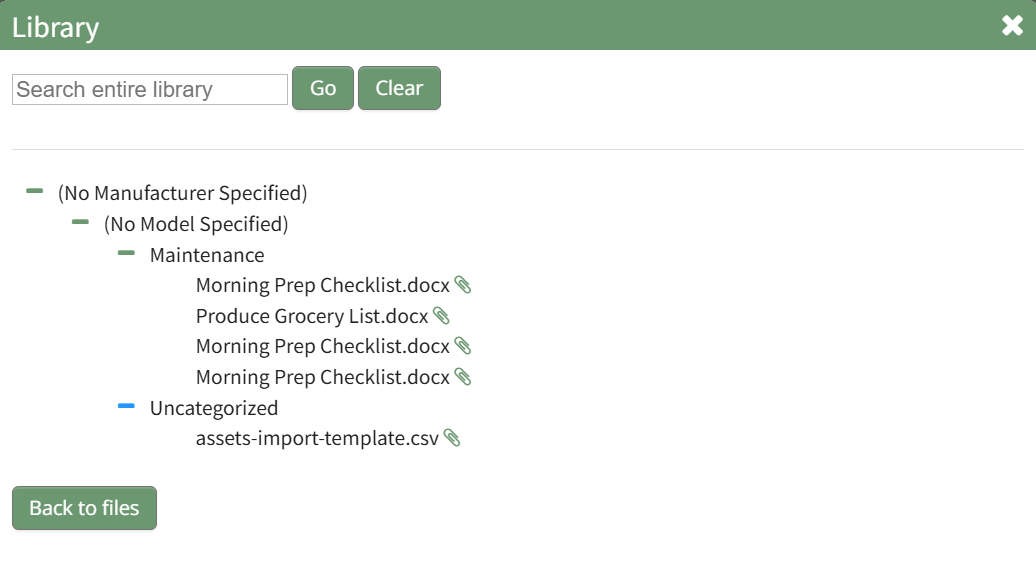
Input the file name or a word in the title and press “Go” to search for the file. Use the plus and minus sign icons to expand and collapse the modal.
Click the paperclip icon to attach the file to the asset. The new file will now show in the asset's Files Modal.
How To: Bulk Assign / Unassign Assets
To bulk assign / unassign users to assets, open the Manage Asset Page in the Assets Module on the Main Menu. Click the three-dot icon to the right of the Manage Assets Page header opening the Manage Assets Page Context Menu.
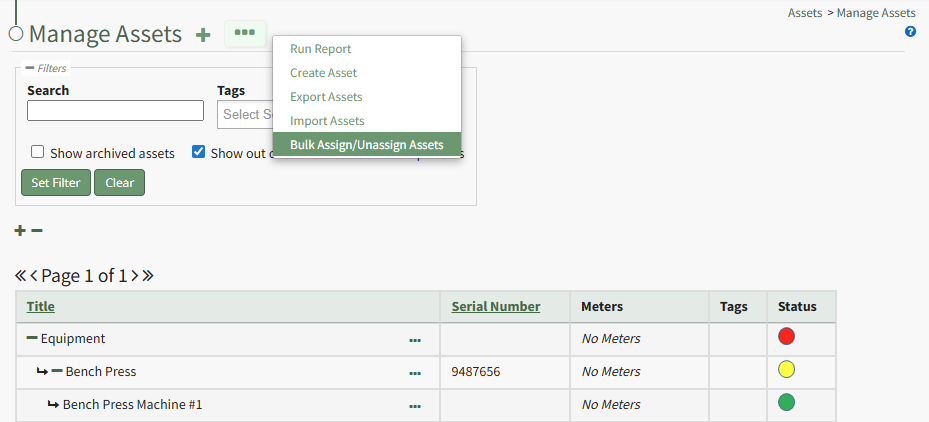
Select “Bulk Assign/Unassign Assets” from the context menu to open the Bulk Assign/Unassign Page.

From the User/Certification Role dropdown menu, select the individual user or certification role that you wish assign/unassign assets to. The Bulk Assignment Table is now visible.
Selecting the plus or minus sign icon to the left of the filter box will expand/collapse the assets and their components in the table. Selecting the plus or minus sign icon to the left of the asset title in the table will expand/collapse the specified asset.
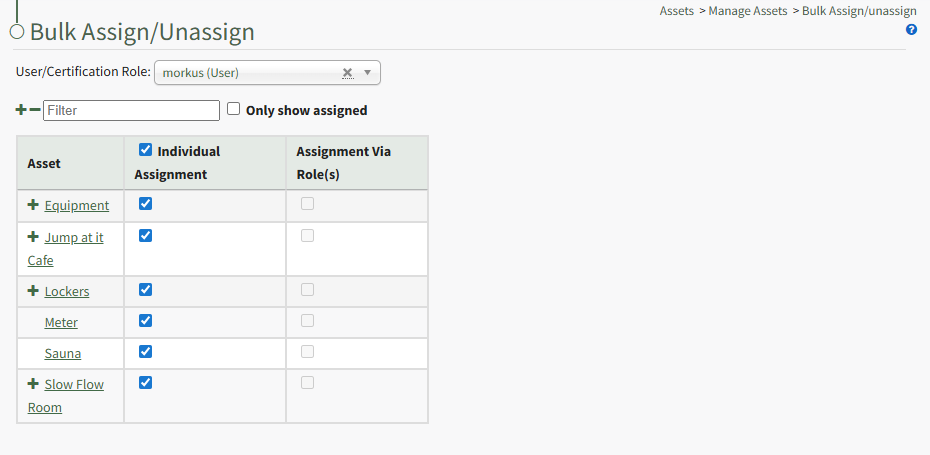
Selecting the checkbox assigns the asset to the user/certification role.
Deselecting a checkbox unassigns the asset from the user/certification role.
Changes are automatic on the Bulk Assign/Unassign Page and do not need to be saved to be reflected in the system.
How To: Bulk Export Asset Information
To bulk import asset information using a CSV file, open the Manage Assets Page from the Main Menu in the Assets Module and click the three dot (…) icon to the right of the page header to open the Manage Assets Page Context Menu.
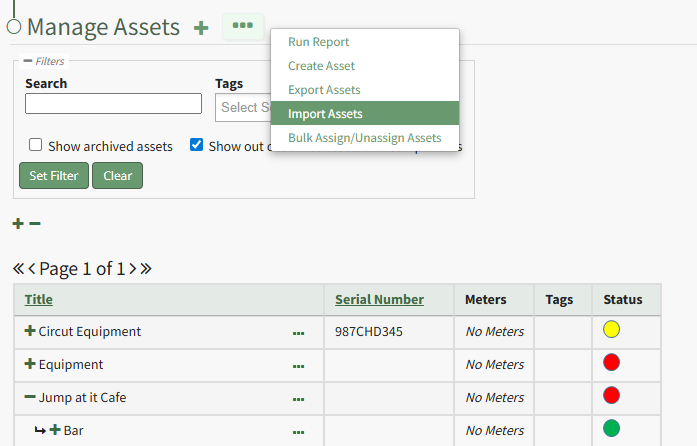
Click “Import Assets” from the context menu to open the Import Assets Modal
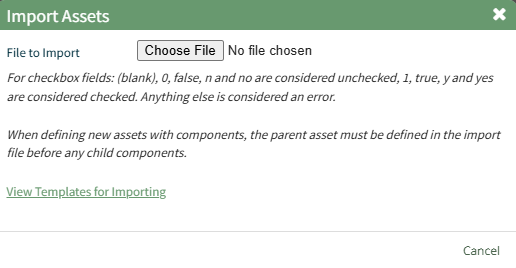
A template for importing assets in bulk has been provided and can be downloaded to your personal device by clicking “View Templates for Importing.” Each of the columns in the downloaded CSV are specific to the asset type and are listed in the order as they are defined.
Helpful Hints for Bulk Importing Asset Information | |
Field | Comments / Notes |
Temp ID for Create New | |
Modify Existing on Import | |
Exist ID | This is a unique ID generated by the system. If assets have already been created, download an export to identify the ExistID. |
Parent ID | Input the ExistID generated by KAStrack for the parent asset/component. Export all assets to determine what the ExistID is for the parent assets. |
Title | Input the asset title. |
Descriotion | Input a description for the asset. |
Manufacturer | Input the manufacturer of the asset. Leave blank if it does not apply. |
Model Number | Input the asset’s model number. Leave blank if it does not apply. |
Serial Number | Input the asset’s serial number. Leave blank if it does not apply. |
Critical Component | If the asset has a critical component designation, input Y. If the asset does not have a critical component designation, input N. |
Critical Spares | |
Tagging | |
Expired Cert Roles Allowed | To Leave the checkbox unchecked: [blank], 0, false, n, no To Select the checkbox: 1, true, y, yes |
Alert Past Due to OK Status | To Leave the checkbox unchecked: [blank], 0, false, n, no To Select the checkbox: 1, true, y, yes |
Alert on Change to Warn Status | To Leave the checkbox unchecked: [blank], 0, false, n, no To Select the checkbox: 1, true, y, yes |
Alert on Change to Past Due Status | To Leave the checkbox unchecked: [blank], 0, false, n, no To Select the checkbox: 1, true, y, yes |
Asset Type | When uploading mixed asset types, the last field of the CSV must be the asset type (or blank for no asset type). |
When your CSV file with new account information is complete, ensure it is saved with the CSV format UTF-8.
Click “Choose File” and select the correct CSV file from your computer. Click the “Next >” button opening the Import Assets Page.
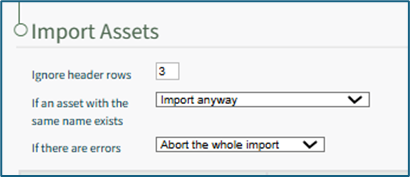
Input the number of header rows in your file that are to be ignored by KAStrack in the import.
Specify your preference on how the system should respond if an asset with the same name already exists from a dropdown menu. Options include Import anyway, Import if the duplicate is elsewhere, Do not import the asset, and Abort the whole import.
Specify your preference on how the system should respond if if there are errors with the import from a dropdown menu. Options include Abort the whole import or Import rows without headers.
If you downloaded a CSV template, the columns labels should already match the system requirements. If you created your own CSV headers, select the correct column header to be associated with each asset field.

To abandon the import, select the “Cancel” button at the bottom of the screen.
To complete the import, select the “Import” button at the bottom of the screen.
The system will confirm the import was successful.
How To: Bulk Import Asset Information
To bulk export asset information as a .csv file, select the Manage Assets Page from the Main Menu in the Assets Module and click the three dot (…) icon to the right of the page header opening the Manage Assets Page Context Menu.
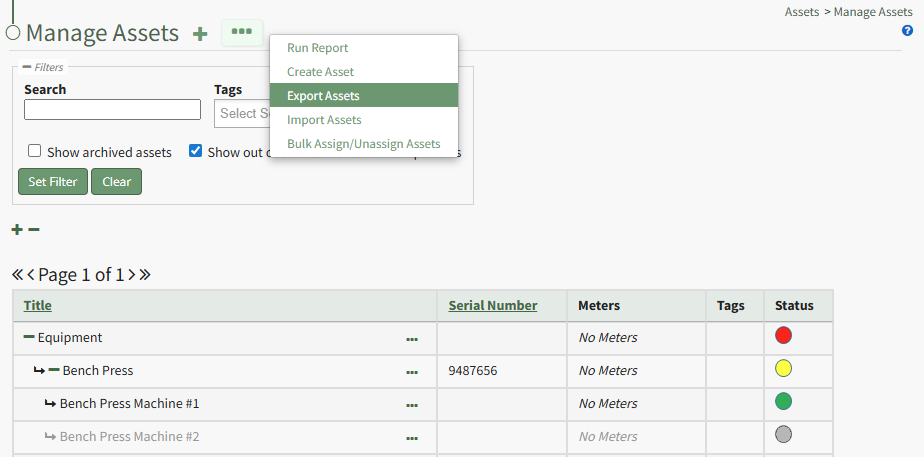
Select “Export Assets” from the context menu to open the Export Assets Modal.
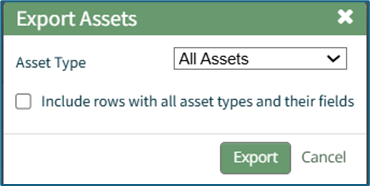
The Asset Type dropdown menu offers the option to export “All Assets,” “No Asset Type,” or individual asset types.
Asset types and unique fields created for specific asset types can be included in the export by selecting the “Include rows with all asset types and their fields” checkbox.
Select the “Export” button to export asset information as a CSV file to your personal device’s downloads folder.
How To: Change a Manufacturer's Name
To edit the name of a manufacturer, go to the Manufacturers Tab on the Settings Page of the Assets Module. Select the three-dot icon to the right of the manufacturer whose name you wish to change.
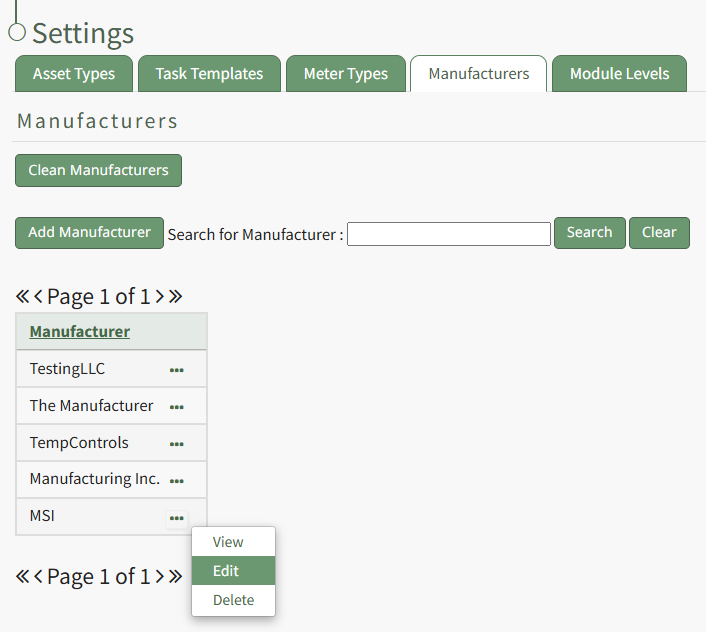
Select "Edit" from the Manufacturers Context Menu opening the Edit Manufacturer Modal.

Make the necessary changes and select the "Save" button.
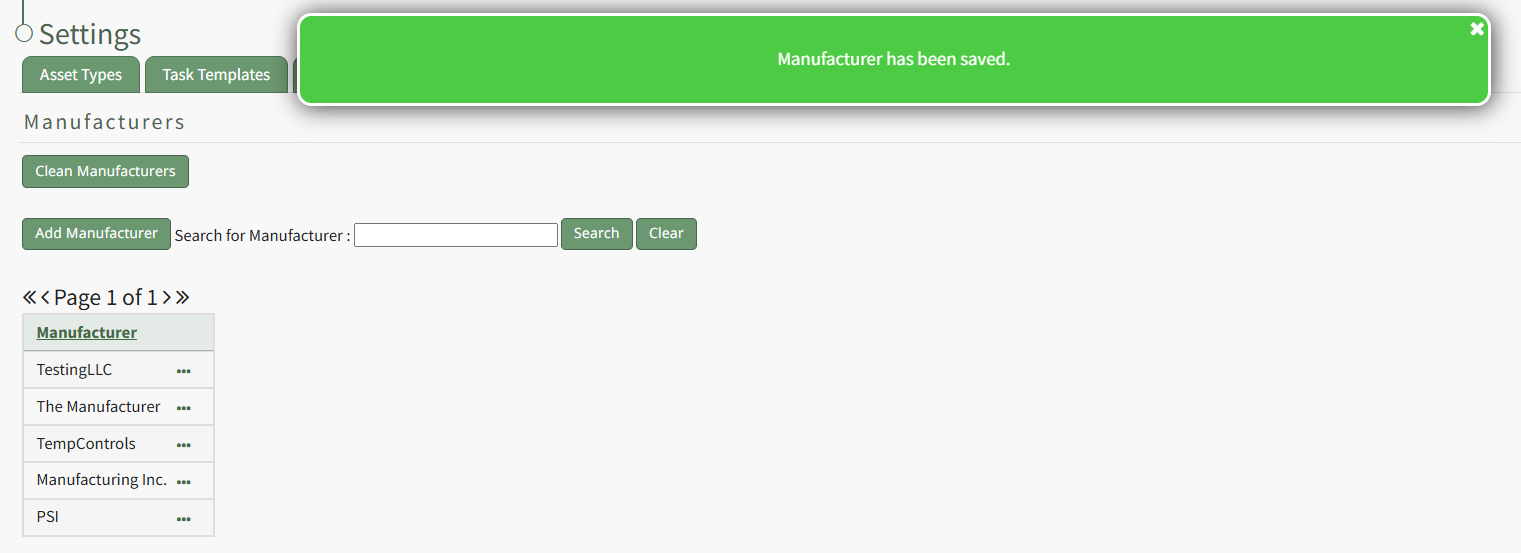
A pop up confirms that the edits to the Manufacturer have been saved, and the changes are now reflected in the Manufacturers Table.
How To: Change a Task Template Name
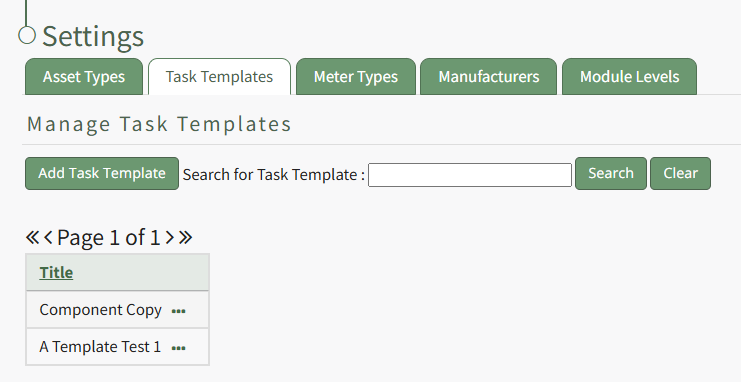
To change a task template name, go to the Task Template Tab on the Settings Page of the Assets Module.
Click the three-dot icon to the right of the Task Template whose title you wish to change and select "Edit" from the Task Template Context Menu.
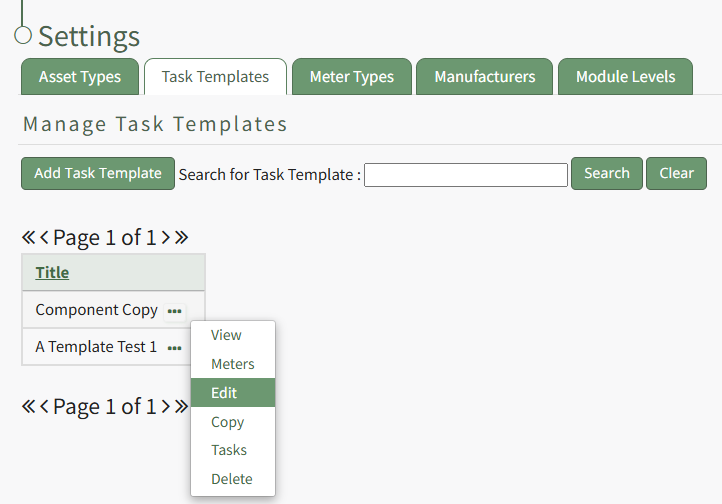
This opens the Edit Task Template Modal, where the name can be altered.
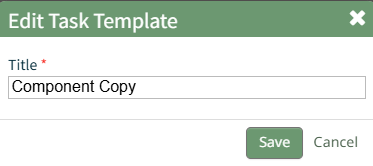
Make the desired changes and select the "Save" button. A pop up confirms that the template has been edited, and the change is reflected on the Task Template Table.
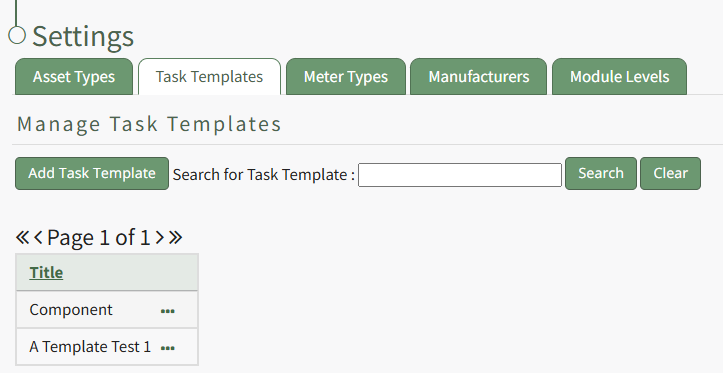
How To: Change an Asset Type Name
To change an Asset Type name, go to the Asset Type Tab on the Settings Page of the Assets Module. Click the three-dot icon to the right of the Asset Type whose name you wish to change, opening the Asset Type Context Menu.
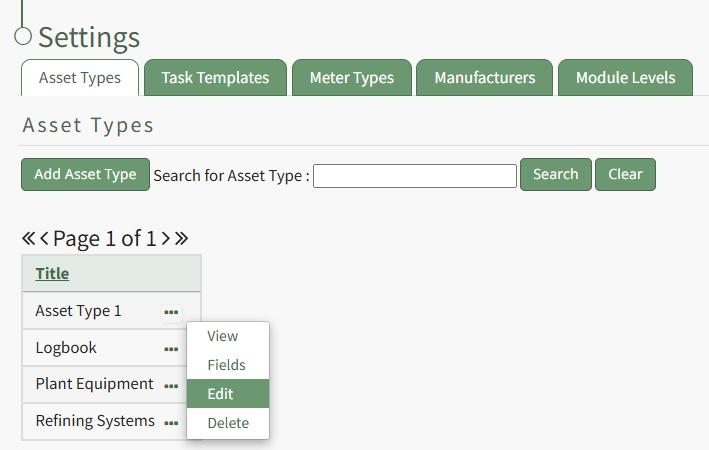
Select "Edit" opening the Edit Asset Type Modal.
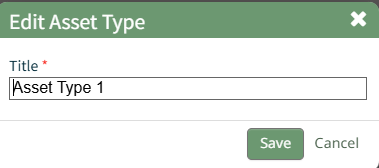
Edit the Asset Type name as desired and select the "Save" button. A pop up confirms that they asset type has been edited, and the changes in the title are now reflected on the Asset Type Table.
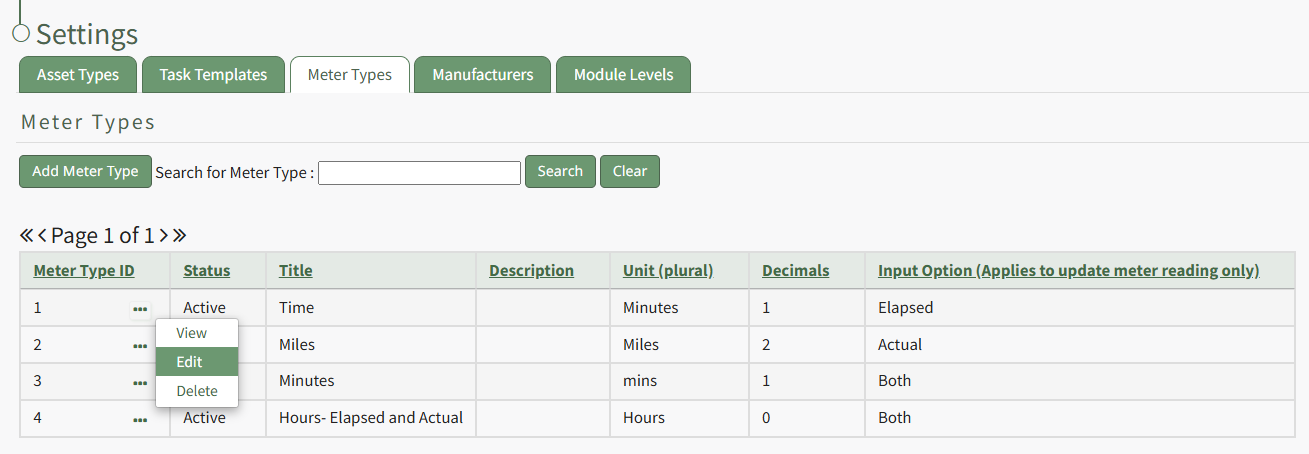
How To: Change the Status of a Meter Type
To change the status of a meter type, go to the Meter Types Tab on the Settings Page of the Assets Module. Select the three-dot icon to the right of the meter type ID whose status you want to change opening the Meter Types Context Menu.
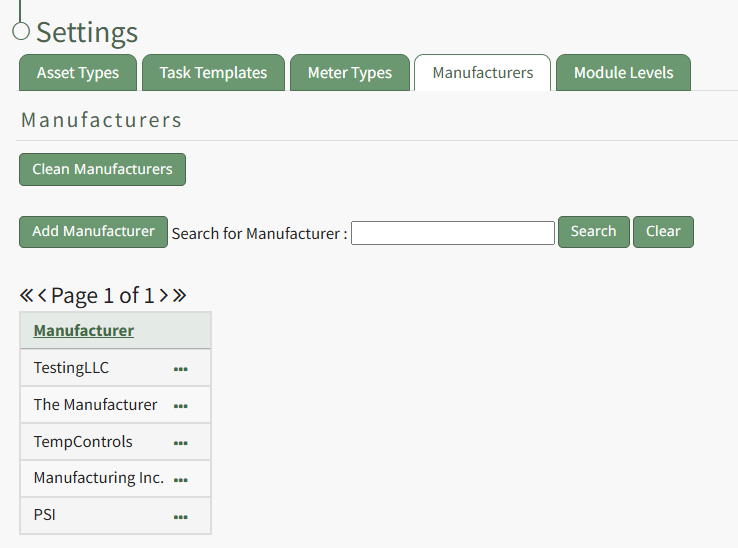
How To: Clean Manufacturers
To clean your manufacturers table, go to the Manufacturers Tab on the Settings Page of the Assets Module.
Cleaning Manufacturers will remove any manufacturers with no name associated with them and to merge any duplicate manufacturers listed.
Click the "Clean Manufacturers" button beneath the Manufacturers header opening the Clean Manufacturers page which states, "Please do a backup first. When the backup is done, come back here and press continue." WIKI LINK HOW TO DO A BACKUP BEFORE CLEANING MANUFACTURERS
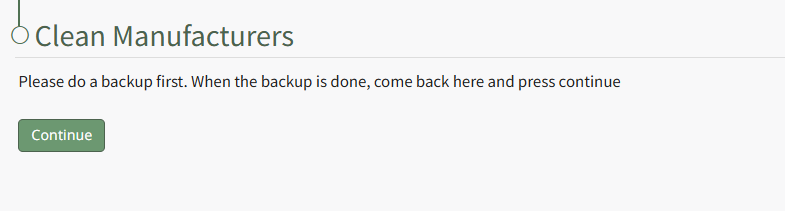
Select "Continue".
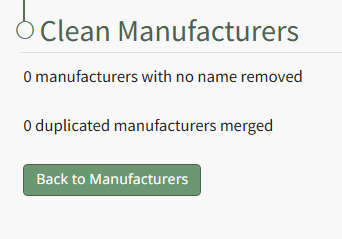
When the cleaning is complete, the system will state the number of manufacturers with no names removed and the number of duplicate manufactures merged. Click the "Back to Manufacturers" button to return to the Manufacturers Tab of the Settings Page.
How To: Copy and Rename a Task
To copy a task, open the Task Schedule Page for the asset that contains the task you wish to copy.
How To: View an Asset's Task Schedule
To view an asset's task schedule, open the Manage Assets Page in the Assets Module on the Main Menu. Use filters as needed and identify the asset/component whose task schedule you wish to view. Click the three-dot icon to the right of the asset title opening the Asset Management Context Menu.
Select the "Manage Components" option, opening the Manage Asset Components Page. Select the three-dot icon to the right of the asset/component you wish to add interim notes to and select Task Schedule from the context menu.
This opens the asset's Task Schedule Page.
Click the three-dot icon to the right of the task you wish to copy opening the Task Management Context Menu.
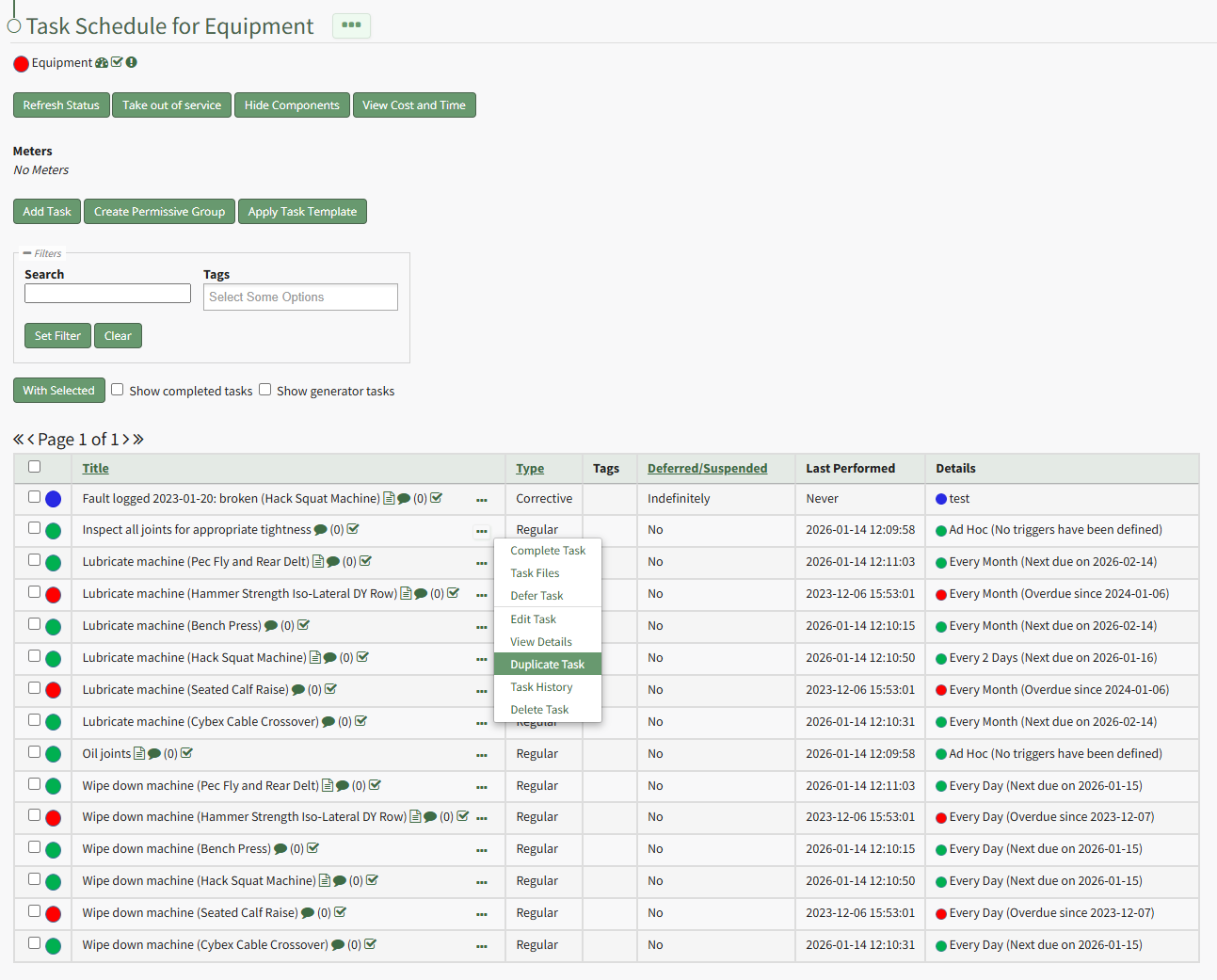
Select "Duplicate Task" opening the Copy Task Modal.
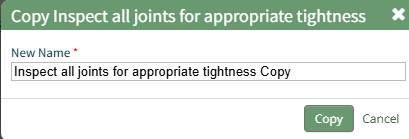
Edit the title of the task being copied and select the "Copy" button.
The newly copied task now shows on the asset's task schedule.
How To: Copy and Rename a Task Template
To copy and rename a task template, go to the Task Template Tab on the Settings Page of the Assets Module.
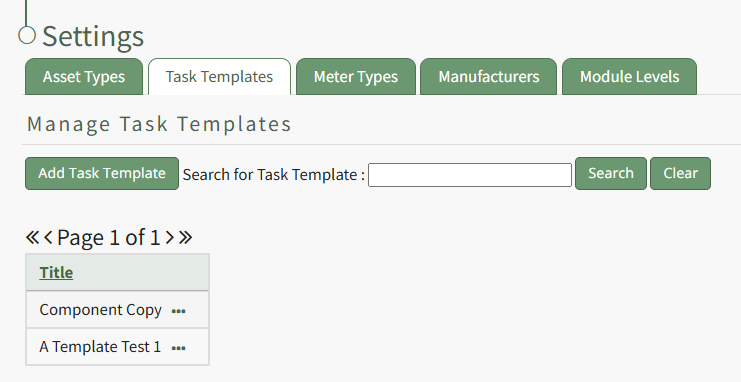
Select the three-dot icon to the right of the task template you wish to copy opening the Task Template Context Menu and select "Copy".
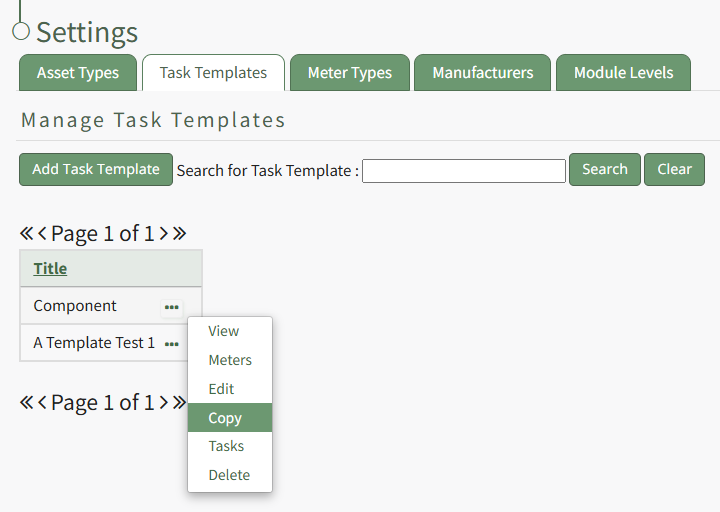
This opens the Copy Task Template Modal, where a title for the newly copied task template can be altered.
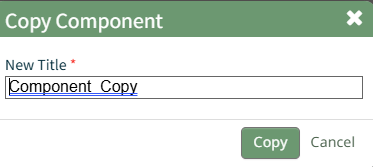
Select the "Copy" button and pop up confirms that the task template was copied.

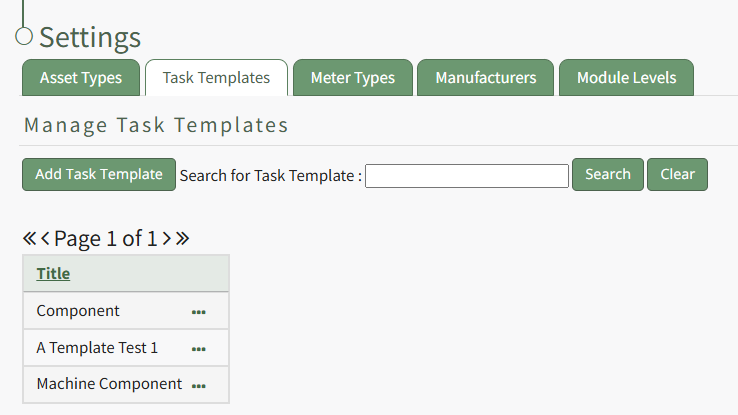
The new Task Template is now visible in the Task Template Table.
How To: Copy and Rename an Asset
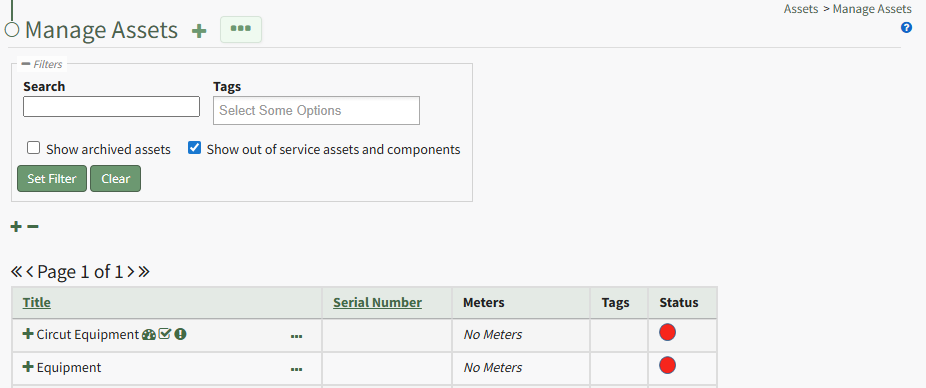
To copy and rename an asset, select Manage Assets from the Main Menu under the Asset Module. Use filters as needed and identify the asset/component you want to copy. Click the three-dot icon to the right of the asset title opening a context menu.
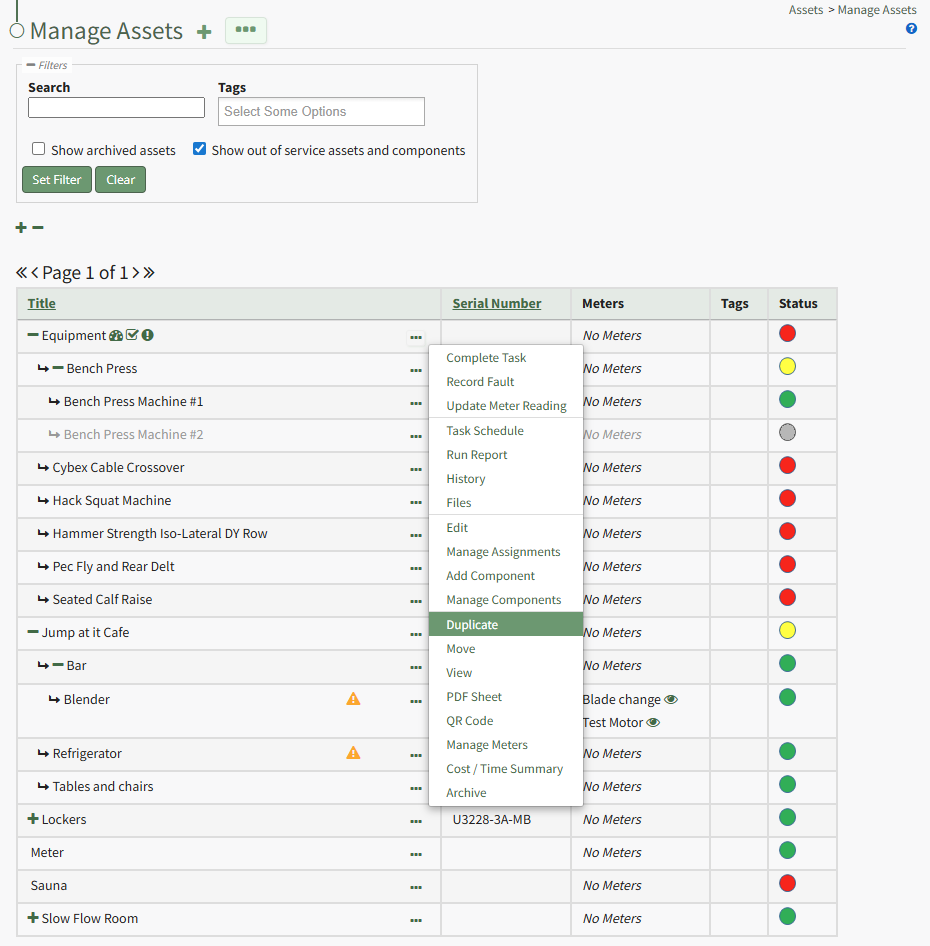
Select "Duplicate" from the context menu opening the Copy Asset Modal.
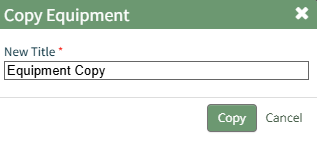
Edit the new title of the copied asset. When done, click the "Copy" button and the renamed copied asset will now show on the Manage Assets Page.
How To: Create a Meter Type
To create a new meter type, open the Meter Types Tab on the Settings Page of the Assets Module.
Select “Add Meter” opening the New Meter Type Modal.
This opens the New Meter Type modal.
Input the desired meter type title and description.
Include the units associated with this meter type.
Meter units should always be entered in plural form.
Input an integer to determine the number of place values after the decimals you would like recorder. Input 0 if you do not want to see any values after the decimal.
The Input Option dropdown menu has three options: Actual, Elapsed, Both. If you select both, a user can input the actual reading and elapsed value will be calculated. A user can also input the elapsed reading and the actual will be calculated.
Select the “Save” button and the New Meter Type will be created and now shows on the Meters Tab on the Settings Page of the Assets Module.
How To: Create a New Asset
To create a new asset, open the Manage Assets Page in the Asset Module and click the plus sign (+) icon to open the New Asset modal.
You can also access the New Asset Modal by clicking the three dot (…) icon and selecting “Create Asset” from the context menu.
The New Asset Modal requires the entry of an Asset Title. Optional fields include an asset description, tags, manufacturer, model number, serial number, and critical spares.
Select the "Critical Component" checkbox to designate this asset as a critical component. This term is subjective for your organization to define. Designating an asset as a critical component will result in a hazard symbol being used as a visual indicator.
Critical items are prioritized and show separately on the Assets Module Summary.
An entire asset is designated as a critical. All components and associated tasks will also have a critical component designation.
KAStrack’s default setting prevents users with an expired certification role from performing tasks (such as completing tasks, recording faults, and updating meter readings. Select the “Allow users who are expired in assigned certification roles to perform tasks” checkbox to allow a user to perform tasks regardless of their assigned certification role status.
The remaining three checkbox options all relate to asset status alert preferences.
The “Send an alert when the asset changes from Past Due to OK” checkbox will send an alert via email to the assigned users when the task status changes from past due (red) to current/up to date (green).
The “Send an alert when the asset changes to Warn” checkbox will send an alert via email to all users assigned to the asset when the task status changes from current/up to date (green) to warn (yellow).
The “Send an alert when the asset changes to Past Due” checkbox will send an alert via email to all users assigned to the asset when the task status changes to past due (red).
Asset Types are customizable to your company and are created on the Settings Page of the Asset Module. Once an asset type has been created, you can select one from the dropdown menu in the New Asset Modal to enable additional filtering capabilities.
Asset Types allows your organization to add customizable fields unique to individual assets.
How To: Create a New Asset Type
To create a new asset type, open the Asset Types Tab on the Settings Page of the Assets Module.
Selecting the “Add Asset Type” button opens the New Asset Type modal.
Input the title of the New Asset Type and click “Save”.
The newly created Asset Type will now show in the table on the Asset Type tab on the Settings page and is ready for you to add fields to.
How To: Add Fields to an Asset Type
In order to include unique, customized additional information regarding an Asset, you must first create an asset type and then add fields to it. This allows your organization to specify whatever information they choose to regarding their assets.
How To: Create a New Asset Type
{{@470}}
To add additional fields to an asset type, go to the Asset Types Tab on the Settings Page of the Assets Module. Click the three-dot icon to the right of the Asset Type title to open the Asset Type Context Menu.
Select "Fields" from the context menu opening the Asset Type Fields Page.
Click the "Add Field" button opening the New Field Modal.
Input a label for the field and select the field type from a dropdown menu. Options include: text field, number, password field, text box, date field, and checkbox.
Validation uses standard JavaScript RegExp constructor for validating Field input values entered by end-users. Entering a RegExp validation string will check against the input value.
Include a description of the field of validation (optional).
Select “Save” and a popup confirms that the asset has been saved. The new field now shows on the Asset Type Field Page.
Select the “Save” button at the bottom of the New Asset Modal to create the new asset or click “Cancel” to close the modal without saving and return to the Manage Assets Page.
After an asset is created, it will appear in the Manage Asset Table where it can be managed.
How To: Create a New Asset Type
To create a new asset type, open the Asset Types Tab on the Settings Page of the Assets Module.
Selecting the “Add Asset Type” button opens the New Asset Type modal.
Input the title of the New Asset Type and click “Save”.
The newly created Asset Type will now show in the table on the Asset Type tab on the Settings page and is ready for you to add fields to.
How To: Add Fields to an Asset Type
In order to include unique, customized additional information regarding an Asset, you must first create an asset type and then add fields to it. This allows your organization to specify whatever information they choose to regarding their assets.
How To: Create a New Asset Type
To create a new asset type, open the Asset Types Tab on the Settings Page of the Assets Module.
Selecting the “Add Asset Type” button opens the New Asset Type modal.
Input the title of the New Asset Type and click “Save”.
The newly created Asset Type will now show in the table on the Asset Type tab on the Settings page and is ready for you to add fields to.
How To: Add Fields to an Asset Type
{{@496}}
To add additional fields to an asset type, go to the Asset Types Tab on the Settings Page of the Assets Module. Click the three-dot icon to the right of the Asset Type title to open the Asset Type Context Menu.
Select "Fields" from the context menu opening the Asset Type Fields Page.
Click the "Add Field" button opening the New Field Modal.
Input a label for the field and select the field type from a dropdown menu. Options include: text field, number, password field, text box, date field, and checkbox.
Validation uses standard JavaScript RegExp constructor for validating Field input values entered by end-users. Entering a RegExp validation string will check against the input value.
Include a description of the field of validation (optional).
Select “Save” and a popup confirms that the asset has been saved. The new field now shows on the Asset Type Field Page.
How To: Create a New Task on the Task Schedule
To create a new task for a specific asset, open the Task Schedule Page of the relevant asset.
How To: View an Asset's Task Schedule
To view an asset's task schedule, open the Manage Assets Page in the Assets Module on the Main Menu. Use filters as needed and identify the asset/component whose task schedule you wish to view. Click the three-dot icon to the right of the asset title opening the Asset Management Context Menu.
Select the "Manage Components" option, opening the Manage Asset Components Page. Select the three-dot icon to the right of the asset/component you wish to add interim notes to and select Task Schedule from the context menu.
This opens the asset's Task Schedule Page.
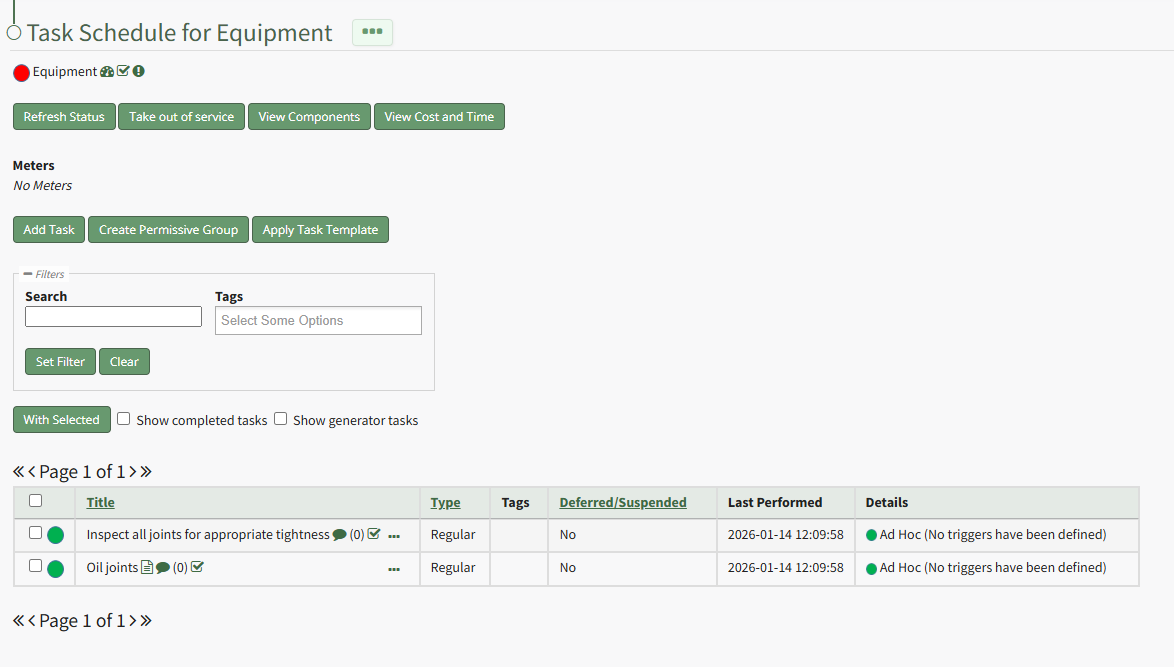
Select the "Add Task" button opening the New Task Modal.
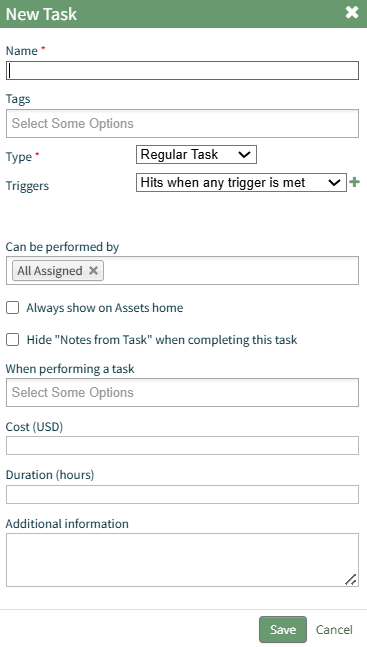
Input the Task Name and any tags you want to be associated with the task.
Select the Task Type and the Trigger Behavior from the dropdown menu. A detailed explanation of Task Trigger Settings has been included in the user manual.
Use the Customized Trigger Settings How To Links in the table below for ease in completing this modal when you select the plus sign icon to the right of the Trigger Behaviors dropdown menu.
Customized Trigger Settings How To Links Table |
Clicking the field beneath "Can be Performed by" opens a dropdown menu. The option "All assigned" allows any user assigned the asset the ability to complete the specific task. Individual users assigned the asset can be individually assigned to the new task.
Click the "Always show on Assets Home" checkbox if you would like this task to show on the Upcoming Task Table, regardless of the status.
Click the "Hide 'Notes from Task' when completing this task" checkbox if you want to hide notes regarding this task when logging the task as complete.
Clicking the field beneath "When performing a task" opens a dropdown menu with options to require a file upload when a task is completed and/or require a meter reading when a task is completed. All meters associated with the asset will be listed individually on the dropdown menu.
Inputting a Cost and Duration (time in hours) associated with a task allows the system to generate Cost/Time Summaries for an asset and its components. Additional information regarding the task can be included in the final textbox.
Select "Save" after inputting the task details.
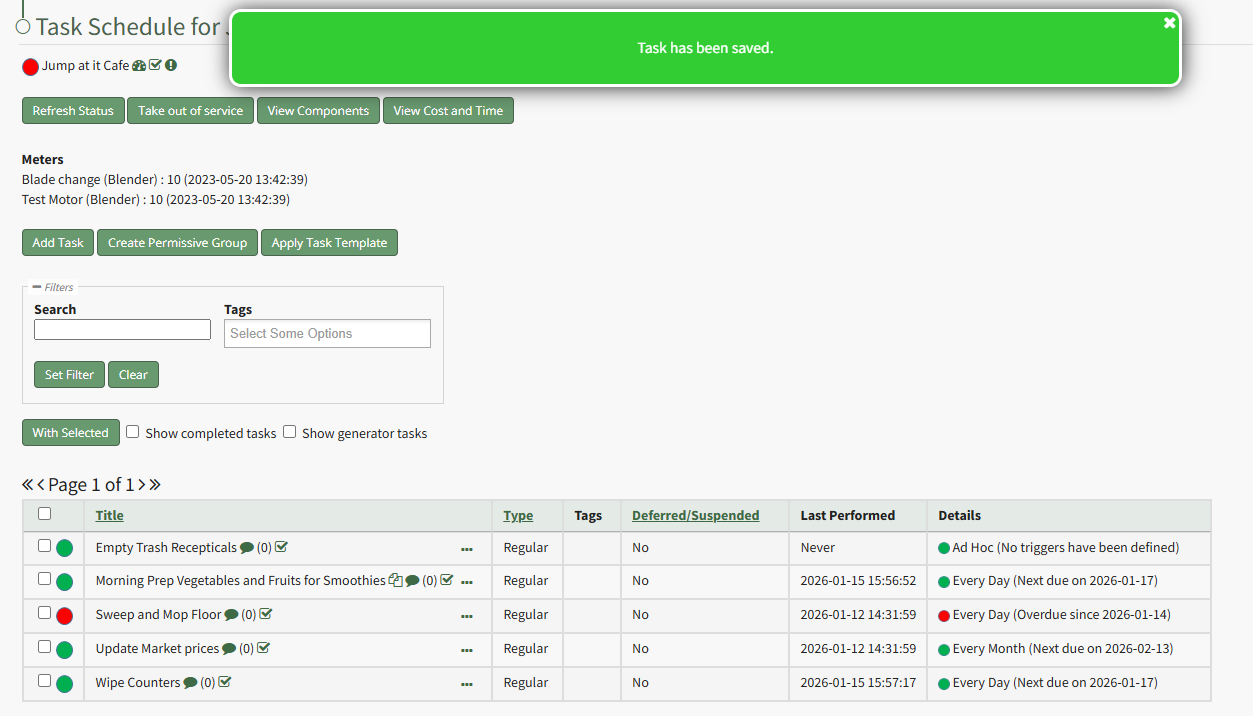
A popup confirms that the task has been saved. It now shows on the asset's Task Schedule Table.
How To: Create a New Task Schedule Template
To create a new task schedule template, open the Task Template Tab on the Settings Page in the Assets Module.
Click the “Add Task Template” button, opening the New Task Template modal.
Input the desired Title for the new task template.
Select which asset or component whose task schedule you want to create the template from.
Click “Save” and the new task template will show in the Task Template Table.
Tasks that follow other tasks will not be copied into the Task Template.
How To: Create a Permissive Task Group
Creating permissive groups allows a user to combine tasks into a group. When tasks are grouped together, the group status will only turn red if all of the tasks in the group become red. The status of the grouped tasks will not affect the status of the larger asset.
To create a permissive task group, open the Task Schedule of the specific asset you wish to create permissive task groups in. Select Task Schedule from any context menu to open the asset's Task Schedule Page.
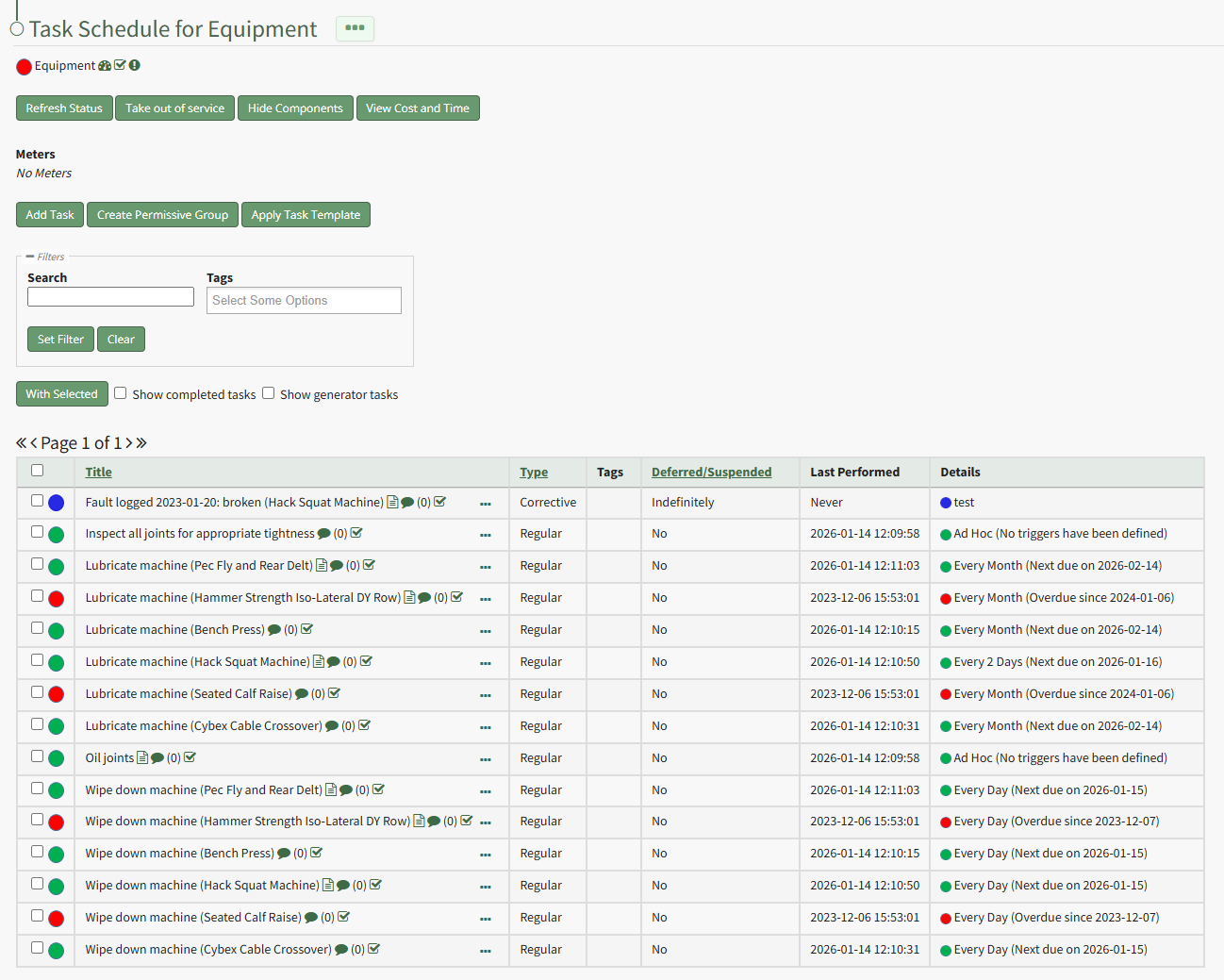
Select the “Create Permissive Group” button to open the Permissive Task Group modal.
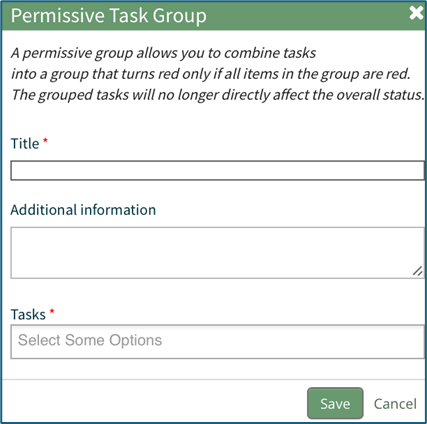
The permissive group must be given a title. Any descriptive information regarding the Permissive Group can be included in the Additional Information text box.
The tasks to be grouped are selected from a dropdown menu.
Select “Save” for the permissive group to be created or click “Cancel” to return to the Task Schedule Page.
How To: Create New Module Levels (Assets Module)
To create a new module level with customizable permissions in the Assets Module, go to the Module Level Tab on the Settings Page of the Assets Module.
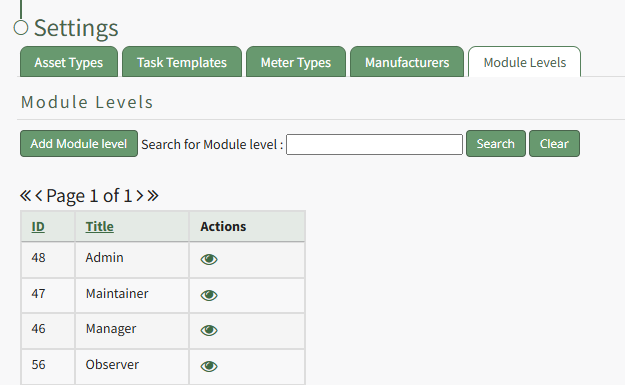
Select the “Add Module Level” button opening the New Module Level Modal.
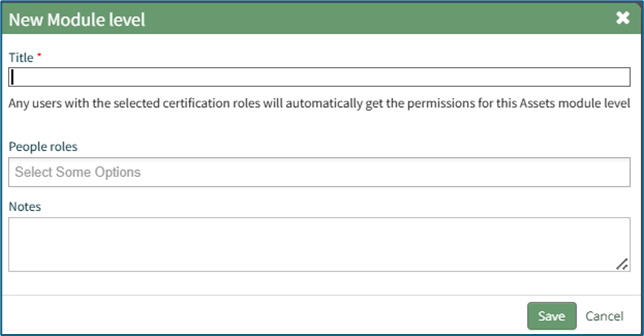
Selecting “New Module Level” on the Manage Module Levels page opens the New Module Level modal. Input the name of the customized model level.
Any users with the selected certification roles will automatically get the permissions for this Assets module level.
You have the option to assign the people associated with specific roles to the new module level and add any notes.
Select “Save.” Module levels will be listed alphabetically.
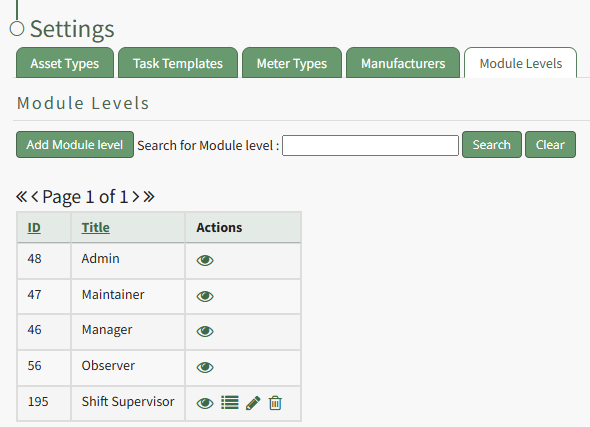
Users must select which permissions are allowed for a customized module level. Select the bullet list icon in the Actions Column of the new Module Level opening the Module Level Permissions Modal.
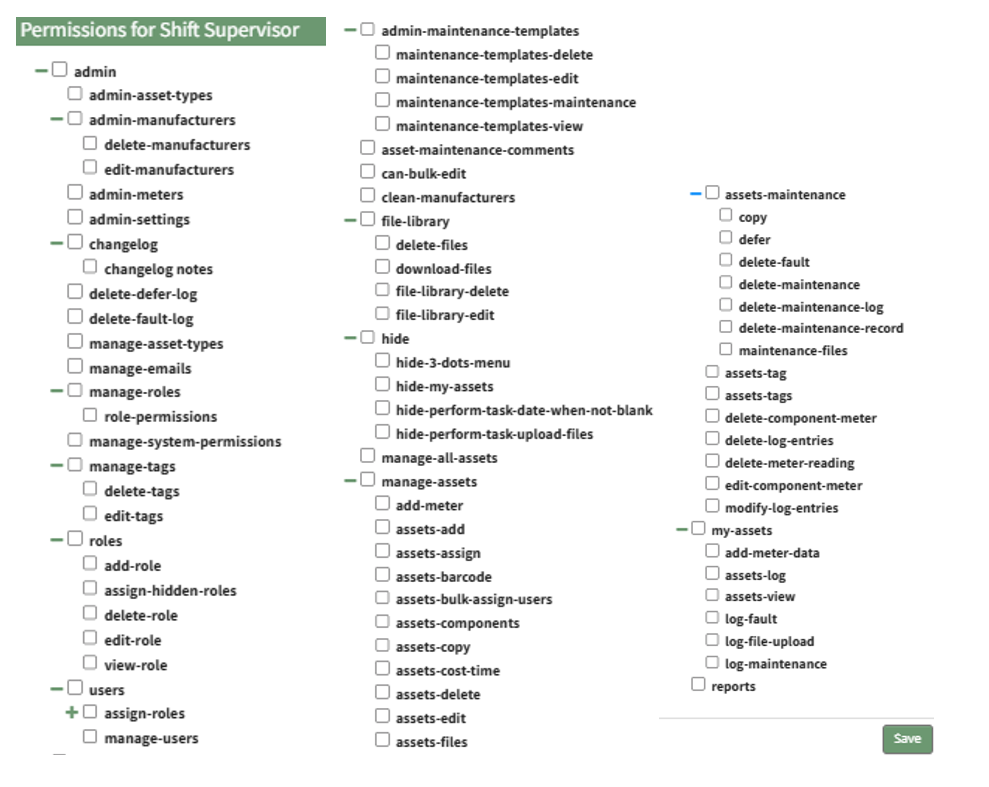
Click the checkboxes to assign permissions to the new Module Level.
Select “Save” and the permissions have been assigned to the Module Level.
Access levels for all modules can also be managed in the Site Settings Module under Access Levels.
How To: Customize Trigger Settings Based on an On Expiry Period
Triggers with an On Expiry period can only have a time parameter.
An on-expiry trigger gives the user the ability to input the next due date (vs auto-calculating it like the other triggers based on task completion) when completing the task.
Select On Expiry from the Period dropdown menu. Clicking YYYY-MM-DD opens a calendar modal. Select the date the task expires on.
The task status will switch from green (or yellow if a warning is set) to red when it is past due, one day after the calendar date selected.
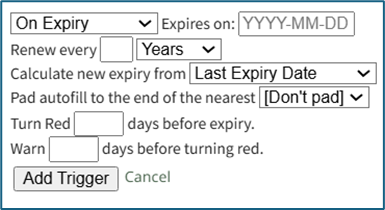
Input a numerical value for the task to renew and select the appropriate units (Days, Weeks, Months, or Years).
Use the dropdown menu to establish if the new expiry is calculated from the Last Expiry Date or Task Performed Date.
The user can select to pad the autofill to the end of the nearest Month, Quarter, 6 Months, Year, or to not pad the autofill.
Enter a numerical value to Turn Red ___ days before expiry.
Enter a numerical value to Warn ___ days before turning red.
Click “Add Trigger” to save.
How To: Customize Trigger Settings Based on Pre-Existing Tasks
It is possible for a task’s trigger to be based on the schedule of another pre-existing task within the same asset tree.
It is not possible to follow or copy another task’s schedule if the original task has an “on expiry” trigger.
Trigger Behavior: Follow Another Task’s Schedule
When a trigger’s behavior is set to “Follow another task’s schedule,” the original task and new task are now linked.

If the trigger for the task selected is altered, the trigger for the task following it will be altered as well.
Trigger Behavior: Copy Another Task’s Schedule
When a trigger’s behavior is set to “Copy another task’s schedule,” the two tasks function independently of each other.

If the schedule for the copied trigger is altered, it has no impact on the task schedule just created. This option allows the user to efficiently duplicate task schedules with ease.
How To: Customize Trigger Settings with a Generate Every Period
Generate Every is a special case period designation that can have a time or usage parameter.
When a task has a Generate Every Period, the task no longer utilizes a repeating trigger. A new, one-off task will be created (with the same details as the task currently being created) whenever the previous task's parameters are met.
Generate Every Period with a Time Parameter
Select Generate Every on the Period dropdown menu. There are two options for a time parameter: Date or Mon-Fri.
Select Date on the Parameter dropdown menu to create a customized recurrence interval. Input a numerical value for the recurrence interval in the first text box and select the appropriate units (Days, Weeks, Months, or Years).
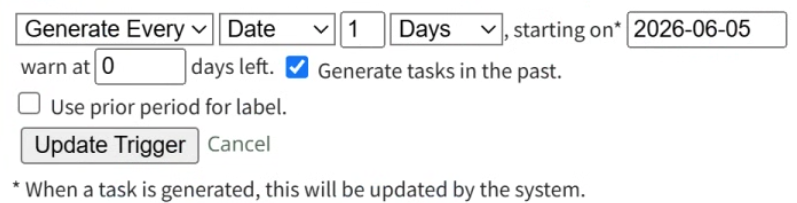
Select Mon-Fri on the Parameter dropdown menu if the task should reoccur only on Monday – Friday.
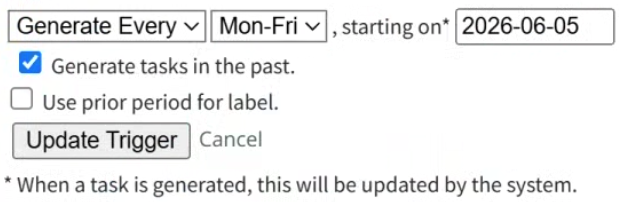
Clicking YYYY-MM-DD, opens a calendar modal. Select the date the task is first due on.
The task status will switch from green (or yellow if a warning is set) to red when it is past due, one day after the calendar date selected.
If the Generate tasks in the past checkbox is selected, the system will recreate any tasks that have been missed or were deleted counting up from the selected date.
Use prior period for label checkbox will append a label of the previous period to help clarify the task.
An example use of this feature could be for a monthly reconciliation task of your bank account. In November, the task would state "Reconcile Checking Account for 2025-10 (Oct)."
Click “Add Trigger” to save.
Generate Every Period with a Usage Parameter
Select Generate Every from the Period dropdown menu. Select the specific meter the task is associated with on the Parameter dropdown menu.
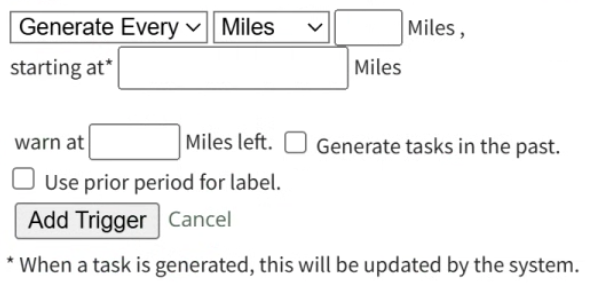
Input a numerical value for the usage recurrence interval in the first text box.
Input a value for the meter that triggers the new task being due in the “first due at” textbox.
The task status will switch from green (or yellow if a warning is set) to red after a “Log Asset Data” or “Update Meter Reading” records a usage value greater than the value entered here.
Input a numerical value for “warn at ____ left” to set meter reading that activates a reminder that the task is approaching.
This turns a green current / up-to-date task status to a yellow warning.
If the Generate tasks in the past checkbox is selected, the system will recreate any tasks that have been missed or were deleted counting up from the selected date.
Use prior period for label checkbox will append a label of the previous period to help clarify the task.
Click “Add Trigger” to save.
How To: Customize Trigger Settings with a One Time Period
Selecting “One Time” as the period allows the user to create a Regular Task that only occurs once. Triggers with a “One Time” period can have a time or usage parameters.
One Time Period with a Time Parameter
Select One Time on the Period Dropdown menu. Select Date on the Parameter dropdown menu.

Clicking on YYYY-MM-DD will open a calendar modal that allows the user to select the date that the task is due.
The task status will switch from green (or yellow if a warning is set) to red when it is past due, one day after the calendar date selected.
Input a numerical value for “warn at ____ days left” to set the number of days before the task is due for a reminder.
This turns a green current / up-to-date task status to a yellow warning.
Click “Add Trigger” to save.
One Time Period with a Usage Parameter
Select One Time on the Period Dropdown menu. Select the specific meter the task is associated with on the Parameter dropdown menu.

Input a value for the meter that triggers the new task being due in the “first due at” textbox.
The task status will switch from green (or yellow if a warning is set) to red after a “Log Asset Data” or “Update Meter Reading” records a usage value greater than the value entered here.
Input a numerical value for “warn at ____ left” to set meter reading that activates a reminder that the task is approaching.
This turns a green current / up-to-date task status to a yellow warning.
Click “Add Trigger” to save.
How To: Customize Trigger Settings with an Every (strict) Period
Triggers with a Every or Every Strict Period can have time or usage parameter.
When a trigger has a Every Strict period, the trigger is scheduled on a specific date or specific meter reading, regardless of when the previous task was actually completed. If a previous task was not completed, the incomplete task is skipped over and the next upcoming task is the only one due.
Every (Strict) Period with a Time Parameter
Select Every (Strict) from the Period dropdown menu. Select Date on the Parameter dropdown menu.

Input a numerical value for the recurrence interval in the first text box and select the appropriate units (Days, Weeks, Months, or Years).
Clicking YYYY-MM-DD, opens a calendar modal. Select the date the task is first due on.
The task status will switch from green (or yellow if a warning is set) to red when it is past due, one day after the calendar date selected.
Input a numerical value for “warn at ____ days left” to set the number of days before the task is due for a reminder. This turns a green current / up-to-date task status to a yellow warning.
Click “Add Trigger” to save.
Every (Strict) Period with a Usage Parameter
Select Every (Strict) from the Period dropdown menu. Select the specific meter the task is associated with on the Parameter dropdown menu.
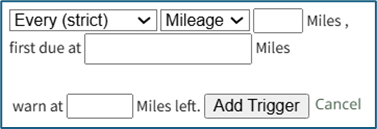
Input a numerical value for the usage recurrence interval in the first text box.
Input a value for the meter that triggers the new task being due in the “first due at” textbox.
The task status will switch from green (or yellow if a warning is set) to red after a “Log Asset Data” or “Update Meter Reading” records a usage value greater than the value entered here.
Input a numerical value for “warn at ____ left” to set meter reading that activates a reminder that the task is approaching.
This turns a green current / up-to-date task status to a yellow warning.
Click “Add Trigger” to save.
How To: Customize Trigger Settings with an Every Period
Triggers with an Every period can have a time or usage parameter. When Every is selected as the period, the timing of the reoccurrence interval resets when the task is completed, regardless of the task's status prior to completion.
Every Period with a Time Parameter
Select Every from the Period dropdown menu.
There are two options for a time parameter: Date or Mon-Fri.
Select Date on the Parameter dropdown menu to create a customized recurrence interval. Input a numerical value for the recurrence interval in the first text box and select the appropriate units (Days, Weeks, Months, or Years).

Select Mon-Fri on the Parameter dropdown menu if the task should only reoccur on Monday – Friday.

Input a numerical value for the recurrence interval in the first text box and select the appropriate units (Days, Weeks, Months, or Years).
Clicking YYYY-MM-DD, opens a calendar modal. Select the date the task is first due on.
The task status will switch from green (or yellow if a warning is set) to red when it is past due, one day after the calendar date selected.
Input a numerical value for “warn at ____ days left” to set the number of days before the task is due for a reminder. This turns a green current / up-to-date task status to a yellow warning.
Click “Add Trigger” to save.
Every Period with a Usage Parameter
Select Every from the Period dropdown menu. Select the specific meter the task is associated with on the Parameter dropdown menu.
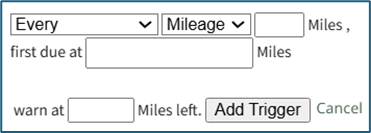
Input a numerical value for the usage recurrence interval in the first text box.
Input a value for the meter that triggers the new task being due in the “first due at” textbox.
The task status will switch from green (or yellow if a warning is set) to red after a “Log Asset Data” or “Update Meter Reading” records a usage value greater than the value entered here.
Input a numerical value for “warn at ____ left” to set meter reading that activates a reminder that the task is approaching.
This turns a green current / up-to-date task status to a yellow warning.
Click “Add Trigger” to save.
How To: Defer a Task
To defer/postpone a task for completion at a future time, open the Task Schedule Page for the Asset of interest.
How To: View an Asset's Task Schedule
To view an asset's task schedule, open the Manage Assets Page in the Assets Module on the Main Menu. Use filters as needed and identify the asset/component whose task schedule you wish to view. Click the three-dot icon to the right of the asset title opening the Asset Management Context Menu.
Select the "Manage Components" option, opening the Manage Asset Components Page. Select the three-dot icon to the right of the asset/component you wish to add interim notes to and select Task Schedule from the context menu.
This opens the asset's Task Schedule Page.
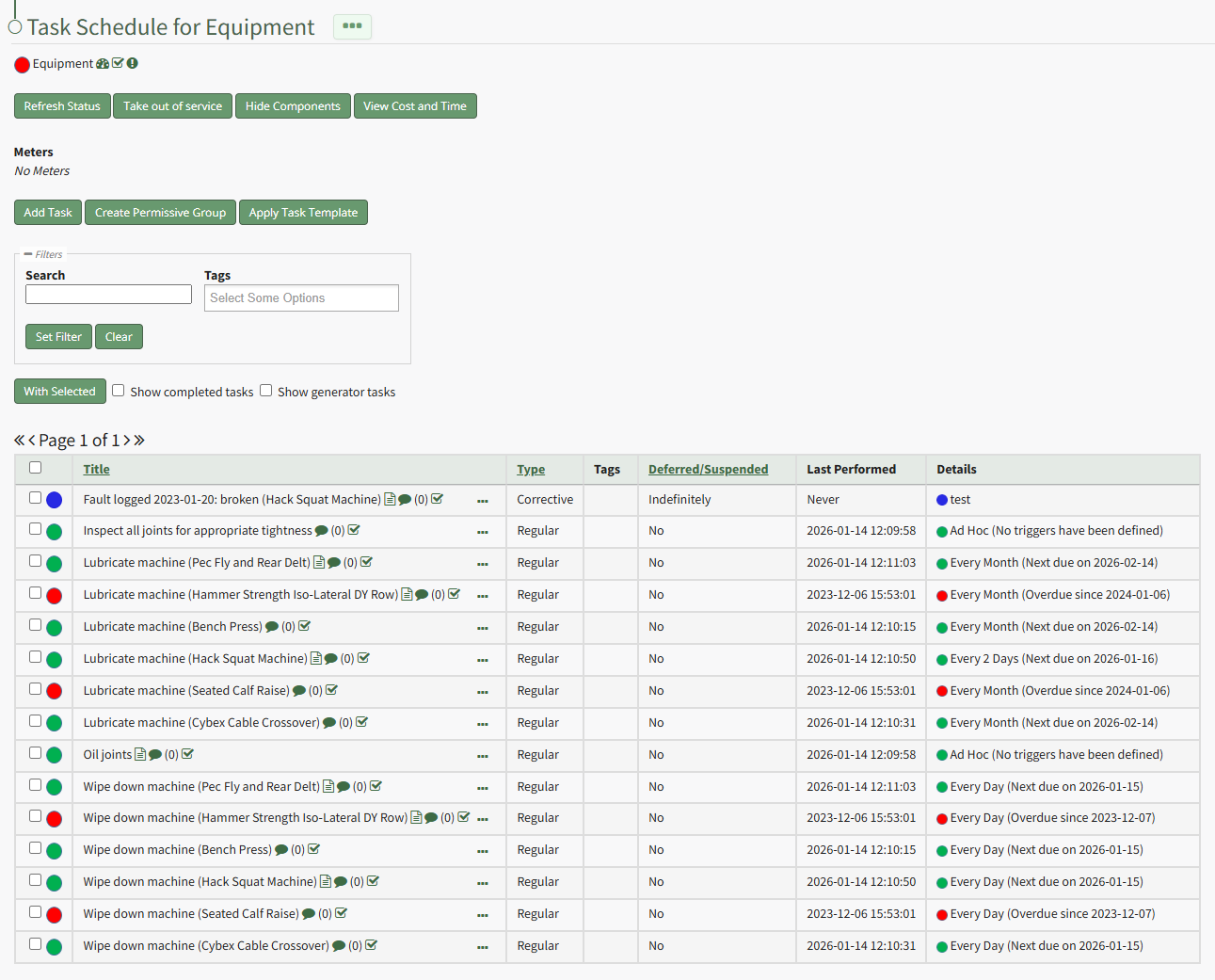
Click the three-dot icon to the right of the task you wish to defer opening the Task Schedule Table Context Menu. Select “Defer Tasks” from the context menu opening the Defer Task Modal.
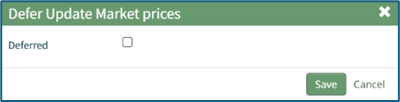
When the user selects the Deferred checkbox, the Defer Task Modal expands.
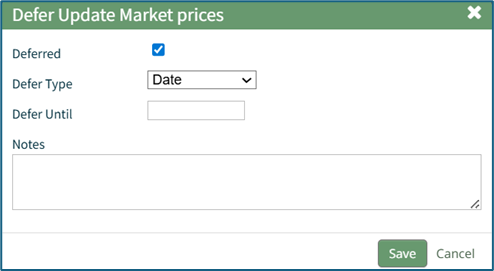
A Date deferment allows the user to select a date that the task will be deferred until. Add any desired notes and select “Save” to record the deferment.
If an individual meter is selected as the deferment type, the Defer Task modal will display the current meter reading and allow the user to input a new meter reading. The task will be postponed until the newly input meter reading is hit.
Add any desired notes and select the “Save” button to record the deferment.
How To: Delete a File Attached to a Task
To delete a file attached to a specific task, open the Task Schedule Page for the asset of interest.
How To: View an Asset's Task Schedule
To view an asset's task schedule, open the Manage Assets Page in the Assets Module on the Main Menu. Use filters as needed and identify the asset/component whose task schedule you wish to view. Click the three-dot icon to the right of the asset title opening the Asset Management Context Menu.
Select the "Manage Components" option, opening the Manage Asset Components Page. Select the three-dot icon to the right of the asset/component you wish to add interim notes to and select Task Schedule from the context menu.
This opens the asset's Task Schedule Page.
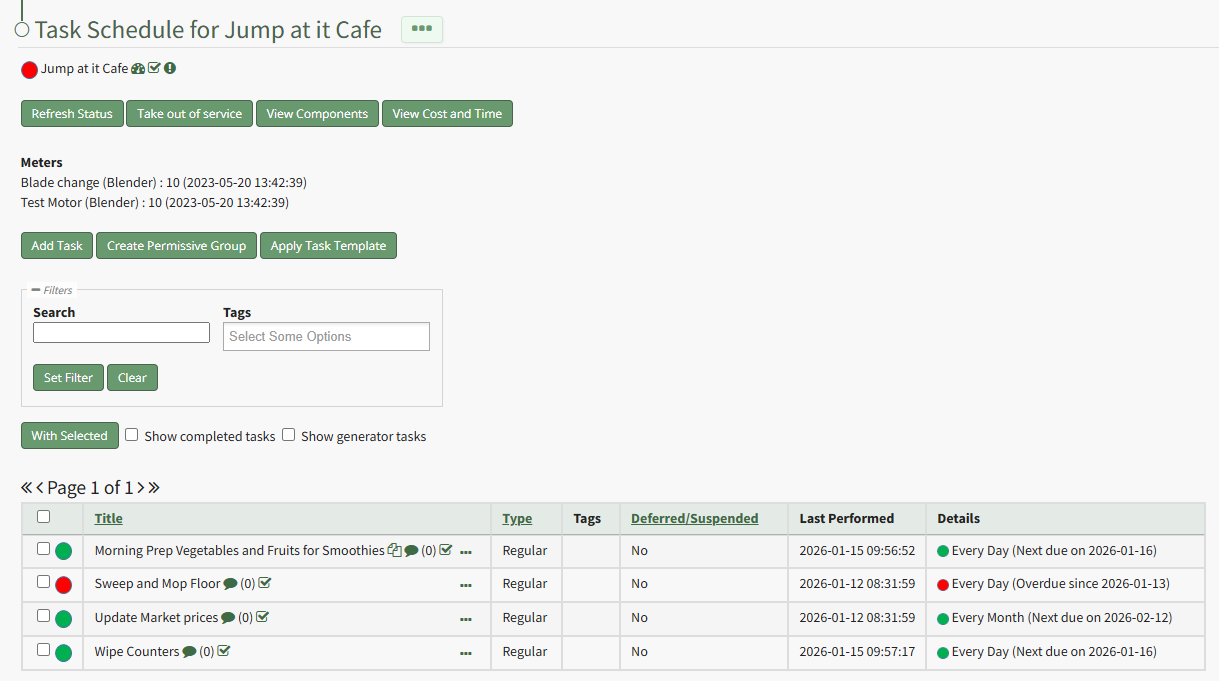
Click the three dot (…) icon next to the right of title whose files you wish to view on the Task Schedule Table opening the context menu. Select “Task Files” opening the Files modal.
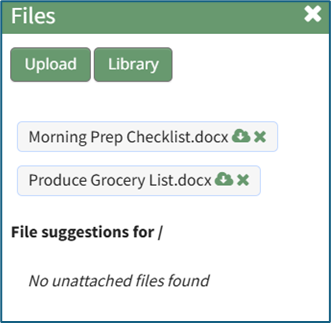
Any files associated with the task are shown on the Files modal with two icons to the right. To delete the file, click the X icon to the right of the File Title, opening the Delete Files Confirmation Modal.
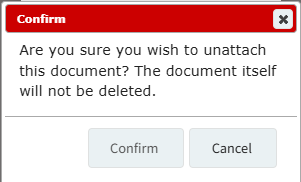
Click the "Confirm" button and the file will be deleted from the Task Files. The file itself will not be deleted.
How To: Delete a File from the File Library
To delete a file from the Asset Module's File Library, select the Files Page in the Assets Module on the Main Menu. Click the three-dot icon to the right of the file you wish to delete from the File Library Table to open the Files Context Menu.
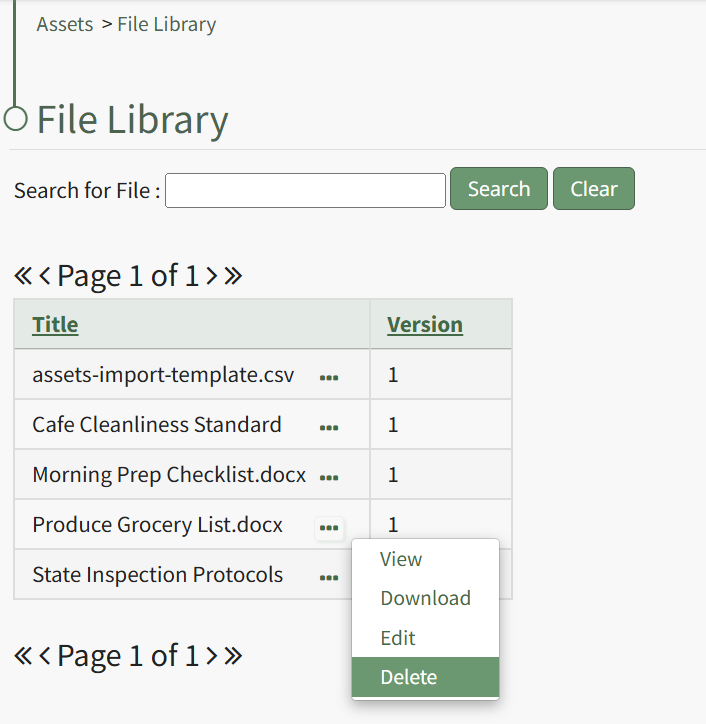
Select "Delete" from the context menu opening a Delete File Confirmation Modal which states, "Please confirm that you wish to delete this file."
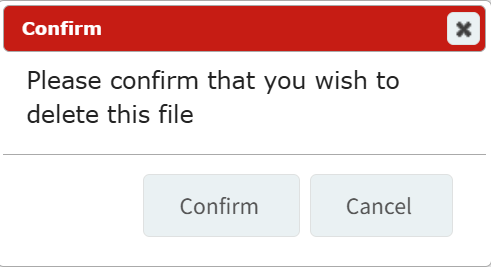
Click the "Confirm" button and a pop up will confirm that the file has been deleted.
A file cannot be deleted unless it is not referenced by anything.
How To: Delete a Manufacturer
To delete a manufacturer, go to the Manufacturers Tab on the Settings Page of the Assets Module and click the three-dot icon to the right of the manufacturer you wish to delete opening the Manufacturers Context Menu.
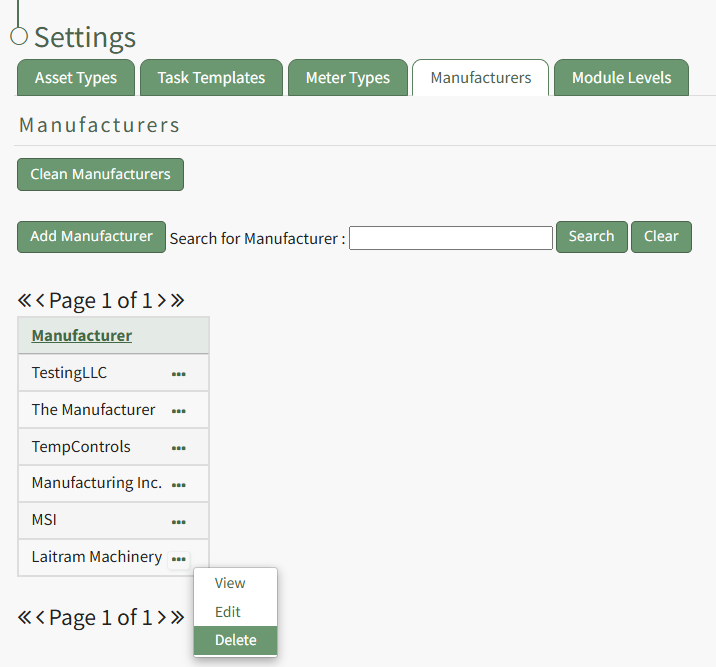
Select "Delete" from the context menu opening the Delete Manufacturer Confirmation Modal which states, "Please confirm that you wish to delete this manufacturer."
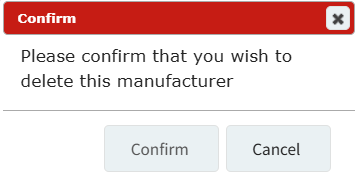
Select the "Confirm" button and a pop up confirms the manufacturer has been deleted.
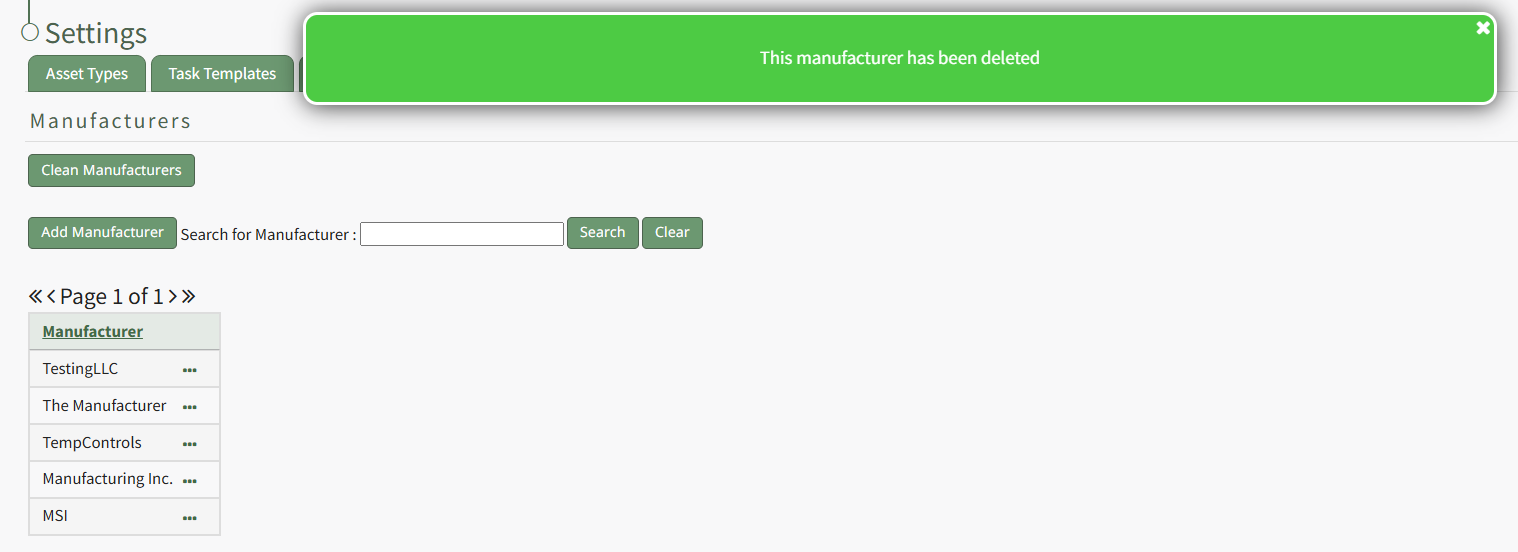
The deleted Manufacturer has been removed from the Manufacturer Table.
How To: Delete a Meter Type
To delete a meter type, go to the Meter Types Tab on the Settings Page of the Assets Module. Click the three-dot icon to the right of the meter type ID that you wish to delete opening the Meter Types Context Menu.
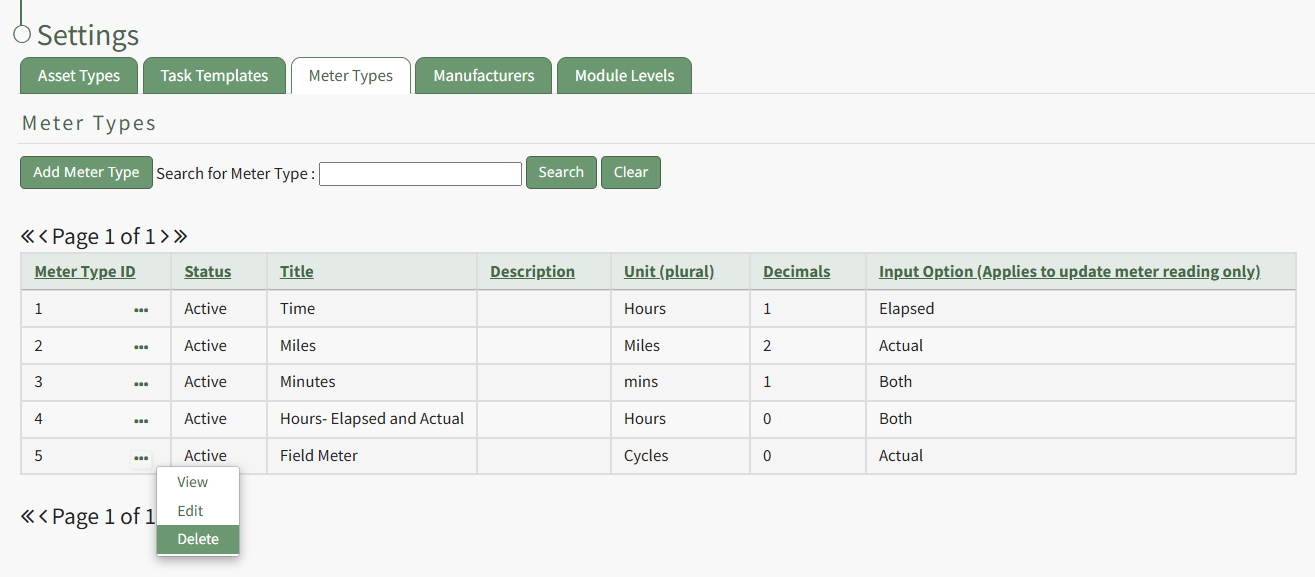
Select "Delete" from the context menu opening the Delete Meter Type Confirmation Modal which states, "Please confirm you wish to delete this meter type."
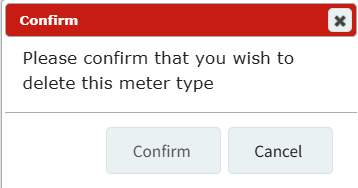
Select the "Confirm" button.
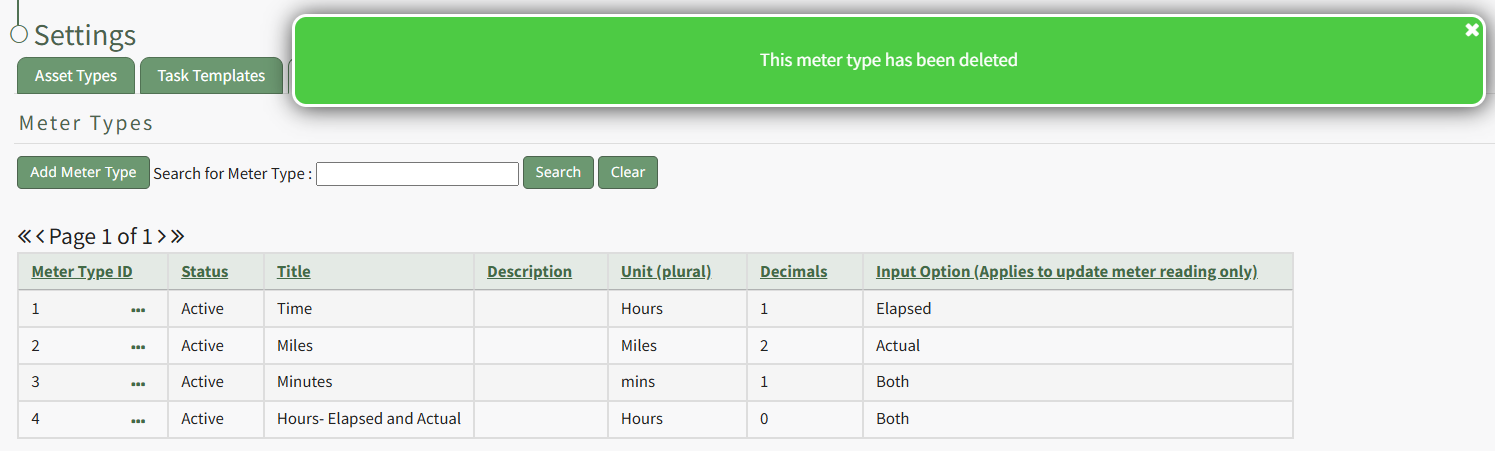
A pop up confirms the Meter Type has been deleted and is removed from the Meter Type Table.
How To: Delete a Task
To delete a task, open the Task Schedule for the asset whose task you wish to delete.
How To: View an Asset's Task Schedule
To view an asset's task schedule, open the Manage Assets Page in the Assets Module on the Main Menu. Use filters as needed and identify the asset/component whose task schedule you wish to view. Click the three-dot icon to the right of the asset title opening the Asset Management Context Menu.
Select the "Manage Components" option, opening the Manage Asset Components Page. Select the three-dot icon to the right of the asset/component you wish to add interim notes to and select Task Schedule from the context menu.
This opens the asset's Task Schedule Page.
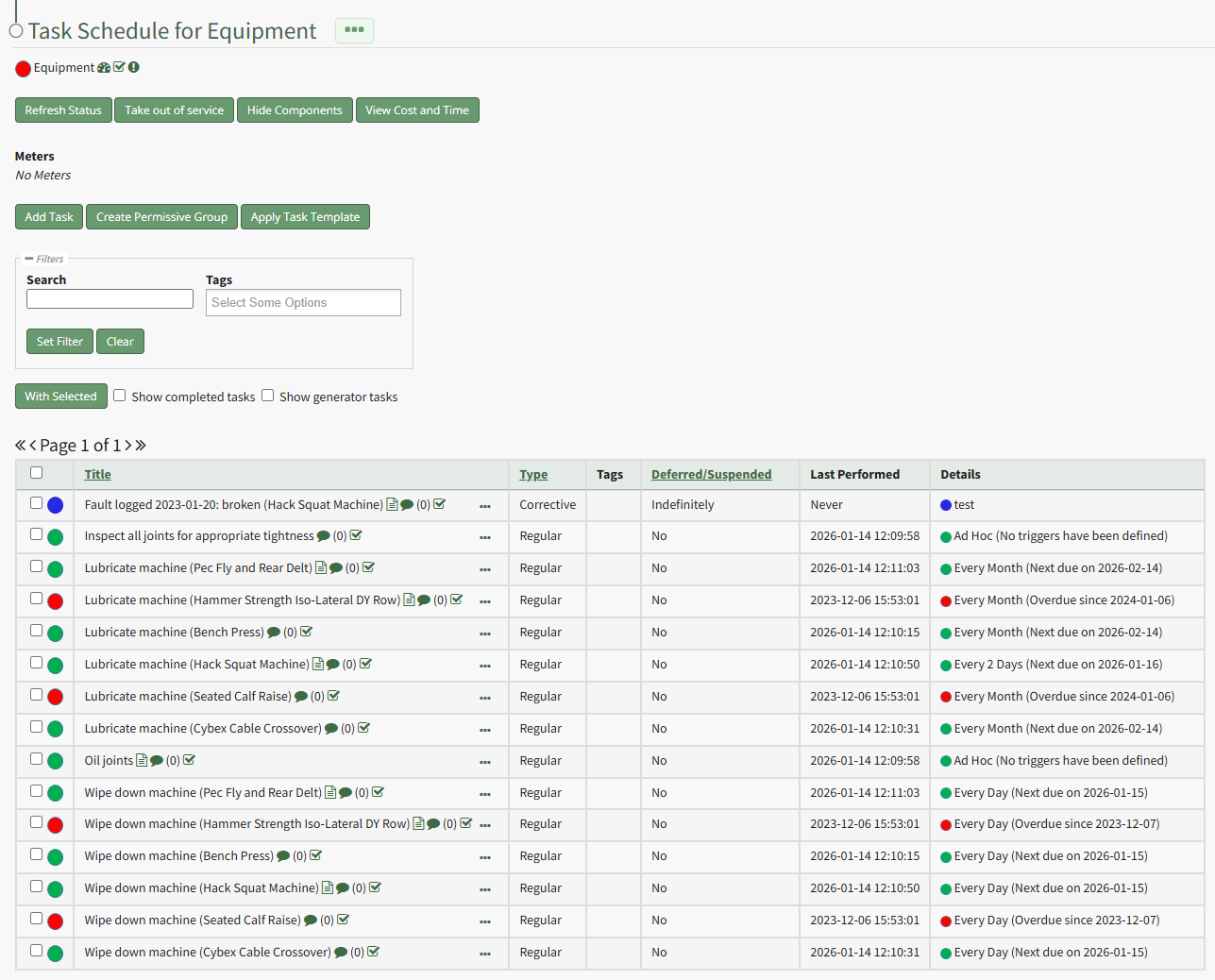
Click the three dot (…) icon to the right of the task you want to delete in the Task Schedule Table opening the Task Management Context Menu.
Select “Delete Task” from the context menu opening a Confirmation Modal stating, “Please confirm that you wish to delete this maintenance.”
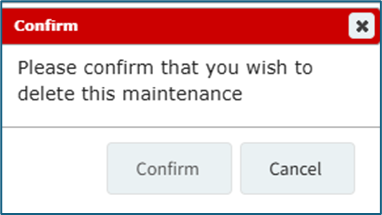
Select “Confirm” to delete the task from the schedule.
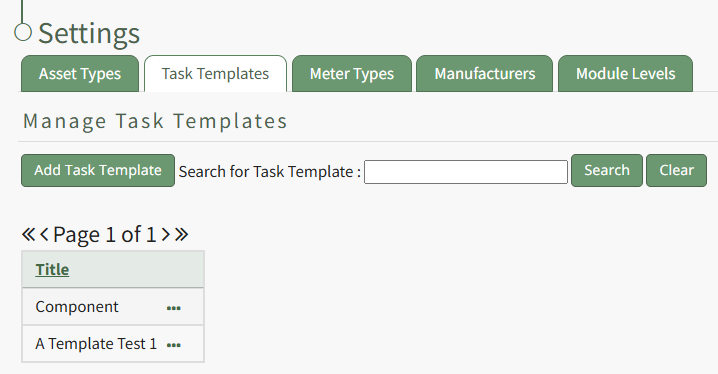
How To: Delete a Task Template
To delete a task template, go to the Task Template Tab on the Settings Page of the Assets Module.
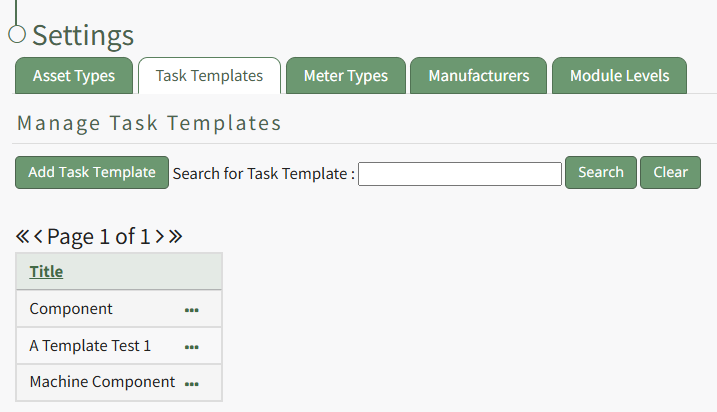
Select the three-dot icon to the right of the Task Template you wish to delete, opening the Task Template Context Menu. Select "Delete".
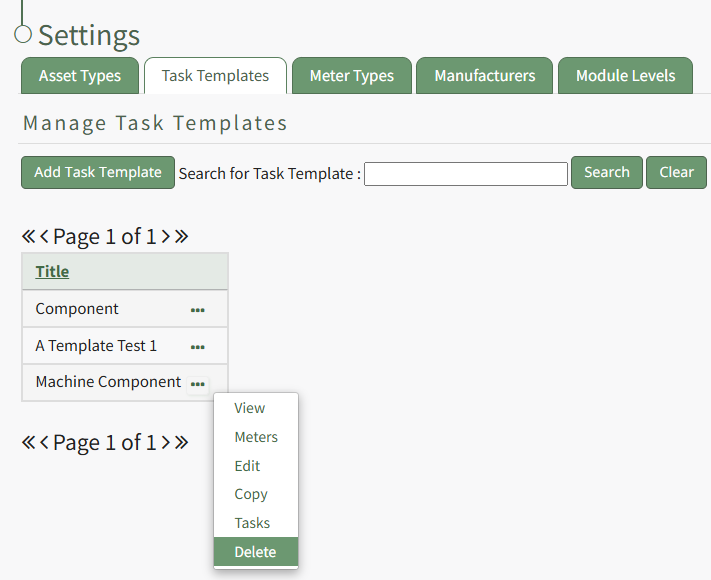
This opens the Deletion Confirmation Modal which states, "Please confirm that you wish to delete this task template."
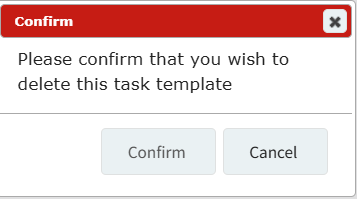
Select the "Confirm" button and a pop up confirms that the task template has been deleted.

The deleted Task Template no longer shows on the Task Template Table.
How To: Delete an Asset or Component
To delete an asset or component, it must first be archived.
How To: Archive an Asset or Component
To archive an asset or component, go to the Manage Assets Page of the Assets Module on the main menu. Use filters as needed to identify the asset or component you want to archive and click the three-dot icon to the right of the asset title opening the Manage Asset Context Menu.
Select "Archive" from the context menu opening the Archive Asset Confirmation Modal which states, "Are you sure you want to archive this asset? This will also archive any components."
Click the "Confirm" button and the asset will not be assigned an archive status.
To delete an archived asset or component, open the Manage Assets Page of the Assets Module. Select the three dot (…) icon to the right of the asset/component that you wish to delete, opening the context menu.
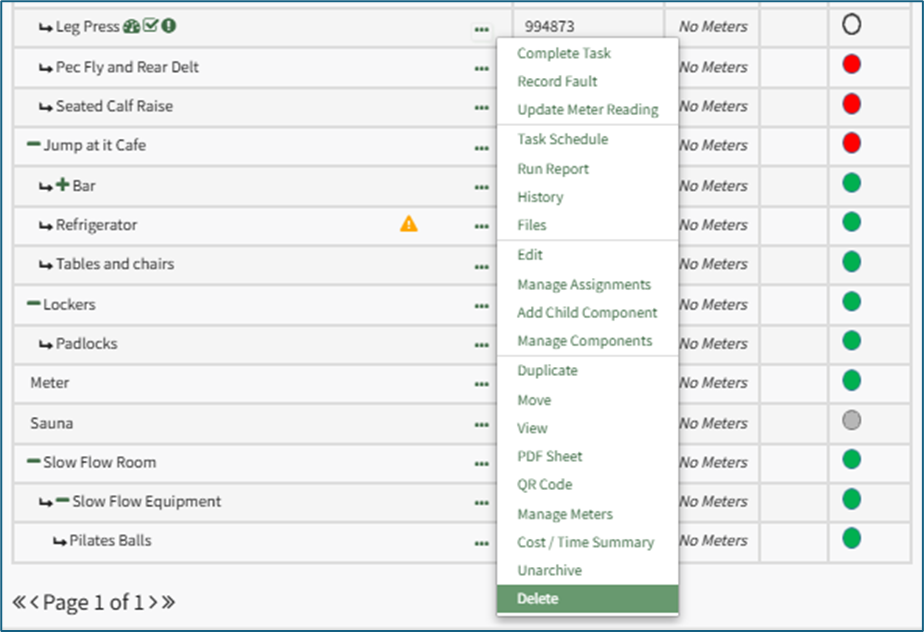
Select “Delete” opening a Confirmation Modal that states, “Please confirm that you wish to delete ASSET NAME. This will also delete any tasks and subcomponents.”
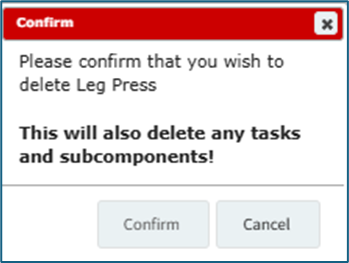
Select “Confirm” and the asset/subcomponent will no longer show in the Asset Table on the Manage Assets Page.
How To: Delete an Asset Type
To delete an asset type, go to the Asset Type Tab on the Settings Page of the Assets Module. Click the three-dot icon to the right of the asset type you wish to delete, opening the Asset Type Context Menu.
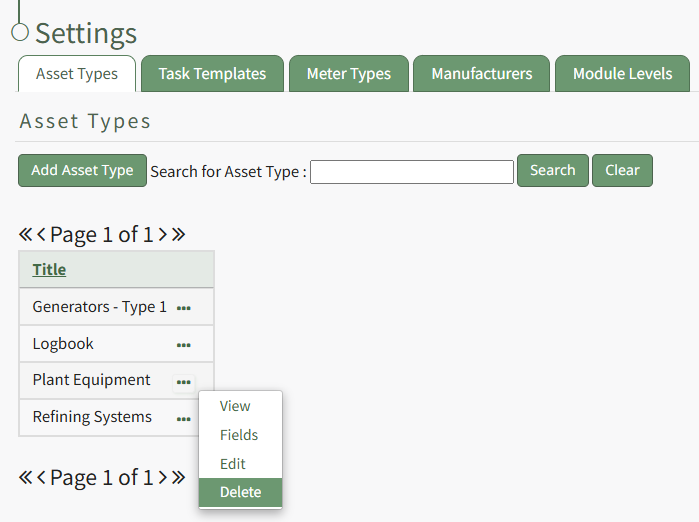
Select "Delete" opening the Delete Asset Type Confirmation Modal which states, "Are you sure you want to delete this asset type?"
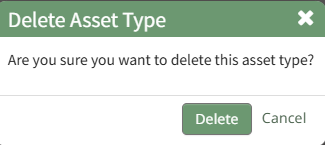
Click the "Delete" button and a pop up will confirm that the asset type has been deleted.

The deleted asset type no longer shows in the Asset Type Table.
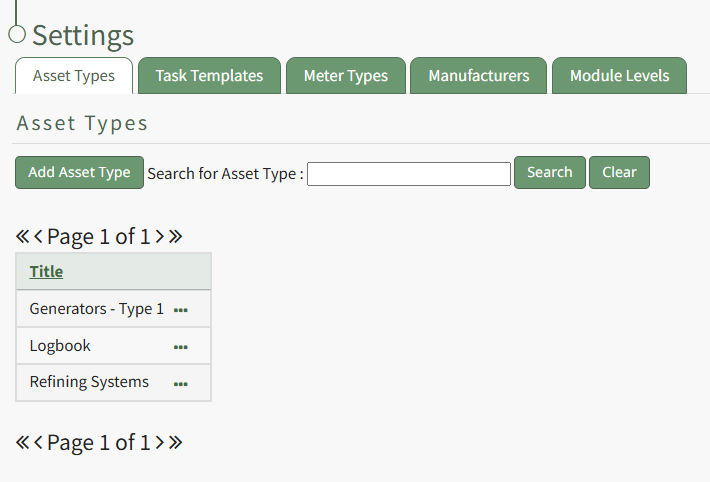
How To: Delete an Asset Type Field
To delete an asset type field, go to the Asset Types Tab on the Settings Page of the Assets Module. Click the three-dot icon to the right of the asset type that contains the asset type field you wish to delete opening the Asset Type Context Menu.
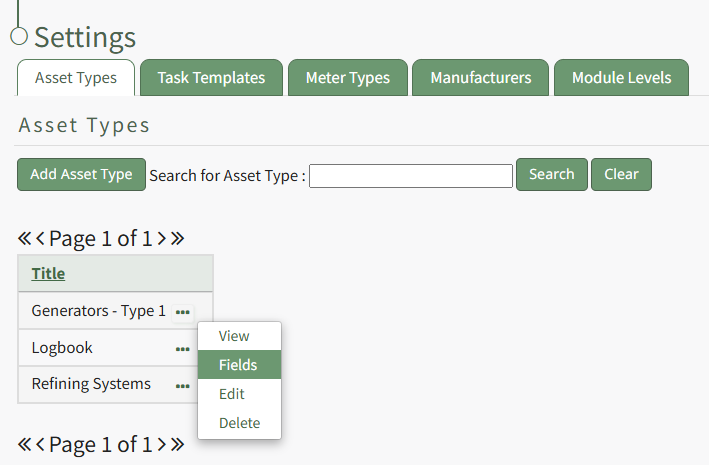
Select "Fields" from the context menu opening the Asset Type Fields Table. Click the three-dot icon to the right of the Field Label opening the Asset Type Fields Context Menu.
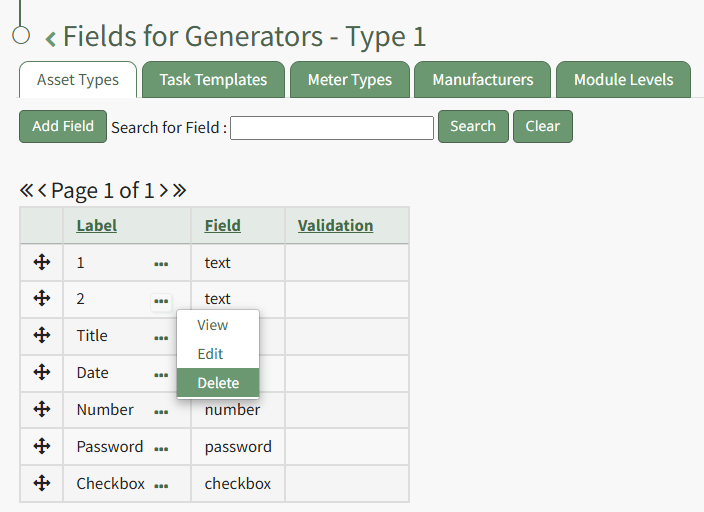
Select "Delete" from the context menu opening the Delete Asset Type Field Confirmation modal. Select "Delete" and the field is removed from the Asset Type Fields Table.
How To: Delete Historical Task Records
To delete the historical records associated with an asset task, open the asset's History Page.
How To: View an Asset's Historical Logs
An asset's historical data can be accessed from an asset's History Page. To access an asset's history, go to the My Assets Page in the Assets Module on the Main Menu. Use the filters as needed to identify the access whose history you wish to view, and click the three-dot icon to the right of the asset name. This opens a context menu.
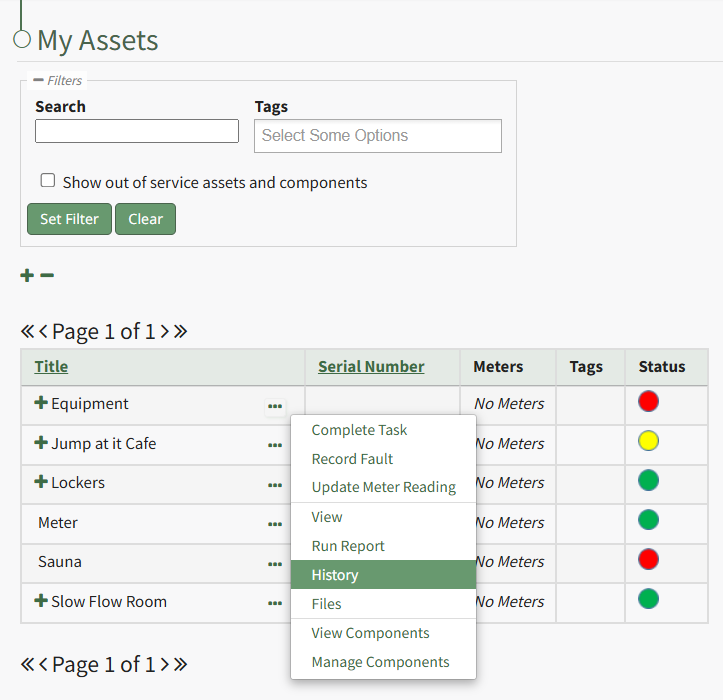
Select "History" from the context menu opening the Asset History Page.
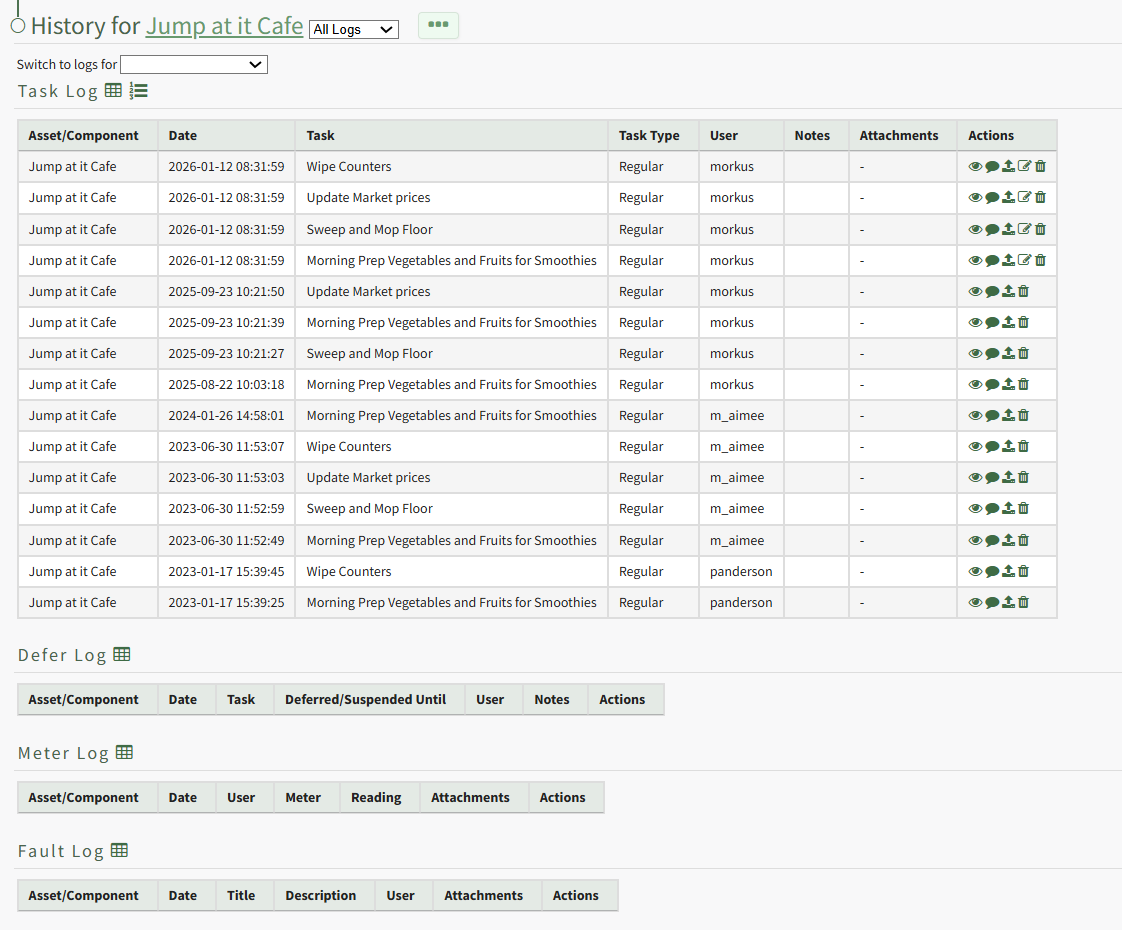
Click the trashcan icon in the Actions Column of the Log Table for the task record you wish to delete open the Delete Task Record Confirmation Modal.
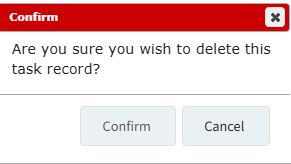
Select "Confirm" and a popup confirms the record has been removed.

It is no longer visible in the log table.
How To: Delete Multiple Tasks Simultaneously on the Task Schedule
To delete multiple tasks on a task schedule at the same time, open the Task Schedule you wish to edit in the Assets Module.
How To: View an Asset's Task Schedule
To view an asset's task schedule, open the Manage Assets Page in the Assets Module on the Main Menu. Use filters as needed and identify the asset/component whose task schedule you wish to view. Click the three-dot icon to the right of the asset title opening the Asset Management Context Menu.
Select the "Manage Components" option, opening the Manage Asset Components Page. Select the three-dot icon to the right of the asset/component you wish to add interim notes to and select Task Schedule from the context menu.
This opens the asset's Task Schedule Page.
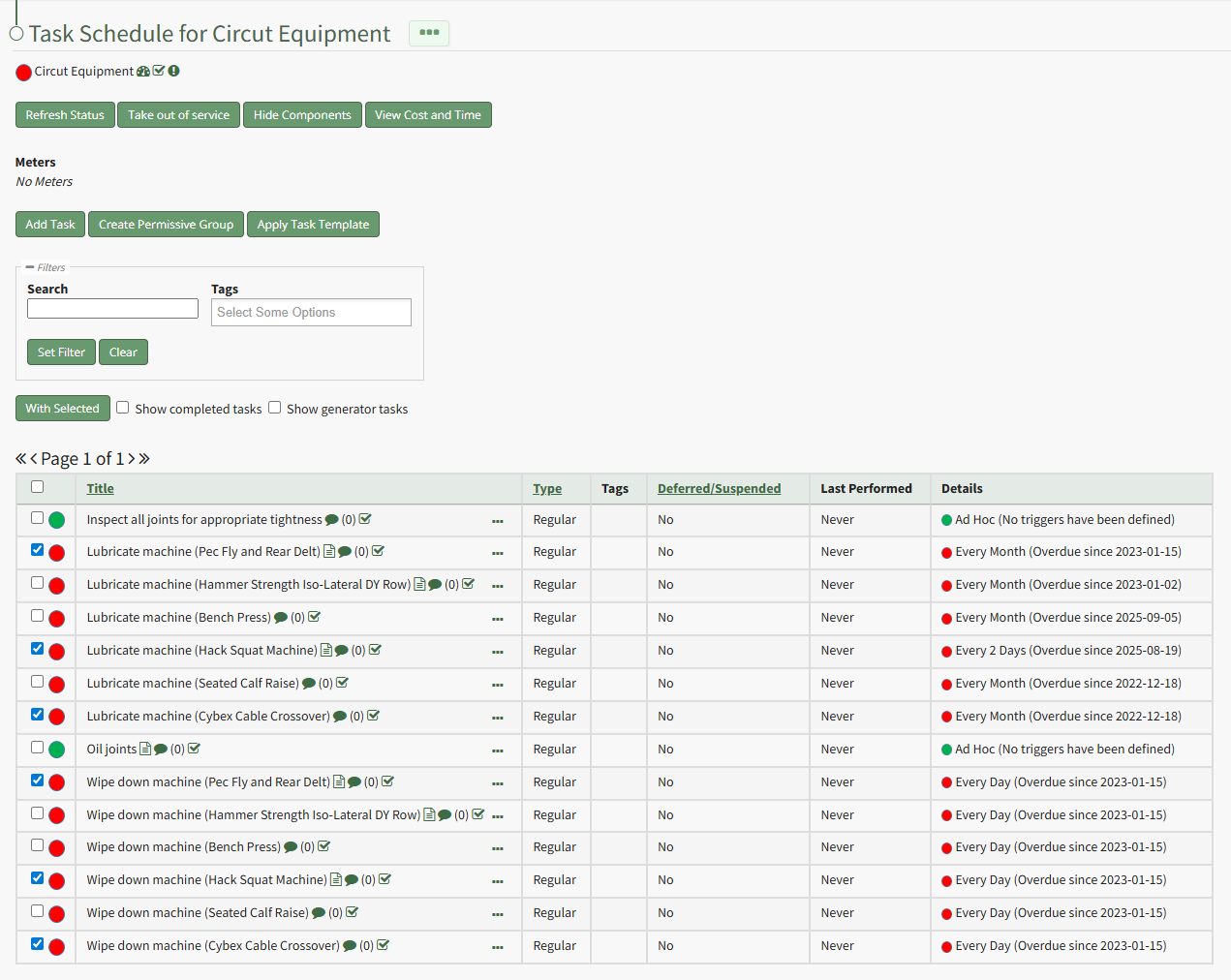
Select the checkboxes for all tasks you wish to delete from the task schedule and click the "With Selected" button above the Task Schedule Table opening the With Selected Tasks Modal.
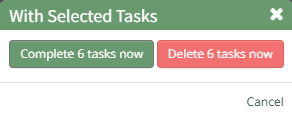
Click the "Delete # Tasks Now" button opening a confirmation modal which states, "Are you sure you wish to delete these tasks?"
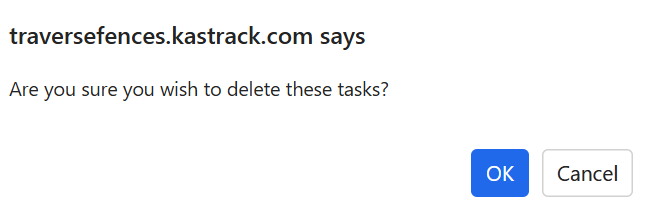
Click the "OK" button and a popup confirms the number of tasks deleted.
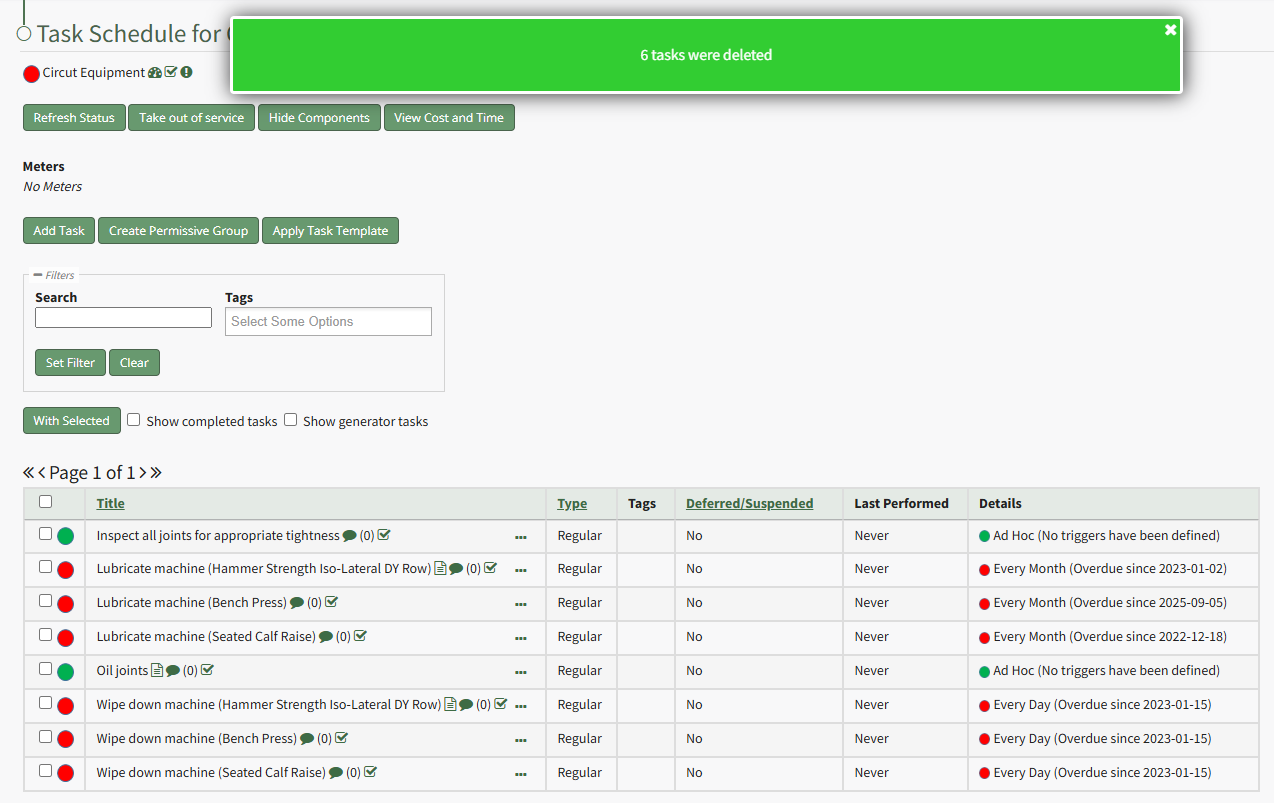
The deleted tasks no longer show in the Task Schedule table.
How To: Display Select Tasks in the Task Schedule Table
To display completed tasks or generator tasks in the task schedule table, open the relevant asset's Task Schedule Page.
How To: View an Asset's Task Schedule
To view an asset's task schedule, open the Manage Assets Page in the Assets Module on the Main Menu. Use filters as needed and identify the asset/component whose task schedule you wish to view. Click the three-dot icon to the right of the asset title opening the Asset Management Context Menu.
Select the "Manage Components" option, opening the Manage Asset Components Page. Select the three-dot icon to the right of the asset/component you wish to add interim notes to and select Task Schedule from the context menu.
This opens the asset's Task Schedule Page.
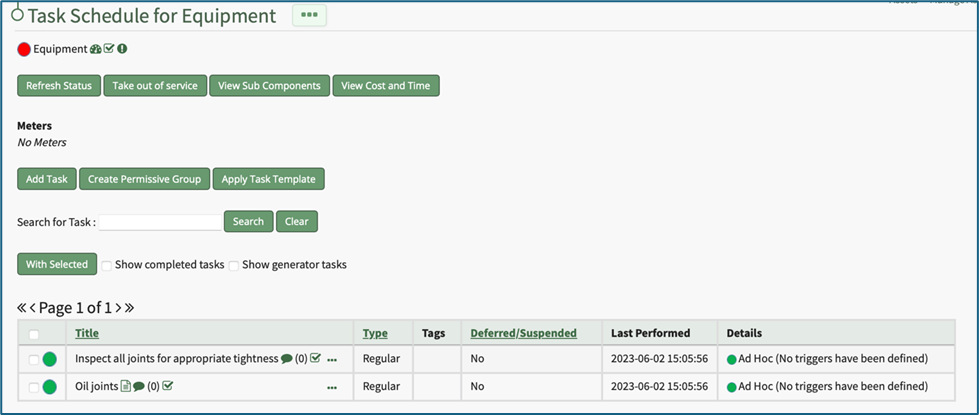
Use the checkboxes to “Show completed tasks” and “Show generator tasks” on the Task Schedule Table.
Once selected, the Task Schedule Table will refresh to include the selected tasks.
How To: Download a File Attached to a Task
To download a file attached to a specific task, open the Task Schedule Page for the asset of interest.
How To: View an Asset's Task Schedule
To view an asset's task schedule, open the Manage Assets Page in the Assets Module on the Main Menu. Use filters as needed and identify the asset/component whose task schedule you wish to view. Click the three-dot icon to the right of the asset title opening the Asset Management Context Menu.
Select the "Manage Components" option, opening the Manage Asset Components Page. Select the three-dot icon to the right of the asset/component you wish to add interim notes to and select Task Schedule from the context menu.
This opens the asset's Task Schedule Page.
Click the three dot (…) icon next to the right of title whose files you wish to view on the Task Schedule Table opening the context menu. Select “Task Files” opening the Files modal.
Any files associated with the task are shown on the Files modal with two icons to the right. To download the file, click the cloud icon to the right of the File Title, opening the View Files Modal.

Clicking the document title or the download button will download the attached file to your personal device.
How To: Download a File from the Asset File Library
To download a file from the Asset Module File Library, select the Files Page in the Assets Module on the Main Menu. Click the three-dot icon to the right of the file you wish to download in the File Library Table to open the Files Context Menu.
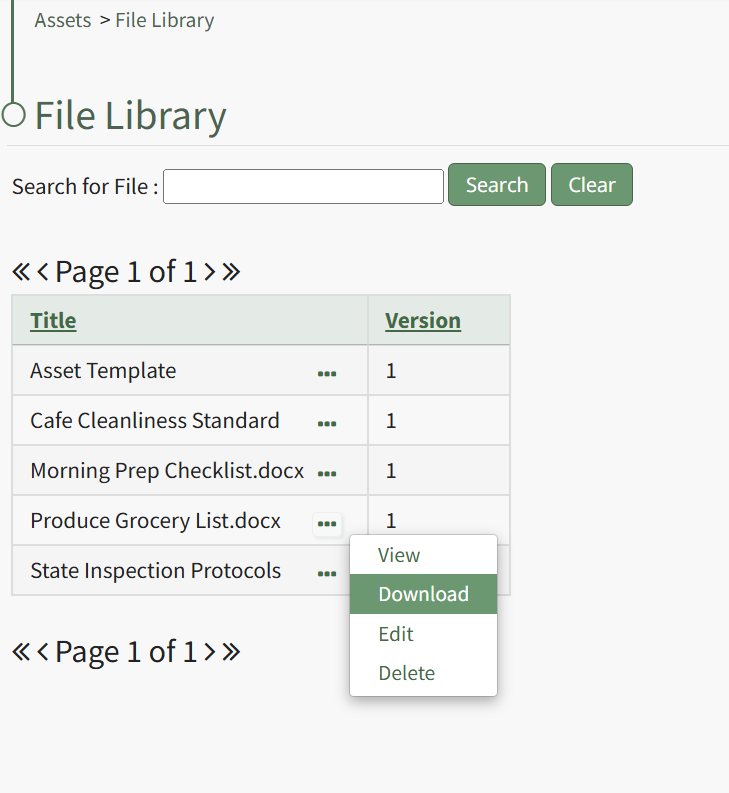
Select "Download" from the context menu and the file will automatically be downloaded to your personal device.
How To: Download Historical Task Attachments
To download attachments associated with historical tasks, open the History Page of the relevant asset.
How To: View an Asset's Historical Logs
An asset's historical data can be accessed from an asset's History Page. To access an asset's history, go to the My Assets Page in the Assets Module on the Main Menu. Use the filters as needed to identify the access whose history you wish to view, and click the three-dot icon to the right of the asset name. This opens a context menu.
Select "History" from the context menu opening the Asset History Page.
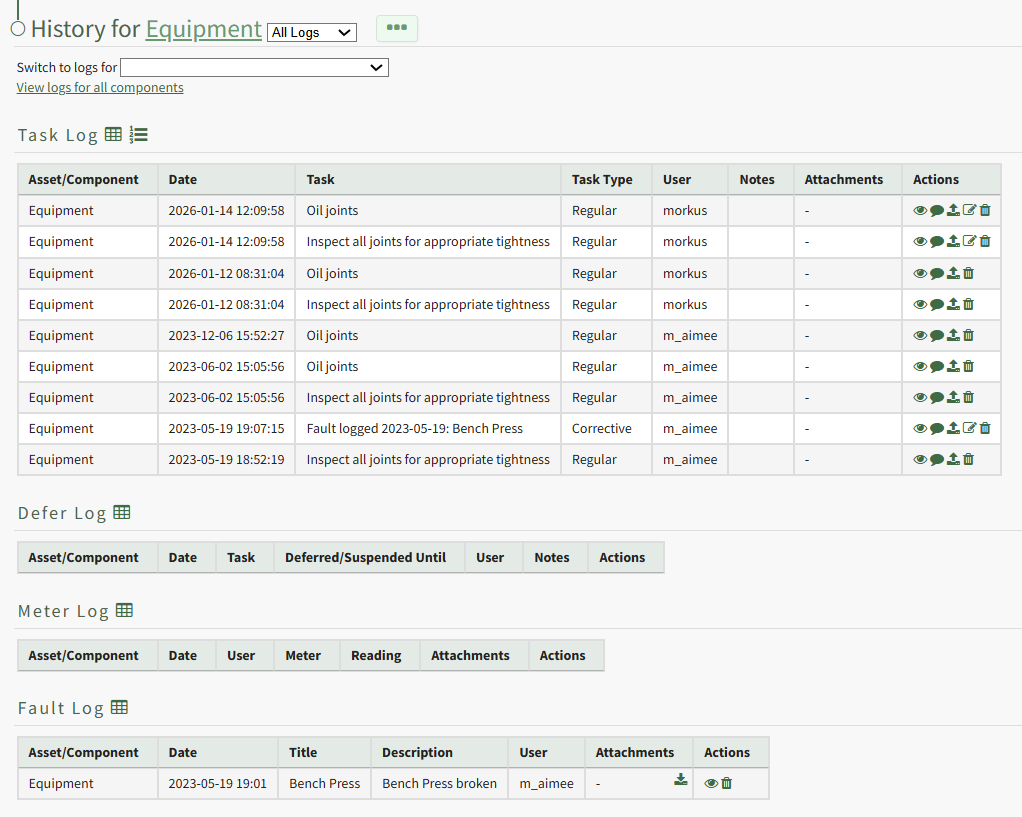
Select the download icon in the Attachments Column of the Log Table opening a Download Attachments Modal that generates a clickable link.
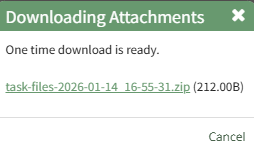
Click the link and the task record's attachment will be downloaded to your personal device.
How To: Edit a File's Details in the File Library
To edit the details associated with a file in the Asset Module File Library, select the Files Page in the Assets Module on the Main Menu. Click the three-dot icon to the right of the file you wish to edit the File Library Table to open the Files Context Menu.
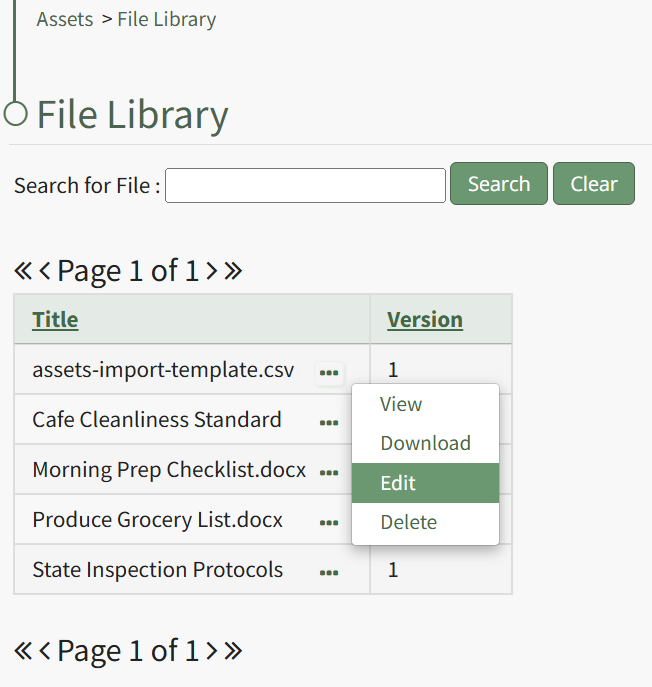
Select "Edit" from the context menu opening the Edit File Modal.
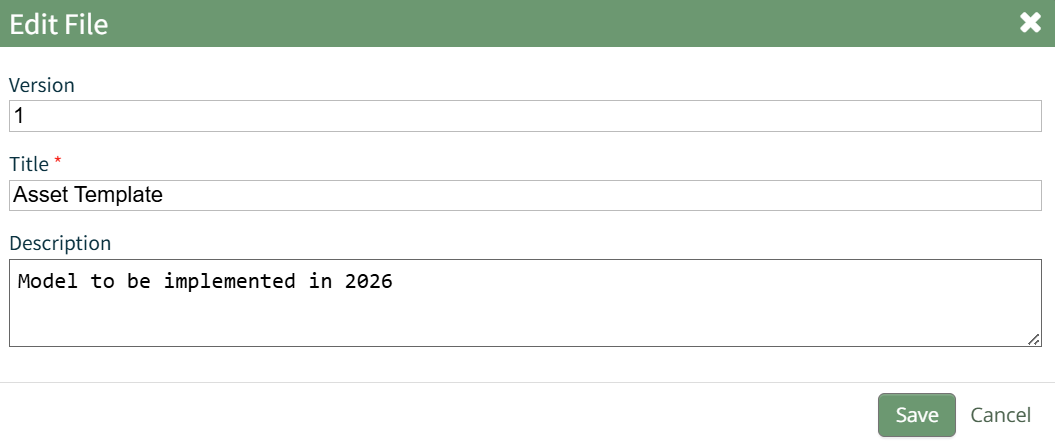
Changes to the file version number, title, and description can be made directly in the modal. Select the "Save" button and a popup confirms that the file edits have been saved. The changes are reflected on the File Library Table.
How To: Edit a Meter Type
To edit a meter type, go to the Meter Types Tab on the Settings Page of the Assets Module. Select the three-dot icon to the right of the meter type ID you wish to edit opening the Meter Type Context Menu.
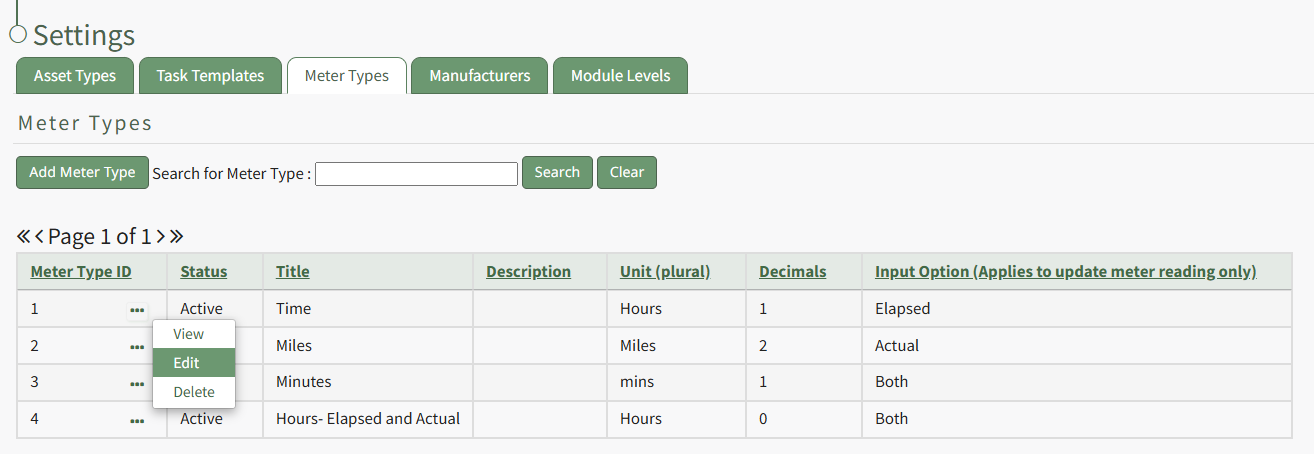
Select "Edit" from the context menu opening the "Edit Meter Type" modal.
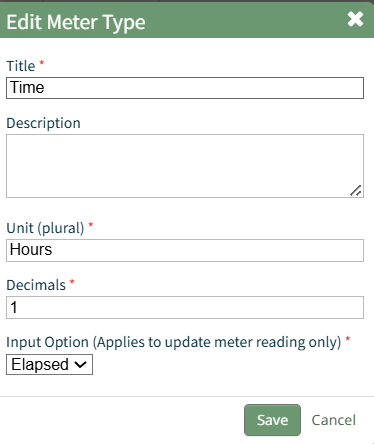
Make any desired changes and select the "Save" button.
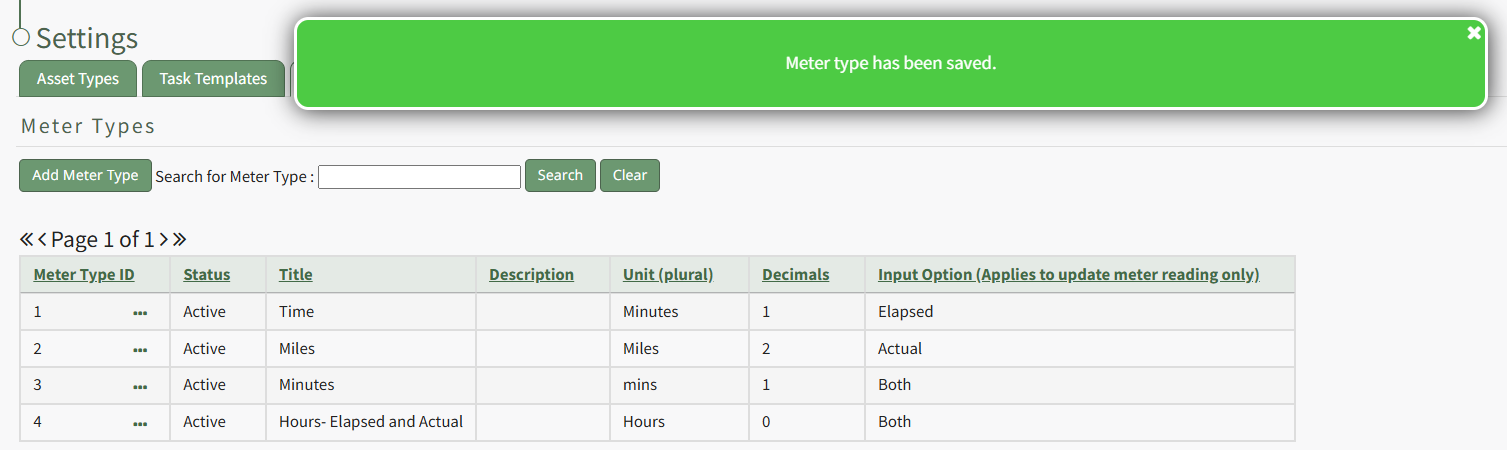
A pop up confirms that the changes to the meter type were saved.
How To: Edit a Task
To edit a task associated with an asset, open the Task Schedule Page for the asset whose task you wish to edit.
How To: View an Asset's Task Schedule
To view an asset's task schedule, open the Manage Assets Page in the Assets Module on the Main Menu. Use filters as needed and identify the asset/component whose task schedule you wish to view. Click the three-dot icon to the right of the asset title opening the Asset Management Context Menu.
Select the "Manage Components" option, opening the Manage Asset Components Page. Select the three-dot icon to the right of the asset/component you wish to add interim notes to and select Task Schedule from the context menu.
This opens the asset's Task Schedule Page.
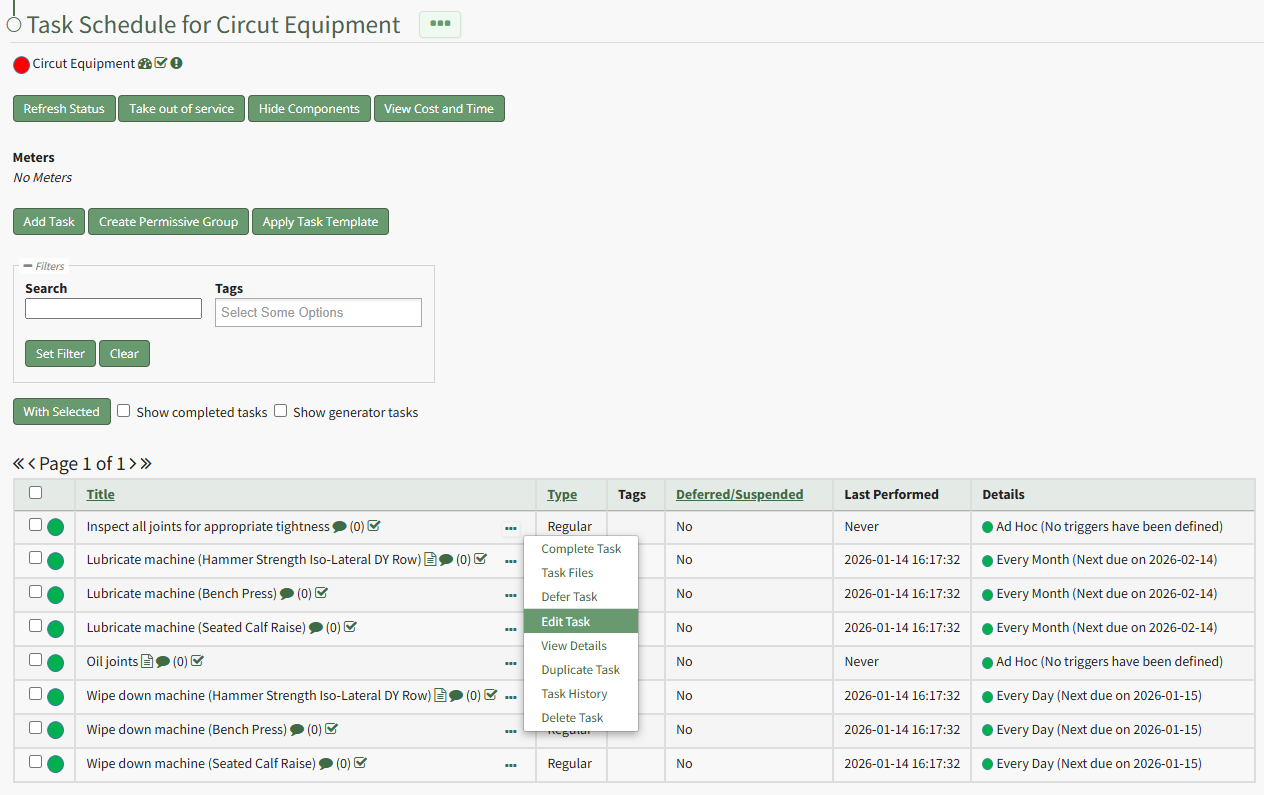
Click the three-dot icon to the right of the task you wish to edit opening the Task Management Context Menu. Select "Edit Task" opening the Edit Task Modal.
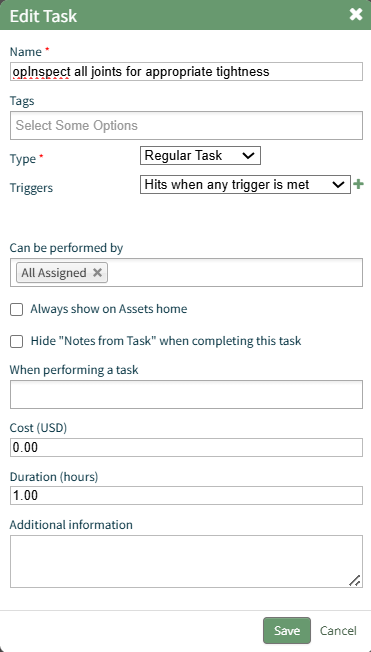
The Edit Task Modal allows you to alter the task name, add tags, change the task type and task trigger, alter who can perming the task, and other pertinent information.
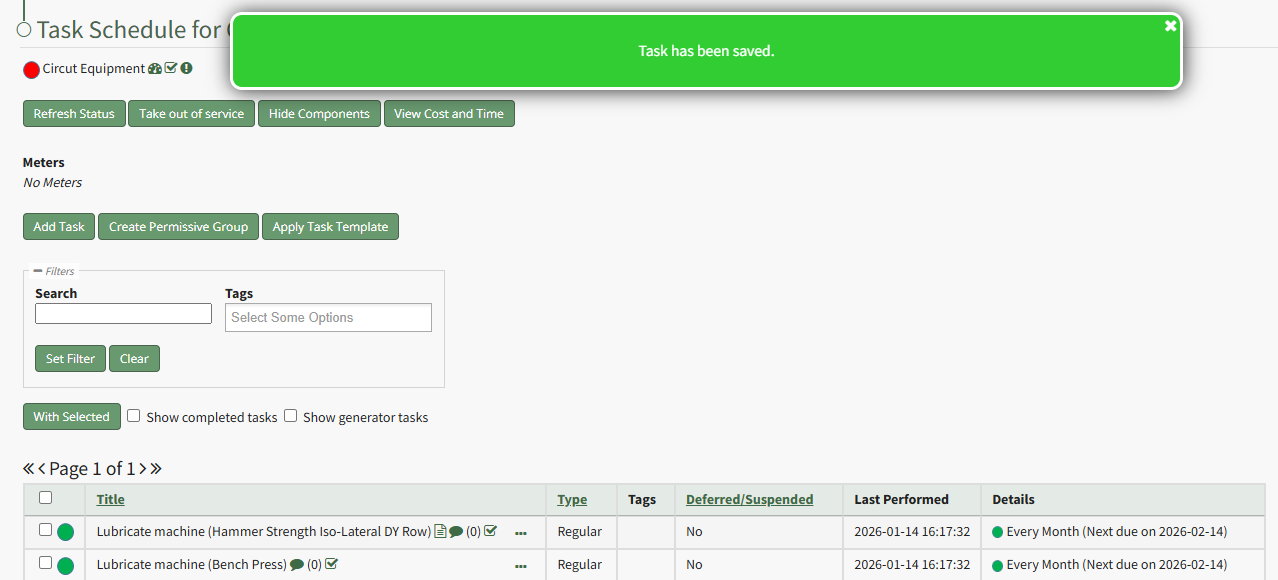
Select the "Save" button after making your desired changes and a popup confirms that the task edits were saved.
How To: Edit an Asset
To edit an asset, open the Manage Assets Page in the Assets Module on the Main Menu. Use filters as needed and identify the asset/component whose details you want to edit. Click the three-dot icon to the right of the asset title opening the Asset Management Context Menu.
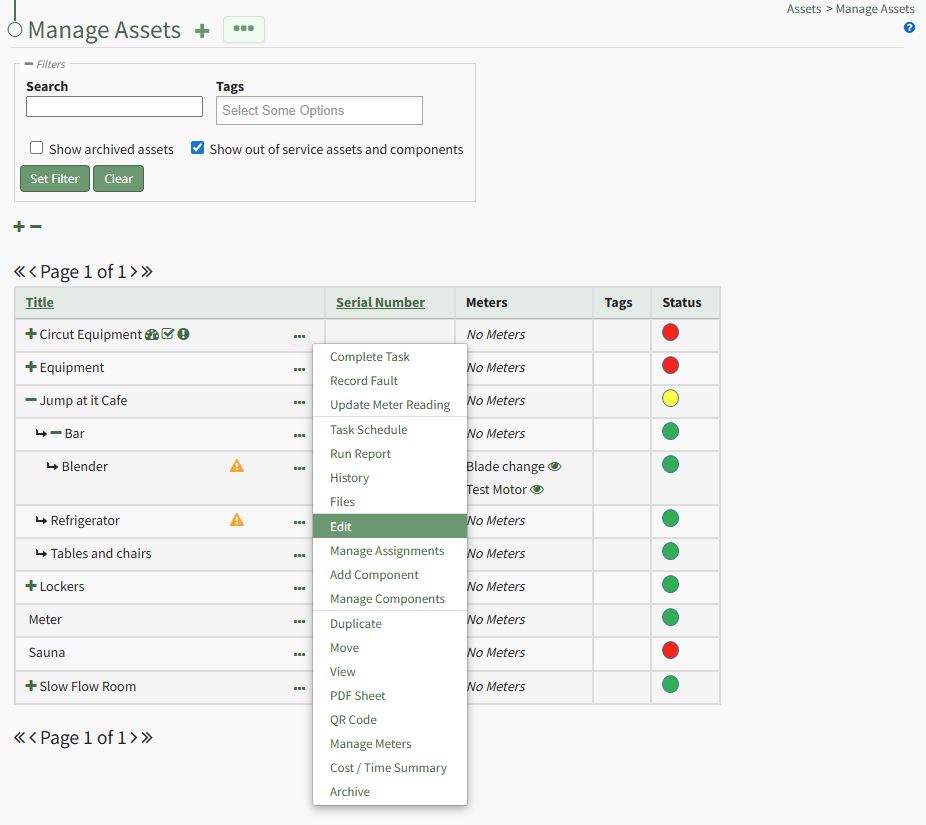
Select "Edit" from the context menu opening the Edit Asset Modal.
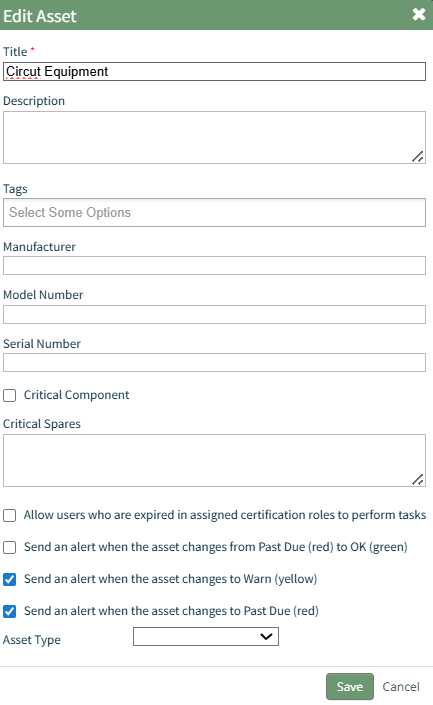
Key details about the asset can be added directly from this modal, an asset type can be assigned, and alert preferences can be altered as desired.
Click the "Save" after making the desired changes.

A popup confirms that the asset edits have been saved.
How To: Edit an Asset Type Field
To edit a field associated with an asset type, go to the Asset Types Tab on the Settings Page of the Assets Module. Select the three-dot icon to the right of the asset type whose field you wish to edit opening the Asset Types Context Menu.
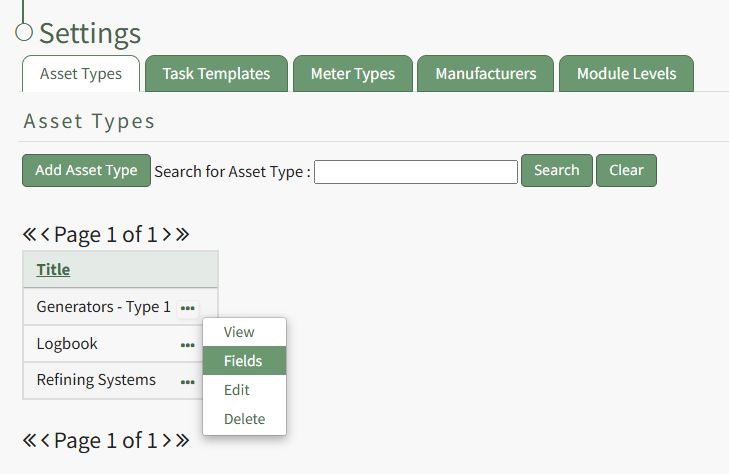
Select "Fields" from the context menu opening the Asset Type Field Table. Click on the three-dot icon to the right of the field you wish to edit opening the Asset Type Fields Context Menu.
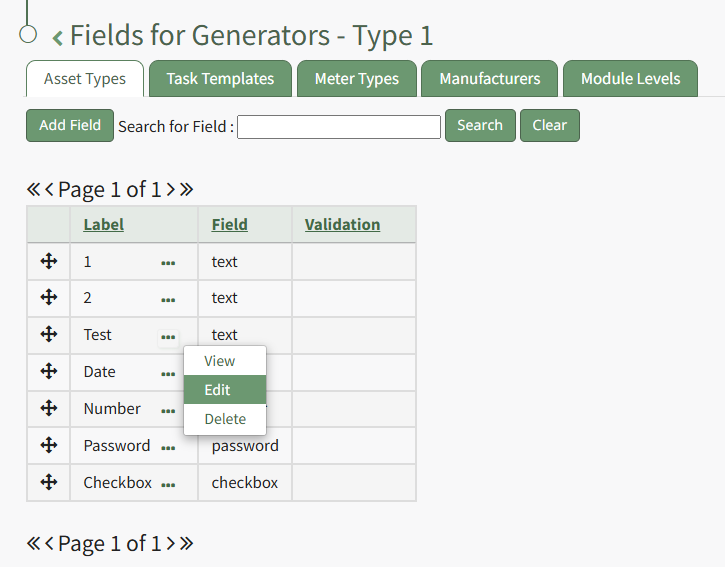
Select "Edit" opening the Edit Field Modal.
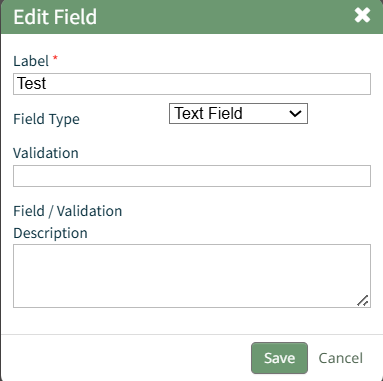
This modal will vary based on the field type associated with the field.
Make the desired changes to the field and select the "Save" button.
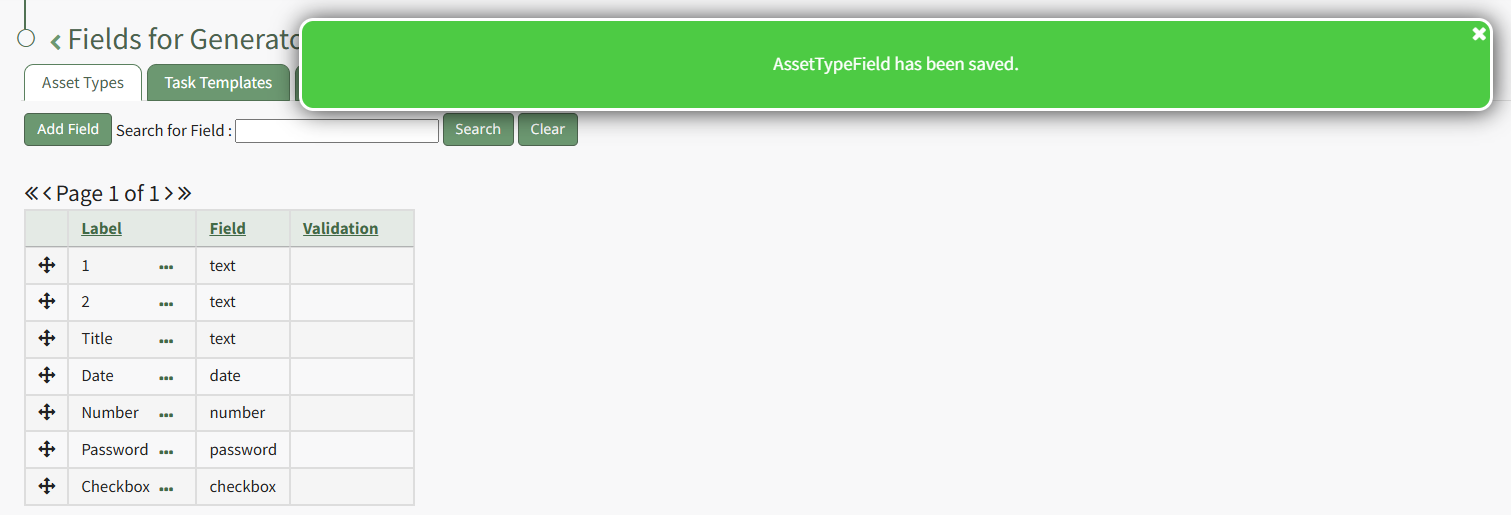
A pop up confirms that the Asset Type Field has been changed, and the edits are reflected on the Asset Type Fields Table.
How To: Edit the Date / Time of Task Completion for Historical Tasks
To edit the date/time of task completion for historical task records, open the relevant asset's History Page.
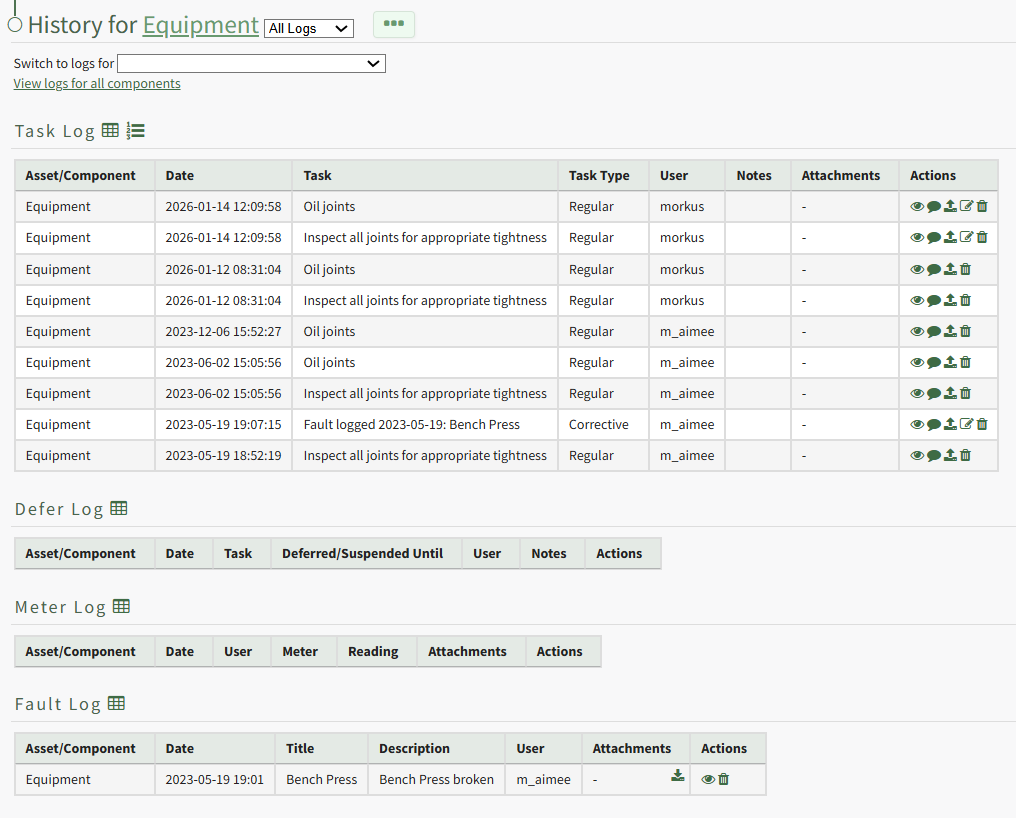
Select the paper pencil icon in the Actions Column to the right of the historical task record you wish to edit.
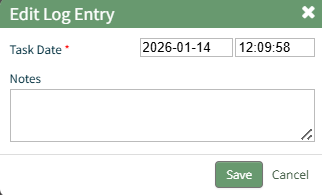
This opens the Edit Log Entry Modal where the date and time can be edited and additional notes can be included.
Select "Save" and the system returns you to the asset's History Page.
How To: Log a Task has been Completed
In order to log that a task has been completed and is current/up to date (a green task status), go to the Upcoming Task Table on the Home Page of the Assets Module. Select the “Complete Task” button from the top of the Your Upcoming Tasks Page.
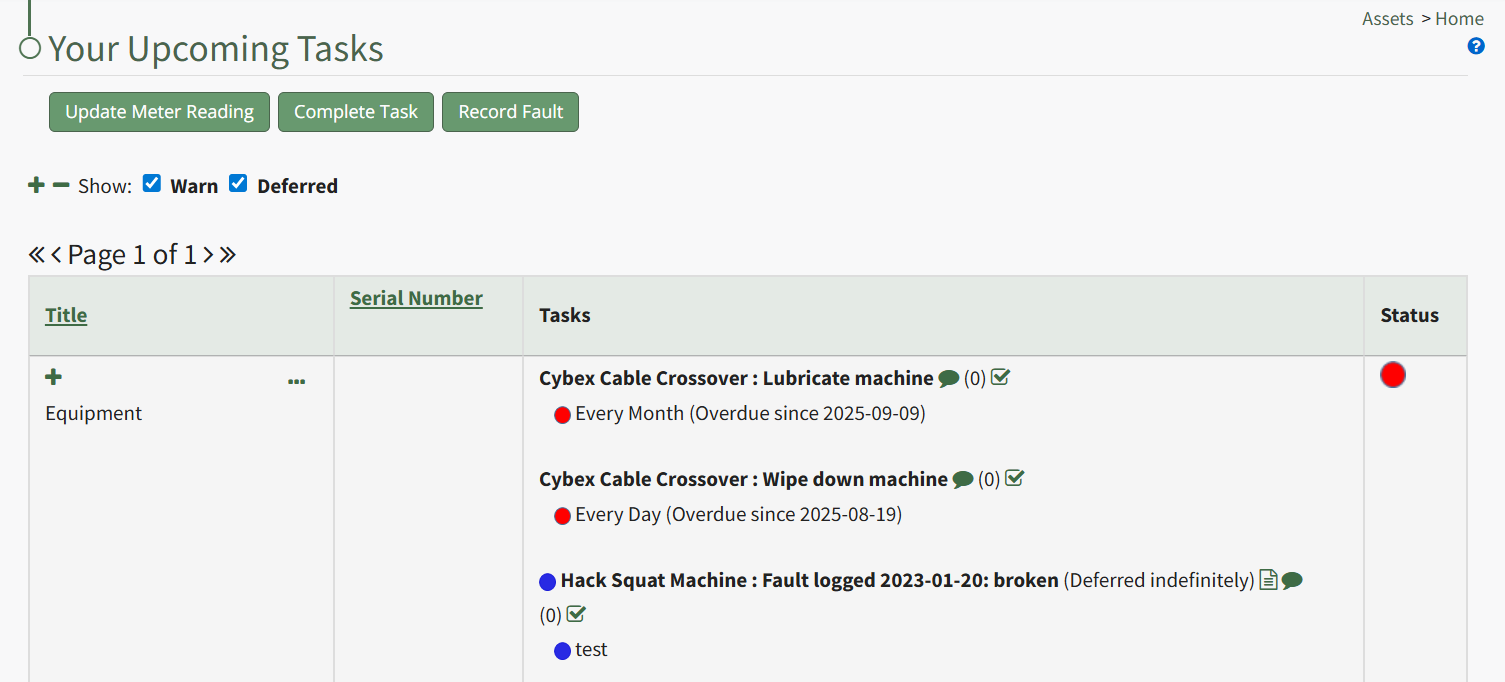
The Choose Asset Modal will prompt you to identify which asset you want to log data for. Click the bulleted list icon to access your assets. Selecting the plus sign “+” icon will expand the components under the asset.
Selecting “Complete Task” from the three dot (…) context menu to the right of the asset / component title will open the same modal for the specified asset.
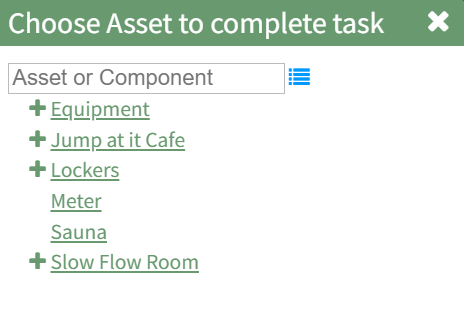
Select the appropriate asset, opening the asset's Complete Task Modal. Click the green View All clickable link to list all tasks associated with the selected asset, including tasks that are current / up to date (green status).
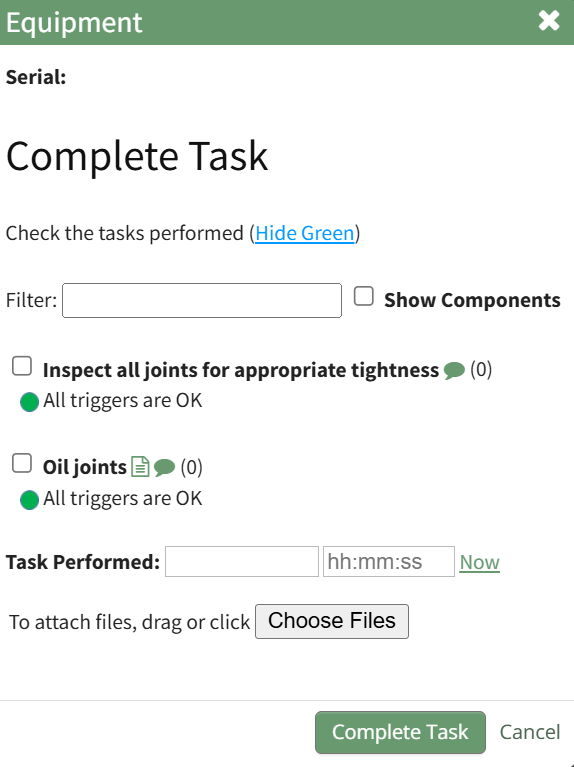
Serial numbers and the asset description will show at the top of the modal.
Clicking the “Show Subcomponents” checkbox shows any subcomponent tasks associated with the asset, expanding the modal when selected.
Beneath the task in bold is a note that indicates the parameters for the task, referred to as a trigger in KAStrack. Triggers refer to the task behavior, frequency or usage standards that KAStrack will applies to tasks to determine their schedule for completion.
To log the task, select the checkbox of the completed task. You can manually enter the date (MM/DD/YYYY format) and time (hh:mm:ss format) that the task was completed, or select “Now” in order to input the current date and time.
Click the “Complete Task” button to save the changes and complete the task. Click cancel to return to the Assets Module Homepage.
How To: Mark an Asset as Out of Service
To take an asset out of service and give it a grey task status, open the Manage Assets Page in the Assets Module.
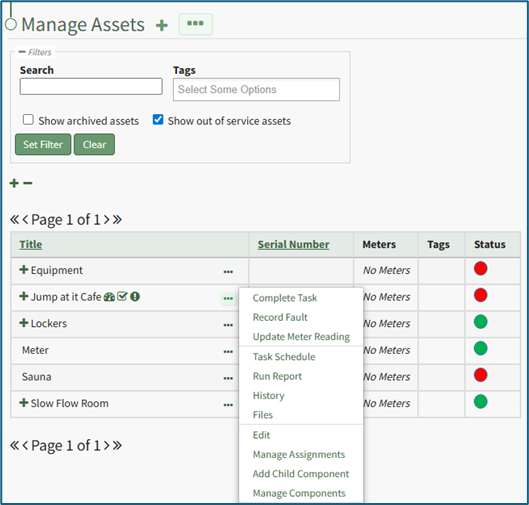
Click the three dot (…) icon to the right of the asset associated with the task you want to take out of service opening the context menu.
Select “Task Schedule” opening the asset's Task Schedule Page.
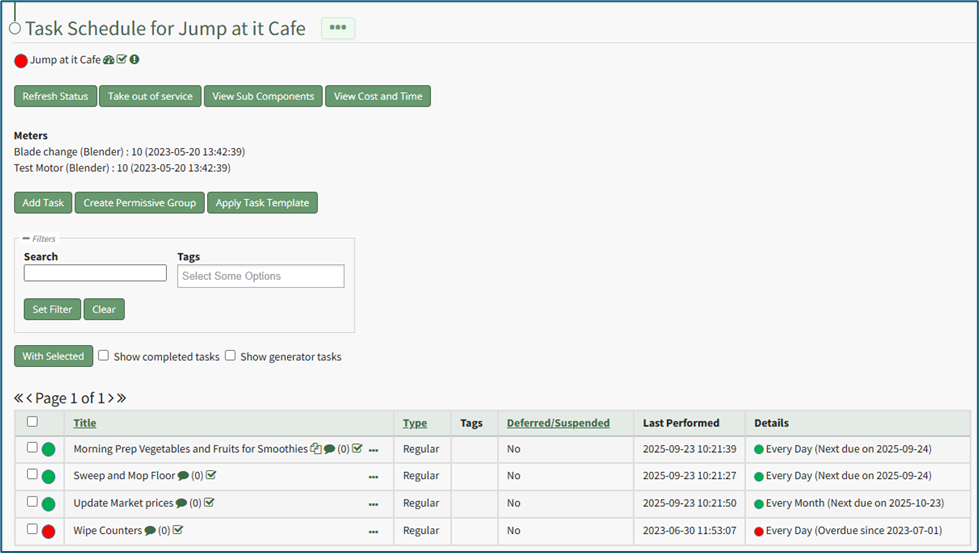
Select the “Take out of service” button opening a confirmation modal stating, “Are you sure you wish to take this asset out of service?”
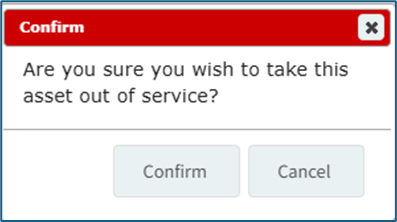
Select “Confirm” and the asset will be taken out of service. A modal will confirm that the asset was taken out of service.

The Task Status for the asset will now be gray.
How To: Mark Multiple Trasks as Complete on the Task Schedule
To mark multiple tasks as complete on a task schedule at the same time, open the Task Schedule you wish to edit in the Assets Module.
How To: View an Asset's Task Schedule
To view an asset's task schedule, open the Manage Assets Page in the Assets Module on the Main Menu. Use filters as needed and identify the asset/component whose task schedule you wish to view. Click the three-dot icon to the right of the asset title opening the Asset Management Context Menu.
Select the "Manage Components" option, opening the Manage Asset Components Page. Select the three-dot icon to the right of the asset/component you wish to add interim notes to and select Task Schedule from the context menu.
This opens the asset's Task Schedule Page.
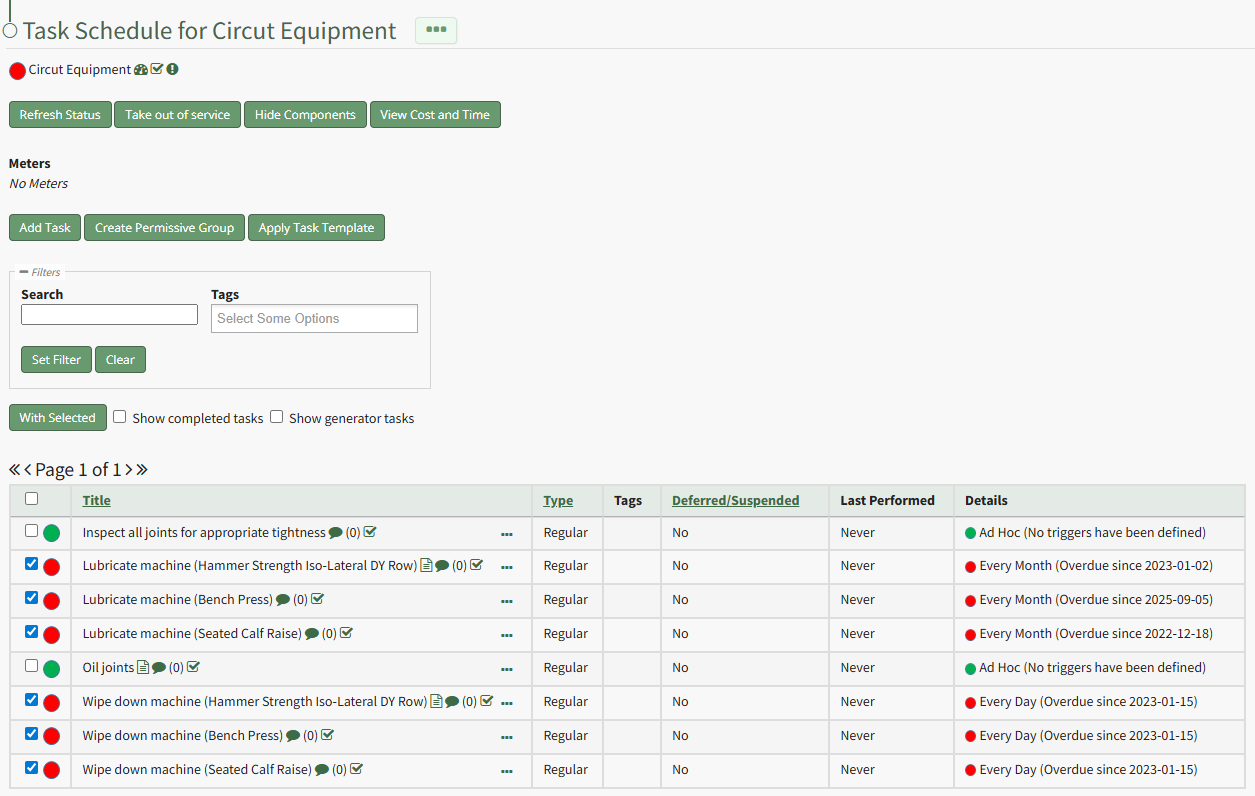
Select the checkboxes for all tasks you wish to mark as completed and click the "With Selected" button above the Task Schedule Table opening the With Selected Tasks Modal.
Click the "Complete # Tasks Now" button opening the Complete Task Modal.
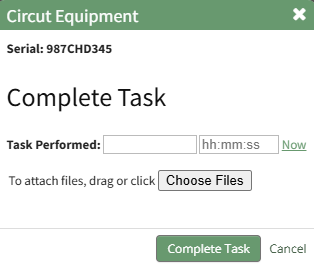
Input the date and time to be noted for task completion and upload any desired files. Click the "Complete Task" button on the modal and the Task Schedule automatically updates the new task status.
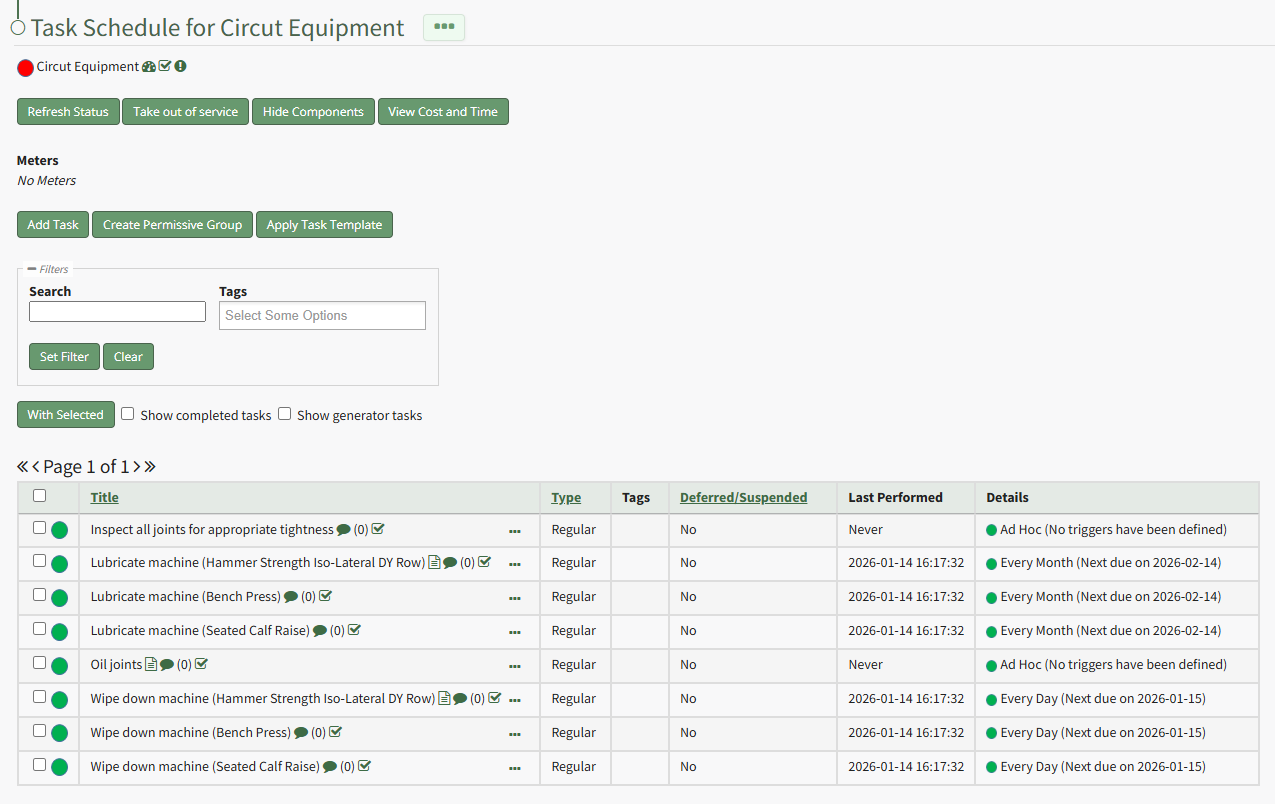
How To: Move an Asset/Component to another Asset/Component
To move an existing asset to a new hierarchal position, under another asset/component, open the Manage Assets Page in the Assets Module on the Main Menu. Use filters as needed and identify the asset/component you want to move. Click the three-dot icon to the right of the asset title opening the Asset Management Context Menu.
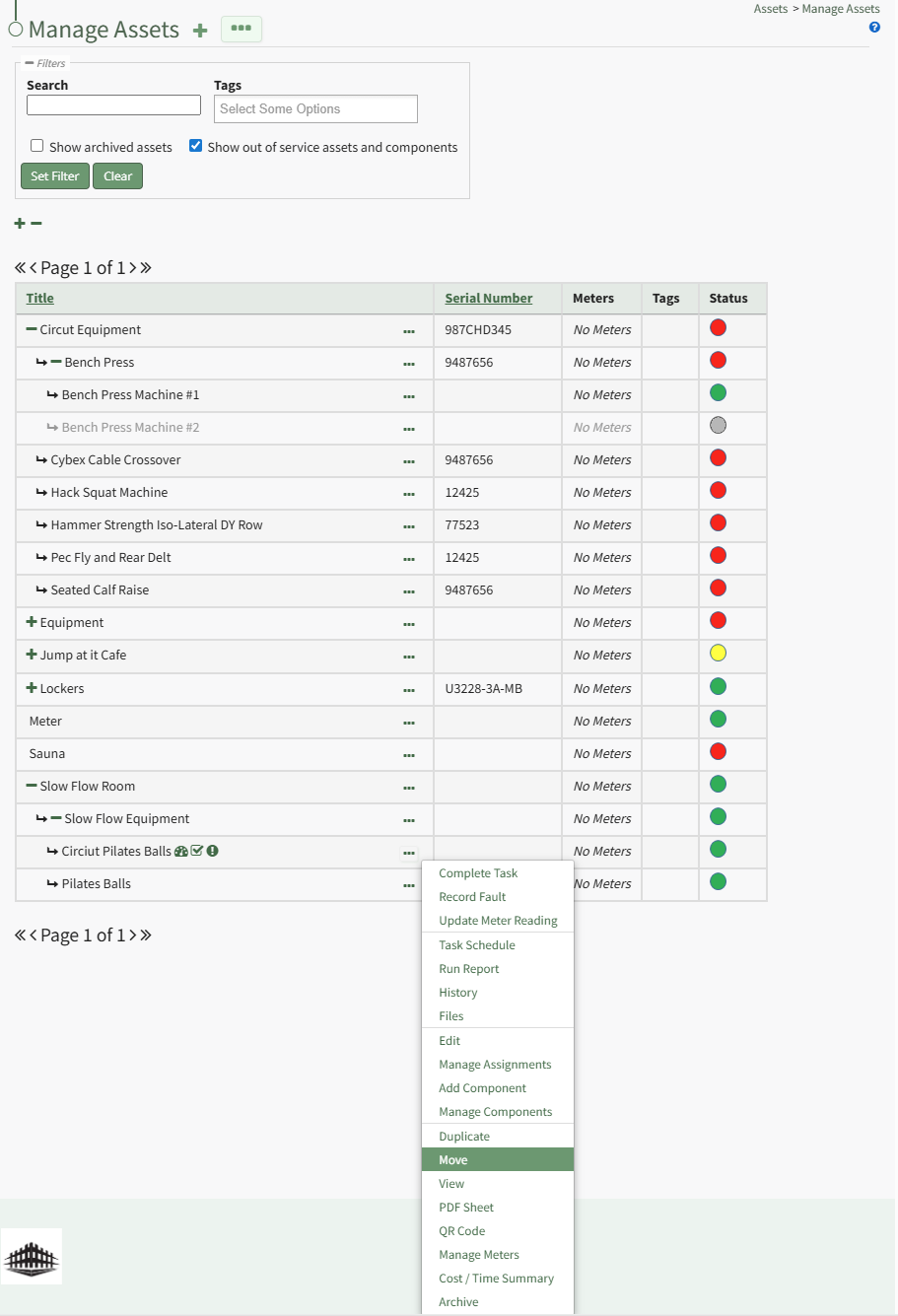
Select "Move" opening the Move Component Modal.
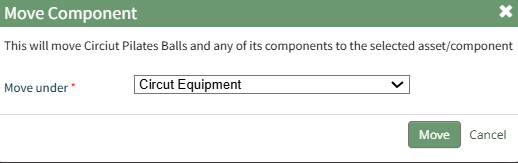
Click the "Move" button and a popup confirms the move was successful.

How To: Record a Fault
Logging faults allows your company to track trending data in KAStrack by recording incidents and any data associated with this issue/failure.
In order to record fault with an equipment issue/failure, go to the Upcoming Task Table on the Asset Module Homepage and select the "Record Fault" button beneath the page header.
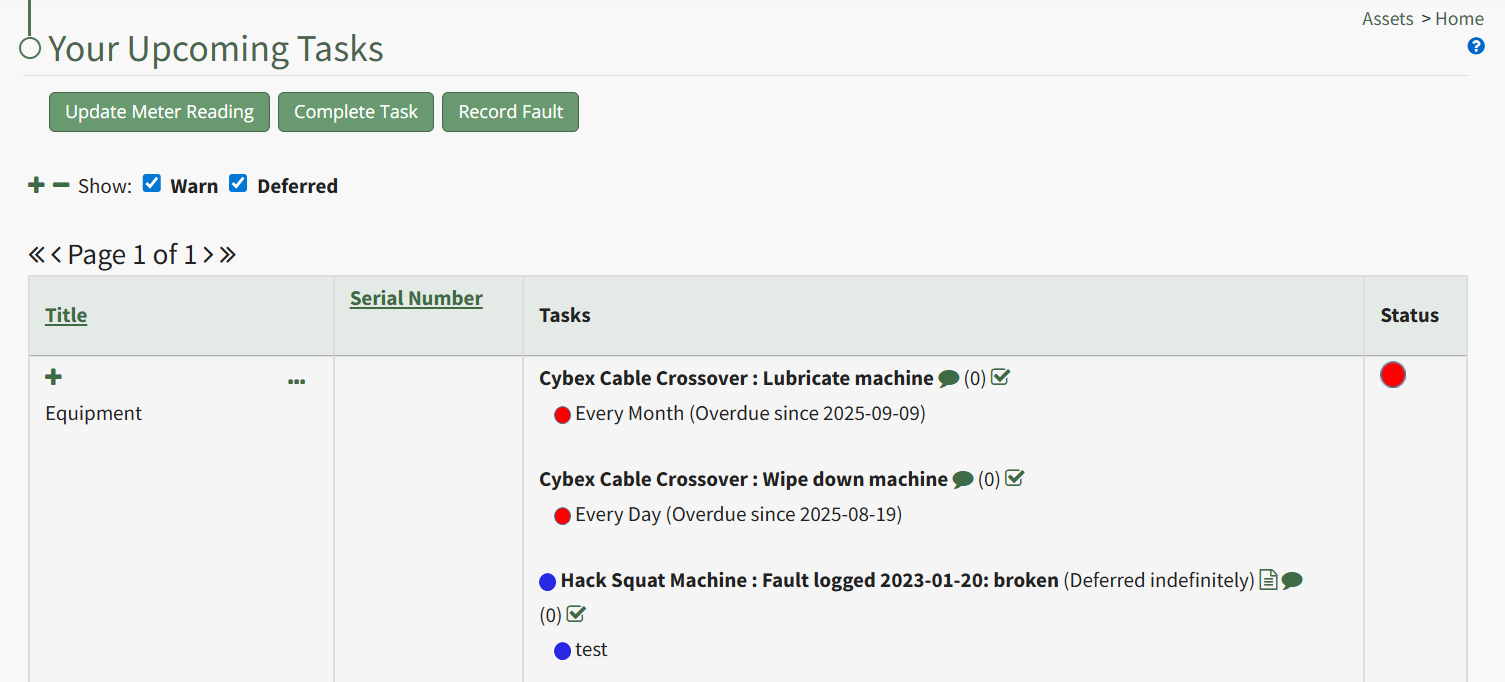
The Choose Asset Modal will prompt you to identify which asset you want to log data for. Click the bulleted list icon to access your assets. Selecting the plus sign “+” icon will expand the components within the Asset.
Selecting “Record Fault” from the three dot (…) context menu will open the same modal for the specified asset.
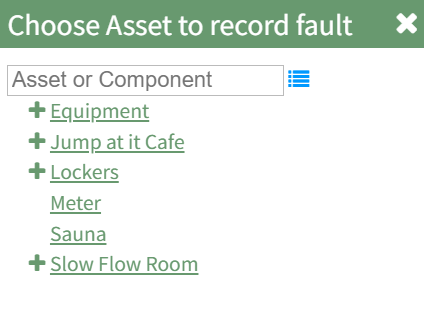
Select the appropriate asset, opening the Record Fault Modal.
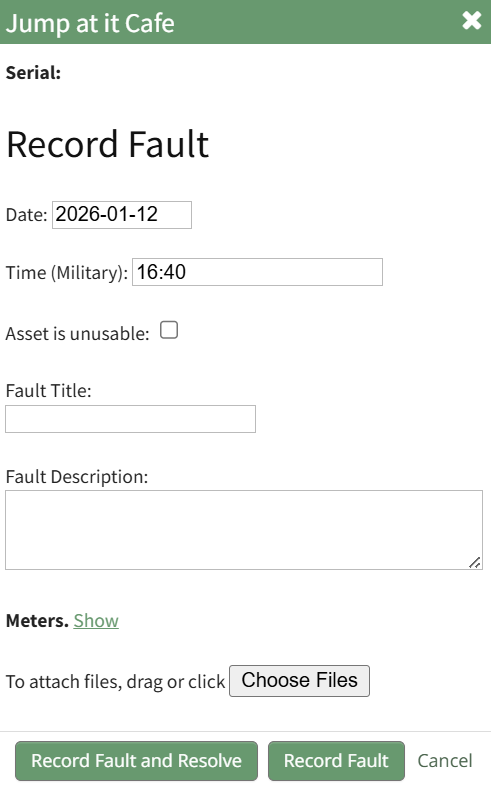
Enter the date and time into the Record Fault modal. The default setting is in military time (24 hours). If the asset is currently unusable, click the checkbox. Give the fault a title and provide a description of the fault. Leave the meter blank if there is no reading.
Select the “Log Fault” button to record the incident. Select the “Log Fault and Resolve” button to complete two actions in one step: log the issue and indicate that it has been addressed. Click cancel to return to the Assets Module Homepage.
How To: Refresh the Task Schedule Table
To refresh the task schedule table with any task updates since the Task Schedule Page was opened, select the Refresh Status beneath the Task Schedule Page header.
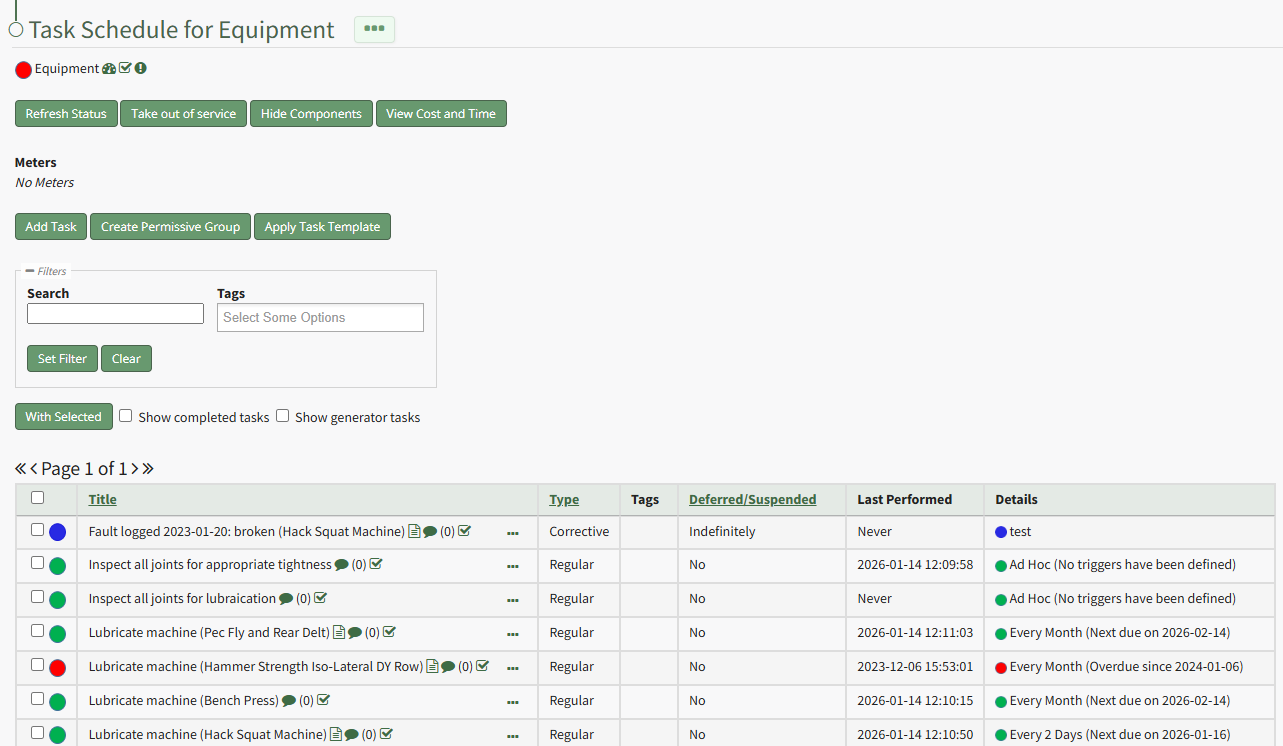
The system will process any changes and the Task Schedule Table will reflect the most up to date information.
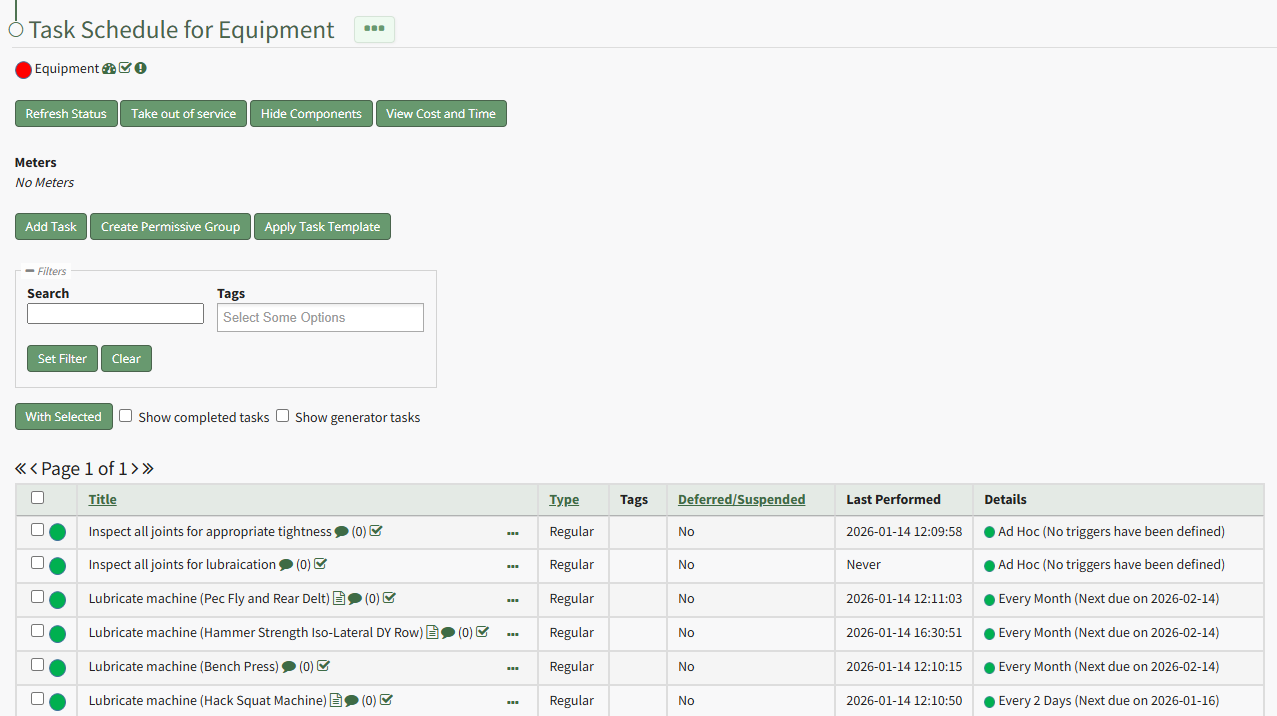
How To: Return an Out of Service Asset to Service
To return an out of service asset to service, open the Manage Assets Page in the Assets Module.
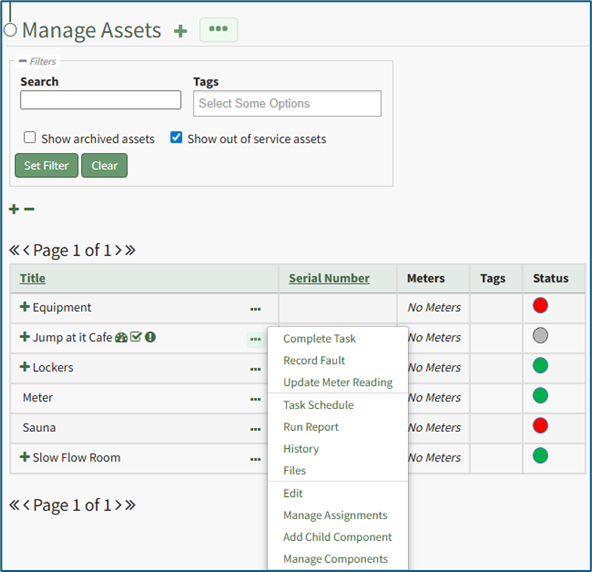
Click the three dot (…) icon to the right of the asset associated with the task you want to return to service opening the context menu.
Select “Task Schedule” opening the asset's Task Schedule Page.
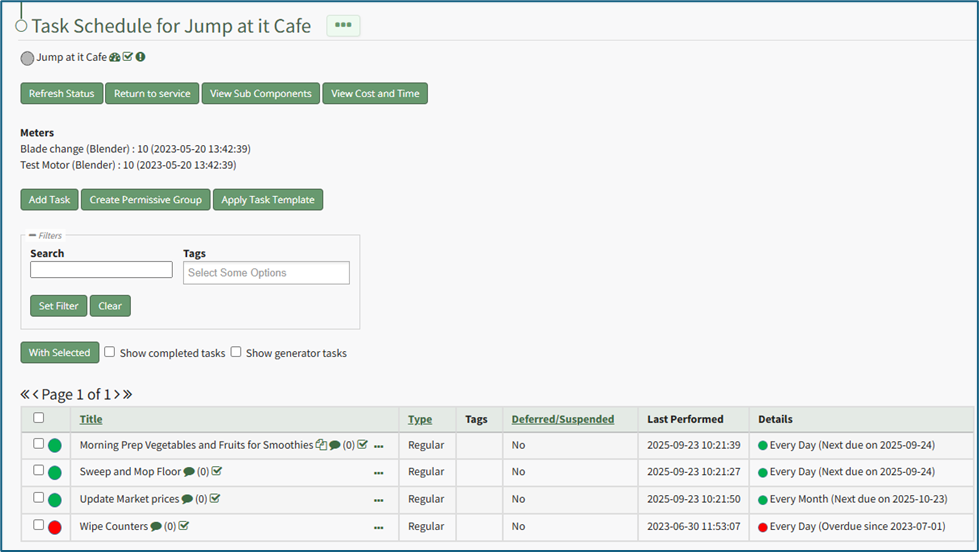
Select the “Return to service” button opening a confirmation modal stating, “Are you sure you wish to return this asset to service?”
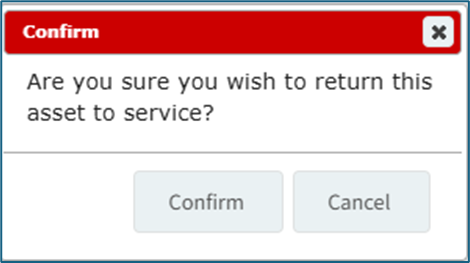
Select “Confirm” and the asset will be returned to service. A modal stating, “(ASSET NAME) was returned to service,” will temporarily appear.

The asset is now returned to service and the task status reflects completed/past due tasks.
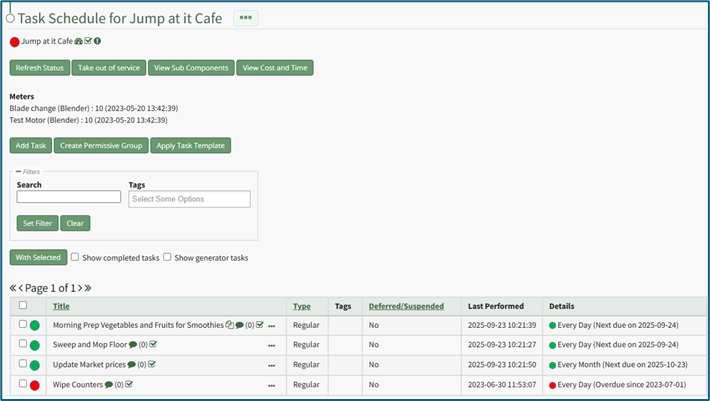
How To: Run an Asset Report
To run an asset report, open the My Asset Page in the Assets Module on the Main Menu. Use filters as needed and identify the asset/component you want to run a report on. Click the three-dot icon to the right of the asset title opening a context menu.
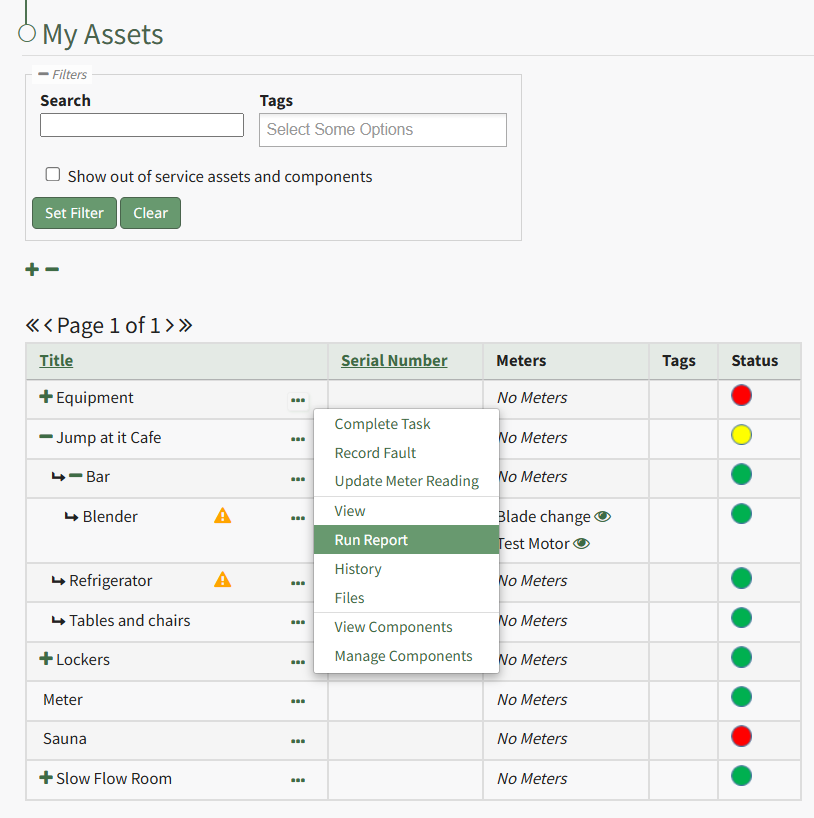
Select "Run Report" from the context menu opening the Assets Report Modal with options for running various types of reports.
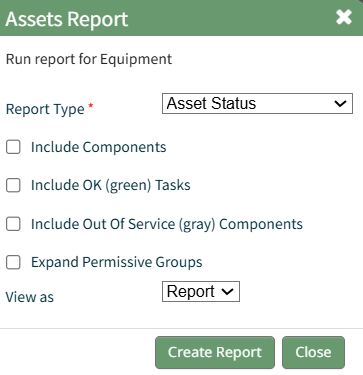
Reports can be run for an asset in its entirety, specific components or subcomponents. They type of report can be selected from a dropdown menu on the Assets Report Modal. An explanation of report types is included in the table below.
Asset Report Type Explanation Table | ||
Report Type | Assets Report Modal Image | Description / Notes |
Asset Status Report Modal |
| Options to include within the report include the following, which are selectable via checkbox:
Include Subcomponents Include Green Tasks Include Out-of-Service Components Expand Permissive Groups |
Tasks Due in the Next Report Modal |
| The “Tasks Due in the Next” Report allows the user to identify all upcoming tasks due over a customizable period of days / weeks / months / years. The report can be generated based on a period or usage. |
Tasks Due By Report Modal |
| The “Tasks Due By” Report provides the same information, but allows the user to enter a specific calendar date. Both reports allow the user to include subcomponents if desired. The report can be generated on a period or usage. |
Task Summary Report Modal |
| The Task Summary Report provides a summary of the status of all tasks. This report does not list all tasks associated with an asset. |
Tasks Completed Report Modal |
| The Tasks Completed Report Modal shows all tasks completed in a 30/60/90-day window or a specified date range. |
Each Asset Report can be viewed as a report in KAStrack's Report Module, a PDF File, or an Excel Document. | ||
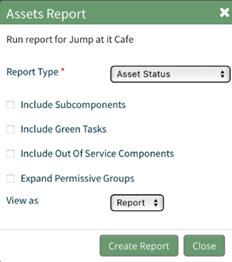
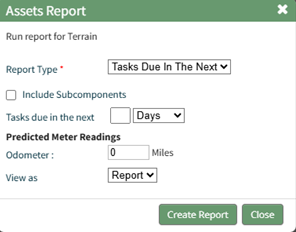
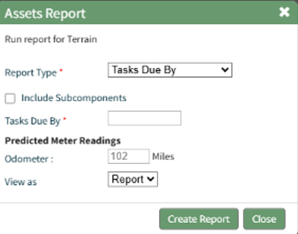
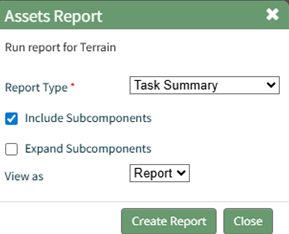
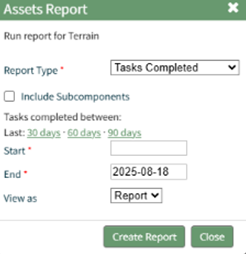
Select the "Create Report" button after completing the inputs on the Assets Report Modal and the system will generate your report in the viewing preference you selected.
How To: Run Reports on Historical Task Data
To run reports on historical task records, open the relevant asset's Asset History Page.
How To: View an Asset's Historical Logs
An asset's historical data can be accessed from an asset's History Page. To access an asset's history, go to the My Assets Page in the Assets Module on the Main Menu. Use the filters as needed to identify the access whose history you wish to view, and click the three-dot icon to the right of the asset name. This opens a context menu.
Select "History" from the context menu opening the Asset History Page.
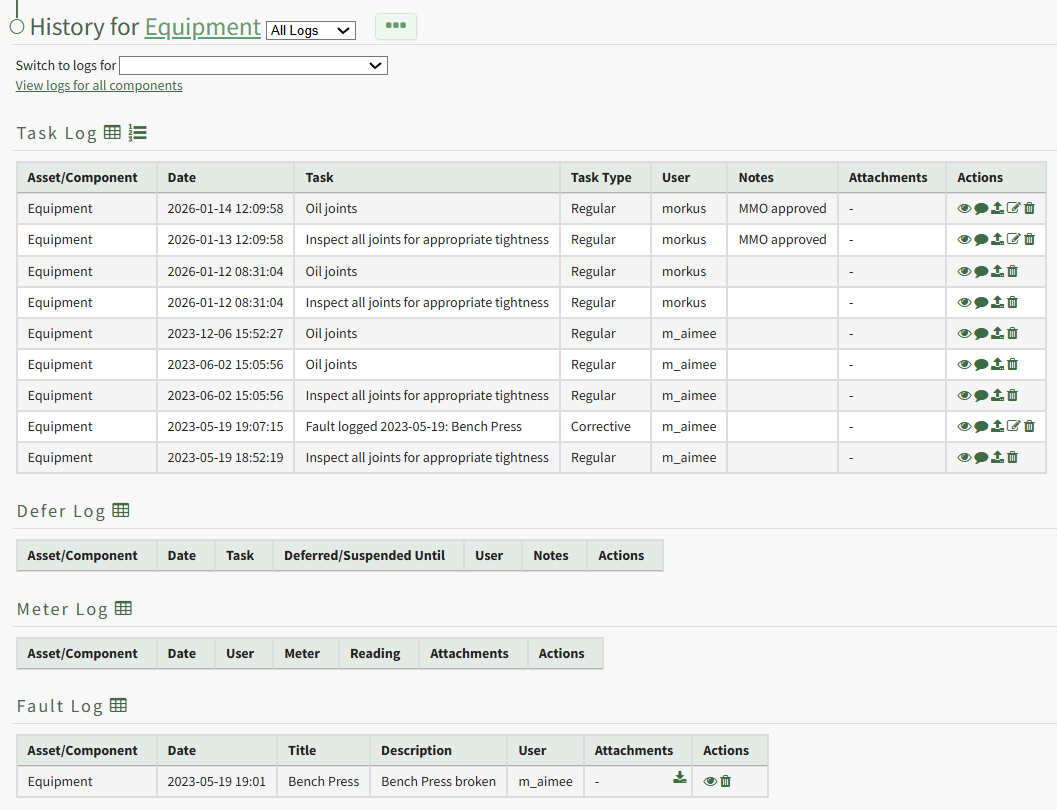
Click the numbered list icon to the right of the Task Log header opening the Tasks Reports Modal.
How To: Update a Meter Reading
In order to update an asset's meter reading, go to the Assets Module Home Page opening the Upcoming Tasks Table. Click the “Update Meter Reading" button from the Asset Module Homepage.
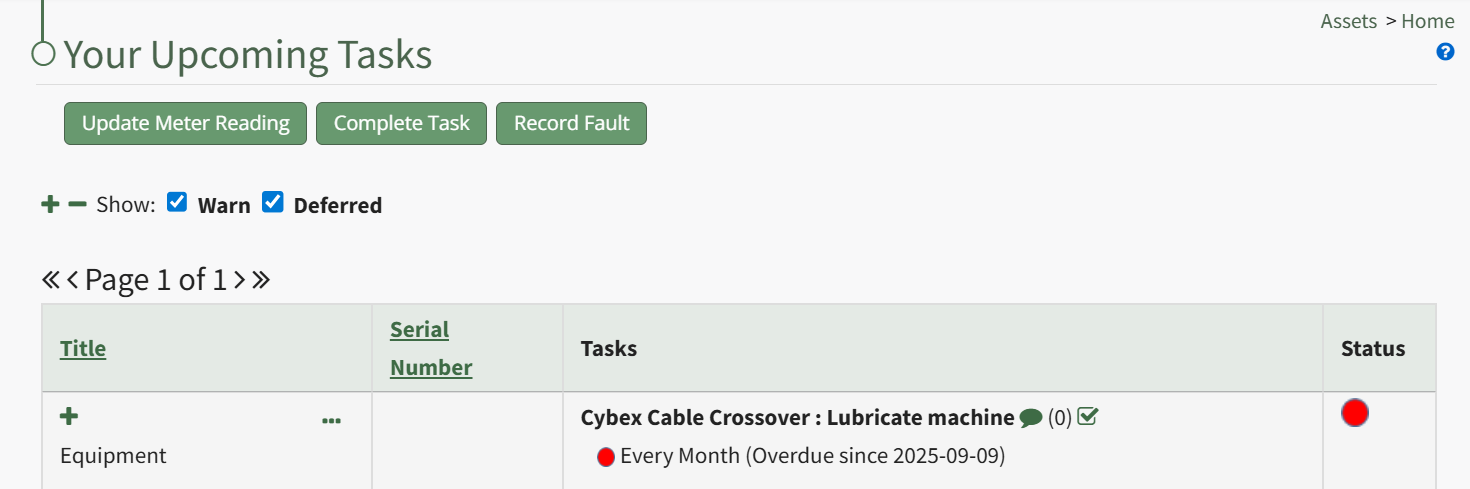
The Choose Asset Modal will prompt you to identify which asset you want to log data for. Click the bulleted list icon to access your assets. Selecting the plus sign “+” icon will expand the components within the Asset.
Selecting “Update Meter Reading” from the Upcoming Task Table Context Menu will open the same modal for the specified asset.
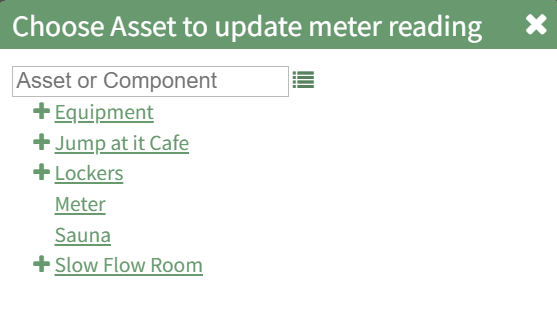
Select the appropriate asset, opening the Update Meter Reading Modal.
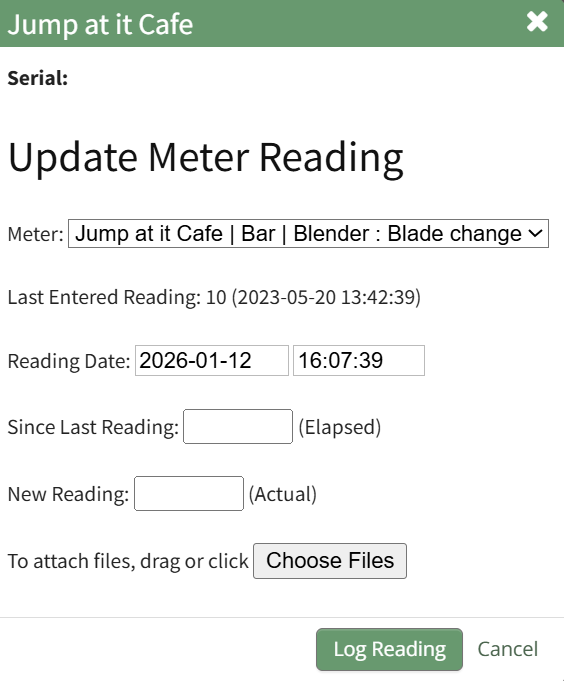
The meters associated with the asset/component selected show in a dropdown menu. Select the meter whose meter data you wish to record. The most recent meter reading shows in the Update Meter Reading Modal as the “Last Entered Reading.”
KAStrack automatically inputs the current date and time. The user can enter an elapsed value (if preferred) and KAStrack will input the new actual, or the user can input the new meter reading and the elapsed value will be automatically input.
Attach any files (if there are checklists, forms, etc.) associated with the meter reading.
Select the “Log Reading” button to update the meter usage. Click cancel to return to the Assets Module Homepage.
How To: Upload a File to an Asset
To upload a file to an asset, open the Manage Assets Page in the Assets Module on the Main Menu. Use filters as needed and identify the asset/component you want to upload a file to. Click the three-dot icon to the right of the asset title opening the Asset Management Context Menu.
Select "Files" from the context menu opening the Asset Files Modal.
Upload files such as operating manuals that are related to the asset here. Upload files related to a task, such as a maintenance log, or a renewed license as part of completing the task.
Click the "Upload" button opening the Upload File Modal.
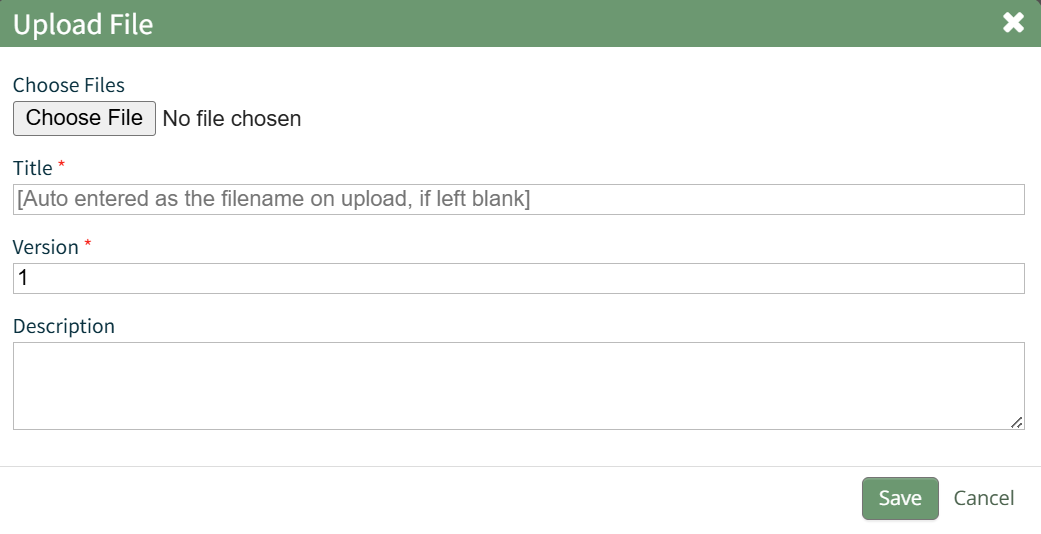
Click the "Choose File" button and select a file from your personal device. Once uploaded, the file name will show at the top of the modal. The original file name will be used as the file title unless edited here. Indicate the file version and input a description if desired. Select the "Save" button.
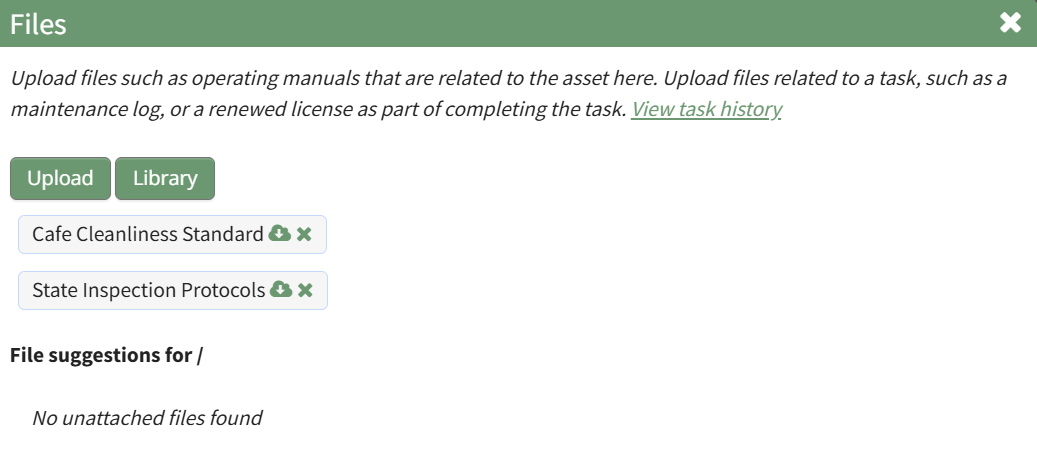
The new file now shows in the asset's Files Modal.
How To: Upload a Task File
To upload a file to a task, open the Manage Assets Page in the Assets Module on the Main Menu. Use filters as needed and identify the asset/component with the task you want to upload a file to. Click the three-dot icon to the right of the asset title opening the Asset Management Context Menu.
Select the "Manage Components" option, opening the Manage Asset Components Page. Select the three-dot icon to the right of the asset/component you wish to add interim notes to and select Task Schedule from the context menu.
This opens the asset's Task Schedule.
To upload a task file, click the three dot (…) icon next to the task title on the Task Schedule Table opening the context menu.
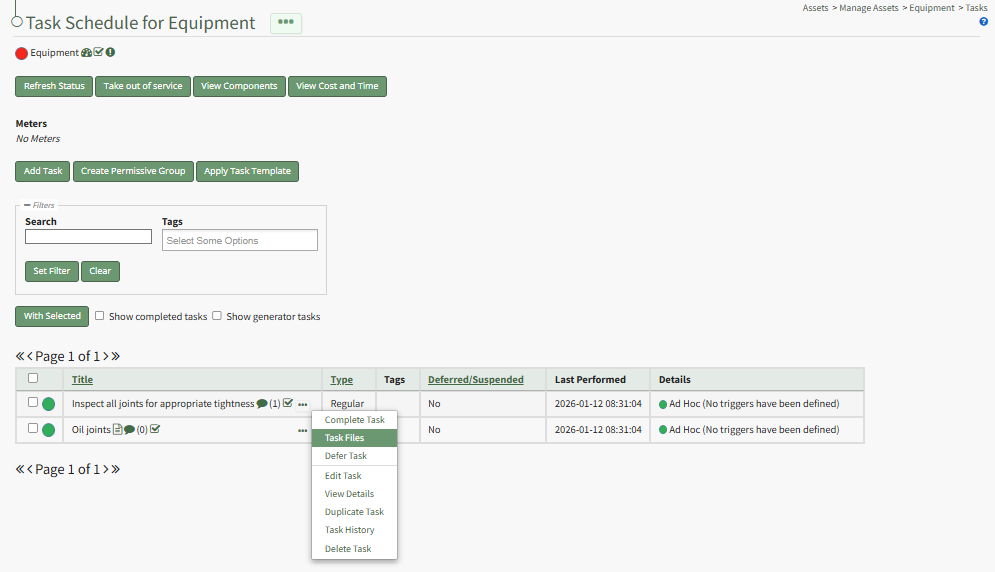
Select “Task Files” on context menu, opening the Files modal.
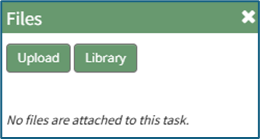
Select “Upload” to open the Upload File Modal.
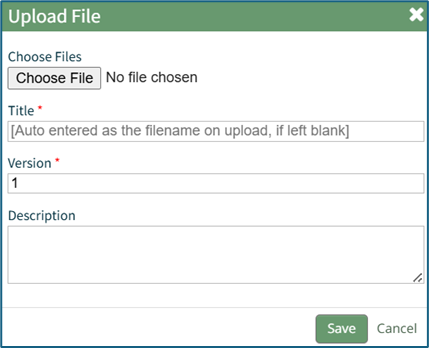
Select the “Choose File” button to select the desired file from your computer. Add a file title, or KAStrack will use the name already attached to the file. Input a version number for the file and a description.
KAStrack recommends PDFs as the preferred file type.
Select “Save” to upload the file to the task or “Cancel” to close the modal and return to the Task Schedule Page.
How To: Upload Files to a Task after a Task has been Completed
To upload files to a task after a task has been completed, open the relevant asset's History Page.
How To: View an Asset's Historical Logs
An asset's historical data can be accessed from an asset's History Page. To access an asset's history, go to the My Assets Page in the Assets Module on the Main Menu. Use the filters as needed to identify the access whose history you wish to view, and click the three-dot icon to the right of the asset name. This opens a context menu.
Select "History" from the context menu opening the Asset History Page.
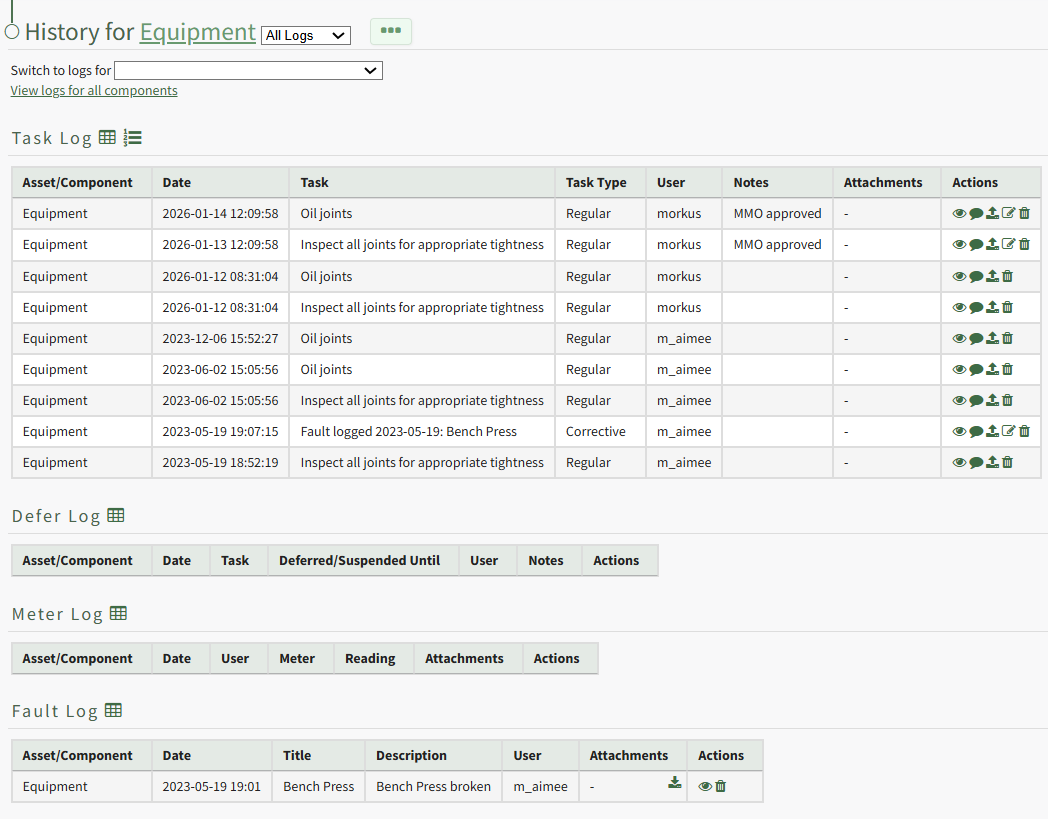
Click the upload icon in the Actions Column to the right of the task record you wish to upload a file to opening the Upload File Modal.
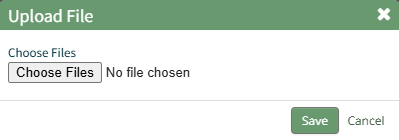
Click the Choose Files button and select the file you wish to upload from your personal device.
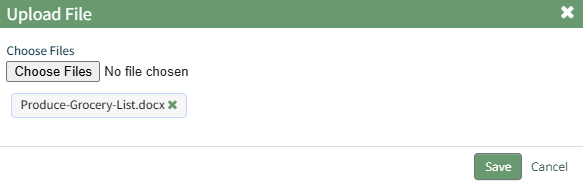
Click "Save" after selecting your file.

The file now shows in the Attachments Column of the Log Table.
How To: View a File Attached to a Task
To view a file associated with a specific task, open the Task Schedule Page for the asset of interest.
How To: View an Asset's Task Schedule
An asset's historical data can be accessed from an asset's History Page. To access an asset's history, go to the My Assets Page in the Assets Module on the Main Menu. Use the filters as needed to identify the access whose history you wish to view, and click the three-dot icon to the right of the asset name. This opens a context menu.
Select "History" from the context menu opening the Asset History Page.
Click the three dot (…) icon next to the right of title whose files you wish to view on the Task Schedule Table opening the context menu. Select “Task Files” opening the Files modal.
Any files associated with the task are shown on the Files modal.
How To: View a Manufacturer's Key Information
To view the relevant information associated with a manufacturer, go to the Manufacturers Tab on the Settings Page of the Assets Module. Click the three-dot icon to the right of the manufacturer whose key information you wish to view. This opens the Manufacturers Context Menu.
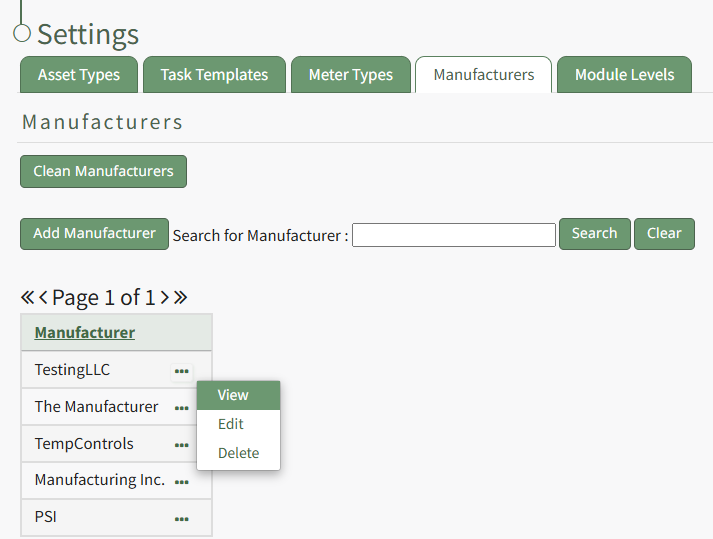
Select "View" from the context menu opening the Manufacturer Modal. Any assets, task templates, or files associated with the manufacturer will show on this modal.
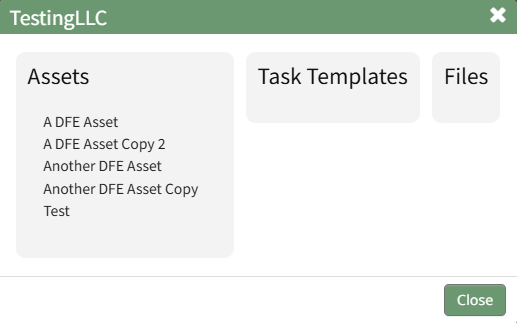
The Manufacturer Modal is read-only.
Select "Close" to return to the Manufacturers Tab on the Settings Page.
How To: View a Meter Type's Key Information
To view the key information about a specific meter type, go to the Meter Types Tab on the Settings Page of the Assets Module. Select the three-dot icon to the right of the meter type ID opening the Meter Type Context Menu.
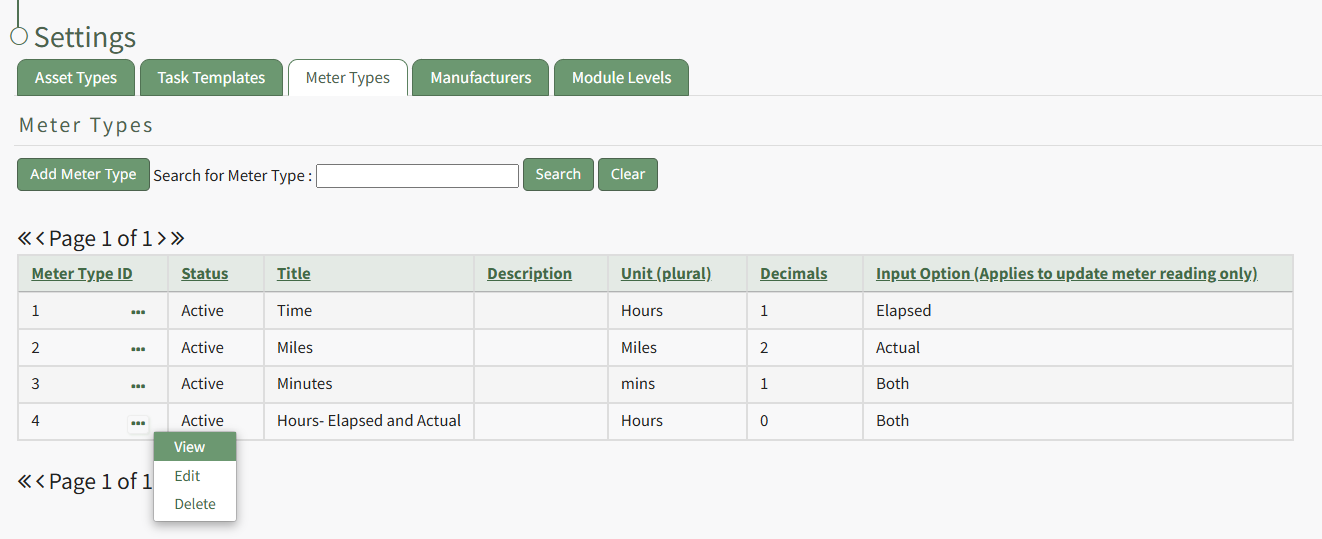
Select "View" from the context menu opening the View Meter Type Modal which states all information regarding the specific meter type.
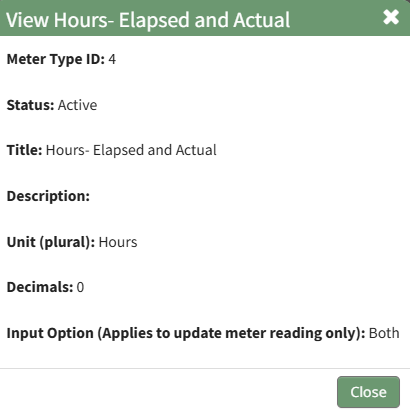
The View Meter Type Modal is read-only.
Select the "Close" button and return to the Meter Types Tab on the Settings Page.
How To: View Additional Notes Associated with a Task
Additional notes associated with a task can be viewed on the Assets Home Page (for upcoming tasks only) and on an asset's task schedule page. If additional information exists for a task, a page icon will be present to the right of the task title.

Clicking the Page Icon to the right of an asset task in the Upcoming Task Table or an assets Task Schedule Page expands the table

Click the Page Icon a second time to collapse the table and remove the notes from visibility.
How To: View all Components on an Asset's Task Schedule Page
To view all component's tasks on an asset's task schedule page, open the Task Schedule Page of the asset whose components you wish to view.
How To: View an Asset's Task Schedule
To view an asset's task schedule, open the Manage Assets Page in the Assets Module on the Main Menu. Use filters as needed and identify the asset/component whose task schedule you wish to view. Click the three-dot icon to the right of the asset title opening the Asset Management Context Menu.
Select the "Manage Components" option, opening the Manage Asset Components Page. Select the three-dot icon to the right of the asset/component you wish to add interim notes to and select Task Schedule from the context menu.
This opens the asset's Task Schedule Page.
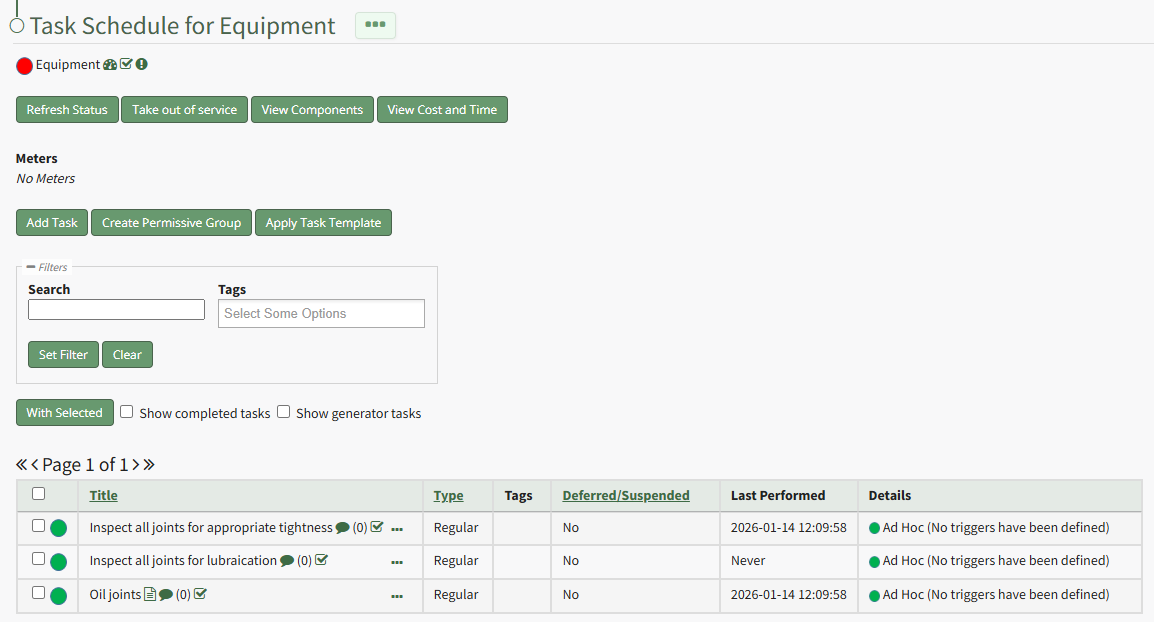
Click the "View Components" button below the page header and the Task Schedule Table will now include any tasks associated with components of the parent asset.
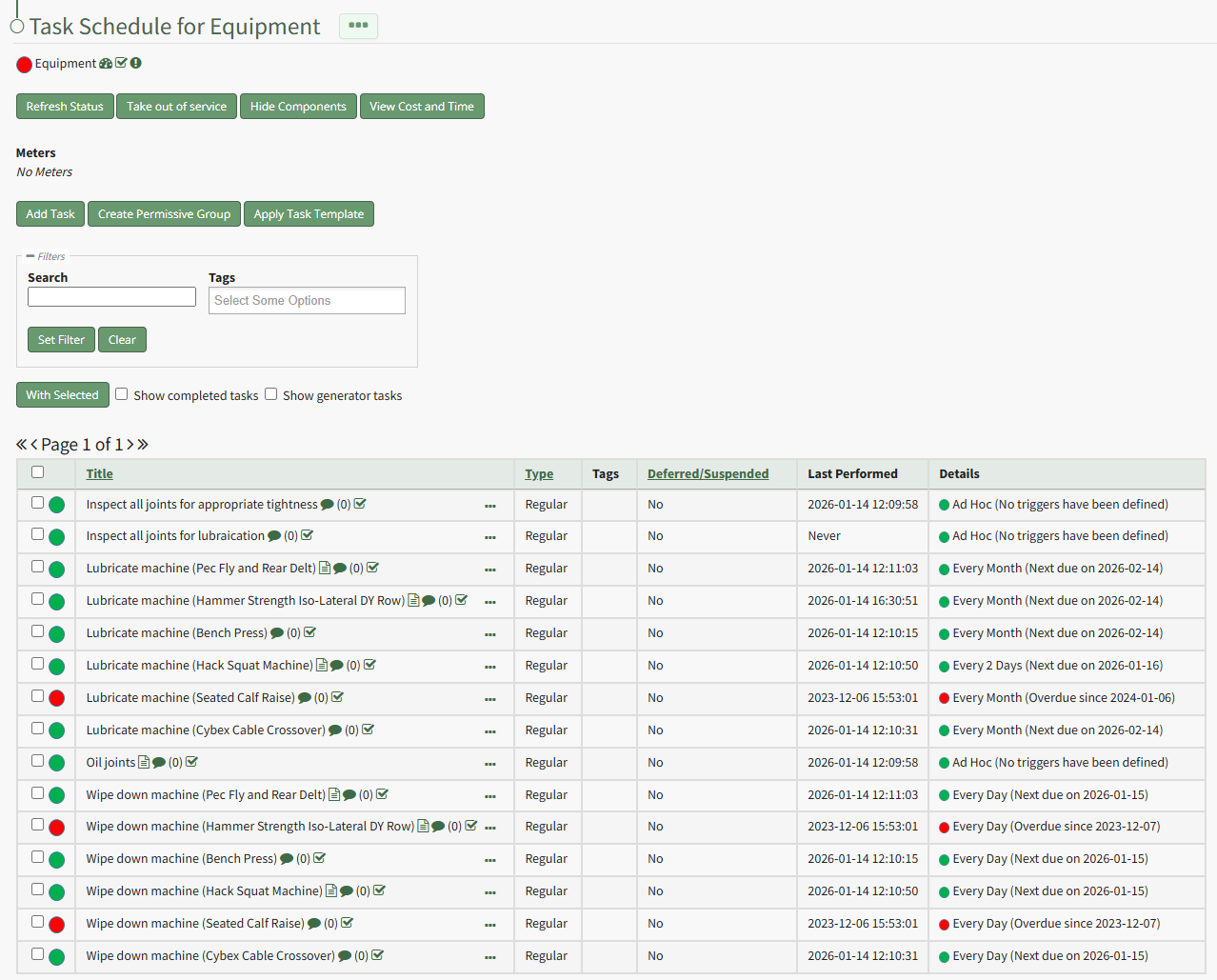
Select the "Hide Components" button beneath the page header to revert back to the Task Schedule strictly for the parent asset.
How To: View an Asset's Components
To view any components associated with a parent asset, go to the My Assets Page in the Assets Module on the Main Menu. Use the filters as needed to identify the assets whose components you wish to view. Click the three-dot icon to the right of the asset's title opening a context menu.
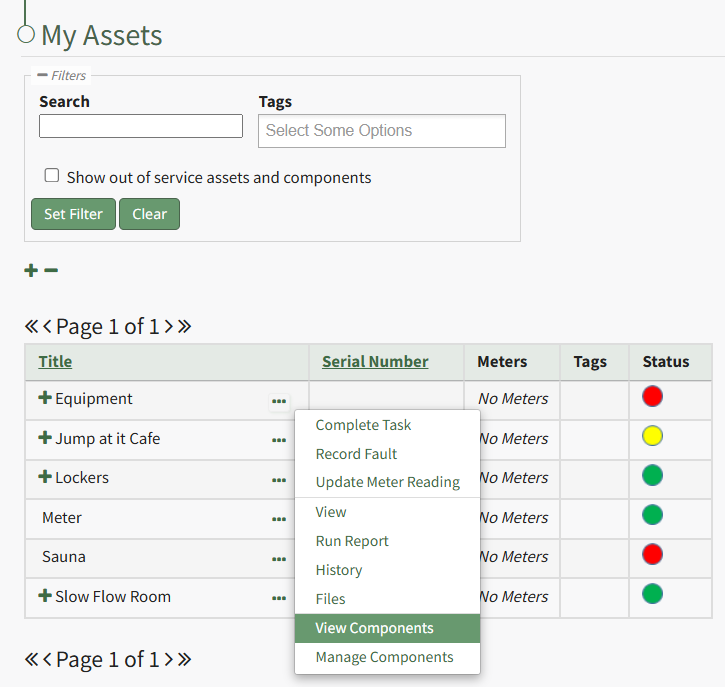
Select "View Components" from the context menu opening the Asset Component Page.
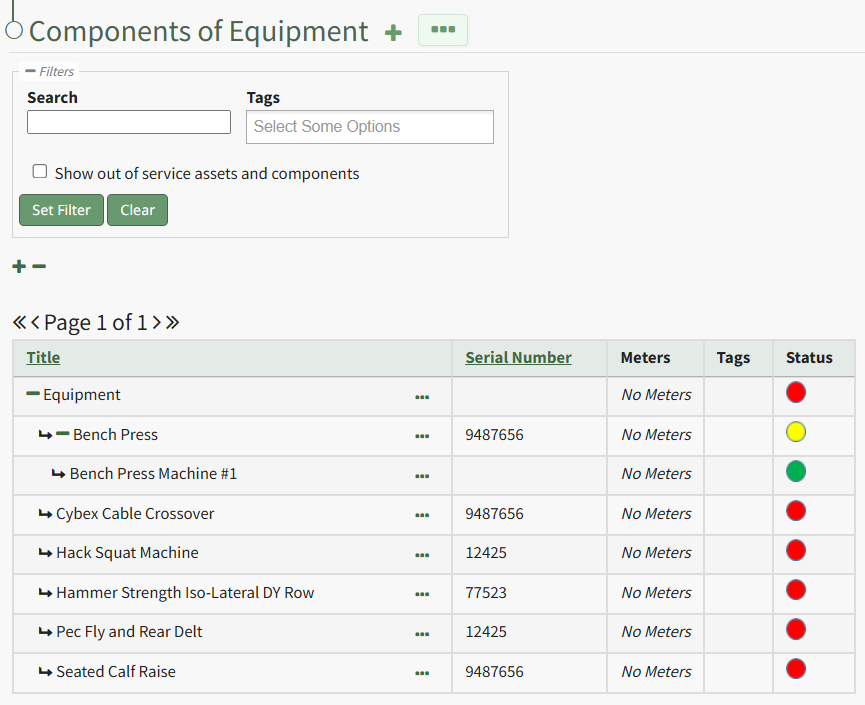
An expanded view of all asset components will now be visible in the Asset Component Table.
How To: View an Asset's Cost/Time Summary
To view the Cost/Time Summary associated with the asset's tasks, open the Manage Assets Page in the Assets Module on the Main Menu. Use filters as needed and identify the asset/component with the task whose task's cost/time summary you want to view. Click the three-dot icon to the right of the asset title opening the Asset Management Context Menu.
Select the "Manage Components" option, opening the Manage Asset Components Page. Select the three-dot icon to the right of the asset/component you wish to add interim notes to and select Task Schedule from the context menu.
This opens the asset's Task Schedule.
Click the "View Cost and Time" button to open the Cost/Time Summary Modal for that Task Schedule.
How To: View an Asset's Historical Logs
An asset's historical data can be accessed from an asset's History Page. To access an asset's history, go to the My Assets Page in the Assets Module on the Main Menu. Use the filters as needed to identify the access whose history you wish to view, and click the three-dot icon to the right of the asset name. This opens a context menu.
Select "History" from the context menu opening the Asset History Page.
How To: View an Asset's Summary Modal
To view an asset's summary modal that lists all relevant information regarding an asset, go to the My Assets Page under the Assets Module on the Main Menu. Use filters as needs to pull up the asset you wish to view. Click the three-dot icon to the right of the asset/component title opening the context menu and select "View".
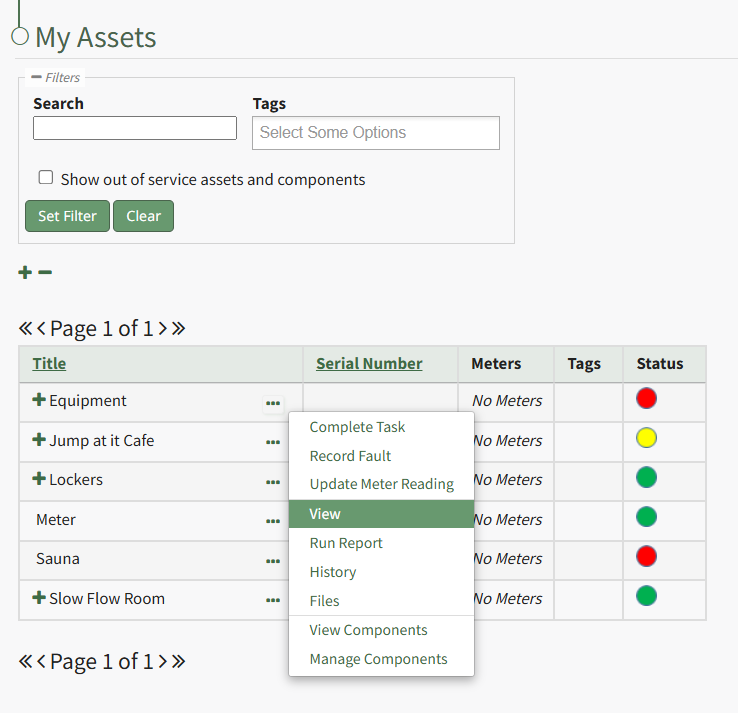
This opens the Asset Summary Modal. The read-only modal shows the asset details, meters associated with the asset, lists the components of the asset, the users assigned to the asset, and any tasks on the asset's task schedule.
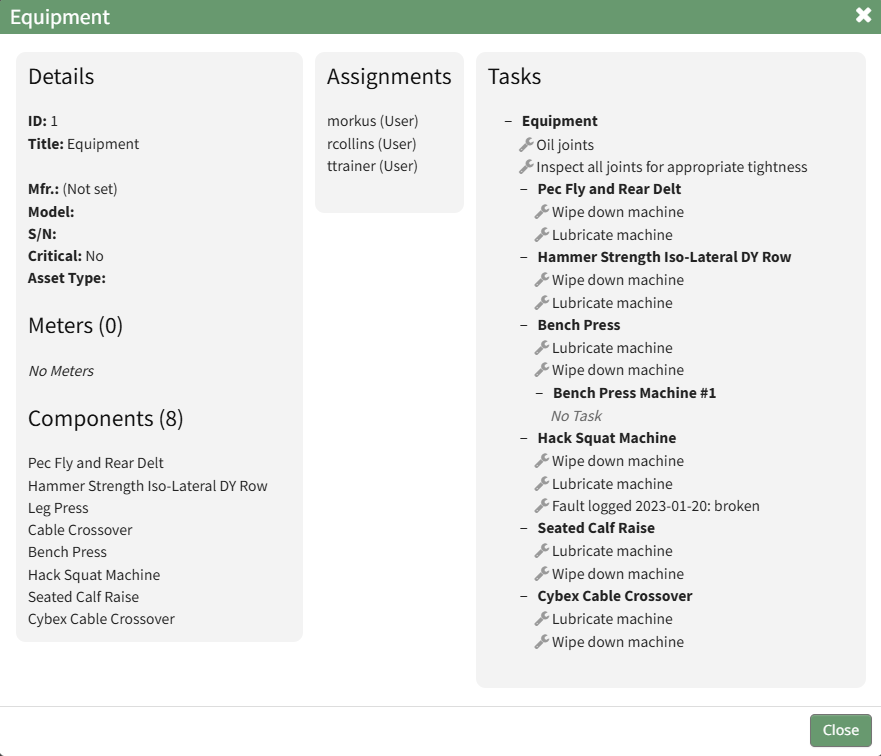
Click the close button to return to the My Assets Page.
How To: View an Asset's Task Schedule
To view an asset's task schedule, open the Manage Assets Page in the Assets Module on the Main Menu. Use filters as needed and identify the asset/component whose task schedule you wish to view. Click the three-dot icon to the right of the asset title opening the Asset Management Context Menu.
Select the "Manage Components" option, opening the Manage Asset Components Page. Select the three-dot icon to the right of the asset/component you wish to add interim notes to and select Task Schedule from the context menu.
This opens the asset's Task Schedule Page.
How To: View File's Associated with an Asset/Component
To view the files associated with an asset and its components, open the Manage Assets Page in the Assets Module on the Main Menu. Use filters as needed and identify the asset/component whose files you wish to view. Click the three-dot icon to the right of the asset title opening the Asset Management Context Menu.
Select "Files" from the context menu opening the Asset Files Modal.
Upload files such as operating manuals that are related to the asset here. Upload files related to a task, such as a maintenance log, or a renewed license as part of completing the task.
You are now able to view all files associated with the asset.
How To: View Historical Logs for a Specified Task
To view the historical logs associated with a specific task, open the Task Schedule Page for the asset whose task logs you wish to view.
How To: View an Asset's Task Schedule
To view an asset's task schedule, open the Manage Assets Page in the Assets Module on the Main Menu. Use filters as needed and identify the asset/component whose task schedule you wish to view. Click the three-dot icon to the right of the asset title opening the Asset Management Context Menu.
Select the "Manage Components" option, opening the Manage Asset Components Page. Select the three-dot icon to the right of the asset/component you wish to add interim notes to and select Task Schedule from the context menu.
This opens the asset's Task Schedule Page.
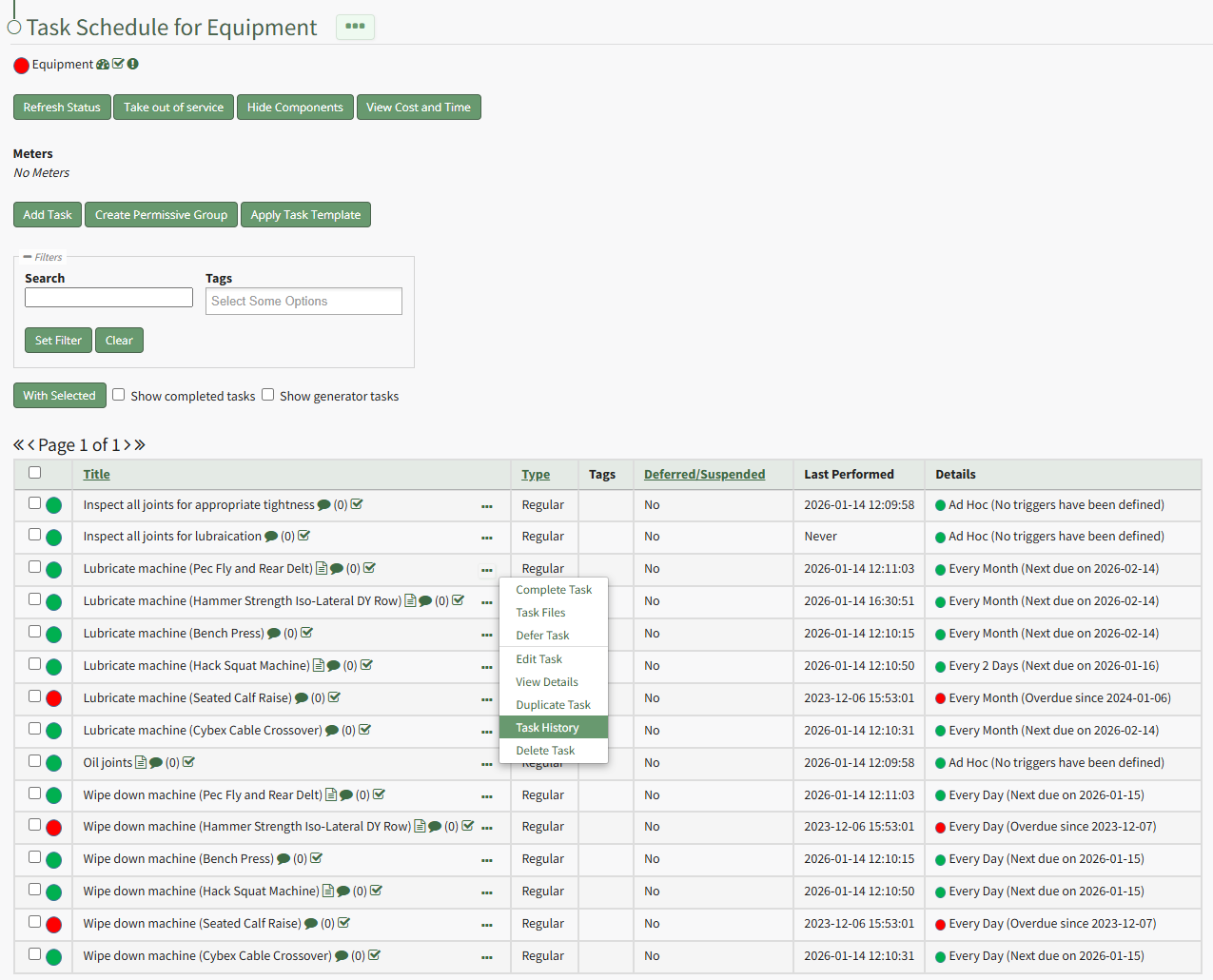
Click the three-dot icon to the right of the task whose historical logs you wish to view opening the Task Management Context Menu. Select "Task History" opening the asset's history page.
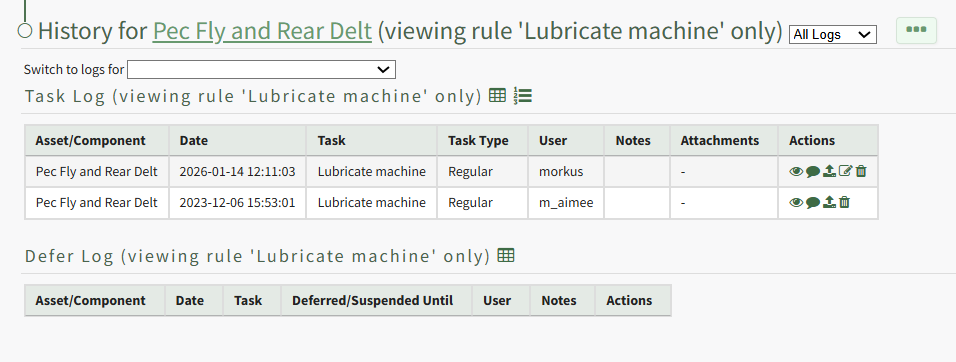
The historical logs for that specific task are displayed on the asset's History Page.
How To: View Task Details
To view the details of a specific asset task, open the Task Schedule Page for the asset that contains the task you wish to view.
How To: View an Asset's Task Schedule
To view an asset's task schedule, open the Manage Assets Page in the Assets Module on the Main Menu. Use filters as needed and identify the asset/component whose task schedule you wish to view. Click the three-dot icon to the right of the asset title opening the Asset Management Context Menu.
Select the "Manage Components" option, opening the Manage Asset Components Page. Select the three-dot icon to the right of the asset/component you wish to add interim notes to and select Task Schedule from the context menu.
This opens the asset's Task Schedule Page.
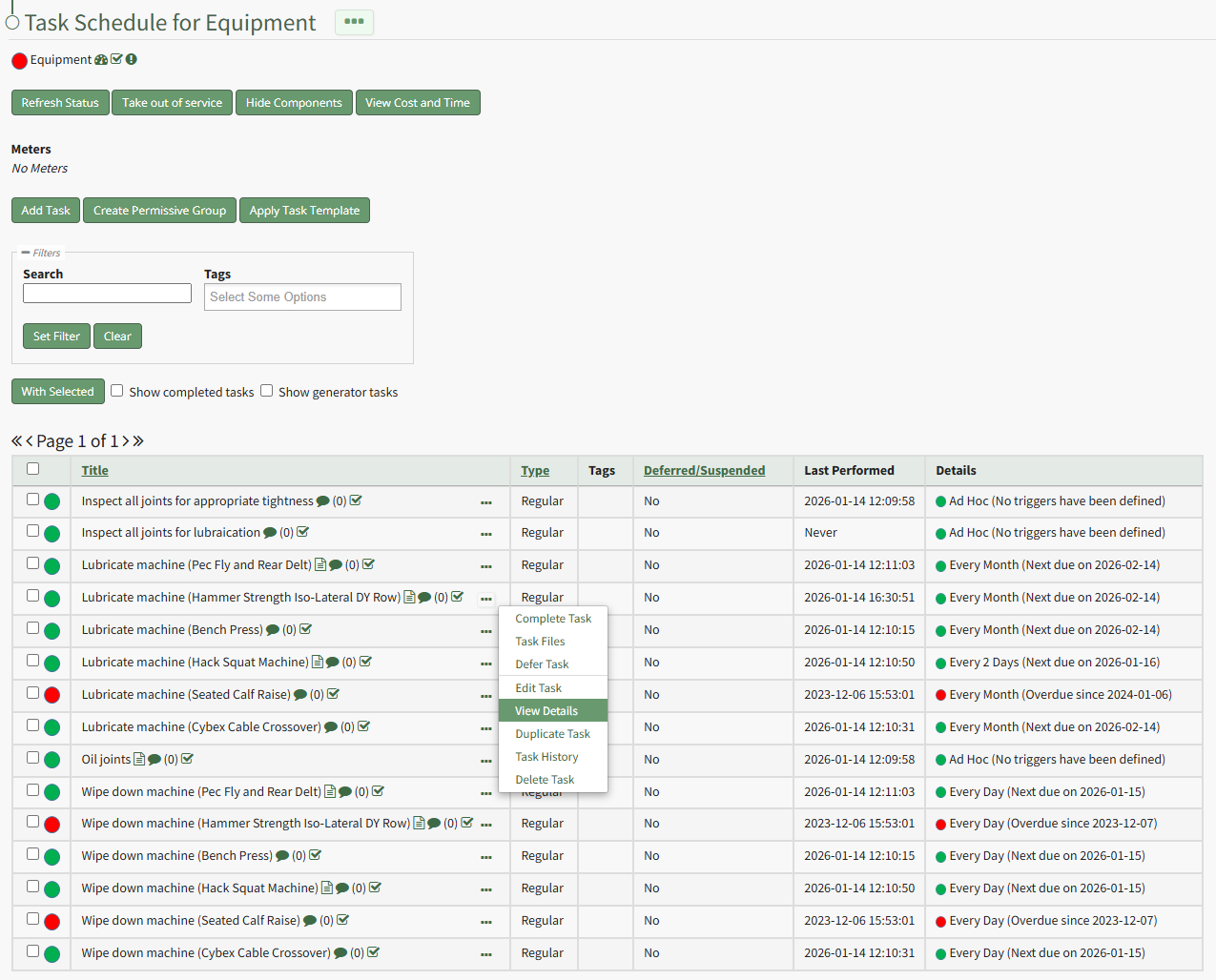
Select the three-dot icon to the right of the task whose details you wish to view opening the Task Management Context Menu. Select "View Details" from the context menu opening the View Task Modal.
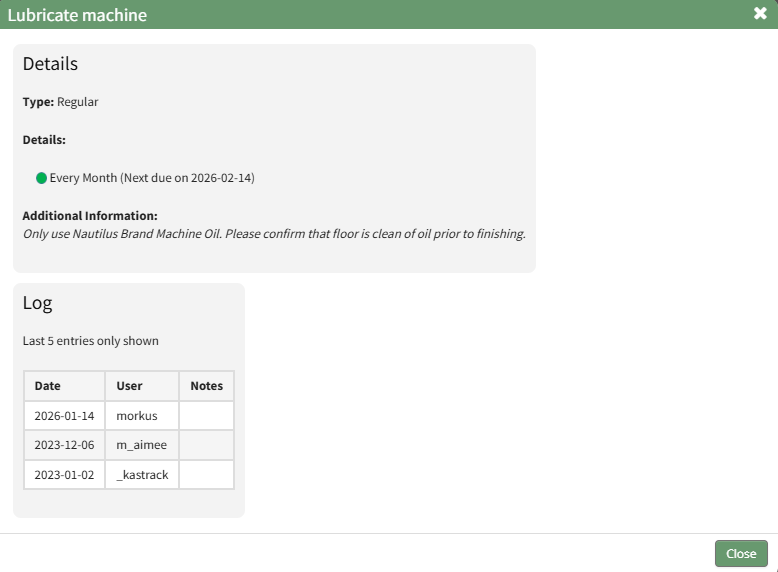
This read-only modal displays the task type, trigger details, additional information, and a log of the last five entries. Select the "Close" button at the bottom of the modal to return to the asset's Task Schedule Page.
How To: View the Details of a File in the File Library
To view the details associated with a file in the Asset Module File Library, select the Files Page in the Assets Module on the Main Menu. Click the three-dot icon to the right of the file you wish to view in the File Library Table to open the Files Context Menu.
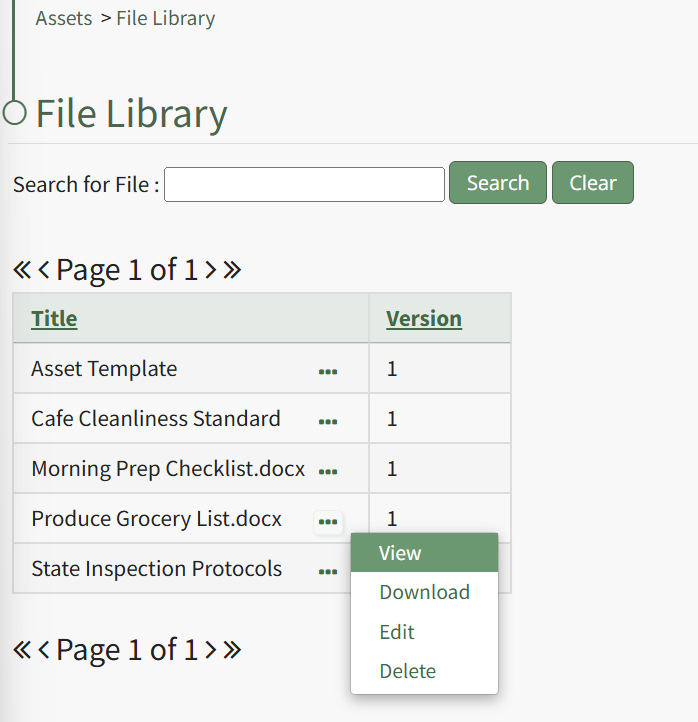
Select "View" from the context menu opening the View File Modal.
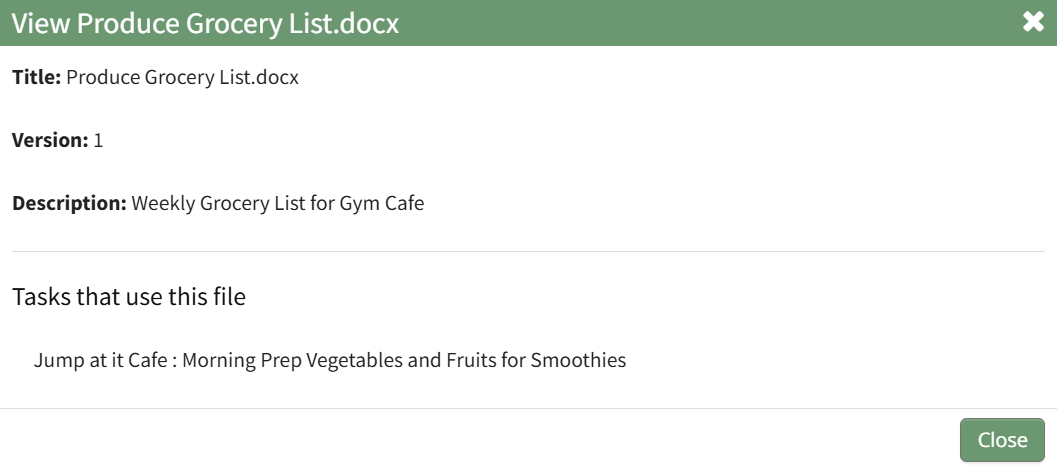
The read-only View File Modal shares the file's title, version number, description, and includes and references to tasks that use the file.
Click the "Close" button to return to the Files Page.
How To: View the Fields Associated with an Asset Type
To view the information associated with an asset type, go to the Asset Types Tab on the Settings Page of the Assets Module. Click the three-dot icon to the right of the asset type whose details you wish to view opening the Asset Type Context Menu.
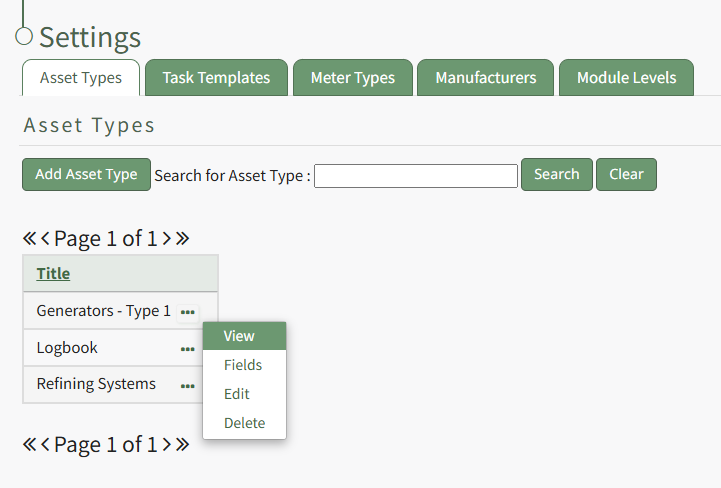
Select "View" opening the View Asset Type Modal, stating the title of the Asset Type and the fields that are associated with it.
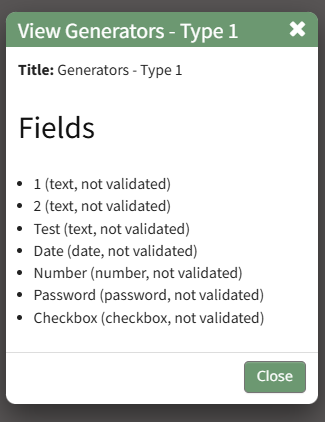
The View Asset Type Modal is read-only.
Select the "Close" button and return to the Asset Types Tab.
No comments to display
No comments to display