
Activate Muster Mode for an Emergency
You can initiate muster mode for an emergency situation from both the Attendance Module Home Page as well as a specific attendance log’s Information Page.
To activate from the Attendance Module Home Page:
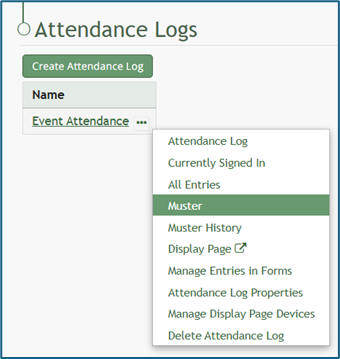
Open the Home Page of the Attendance Module and click the three-dot icon to the right of the attendance log you wish to activate muster mode in, opening the context menu. Select “Muster”, opening the Muster Page.
To activate from an attendance log’s Information Page:
Select the attendance log you wish to initiate muster mode in from the Main Menu (if configured to be shown there) or click the name on the Home Page.
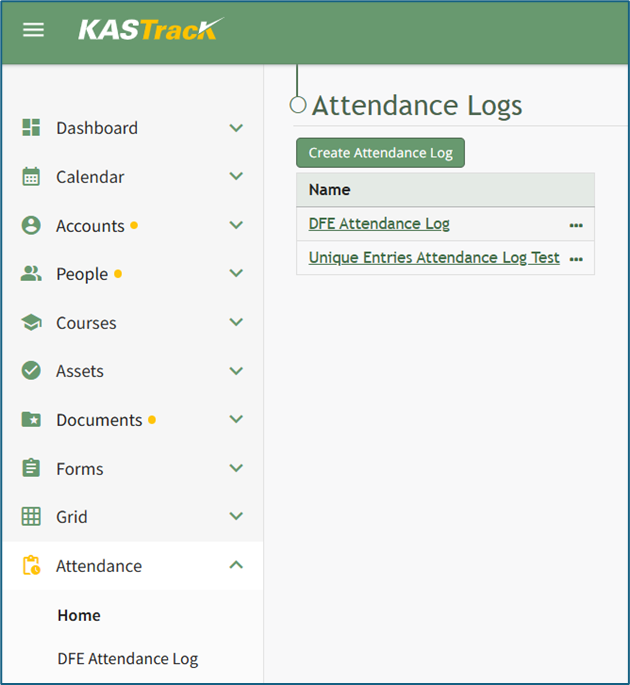
This opens the attendance log’s Information Page.
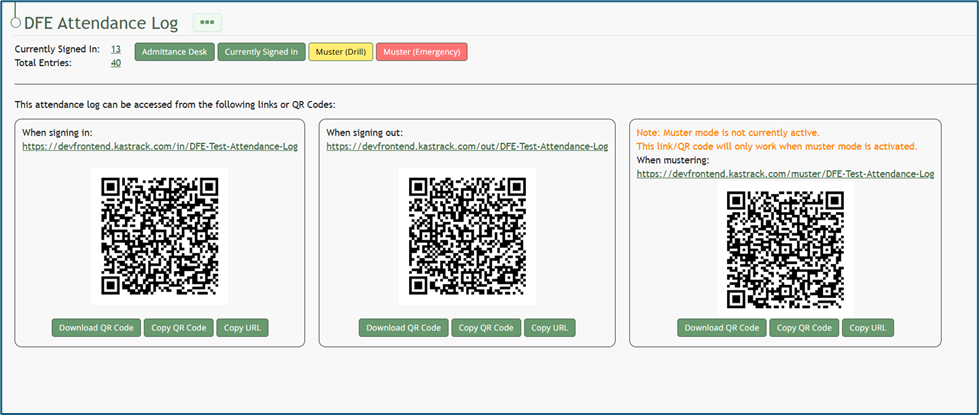
Select the red “Muster (Emergency)” button.
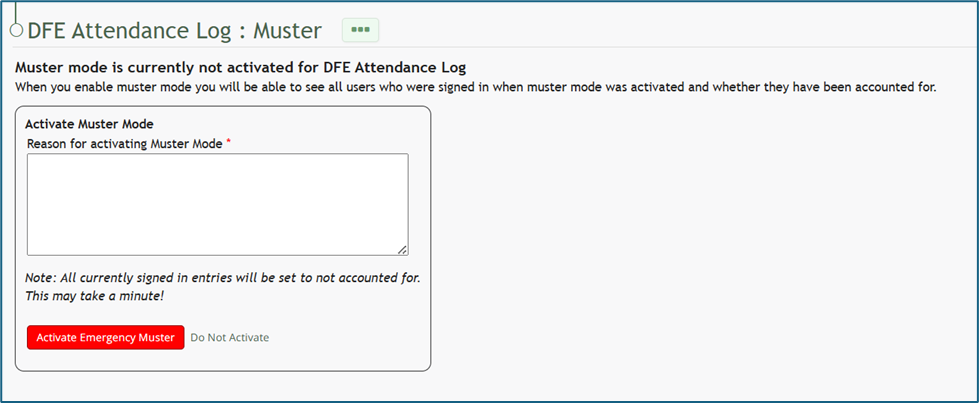
Input any relevant information into the “Reason for Activating Muster Mode” textbox and click the red “Activate Emergency Muster” button.
If this is not an emergency, select the clickable “Do Not Activate” link and you will be returned to the Information Page where you can select to enter Muster Mode in a Drill.
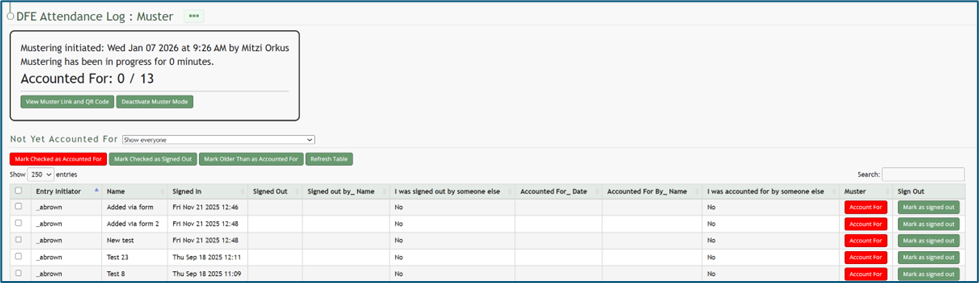
Once Emergency Muster has been activated, the page will change. The muster summary at the top of the page communicates that muster mode has been initiated.
How To: Deactivate Muster Mode
Muster mode can only be deactivated from the Muster Page when muster mode has been activated.
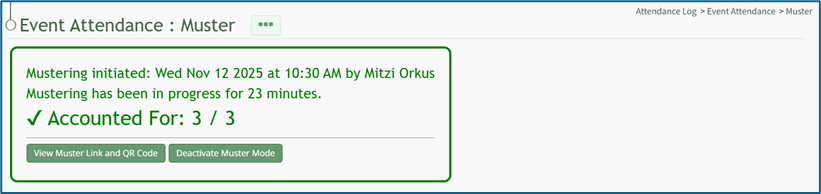
Select the “Deactivate Muster Mode” button, opening the Deactivate Muster Modal. Input any desired Deactivation Notes in the textbox provided.
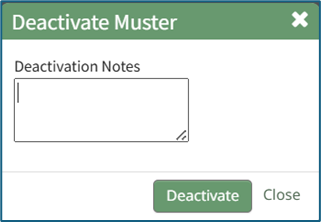
Select “Deactivate” and you will be redirected to the attendance log’s Information Page.
No comments to display
No comments to display