
Create a New Channel
To create a new channel on a user’s account, go to the specific user’s Account Info: (User Name) Page in the Accounts Module for the individual you wish to create a new channel for.
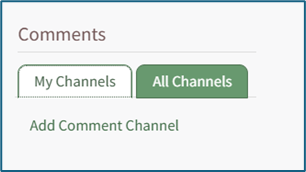
Select the “My Channels” tab at the bottom of the Account Info: (User Name) Page. Then click “Add Comment Channel” underneath opening the Add Comment Channel Modal.
Creating new channels is only visible to individuals with Admin module level access.

Input the new comment channel title.
Select participants by name or certification role. Begin typing in the field and a list of available accounts and certification roles will appear that contain the text you've entered. Checkboxes allow for the inclusion the user and the individual’s supervisor.
After selecting the accounts and/or roles, participant names are listed as Non-Admins in the below boxes. Names can be dragged and dropped between the Admins and Non-Admins boxes to designate who will be administrators of the new comment channel.
Select the “Save” button and the comment channel will be added to an individual’s Channels. Click “Cancel” and return to the individual’s Account Info Page.
Only admins, supervisors, and the employee in question will have access to an employee's Account Info Page by default.
No comments to display
No comments to display