
Edit Notification Settings
To edit the People Module Notification Settings, open the Module Settings Tab of the Settings Page in the People Module from the Main Menu.
Click the “Edit Notifications Settings” button to access the Notifications Settings Page which offers checkbox selections for three different notification scenarios.
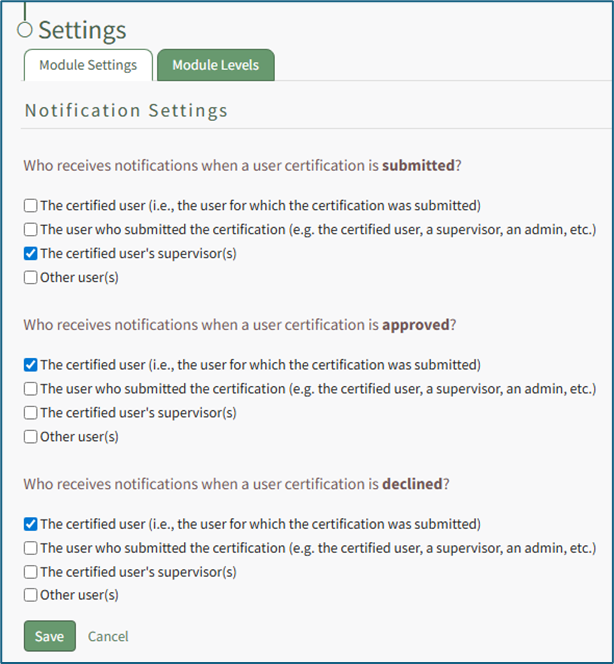
A user has the ability to customize who is notified when a user certification is submitted, when a user certification is approved, and when a user certification is declined.
There are four checkboxes for each of the three previous scenarios:
- The certified user (the user who completed the certification)
- The user who submitted the certification (could refer to the certified user, a supervisor, or and/or an administrator depending on the company’s certification submission procedures)
- The certified user’s supervisor(s) (refers to the individual’s direct supervisor)
- Other user(s) (allows for the selection of any user in the KAStrack system from a dropdown menu)
Multiple, all, or none of the checkboxes can be selected.
Select “Save” to update the default notifications or “Cancel” go back to the Module Settings tab on the Settings Page.
No comments to display
No comments to display