
Submit Certifications/Competencies from the Supervisor Report Table
To submit certifications or competencies from the Report: Status table on the Supervisor Report Page of the People Module, confirm you are on the Supervisor Report tab.
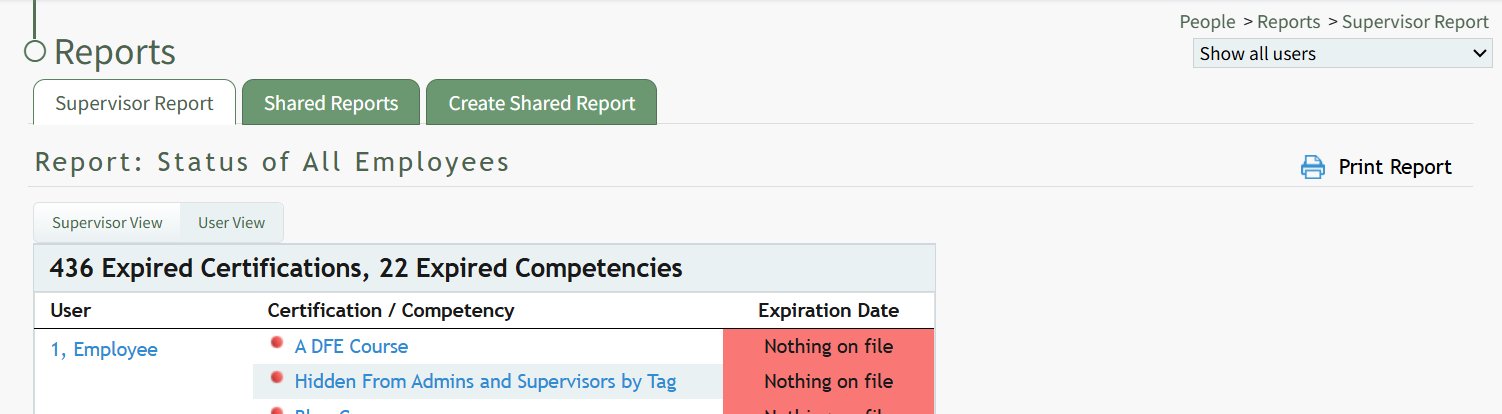
Click on the certification title listed in blue font, opening the User's Page on the User Certifications Tab to the specific Certification/Competency that you selected.
A red dot to the left of the certification title indicates that the certification is pending approval.
Scroll below the certification/competency information to the “Record New Certification for (User Name)” Section.
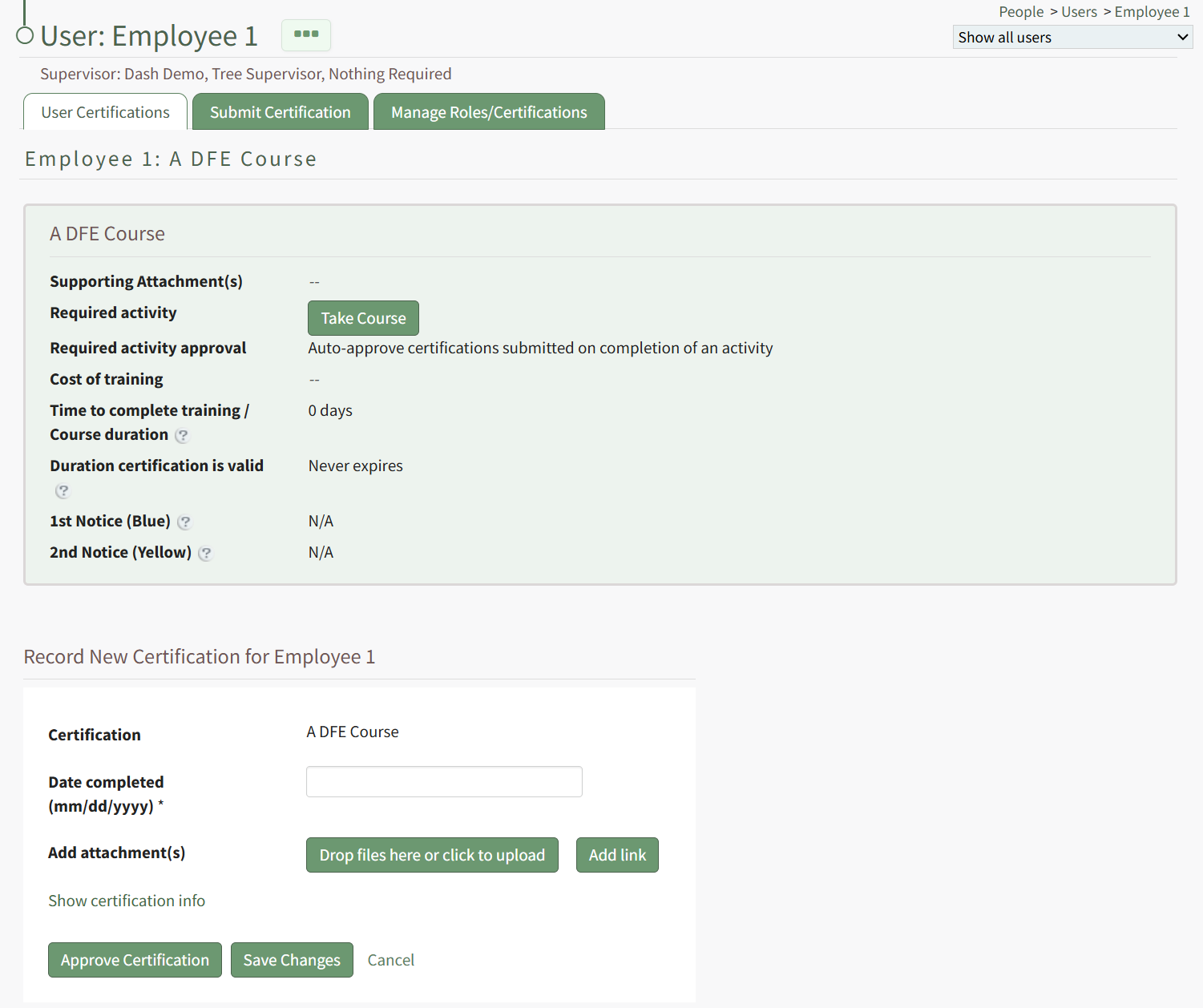
Input the dates that the certification/competency certificate was completed and expires in MM/DD/YYYY format.
To add any files, click “Drop files here or click to upload.” To add a URL link, select “Add link.”
To comment on the submitted certification, input your comments into the textbox and select “Add Comment”.
To set the certification/competency as complete, click “Approve Certification”.
No comments to display
No comments to display