
Add a Section to a Course
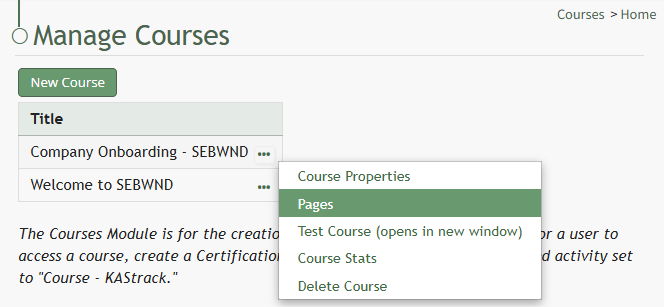
To add a new section to a course, open the Courses Module Home Page from the Main Menu. Click the three-dot icon to the right of the right of the course whose Details Page wish to access, opening the Manage Courses Context Menu. Select "Pages".
This opens the course's Details Page. Click the three-dot icon to the right of the course title.
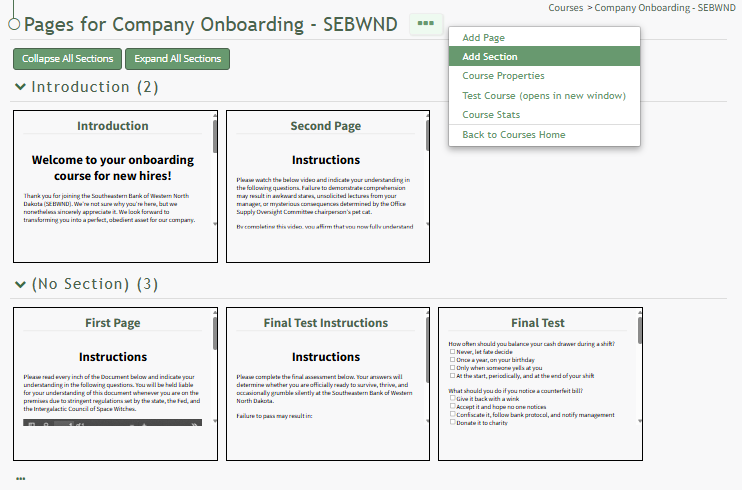
This opens the Course Context Menu. Select the option to "Add Section" opening the Add Section Modal.
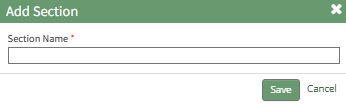
Input the new section name into the modal and click the "Save" button.
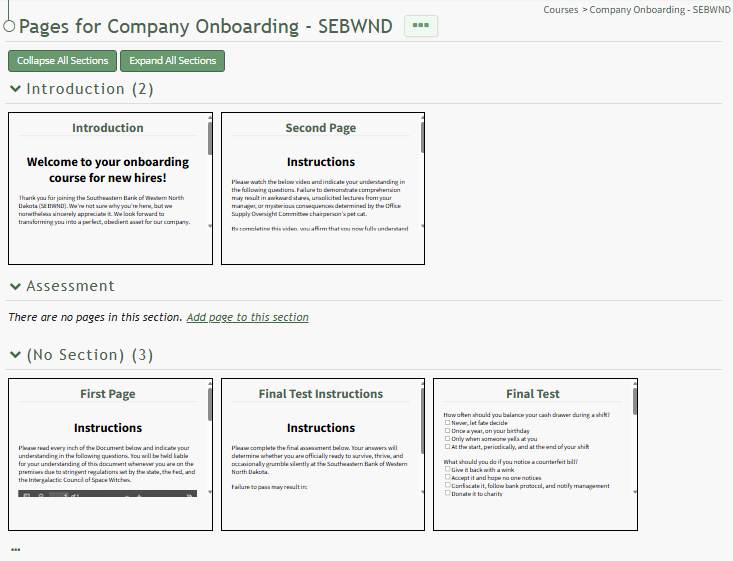
The newly created section is now visible on the Course's Details Page and pages can be added to it.
How To: Add Pages to a New Section
To add pages to a new section, you must open the course's Details Page.
How To: Access A Course's Details Page
To access a course's details page, open the Courses Module Home Page from the Main Menu. Click the three-dot icon to the right of the right of the course whose Details Page wish to access, opening the Course Context Menu.
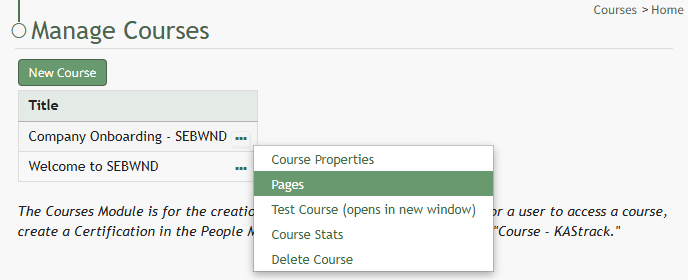
Select "Pages" from the Context Menu.
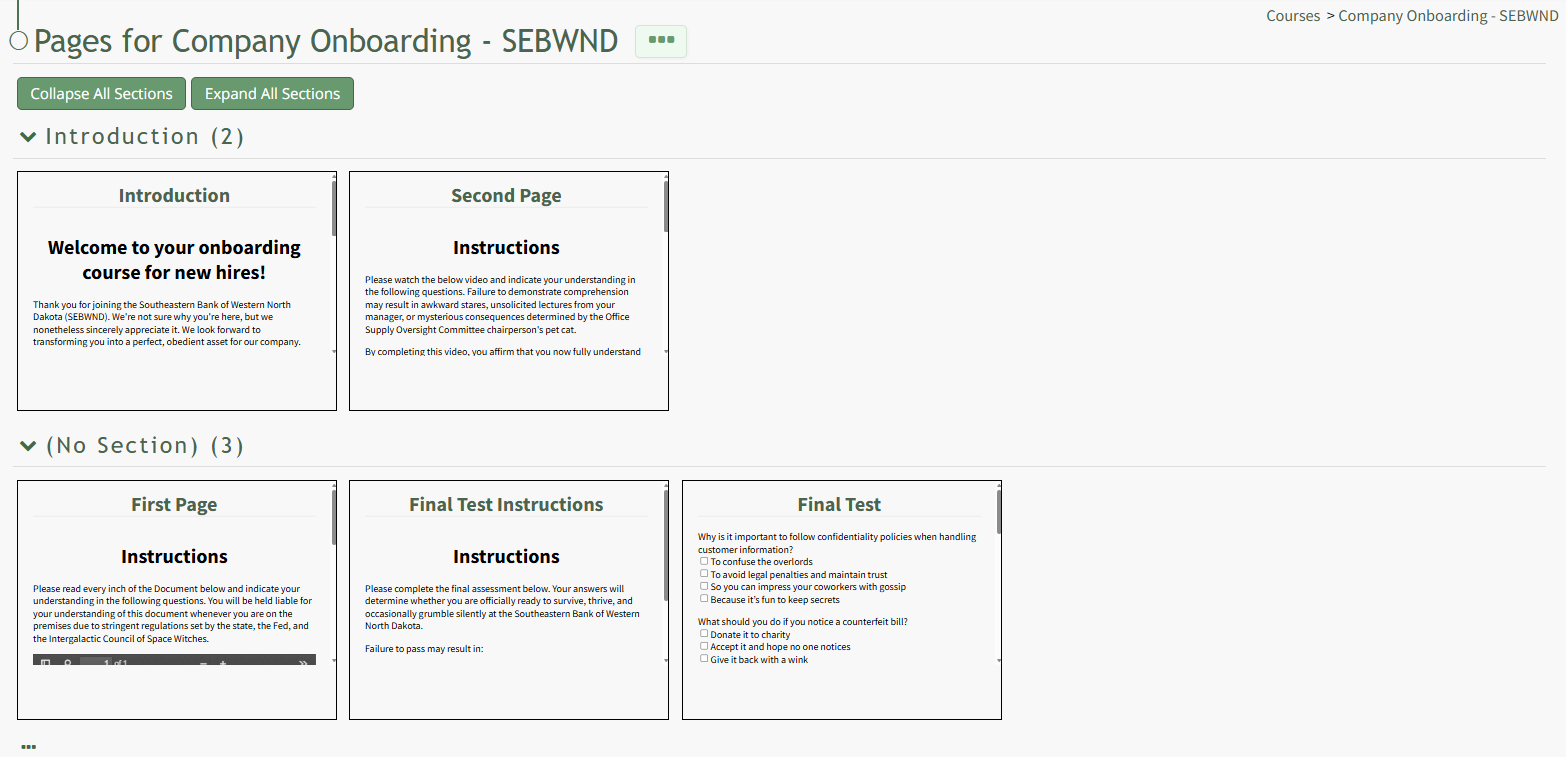
This opens the course's Details Page, displaying each page in the course grouped by sections.
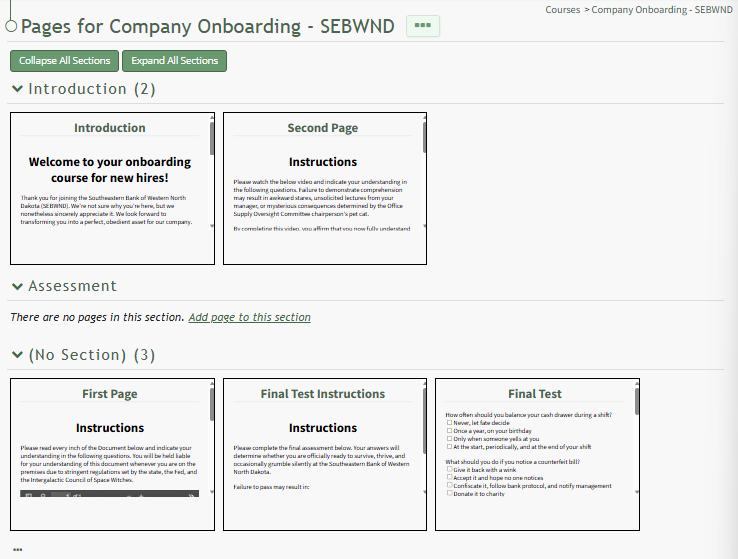
A section without pages in it will state, "There are no pages in this section. Add page to this section."
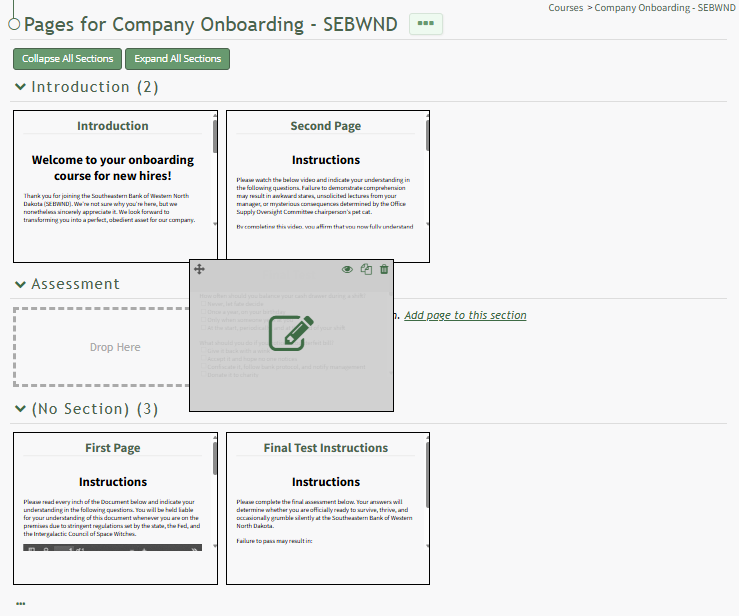
Click the link to Add page to this section to create a new page in the section. You can also drag and drop a page to its desired section.
No comments to display
No comments to display