
Customize Trigger Settings with a Generate Every Period
Generate Every is a special case period designation that can have a time or usage parameter.
When a task has a Generate Every Period, the task no longer utilizes a repeating trigger. A new, one-off task will be created (with the same details as the task currently being created) whenever the previous task's parameters are met.
Generate Every Period with a Time Parameter
Select Generate Every on the Period dropdown menu. There are two options for a time parameter: Date or Mon-Fri.
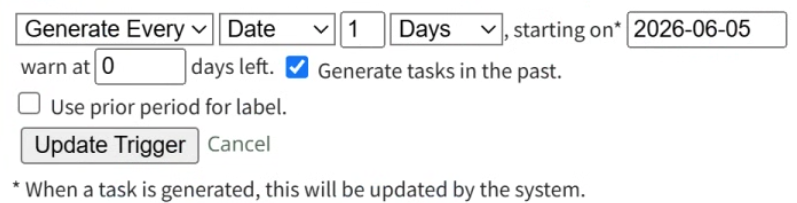
Select Date on the Parameter dropdown menu to create a customized recurrence interval. Input a numerical value for the recurrence interval in the first text box and select the appropriate units (Days, Weeks, Months, or Years).
Select Mon-Fri on the Parameter dropdown menu if the task should reoccur only on Monday – Friday.
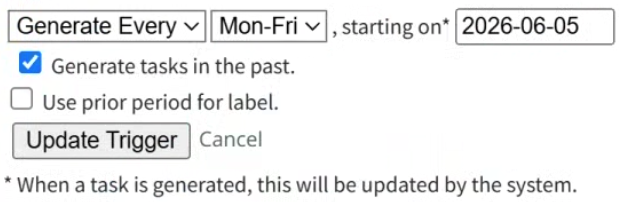
Clicking YYYY-MM-DD, opens a calendar modal. Select the date the task is first due on.
The task status will switch from green (or yellow if a warning is set) to red when it is past due, one day after the calendar date selected.
If the Generate tasks in the past checkbox is selected, the system will recreate any tasks that have been missed or were deleted counting up from the selected date.
Use prior period for label checkbox will append a label of the previous period to help clarify the task.
An example use of this feature could be for a monthly reconciliation task of your bank account. In November, the task would state "Reconcile Checking Account for 2025-10 (Oct)."
Click “Add Trigger” to save.
Generate Every Period with a Usage Parameter
Select Generate Every from the Period dropdown menu. Select the specific meter the task is associated with on the Parameter dropdown menu.
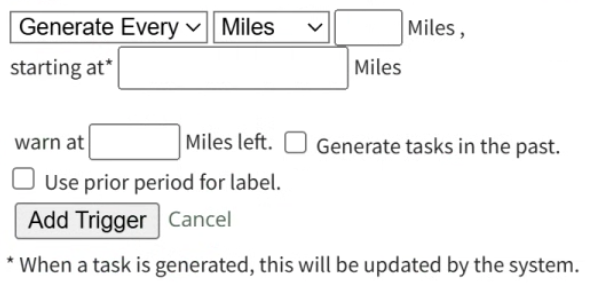
Input a numerical value for the usage recurrence interval in the first text box.
Input a value for the meter that triggers the new task being due in the “first due at” textbox.
The task status will switch from green (or yellow if a warning is set) to red after a “Log Asset Data” or “Update Meter Reading” records a usage value greater than the value entered here.
Input a numerical value for “warn at ____ left” to set meter reading that activates a reminder that the task is approaching.
This turns a green current / up-to-date task status to a yellow warning.
If the Generate tasks in the past checkbox is selected, the system will recreate any tasks that have been missed or were deleted counting up from the selected date.
Use prior period for label checkbox will append a label of the previous period to help clarify the task.
Click “Add Trigger” to save.
No comments to display
No comments to display