
Documents Module How Tos
How To: Access A File's QR Code / URL Link
To access a QR Code/Link for a file in the Documents Module, open the Document Module Home Page from the Main Menu and navigate your folders to access the desired file.
Access will only be given to users who have permission to view the file unless the document has been indicated as public.
Click the vertical three-dot icon to the far right of the file, opening the file's context menu. Select the QR Code/Link option.
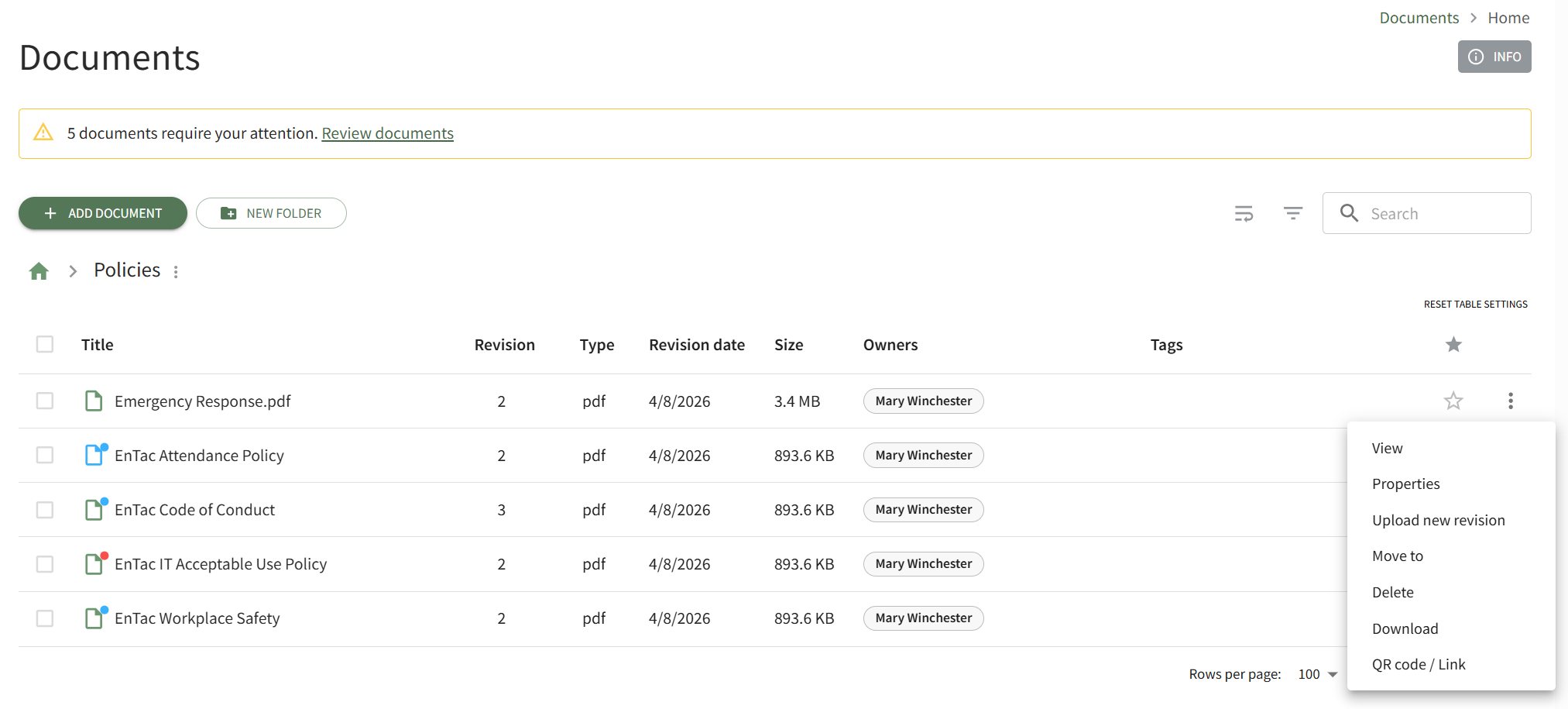
This opens the Direct Access Modal.
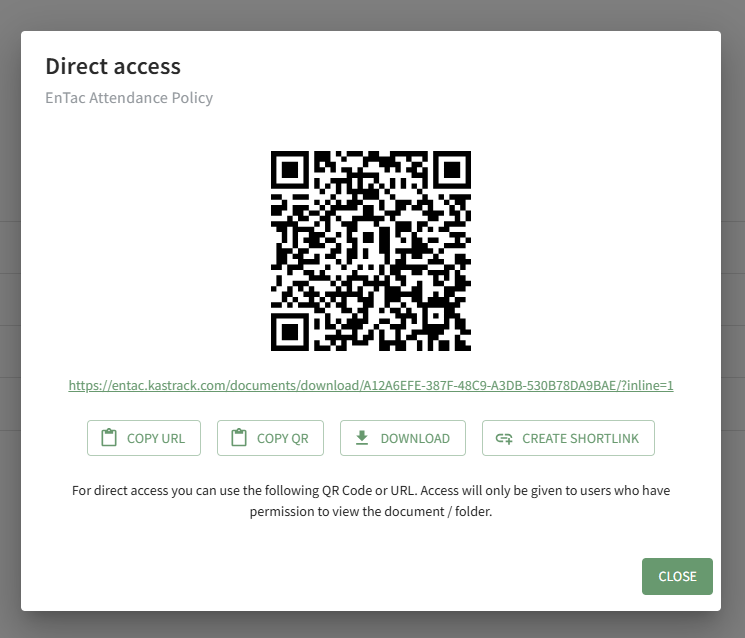
From this modal, you can copy the URL Link and/or copy the QR code.
Clicking the Download button will automatically download the file to the user's personal device.
Clicking the Create Shortlink button will generate a shortened URL link for file and display it on the modal.
How To: Access A Folder's QR Code / Link
To access a QR Code/Link for a folder in the Documents Module, open the Document Module Home Page from the Main Menu and navigate your repository to access the desired folder.
Access will only be given to users who have permission to view the folder unless the folder has been indicated as public.
Click the vertical three-dot icon to the far right of the folder, opening the folder's context menu. Select the QR Code/Link option.
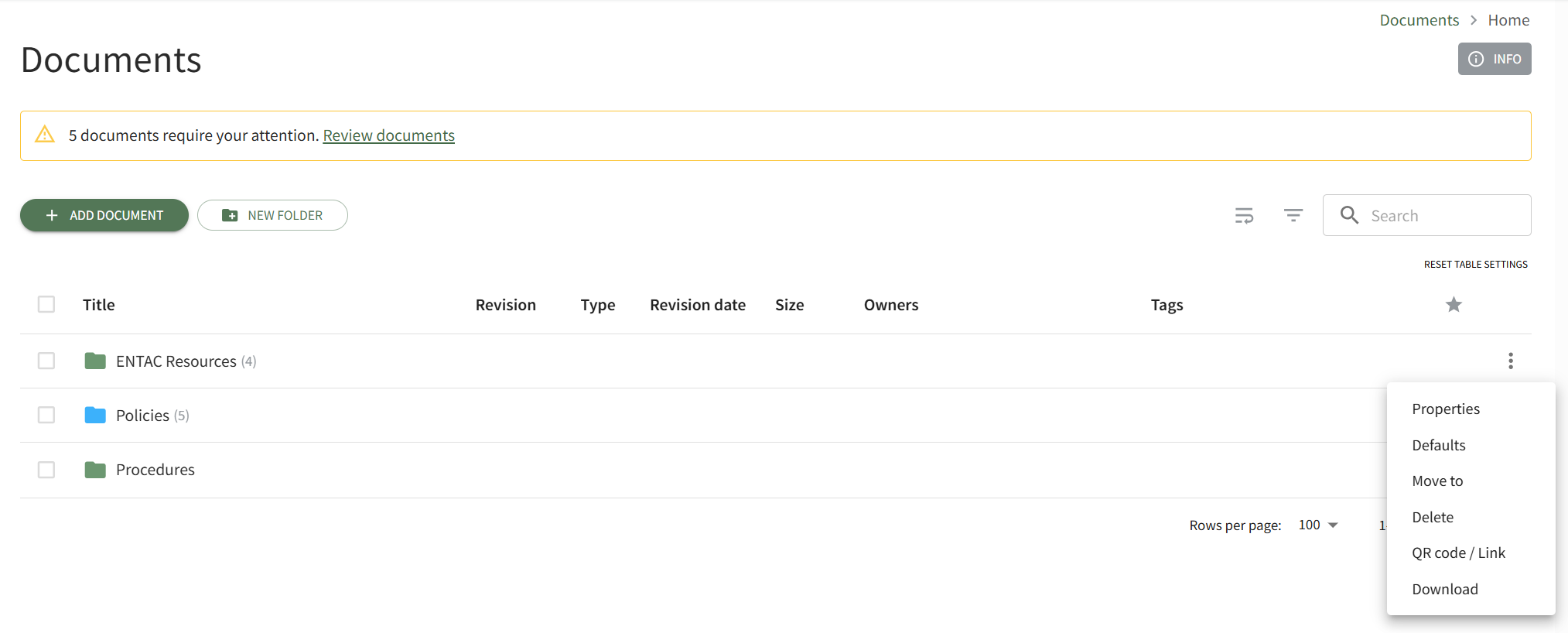
This opens the folder's Direct Access Modal.
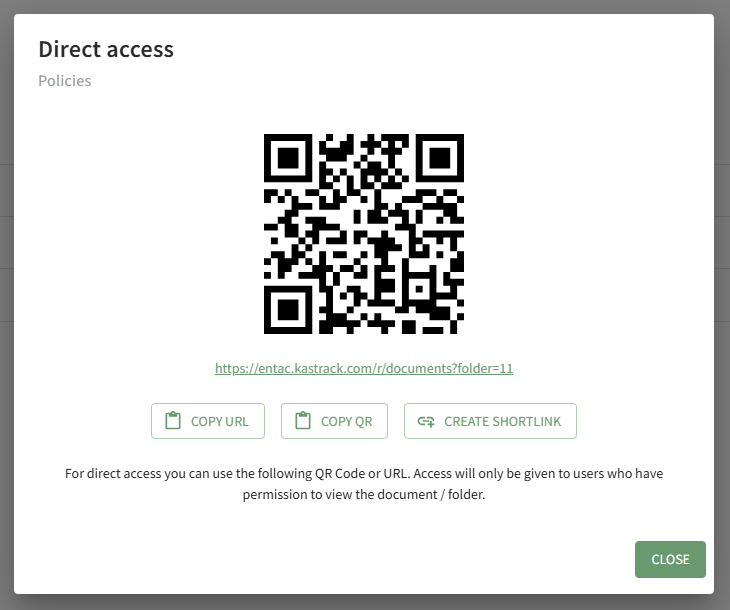
From this modal, you can copy the URL Link and/or copy the QR code.
Clicking the Create Shortlink button will generate a shortened URL link for file and display it on the modal.
How To: Acknowledge a Document/File
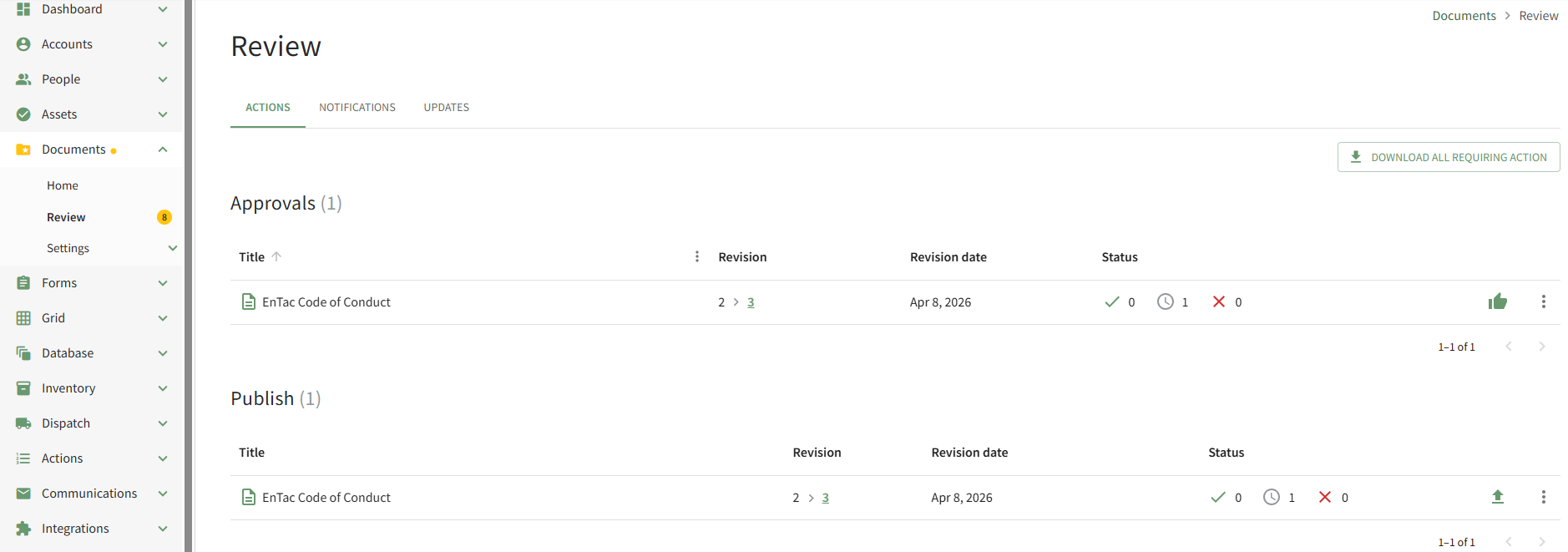
To acknowledge a document/file, open the Actions Tab on the Review Page in the Documents Module from the Main Menu.
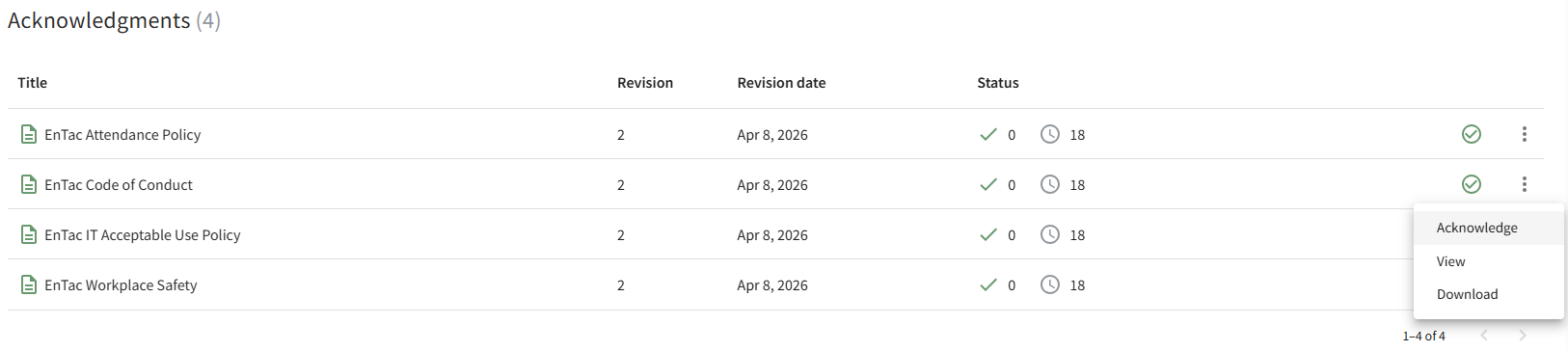
Scroll down to the Acknowledgements Section of the Actions Tab. Click the vertical three-dot icon to the right of the file to open the Acknowledgements Context Menu and select the Acknowledge option.
This opens the Acknowledge Revision Modal
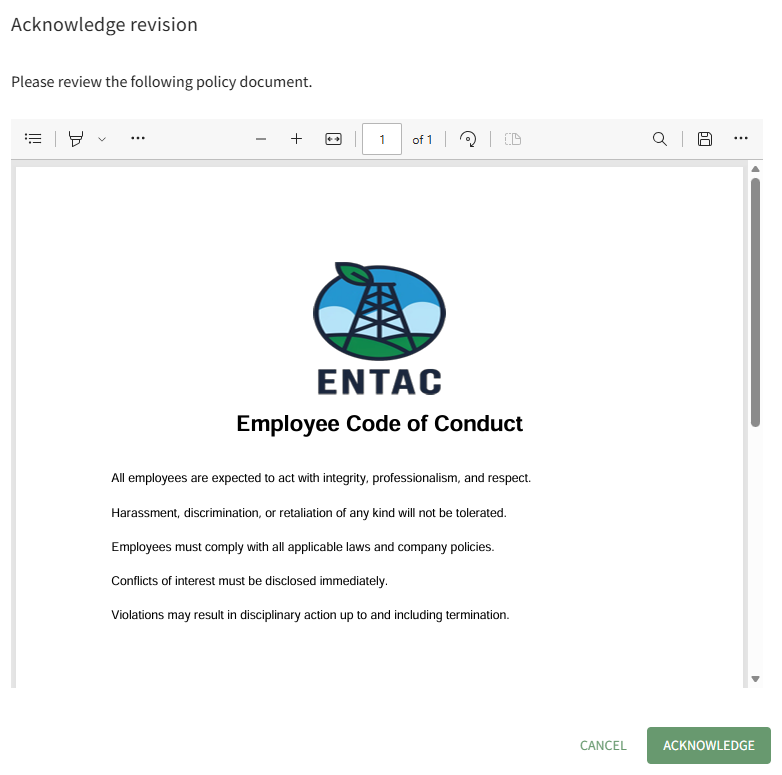
After reviewing the required document, click the Acknowledge button.

A pop-up confirms that the file (revision) was acknowledged.
How To: Add Comments to a File
To add a comment to a file that is housed in the Documents Module, open the Documents Home Page from the Main Menu and navigate to the file you want to leave a comment on. Click the vertical three-dot icon to the right of the file to open the file's context menu and select View.
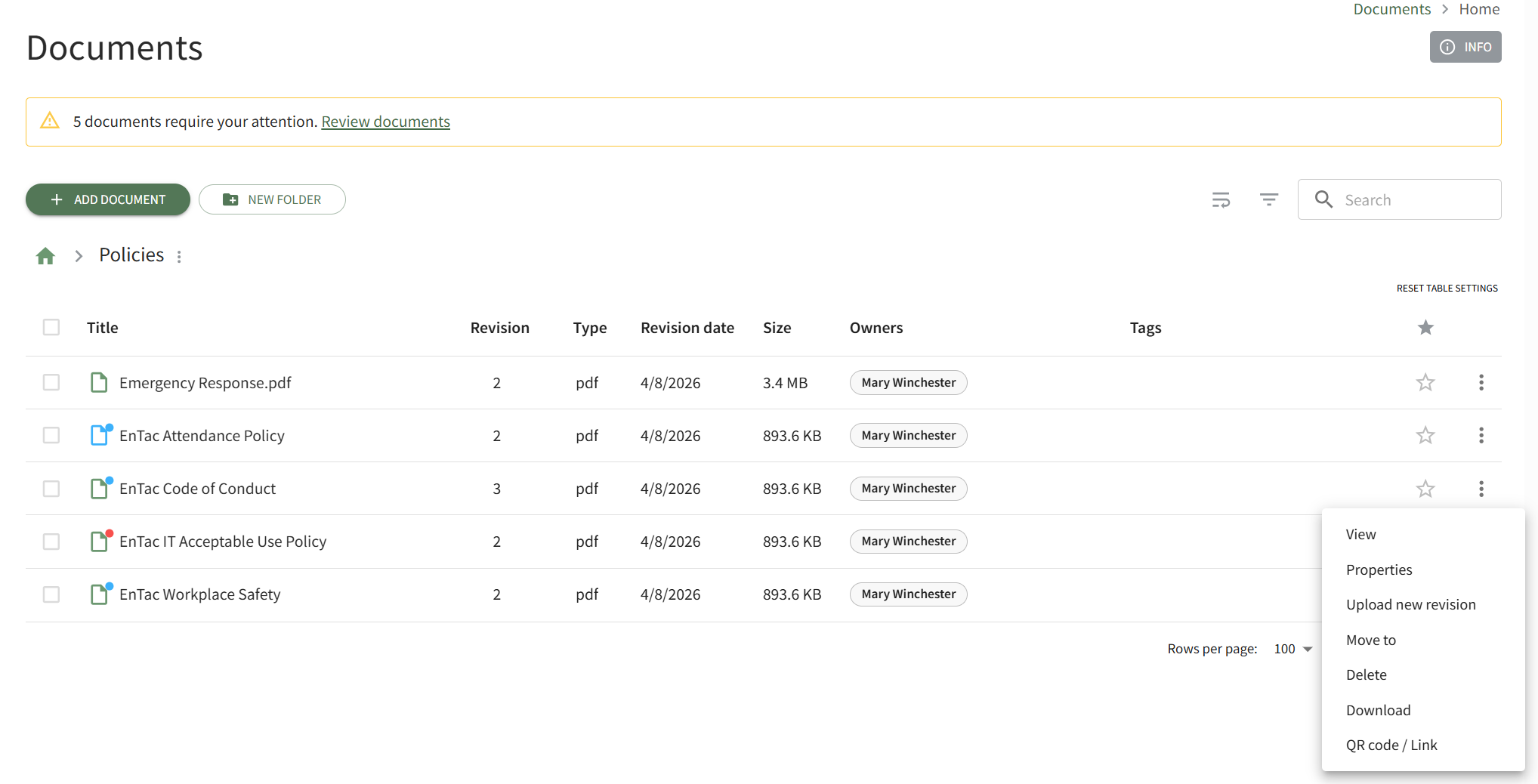
This opens the document's Detail Page. Open the Comments Tab.
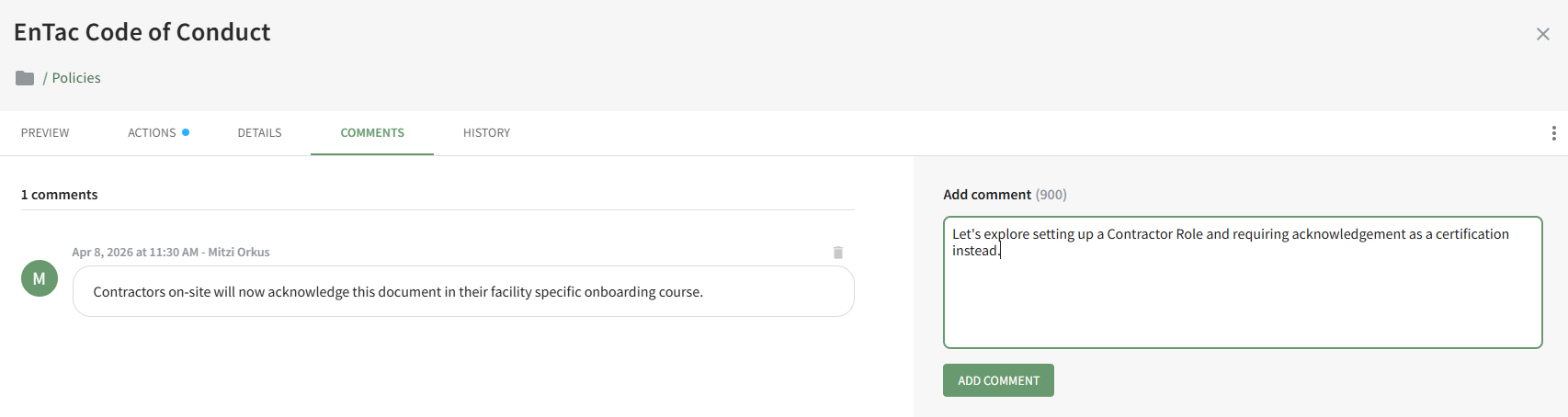
Insert your comments into the Add Comment textbox and click the Add Comment button.
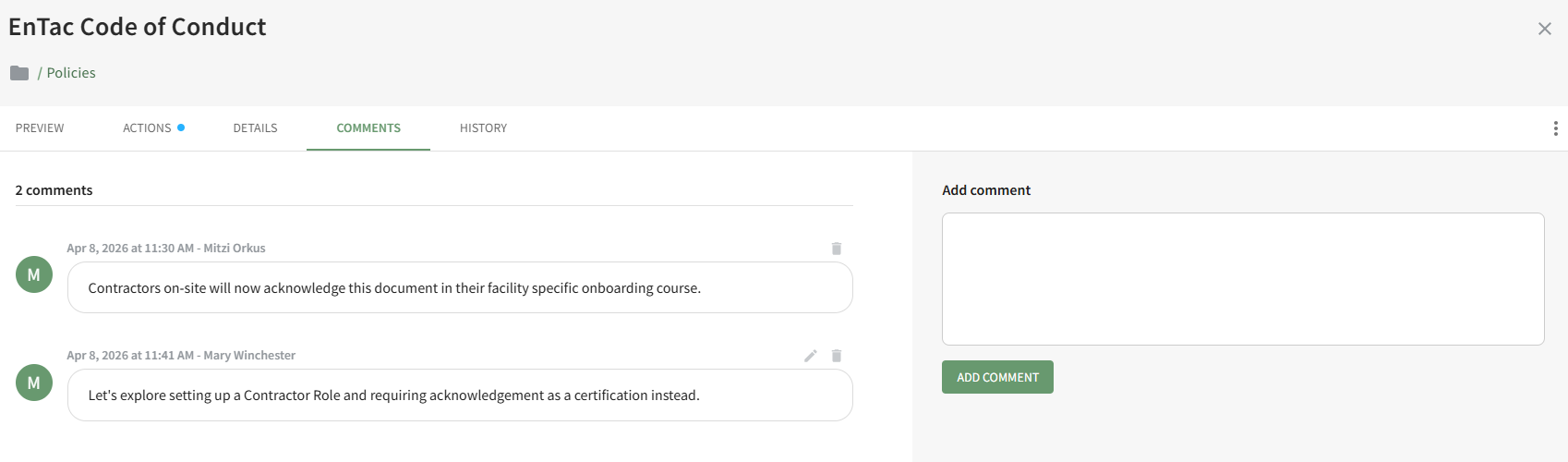
The date and time the comment was recorded as well as the user who made the comment is indicated above the message.
Users have the ability to edit/delete their own comments after they are posted.
How To: Add Tags to a Folder
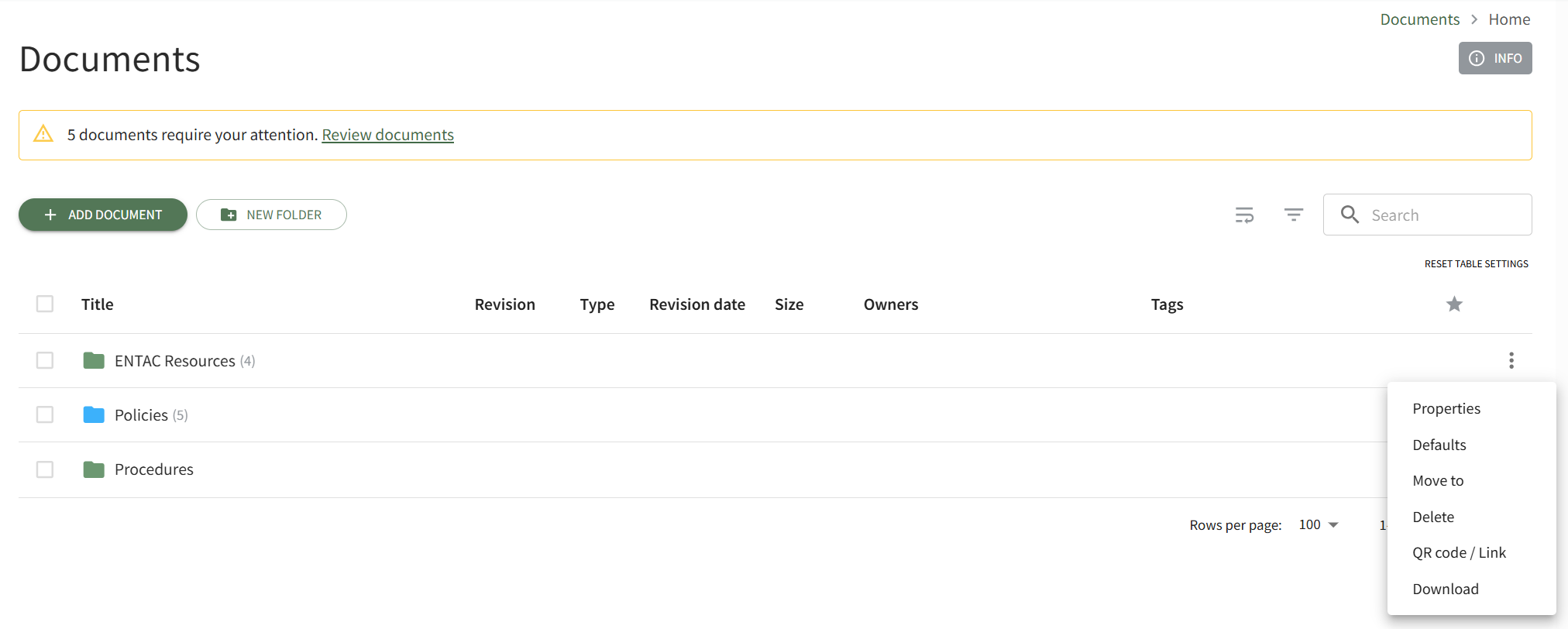
This opens the Folder Properties Modal.
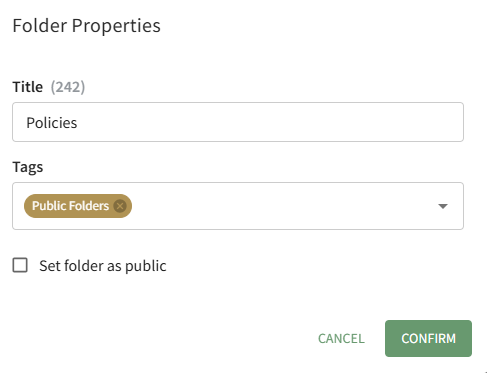
Select the pre-created desired tags from the dropdown menu and select confirm.
Tags cannot currently be created from within the Documents Module.
How To: Create a New Tag in the Tags Module
To create a new tag in the Tags Module, go to the Manage Page in the Tags Module.

Select the “New Tag” button, visible from both the Tags and Category Tabs, opening the New Tag Modal.
You can also select “Add Tag” from the vertical icon context menu to the far right of a category on the categories tab, which prefills adding a new Tag to the chosen Category.

Input the name of the new tag into the title field.
Emojis may be used in the tag title.
Select the category for the new tag from the dropdown menu. All categories created will show, as well as an “uncategorized” option.
Categories determine the appearance of tags (their color and formatting).
Select the tag behavior (open, permissive, or restrictive) from the dropdown menu.
Select “Add Tag” and the new tag will show on the Tags List on the Tags Tab.
How To: Affirm a Document/File's Suitability
To affirm a document/file for Continued Suitability, open the Actions Tab on the Review Page in the Documents Module from the Main Menu.
Scroll down to the Continued Suitability of the Actions Tab. Click the vertical three-dot icon to the right of the file to open the Continued Suitability Context Menu and select the Affirm Suitability option.
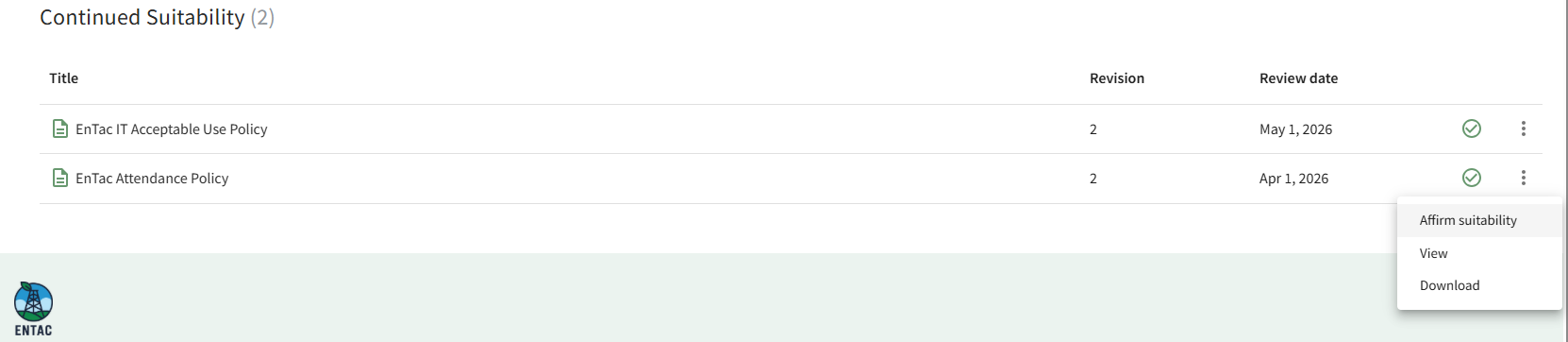
This opens the Affirm Suitability Modal which asks the user to confirm that the document continues to be suitable purpose.
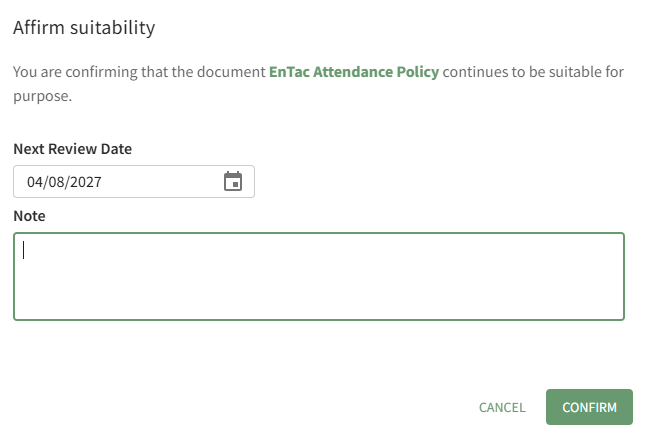
The Next Review Date is stated and can be edited from the modal. Comments can be entered in the Notes textbox.
Select the Confirm button.
The comments made when the document is affirmed can be seen on the History Tab of the file's Details Page.

How To: Approve a File Submitted for Review
To approve a file that was submitted for approval, open the Actions Tab on the Review Page in the Documents Module from the Main Menu and click the vertical three-dot icon to the right of the file submitted for approval opening the Approvals Context Menu.
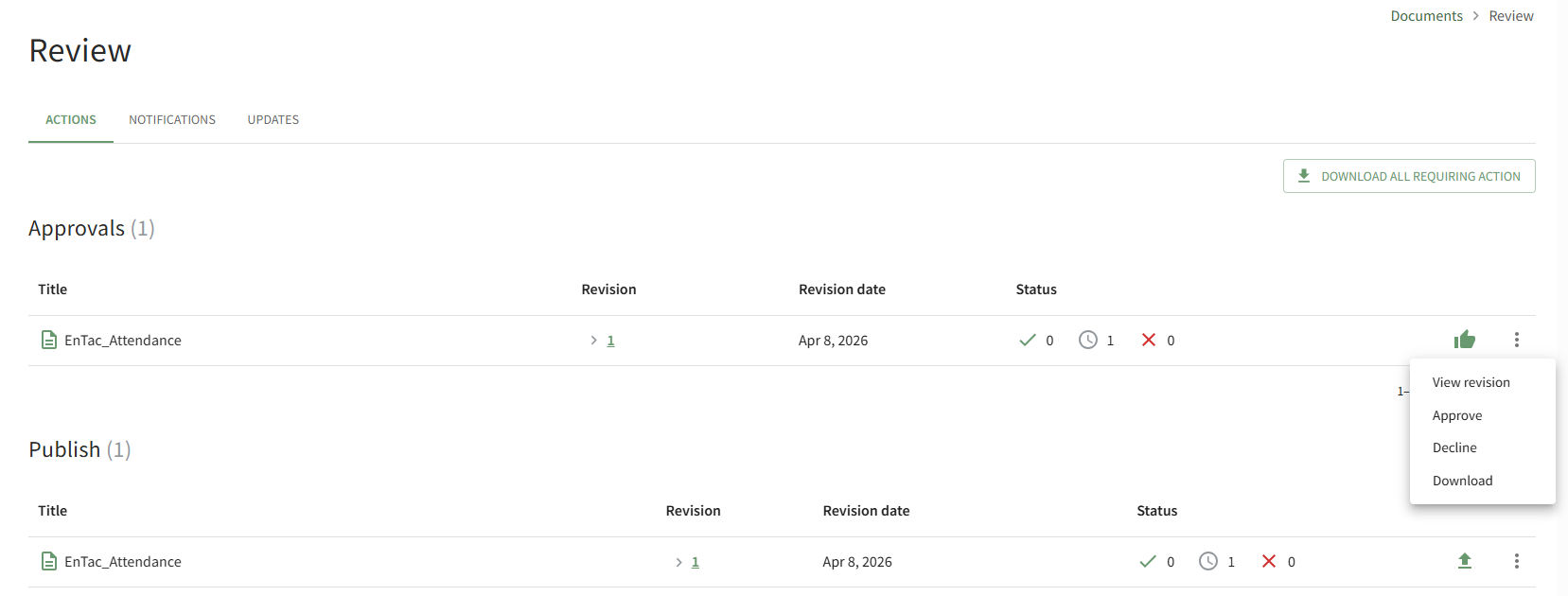
Select the Approve option, opening the Accept Revision Modal.
Clicking the thumbs up icon will also open the Accept Revision Modal.
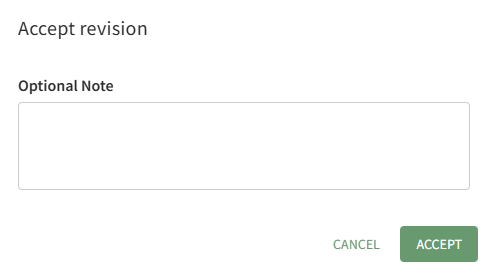
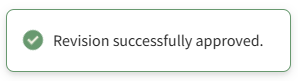
You have the option to include a note regarding the revision being approved. Click the Accept button and a pop-up confirms that the revision was successfully approved.
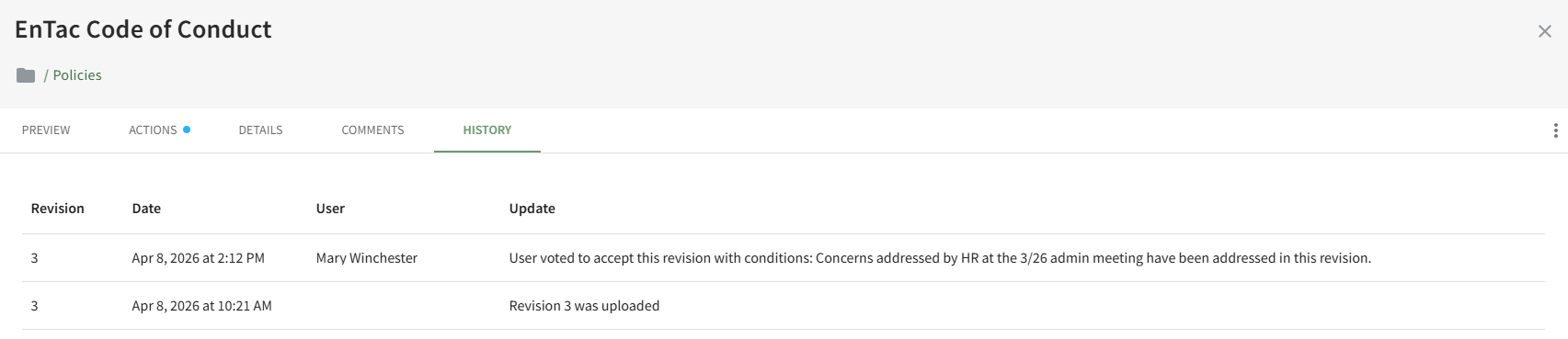
Notes made when the file was approved are visible on the History Tab of the document's Details Page.
How To: Create a New Folder
To create a new folder in the Documents Module, open the Documents Home Page from the Main Menu and navigate the repository to the location where you want to add an additional folder.
To create a nested subfolder within a folder, first open the parent folder. Then follow the steps to add a new folder below.
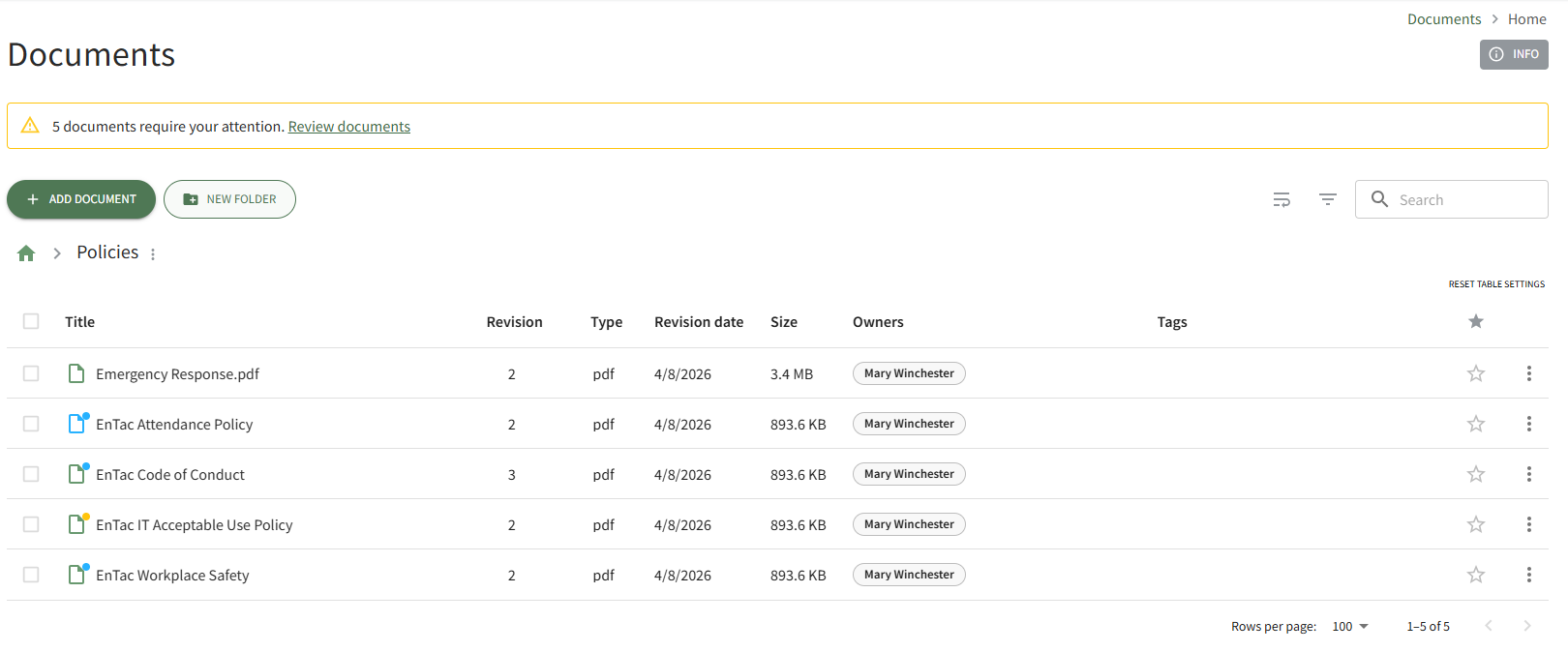
Select the New Folder button beneath the Home Page header. This opens the New Folder Modal.
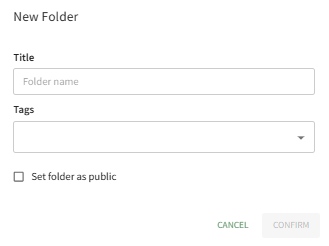
Input the title for the new folder.
If you would like the folder to be accessible to individuals that do not use KAStrack , select the “Set folder as public” checkbox. If the files in the folder are not for public consumption, leave the box blank.
Select Confirm and the new folder will be added to the Folder/File List on the Documents Home Page.
How To: Create a New Module Level (Documents)
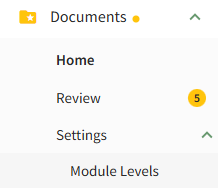
To create a new Module Level with customized permissions in the Documents Module, select Module Levels under Settings in the Documents Module on the Main Menu, opening the Settings Page to the Module Level Tab.
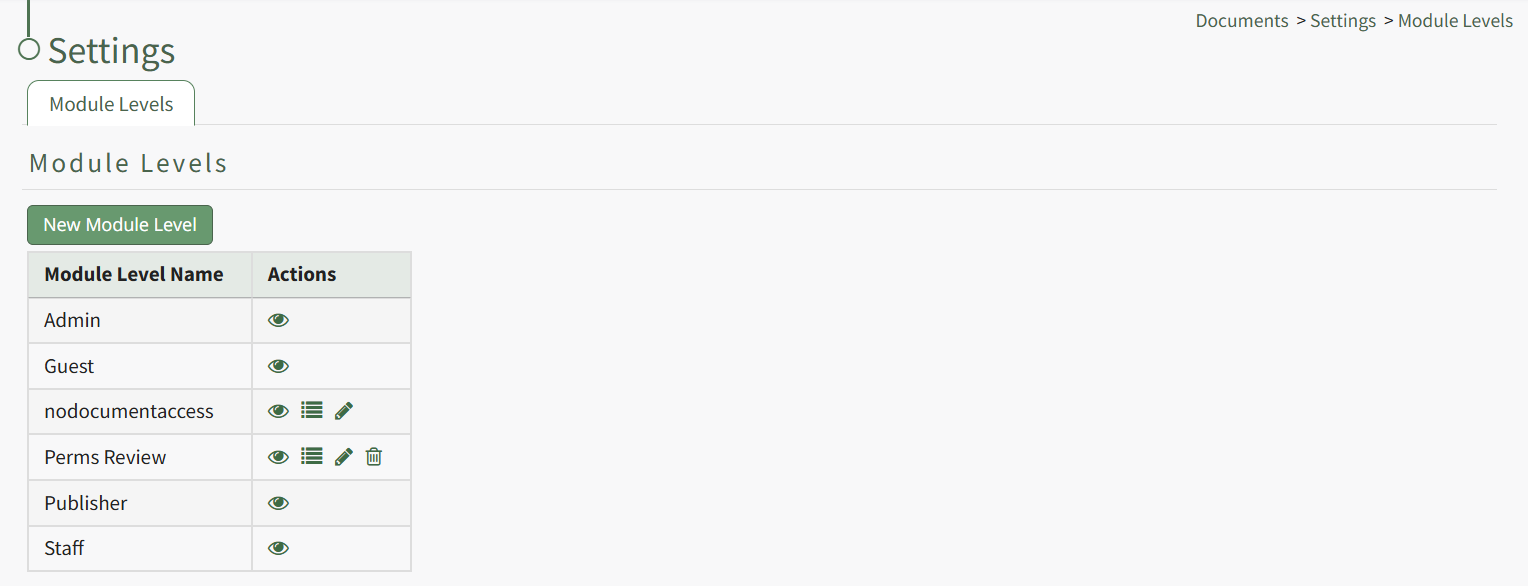
System default module levels cannot be customized. Module levels that are specific to your organization have additional actions to enable customization.
To create a new module level, select the New Module Level button opening the New Module Level Modal.
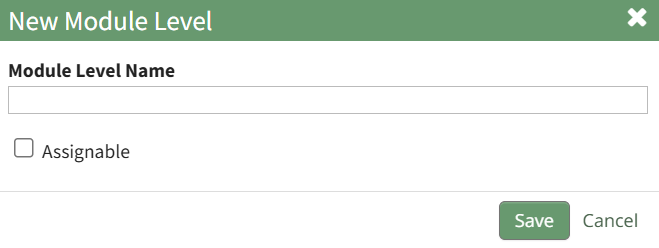
Input the name of the customized module level.
Check the box for Assignable to give permission for the new module level to be assigned to users if desired and click the Save button. Module levels will be listed alphabetically in the Module Level Table.
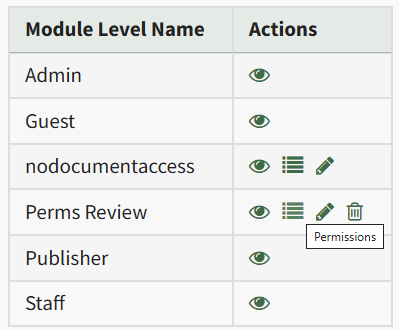
Select the Permissions icon (the bullet point list to the right of the eye) in order to assign the customized permissions to the new Module Level. Click the checkbox to the left of the permissions you want to assign.
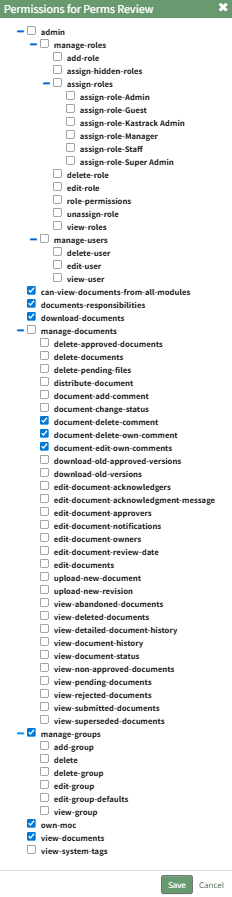
Select the Save button.

A pop-up confirms that the permissions were saved.
Access levels for all modules can also be managed in the Site Settings Module on the Access Levels Tab.
How To: Decline Approval of a File Submitted for Review
To decline a file that was submitted for approval, open the Actions Tab on the Review Page in the Documents Module from the Main Menu and click the vertical three-dot icon to the right of the file submitted for approval opening the Approvals Context Menu.
Select the Decline option, opening the Decline Revision Modal.
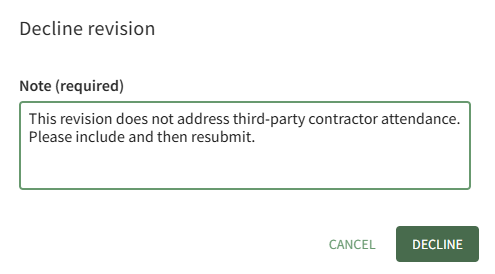
You are required to enter a note in the modal. Click the Decline button.
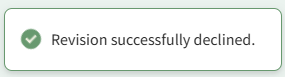
A pop-up in the footer confirms that the revision was successfully declined.
How To: Delete a Folder
To delete a folder in the Documents Module, open the Documents Home Page from the Main Menu and navigate the repository to the folder you wish to delete. Click the vertical three-dot icon to the right of the folder opening the folder's context menu. Select the Delete option.
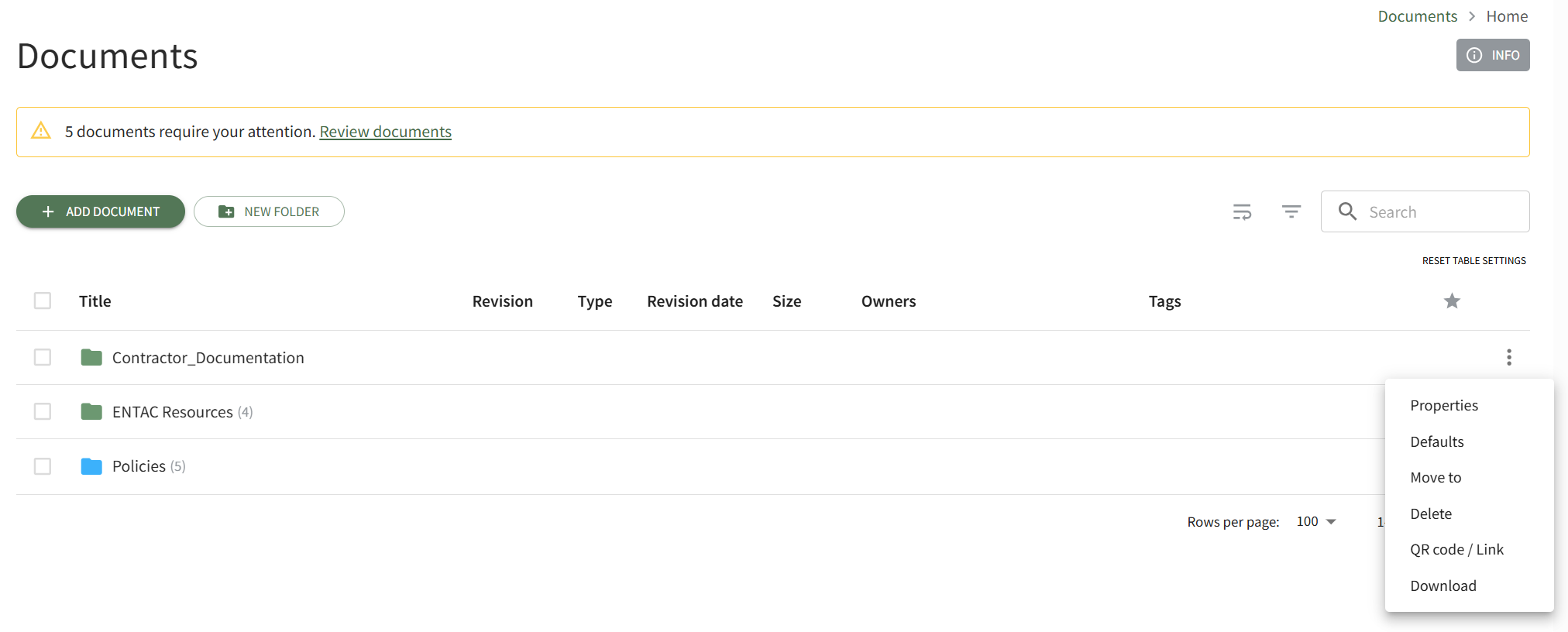
This opens the Deletion Confirmation Modal.
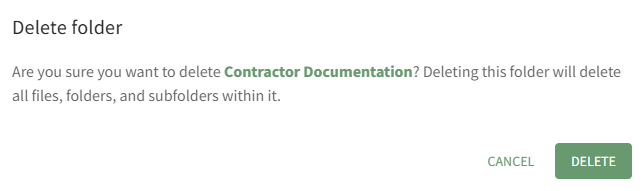
The modal states, "Are you sure you want to delete FOLDER NAME? Deleting this folder will delete all files, folders, and subfolders within it." Click the Delete button.
The folder and its contents have now been deleted from the Documents Module.
How To: Designate a File is Public
To designate a document/file as Public in the Documents Module, open the Documents Home Page from the Main Menu and navigate the repository to the file you want to designate as public.
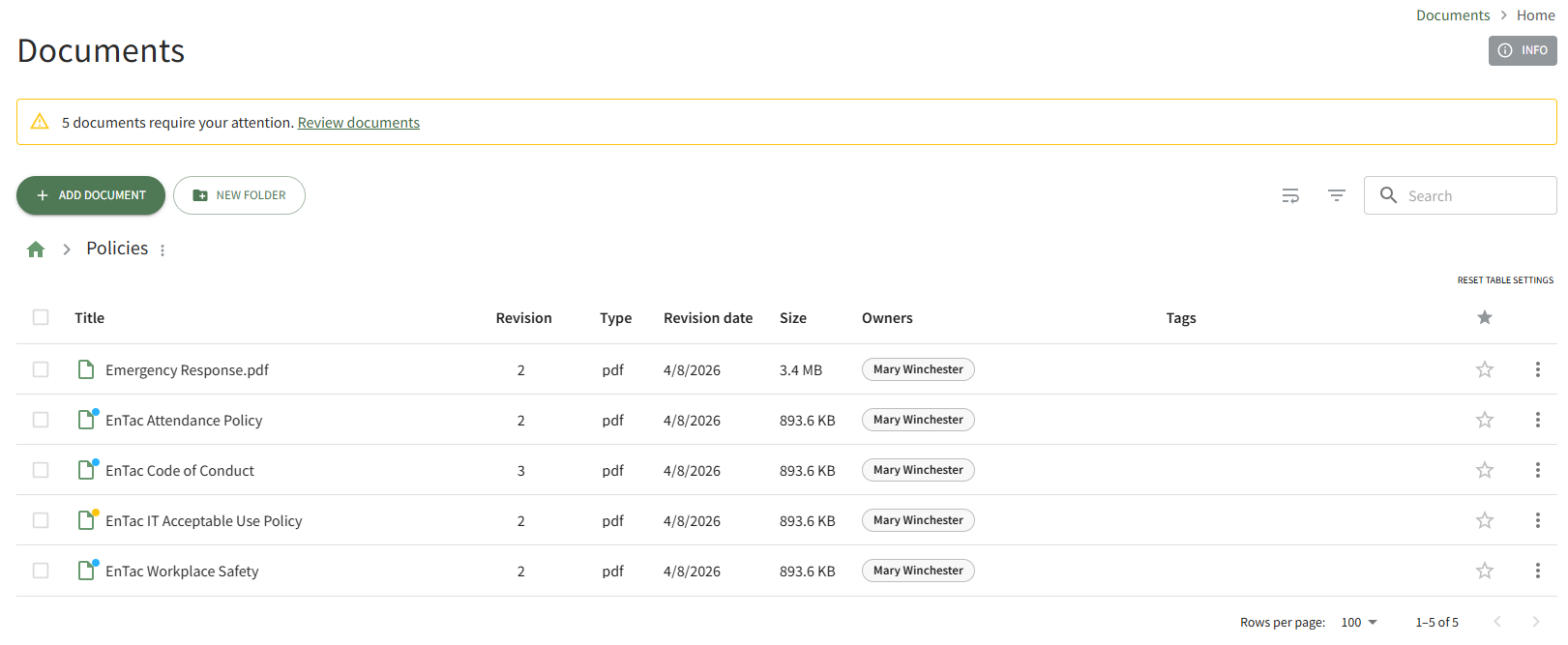
Click the vertical three-dot icon to the right of the file you wish to make public, opening the file's context menu.
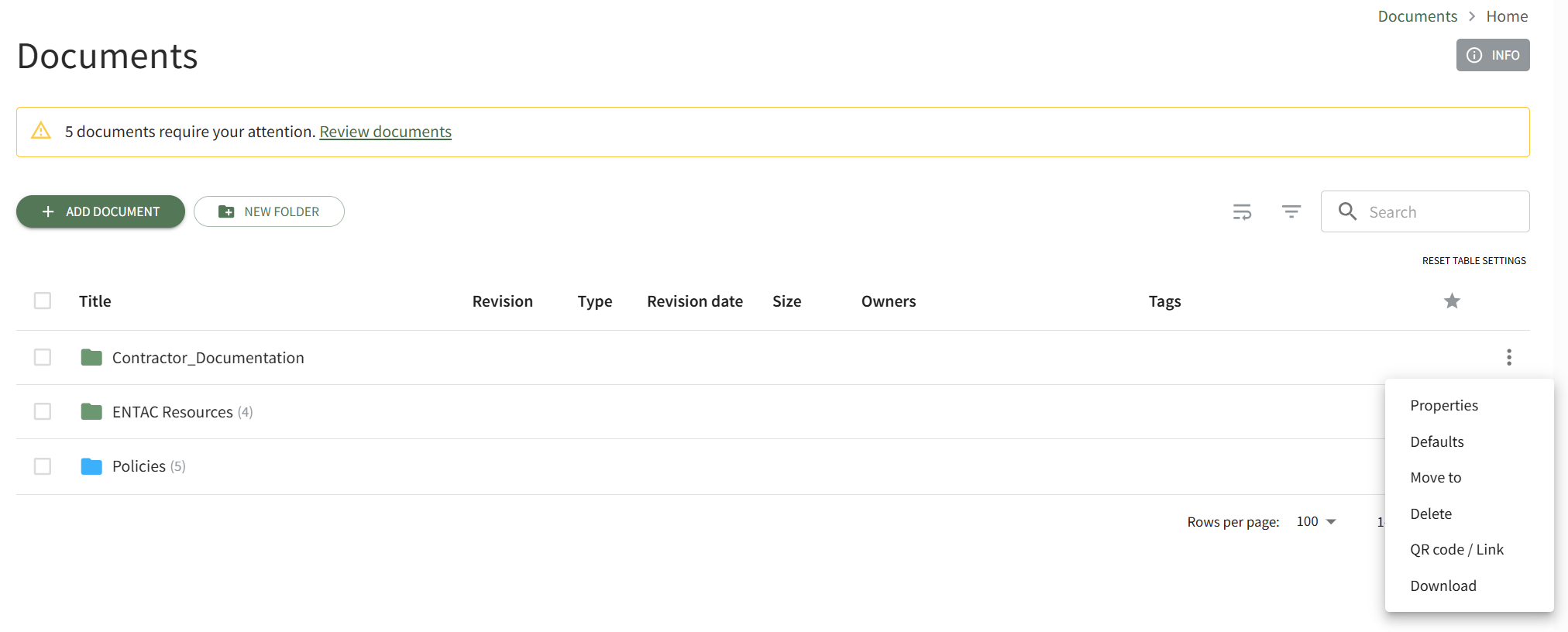
Select Properties opening the Basic Details Tab of the Document Properties modal. Open the Advanced Options Tab.
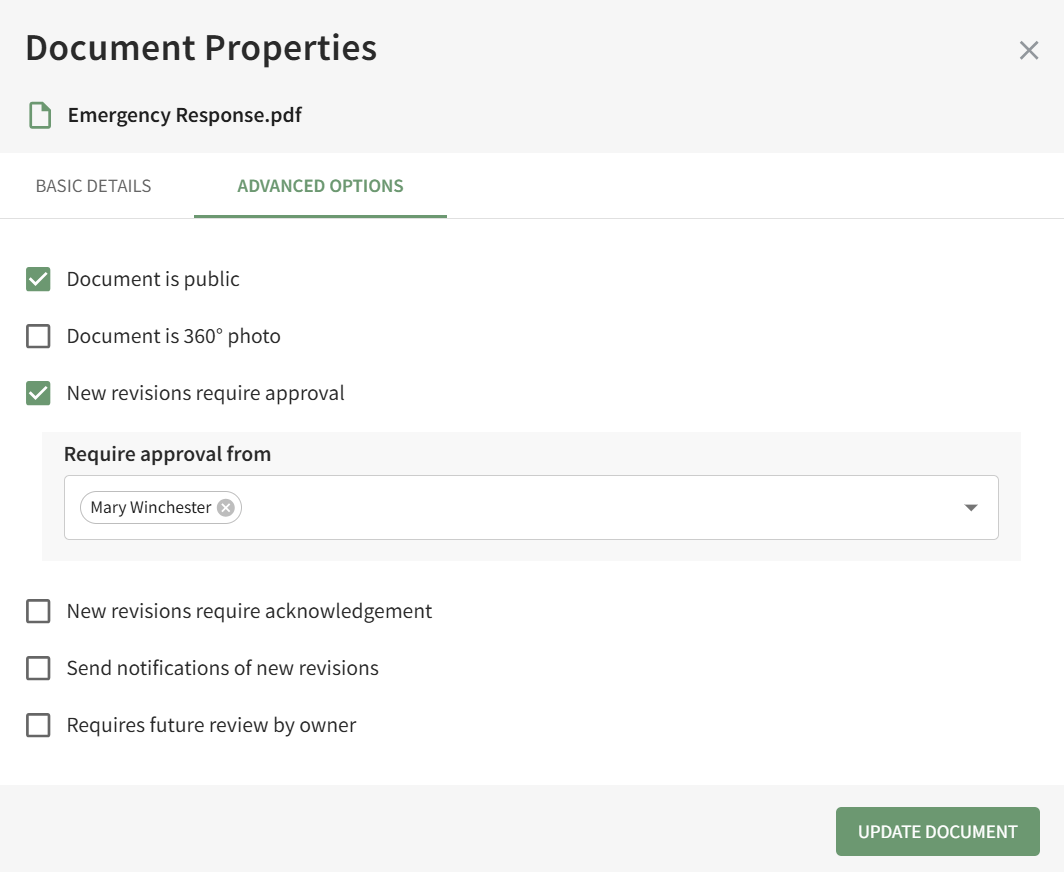
Select the checkbox to designate the "Document is Public" and click the Update Document button. A pop-up confirms that the document is now public.

The file's icon is now blue, indicating that the document is public.
How To: Designate a Folder is Public
To make an existing folder a public folder in the Documents Module, open the Documents Home Page from the Main Menu and navigate the repository to the folder you want to designate as public.
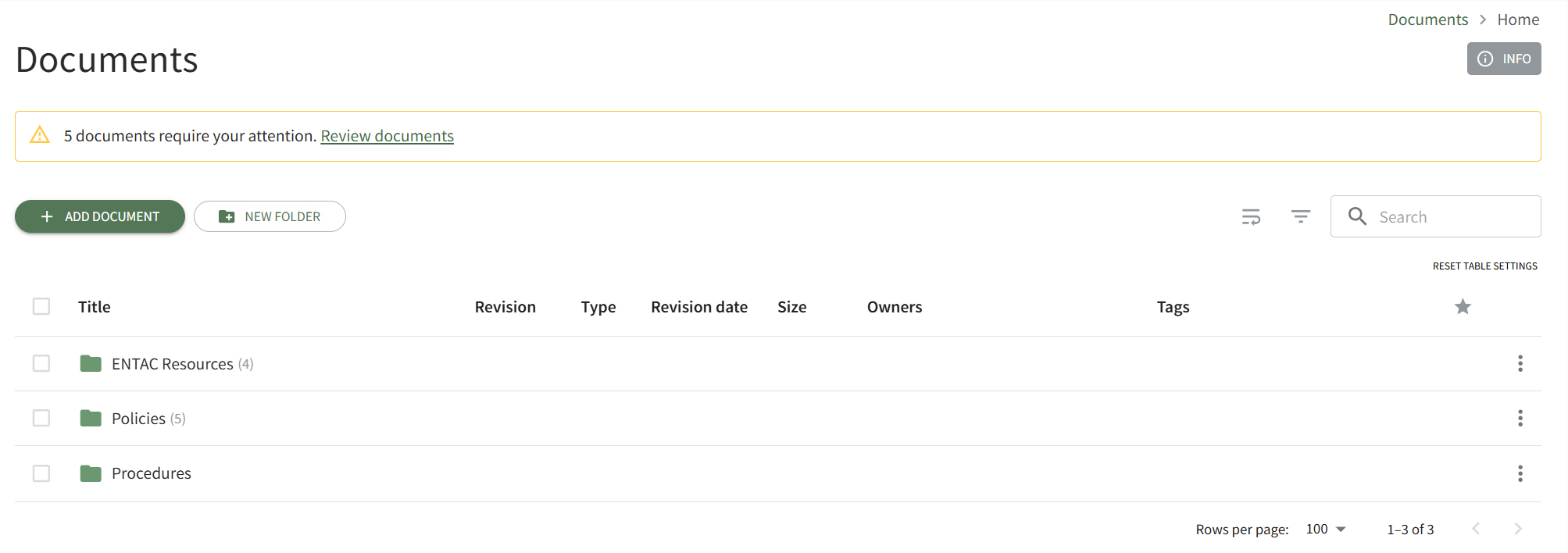
Click the vertical three-dot icon to the right of the folder you wish to make public, opening the folder's context menu. Select Properties opening the Folder Properties modal.
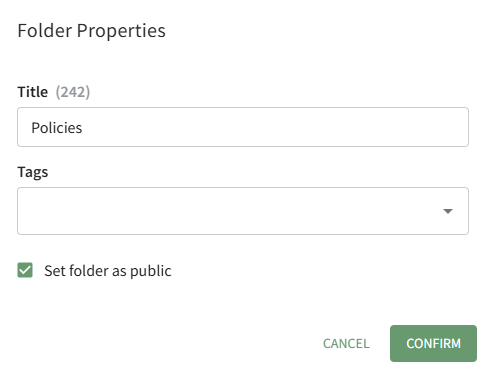
Click the "Set Folder as Public" checkbox and select the Confirm button.
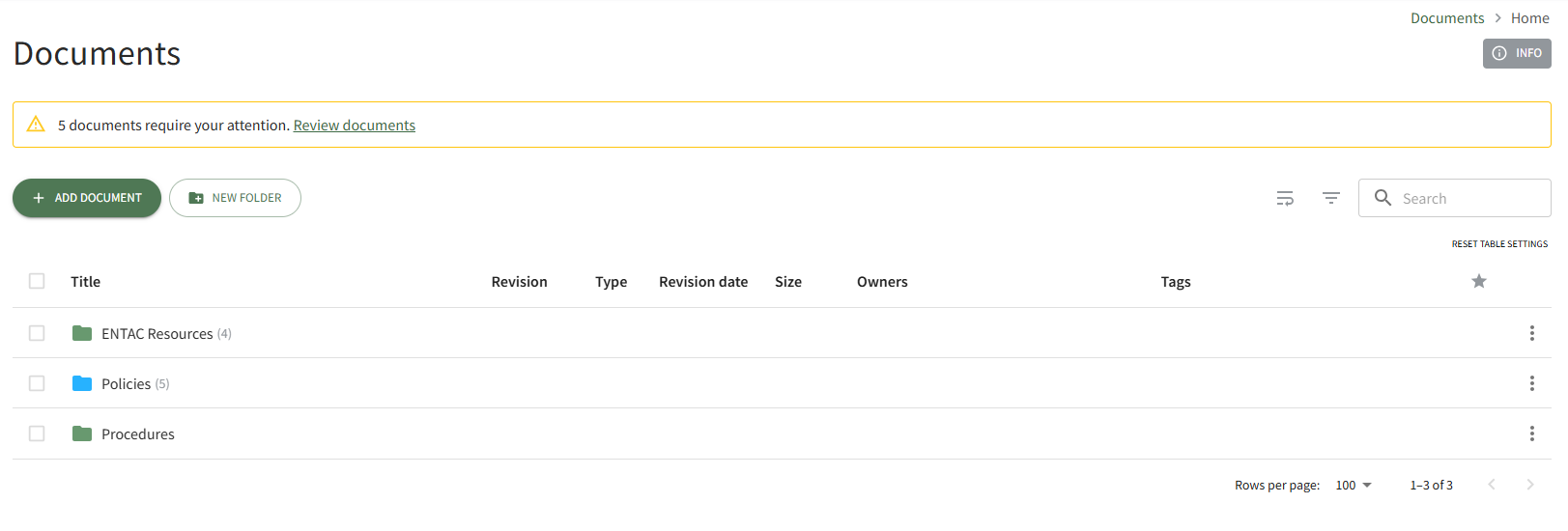
The folder icon is now blue, indicating that the folder is accessible to individuals that are not logged in to the system as KAStrack users.
How To: Download a Folder
To download the files contained in a folder in the Documents Module, open the Documents Home Page from the Main Menu and navigate your respository to the desired folder. Select the vertical three-dot icon to the far right of the folder opening the context menu and select the Download option.
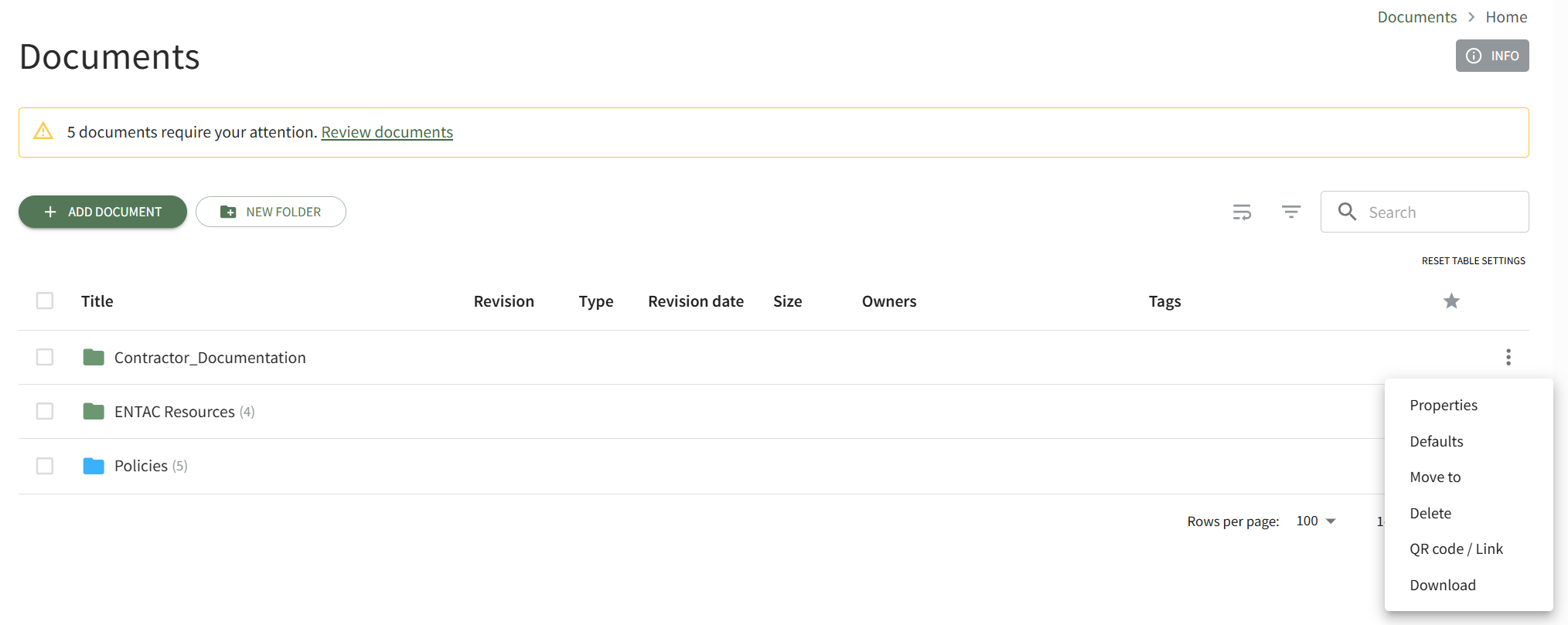
This opens the Download Modal.
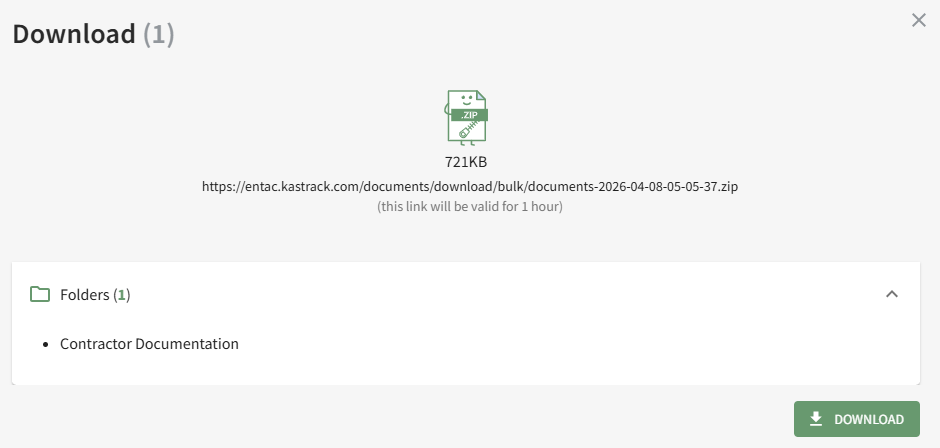
Click the Download button and zip file will be downloaded to your personal device.
How To: Download all Files Requiring Action
To download all files that require action to your personal device, open the Actions Tab on the Review Page in the Documents Module from the Main Menu.
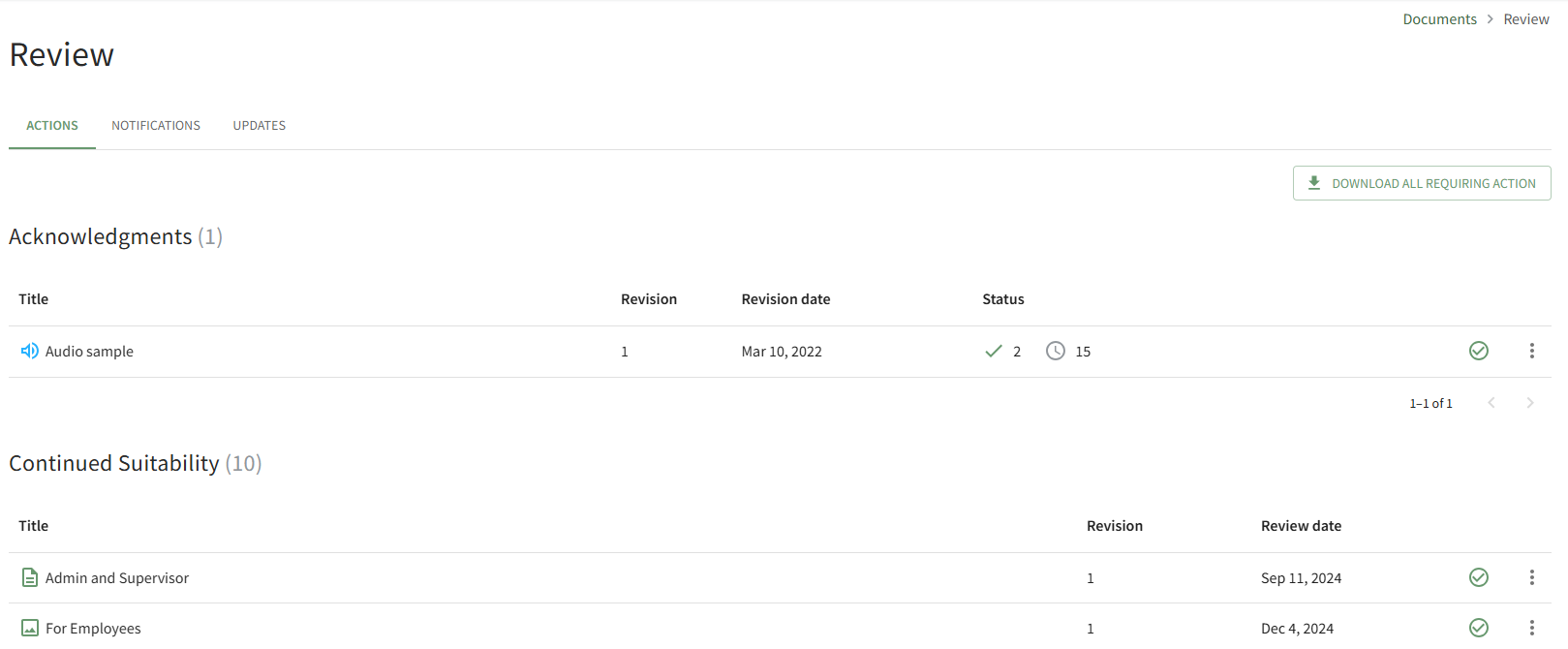
Click the Download All Requiring Action button opening the Download Compressed Package Page.

Click the download link generated for you to download a zip file to your personal device.
The download link generated for you will only be valid for 1 hour. Please start the download now.
How To: Edit the Title of a Folder
To edit the title of a folder in the Documents Module, open the Documents Home Page from the Main Menu and navigate the repository to the folder whose title you wish to edit. Select the vertical three-dot icon to the right of the folder and select the Properties option.

This opens the Folder Properties Modal.
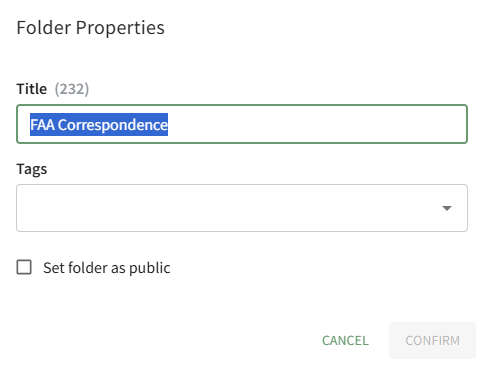
Alter the folder title as desired and select the Confirm button. Your change will now be reflected on the Home Page.
How To: Move a File / Folder
To move a file/folder in the Documents Module, open the Documents Home Page from the Main Menu and navigate the repository to the file/folder you want to move.
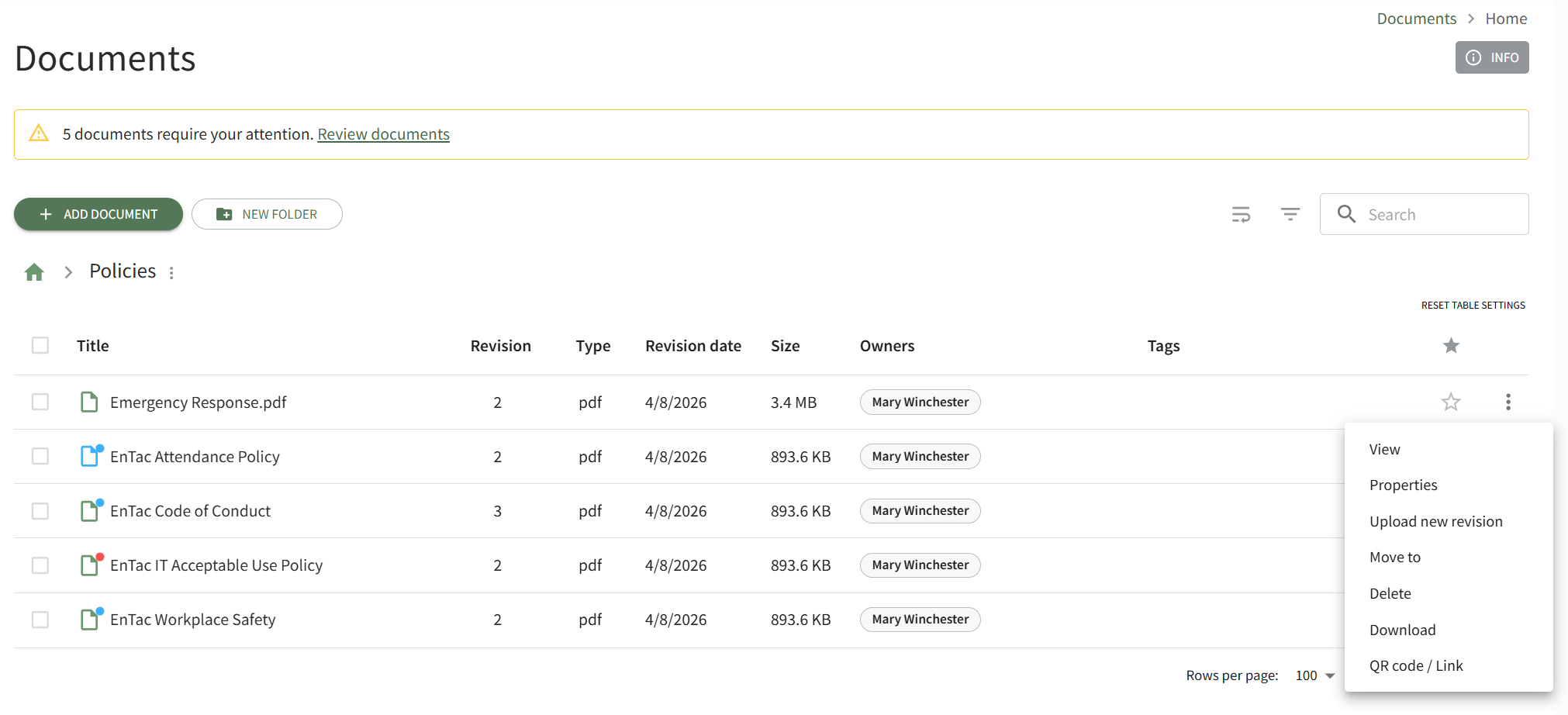
Click the vertical three-dot icon to the right of the file you wish to move, opening the file's context menu. Select Move To, opening the Move To Modal.
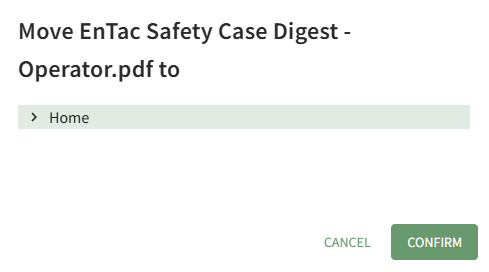
The right arrow indicates a collapsed folder. Click it to expand and see all the subfolders contained within it. The down arrow indicates an expanded folder. Click it to collapse the parent folder and remove all subfolders from view.
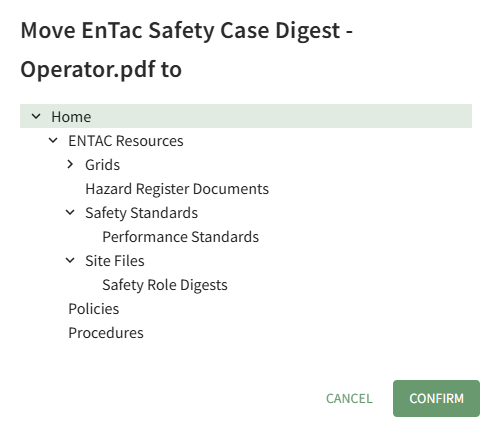
Select the folder you wish to move the file/folder to, then press the Confirm button.
A pop-up confirms that the file was relocated.
How To: Publish a Document/File
To publish a file submitted for approval and make is visible to others in your organization, go to the Review Page in the Documents Module from the Main Menu. Scroll down (if needed) to the Publish Section on the Actions Tab.
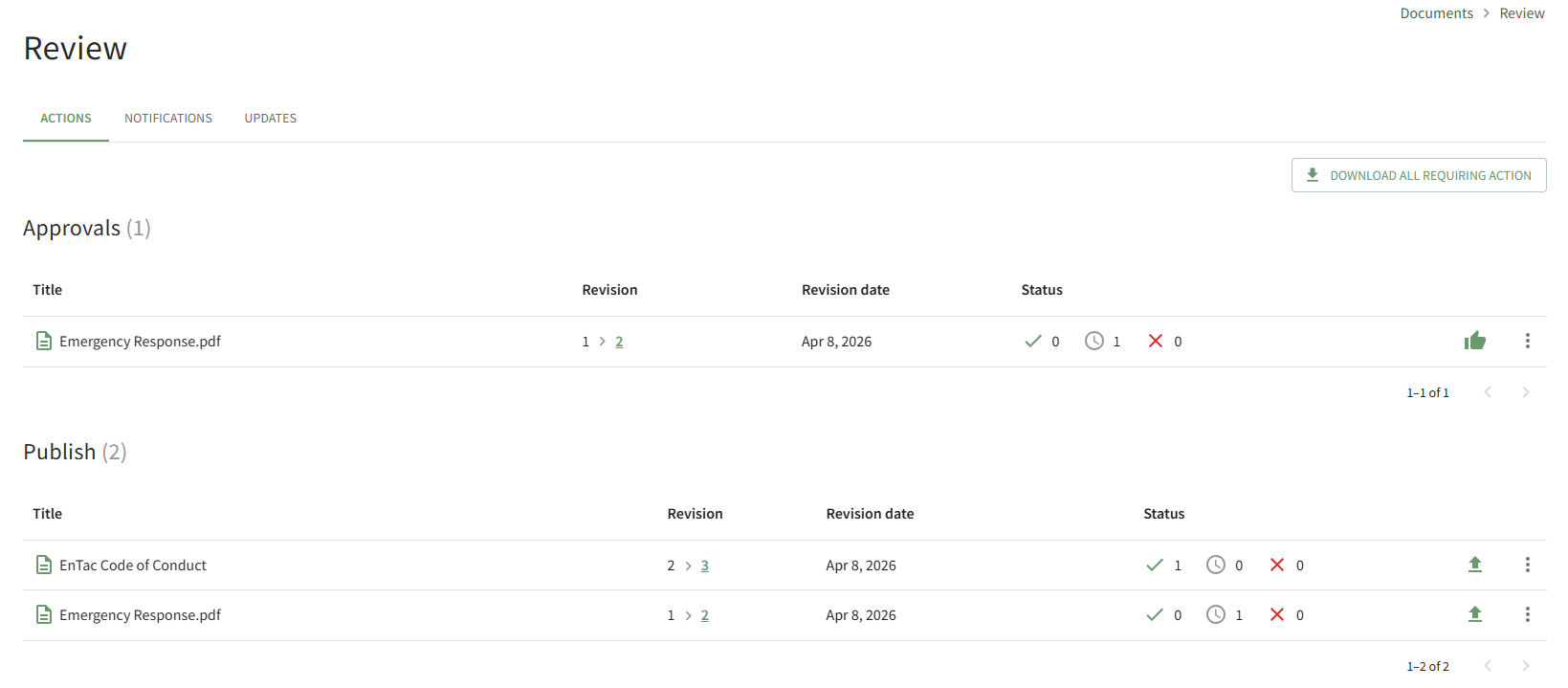
Click the Upload Icon to publish the document or select the Publish option on the context menu made visible by clicking the file's vertical three-dot icon.
This opens the Publish Revision Modal, which allows you to include an optional note that will be visible on the History Tab of a document's Details Page.
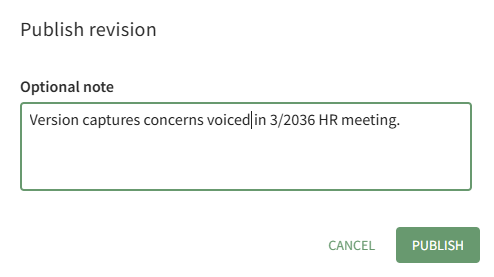
After adding any relevant notes, select the Publish button.
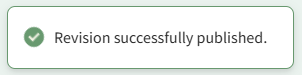
A pop-up confirms that the revision was successfully published.
How To: Reject a Document/File and Prevent Publishing
To reject a document/file that has been submitted for publishing and cancel its upload to KAStrack, open the Actions Tab on the Review Page of the Documents Module from the Main Menu. Click the vertical three-dot icon to the right of the file you want to decline, opening the Publish Context Menu.
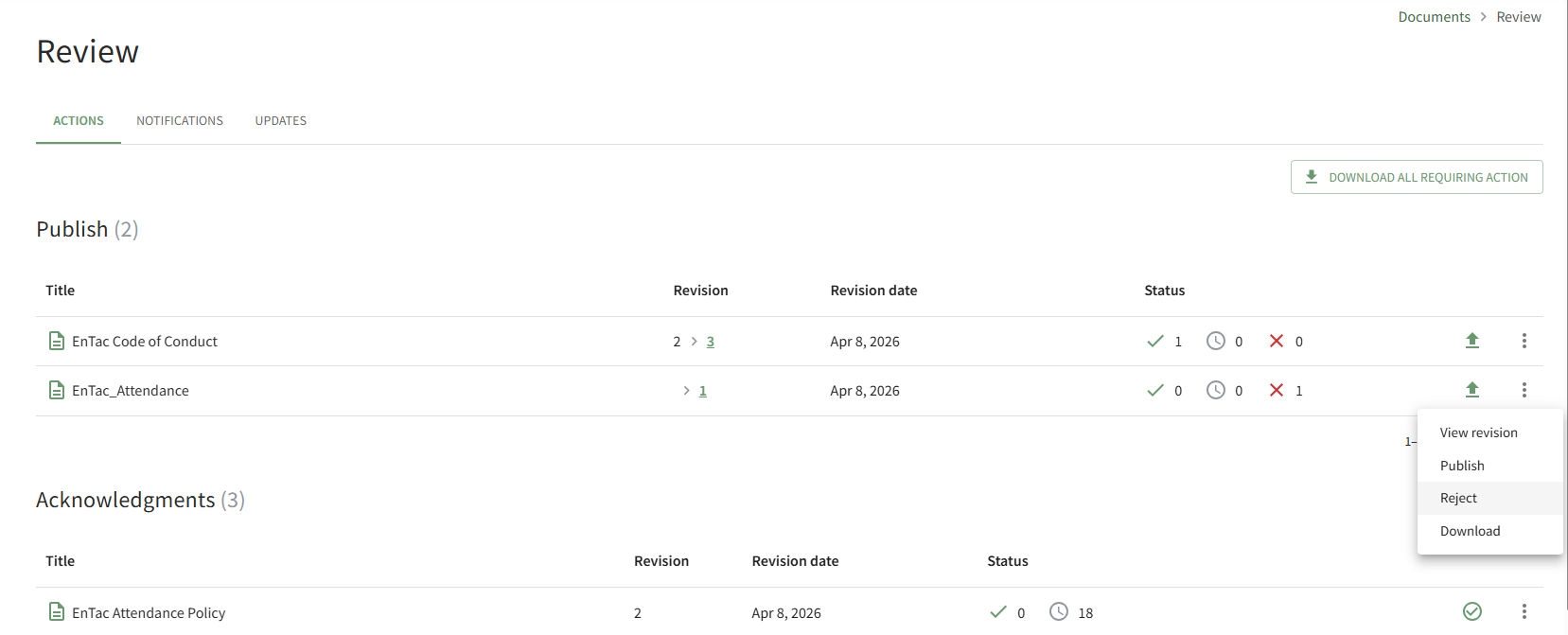
Select the Reject option, opening the Reject Revision Modal.
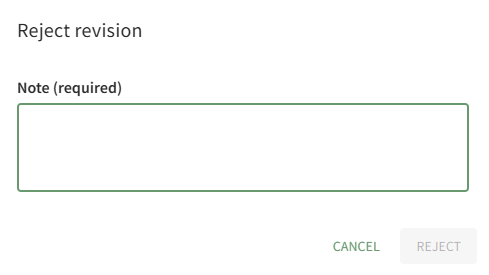
A note regarding the rejection is required. After including your note, select the Reject button.
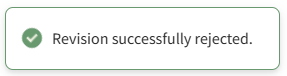
A pop-up confirms that the revision was successfully rejected.
The notes regarding the rejection are visible on the History Tab of the document's Details Page.
How To: Reset the Since Last Review Document List
To reset the Since Last Review Document List, open the Review Page in the Documents Module from the Main Menu and open the Updates Tab.
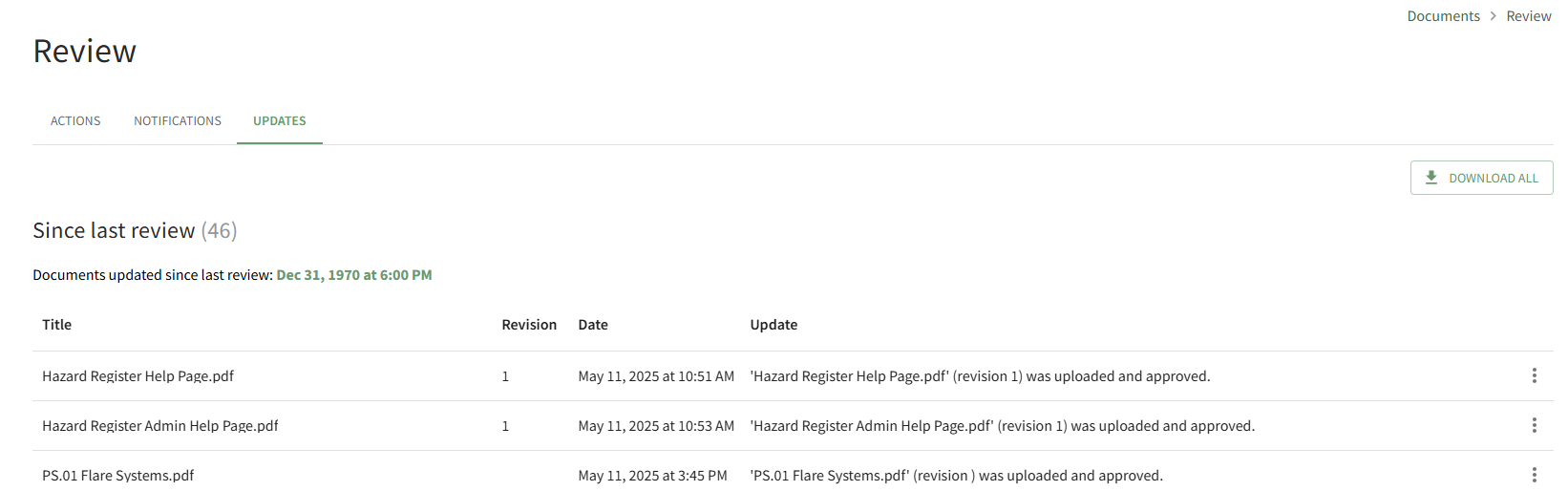
All documents that have been uploaded/updated in module since the last review are visible. The number of files is indicated in parenthesis to the right of the section header. Scroll to the bottom of the Since Last Review List.

Click the Reset Review Date button.
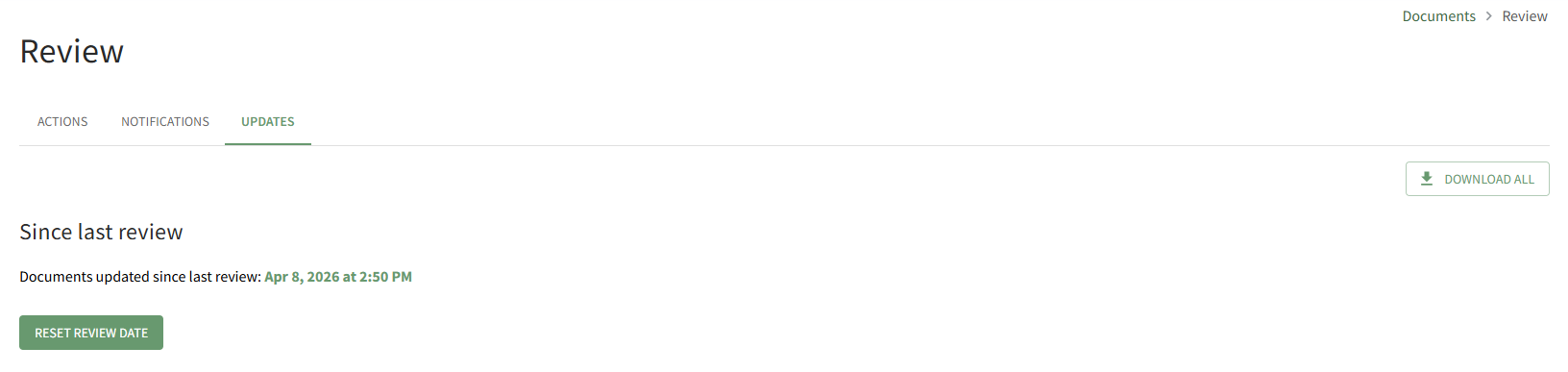
The system records the date and time that the list was reviewed.
How To: Review New File Revisions when Notified
To review new revisions of an existing file in the Documents Module, open the Documents Review Page from the Main Menu and open the Notifications Tab.
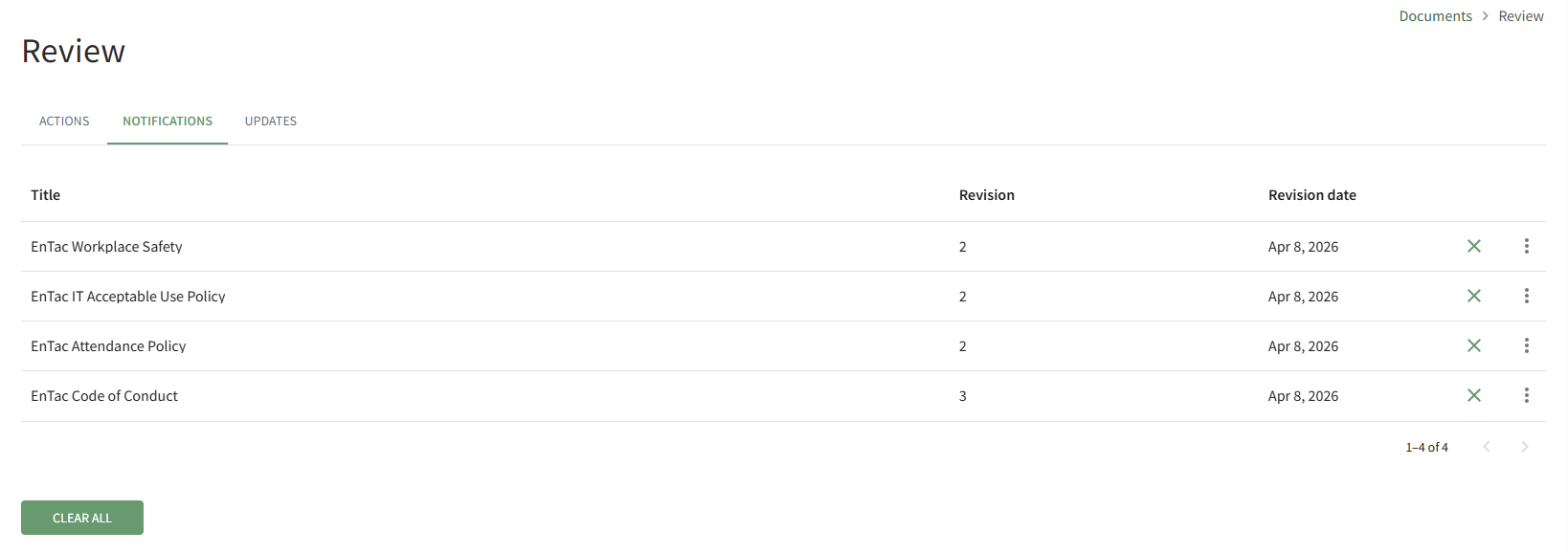
You can click the X icon to the right of the file you received notification of to clear it individually, or you can elect to click the Clear All button and clear all documents from the Notifications Tab at once.
How To: Search all Documents Updated after a Selected Date
To search all documents uploaded/updated in the Documents Module after a specified date, open the Review Page in Documents Module from the Main Menu and open the Updates Tab.
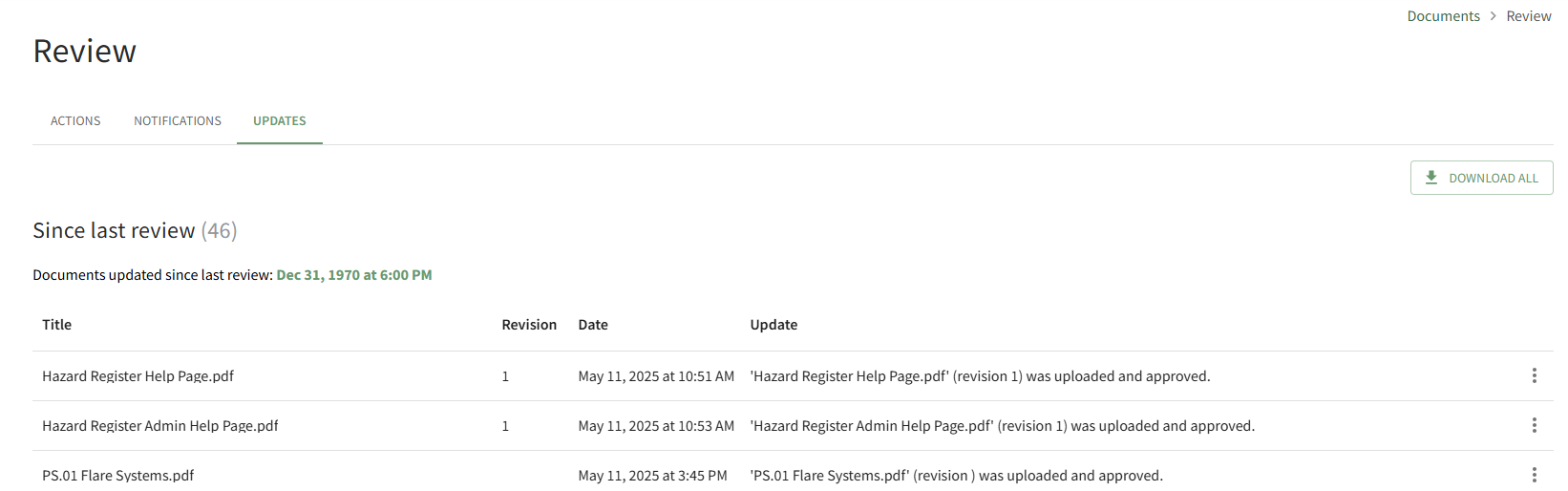
Scroll to the Search By Date Section at the bottom of the tab.
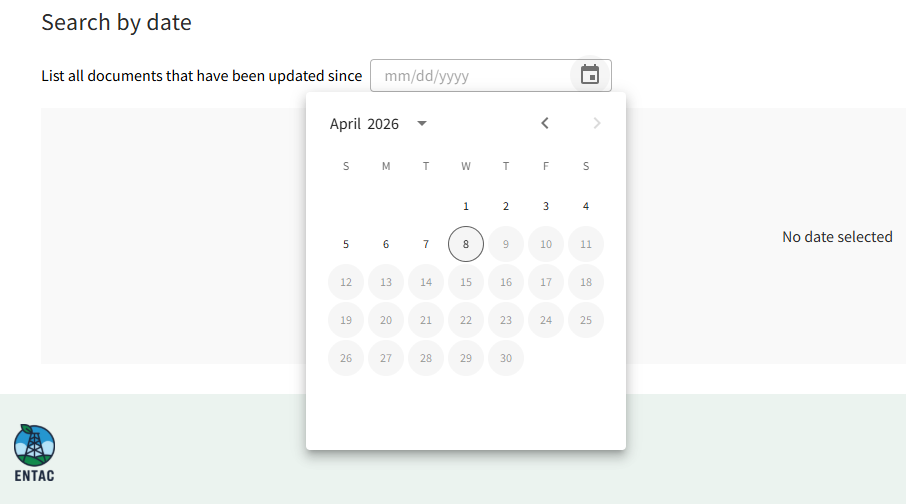
Click in the date field to open the calendar and select the desired date.
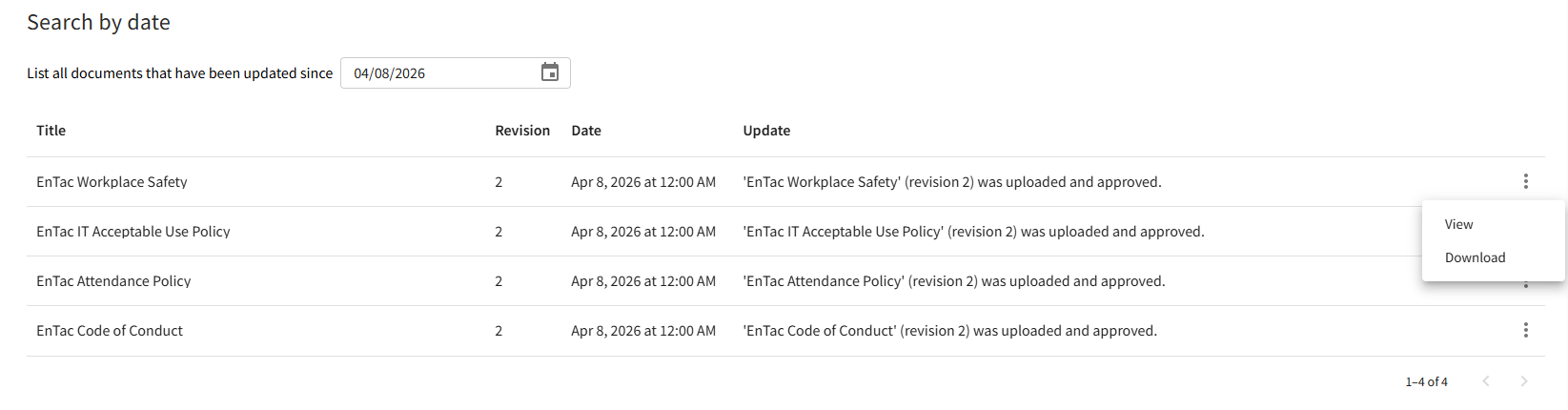
All files updated since the specified date will now show below.
Clicking on the three-icon to the right of the file will allow you to view the file's Details Page or Download the file to your personal device.
How To: Send an Acknowledgment Reminder Alert for a Document/File
To send an acknowledgement reminder alert for a specific document, open the Home Page in the Documents Module on the Main Menu and navigate the repository to find the document you want to send an acknowledgement reminder for. Click the vertical three-dot icon to the right of the file opening the file's context menu and select View.
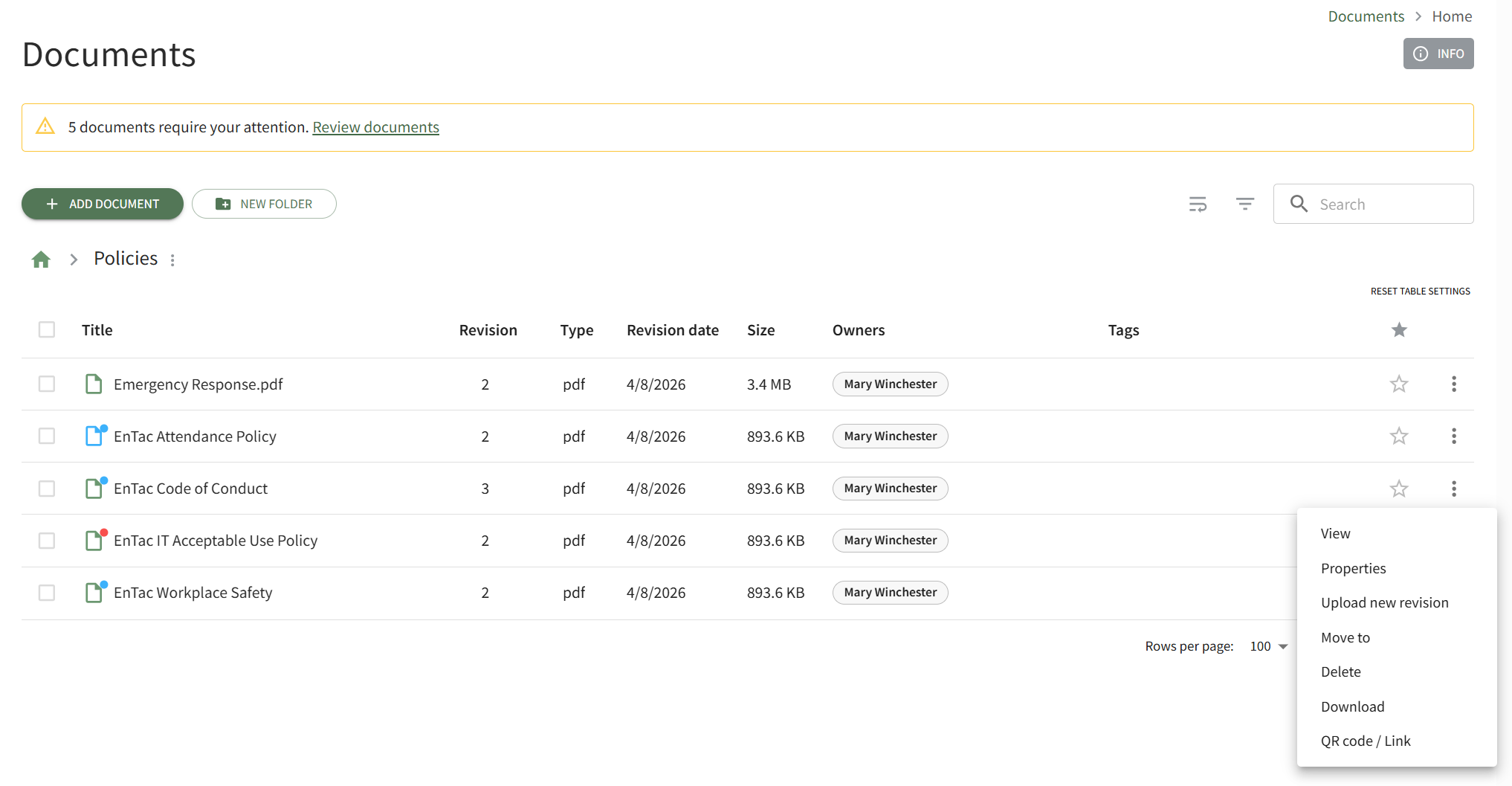
This opens the file's Details Page. Open the Details Tab.
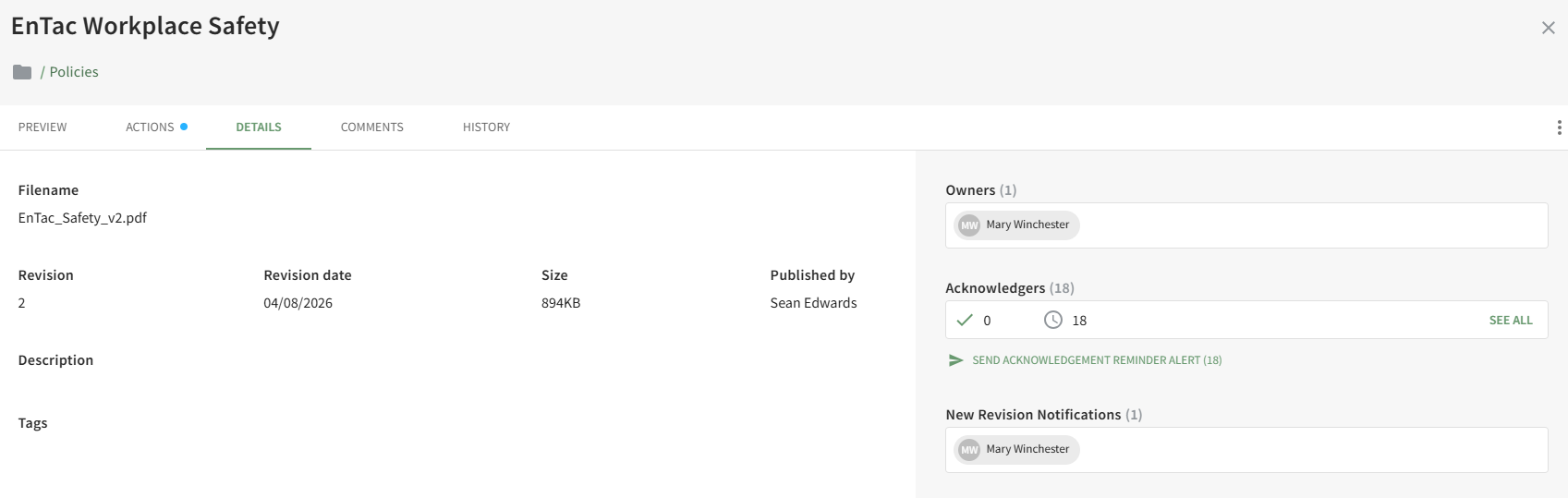
Click the Send Acknowledgement Reminder Alert link in the Acknowledgers Section opening the Send Reminder Alert Modal.
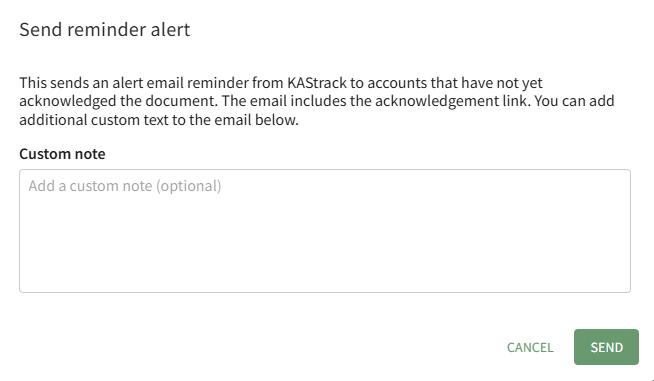
You have the option to add a custom note to the email alert reminder that will be sent to all accounts that have not yet acknowledged the document.
The email alert being sent will include a link that can be utilized to acknowledge the document.
How To: Specify Who Should Receive Notifications of New File Revisions
How To: Upload New Documents/Files
To upload a new or revised version of a file in the Documents Module, open the Documents Home Page from the Main Menu and navigate the repository to the location where you want to add an additional folder.
To create a nested file within a folder, first open the parent folder. This will prevent you from having to move the file after the upload is complete.
Select the Add Document button beneath the Home Page header. This opens the Add a New Document Modal.
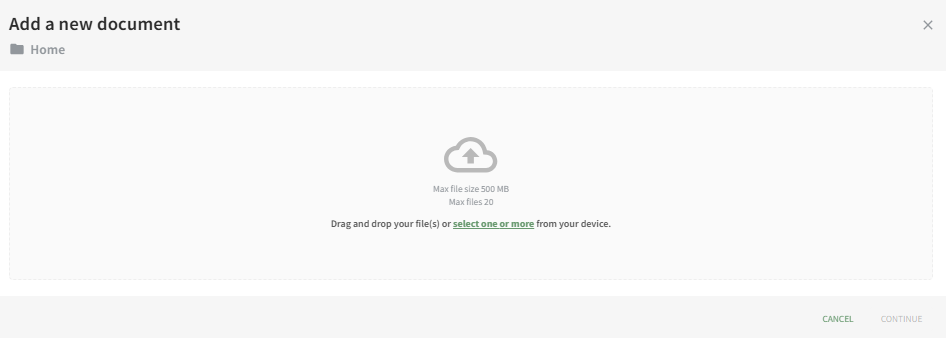
Drag and drop file(s) or select them from your device. Once the desired documents are chosen, select “Continue,” opening the second screen of the Add a New Document Modal.
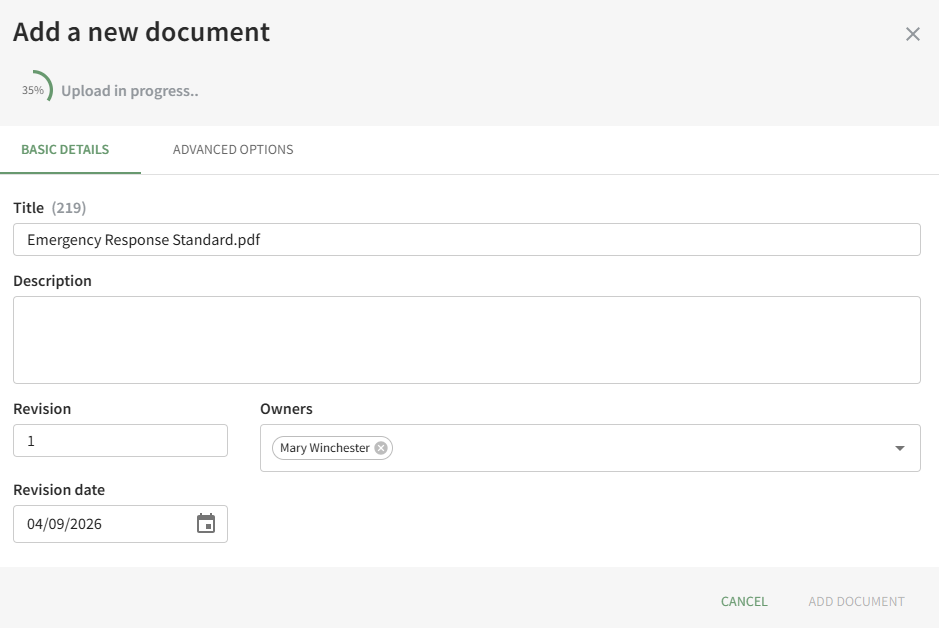
Use both the Basic Details Tab and the Advanced Options Tab to designate the appropriate properties for the document and click the Add Document button. (A detailed explanation of the customizable document properties on both tabs has been included below.)
A pop-up confirms that the new document was successfully added.
Basic Details
Under the Basic Details Tab, the user can input a title, description of the file, revision number and revision date. They can also designate any document owners (the uploader is initially included as an Owner by default) and tags.

If the incorrect file was selected, the user can click “Select a different file” from the top right corner of the modal to exchange it with the correct file.
Document owner(s) can be selected from a dropdown list of users.
Document owners have the ability to approve documents, which is relevant for companies who are required to attest an annual/periodic review for regulatory agencies or other governing bodies. Document owners are also notified any time a new comment is made on a file and are responsible for affirming continued suitability of the file if enabled under Advanced Options.
Advanced Options
Selecting the Advanced Options Tab allows the user to apply enhanced settings to the file. An explanation of each Advanced Options checkbox is included in the table below.

Document Advanced Options Explanations | |
Checkbox | Explanation |
Document is Public | Selecting the “Document is public” checkbox allows individuals who are not users in the KAStrack system to view files. Users in KAStrack will need appropriate permissions to view the file regardless. |
Document is 360° Photo | Selecting the “Document is a 360° photo” checkbox communicates to KAStrack that the file is intended for 360° viewing to ensure it shows correctly. |
New Revisions Require Approval | Selecting the “New revisions require approval” checkbox opens a dropdown menu. Approval requirements for the file can be designed by Access Level, Certification Role, or specific individuals in the system. An additional checkbox can be selected if this revision requires approval.
Users view the files that require approval on the Documents Module Review Page. |
New Revisions Require Acknowledgement | Selecting the “New revisions require acknowledgement” checkbox allows acknowledgement requirement customization.
The “This revision requires acknowledgement” checkbox will notify the Access Levels, Certification Roles, or individuals selected of the new document. If “Acknowledgement is required for login” is selected, a user will not be able to access anything in KAStrack until the user acknowledges the revised document. A textbox allows the user to include a customized acknowledgement message that will be included in the automated message sent out to users by KAStrack. Users view the files that require acknowledgement on the Documents Module Review Page, or just after signing in, when “Acknowledgement is required for login” is enabled. |
Send Notifications of New Revisions | Selecting the “Send notifications of new revisions” checkbox allows a user to customize (by Access Level, Certification Role, or individual) who receives an email notification that a new file revision has been updated in KAStrack. An additional checkbox can be selected if a notification is to be sent for this revision.
Users view the files they have received notification of on the Documents Module Review Page. |
Requires Future Review by Owner | Selecting the “Requires future review by owner” checkbox allows the user to schedule the next review date and set a reminder for the review deadline.
Users review files for continued suitability on the Documents Module Review Page. |


How To: Upload a Revised Version of an Existing File
To upload a revised version of an existing file in the Documents Module, open the Documents Home Page from the Main Menu and navigate the repository until you find the file you want to have an updated revision. Click the vertical three-dot icon to right of the file opening the file's context menu and select Upload New Revision.
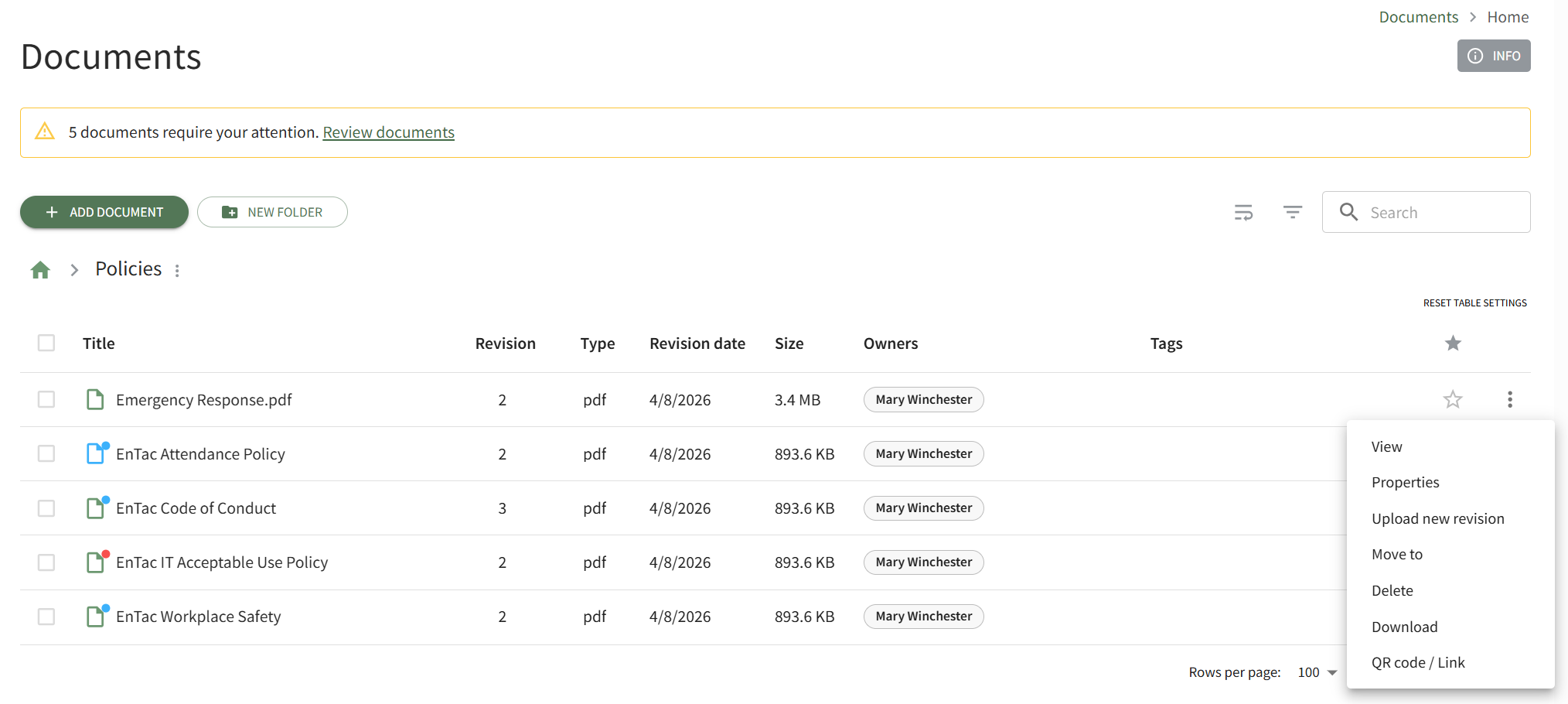
This opens the New Revision Upload Modal.
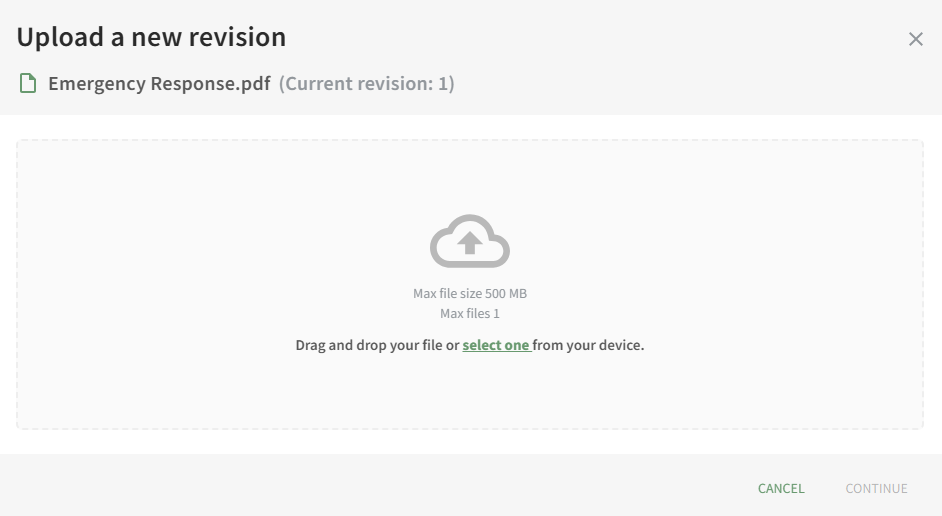
Either drag and drop your file into the modal or select a file from your device and select Continue.
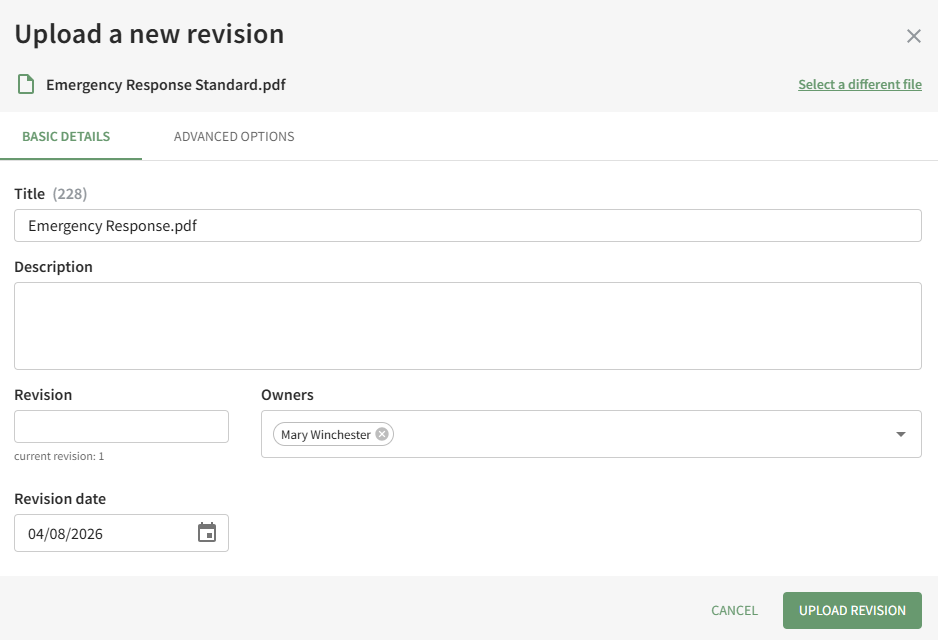
The modal now displays the Basic Details Tab and the Advanced Options Tab.
Change the revision number and edit relevant information as needed. Select the Upload Revision button and a pop-up confirms that the file version was updated.
How To: View a File's History
To view the history of a file in the Documents Module, open the Home Page in Documents from the Main Menu and navigate the repository to access the file whose history you wish to view. Click the vertical three-dot icon to the right of the file opening the file's context menu and select View.
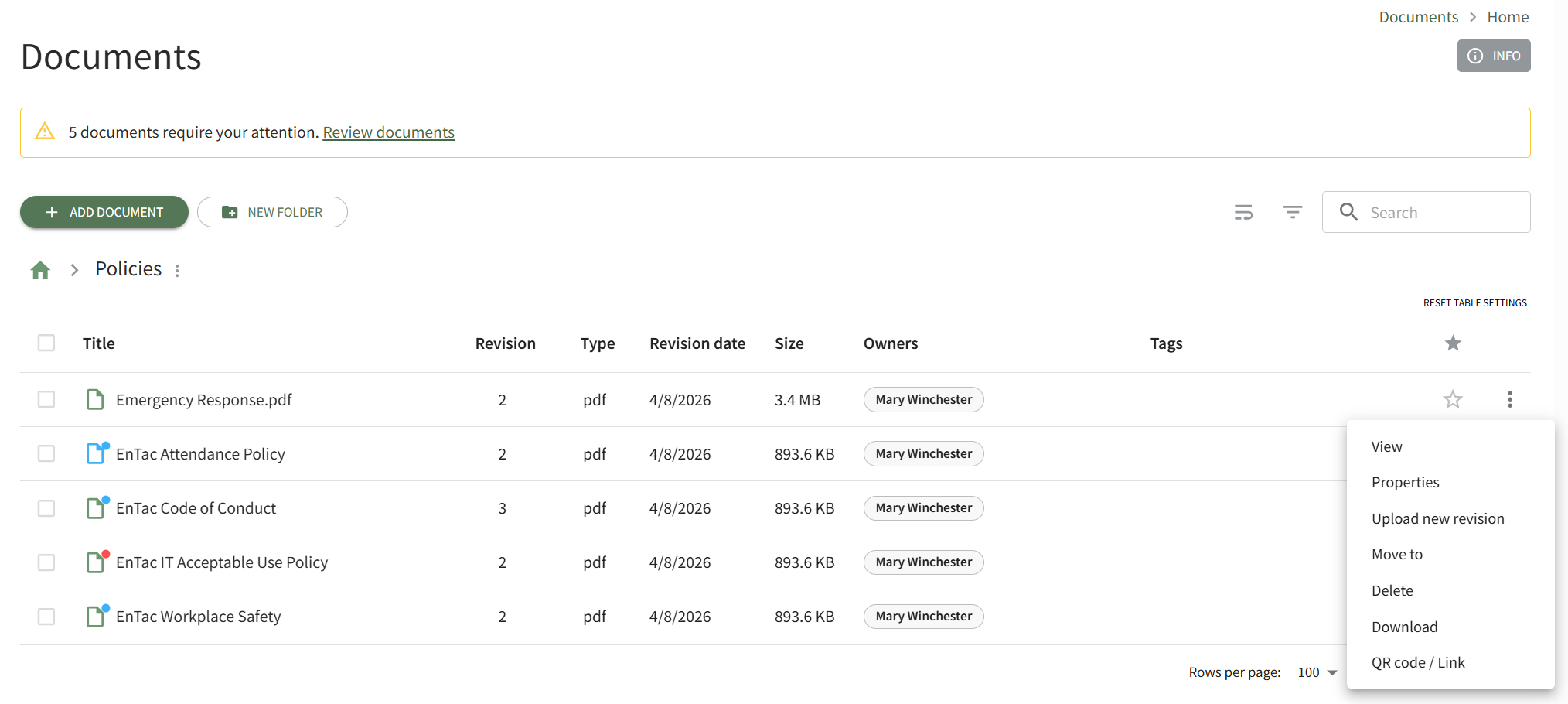
This opens the Preview Tab on the file's Details Page.
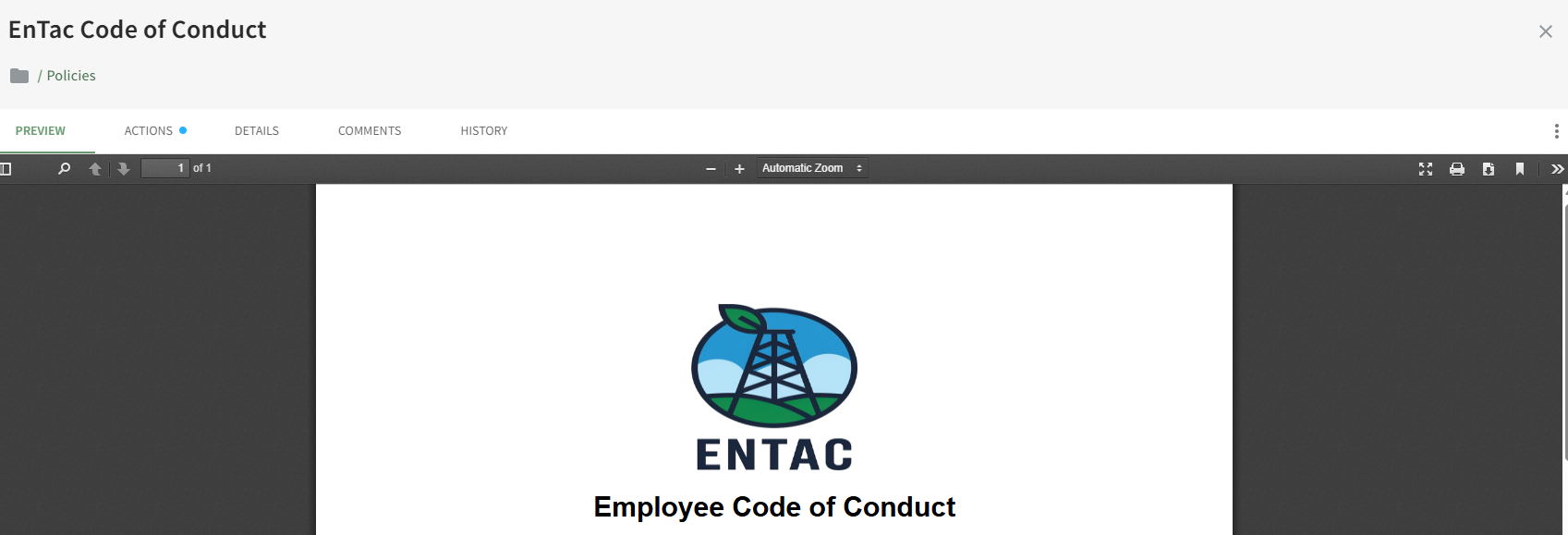
Click on the History Tab to access the file's historical information.
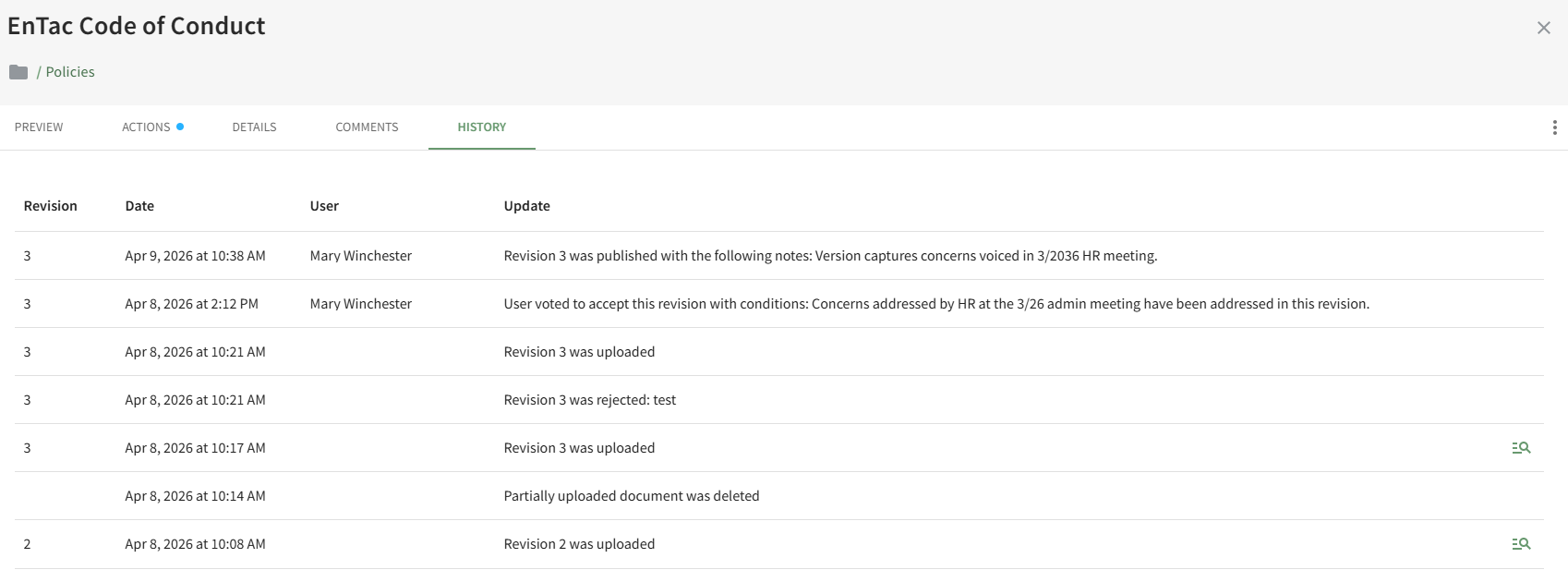
Clicking the magnification icon on the History Tab will open the document's detail page for the previous versions of the document.
How To: View Actions Associated with a Document/File
To view any outstanding actions associated with a document/ or file, open the Documents Home Page from the Main Menu and navigate the repository to the specific file you are interested in viewing. Click the vertical three-dot icon to open the file's context menu and select View.
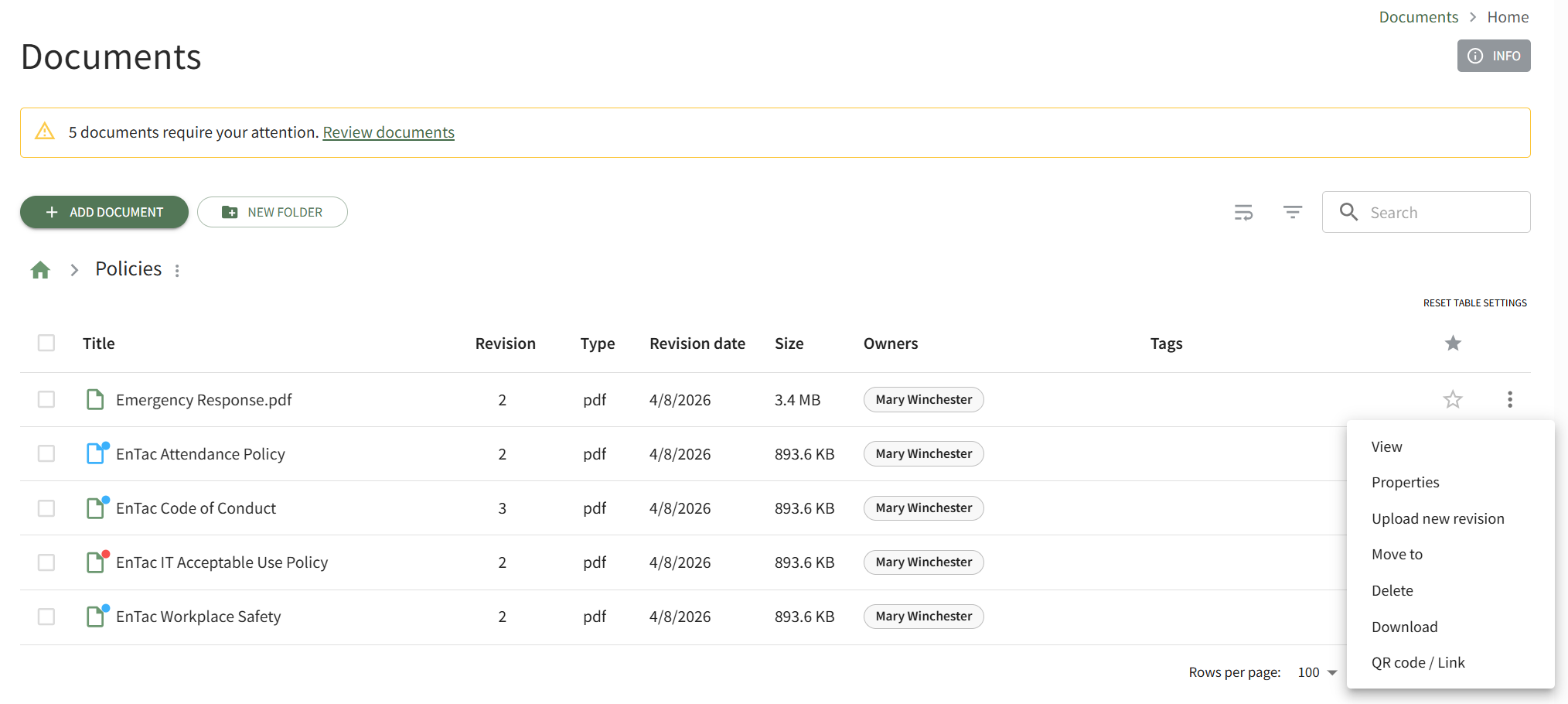
This opens the Preview Tab of the document's Details Page. Open the Actions Tab.

Any outstanding actions related to the document will be visible on this tab.
No comments to display
No comments to display