
Create a Speed Dial
To create a Speed Dial, select the Add Widget button (from the top right-hand corner of the page or the dashboard context menu accessed by the vertical three dot icon next to the Dashboard name).

This opens the Add Widget modal.

Select “Speed Dial” opening the Add Speed Dial Modal.
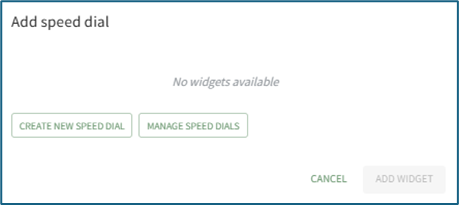
If no speed dials have been created yet on your account, the modal will state “No widgets available.” Select “Create New Speed Dial” opening the New Speed Dial Modal.

Input the speed dial title.
The title of the speed dial will be used to identify the speed dial when it is pinned to a Dashboard. It is not the name of an individual Link.
Select the desired placement (top, floating or widget) of the speed dial.
Click the “+ Add Link” button opening the New Speed Dial Link Modal.

There are three types of speed dial links: a URL website link, a KAStrack Form, or a KAStrack Document. Select the appropriate type.
If the speed dial type is a URL Link, input the link and give the link a title. If a KAStrack Document or Form type is selected, select the desired file/form from the dropdown menu and give it a title. The name of the chosen file/form is pre-filled for convenience.
Select the “Add Link” button. Once you’ve added all desired links for this speed dial, click “Confirm”. The modal will close, creating the speed dial, but the speed dial is not yet visible on the dashboard. Click the “+ Add Widget” button and select Speed Dial to open the Add Speed Dial Modal.

Now that the speed dial has been created, it will show in the select existing dropdown menu. Select the Speed Dial to show on the dashboard. Click the “Add Widget” button.
The Speed Dial will now show on the dashboard in the desired placement.
You can select multiple speed dials (if there are more than one available) from the dropdown to add them all to the Dashboard at the same time.
No comments to display
No comments to display