
Edit a Task
To edit a task associated with an asset, open the Task Schedule Page for the asset whose task you wish to edit.
How To: View an Asset's Task Schedule
To view an asset's task schedule, open the Manage Assets Page in the Assets Module on the Main Menu. Use filters as needed and identify the asset/component whose task schedule you wish to view. Click the three-dot icon to the right of the asset title opening the Asset Management Context Menu.
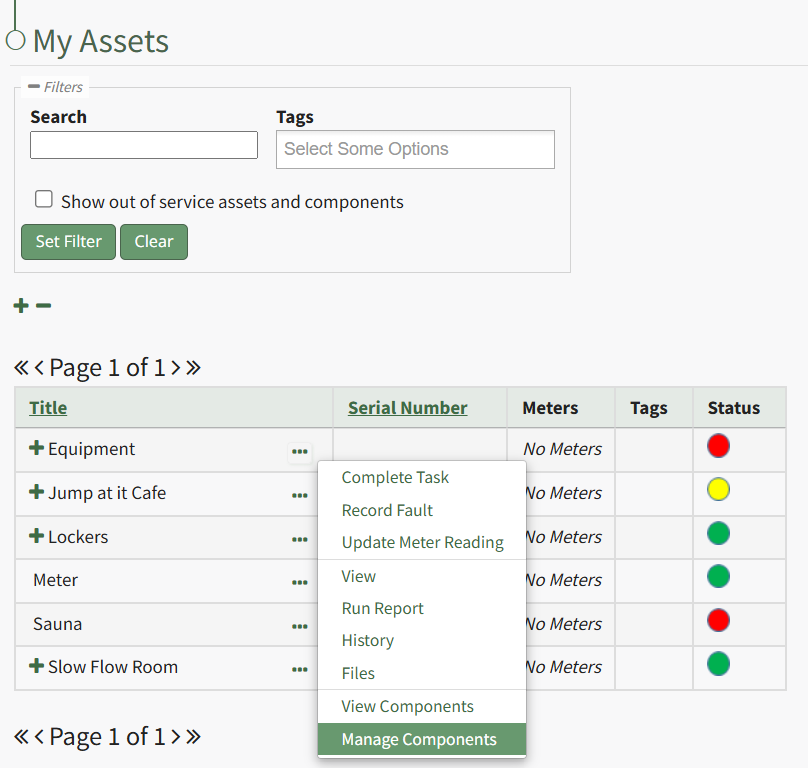
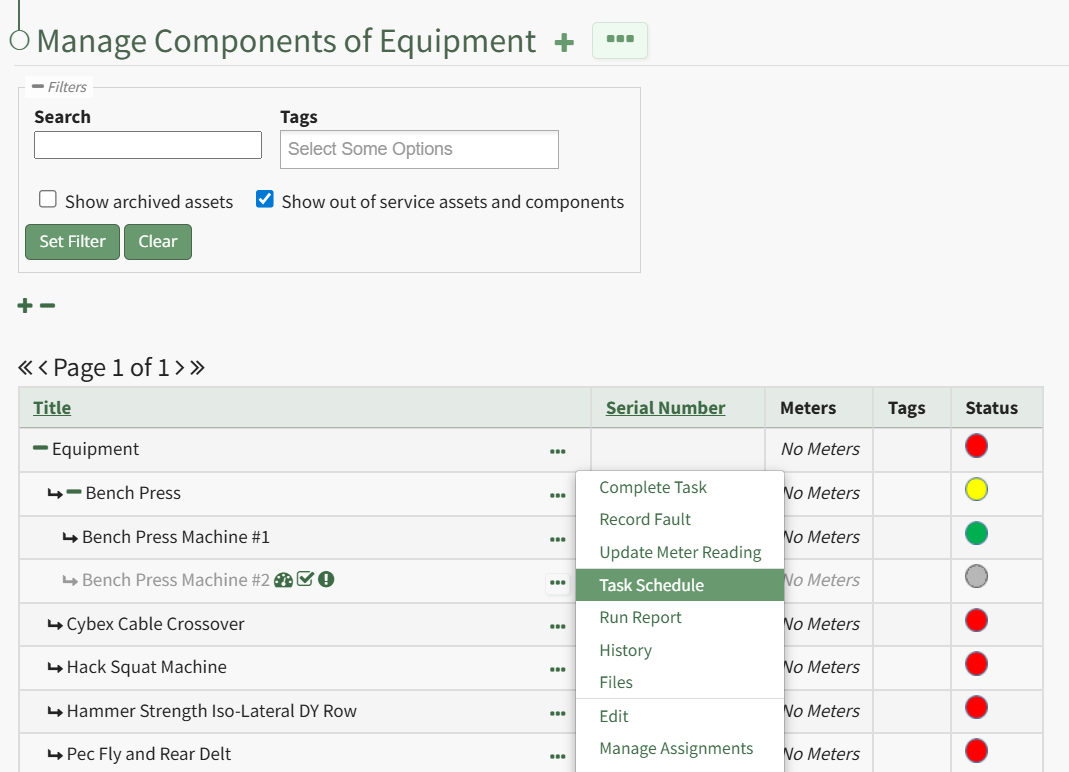
Select the "Manage Components" option, opening the Manage Asset Components Page. Select the three-dot icon to the right of the asset/component you wish to add interim notes to and select Task Schedule from the context menu.
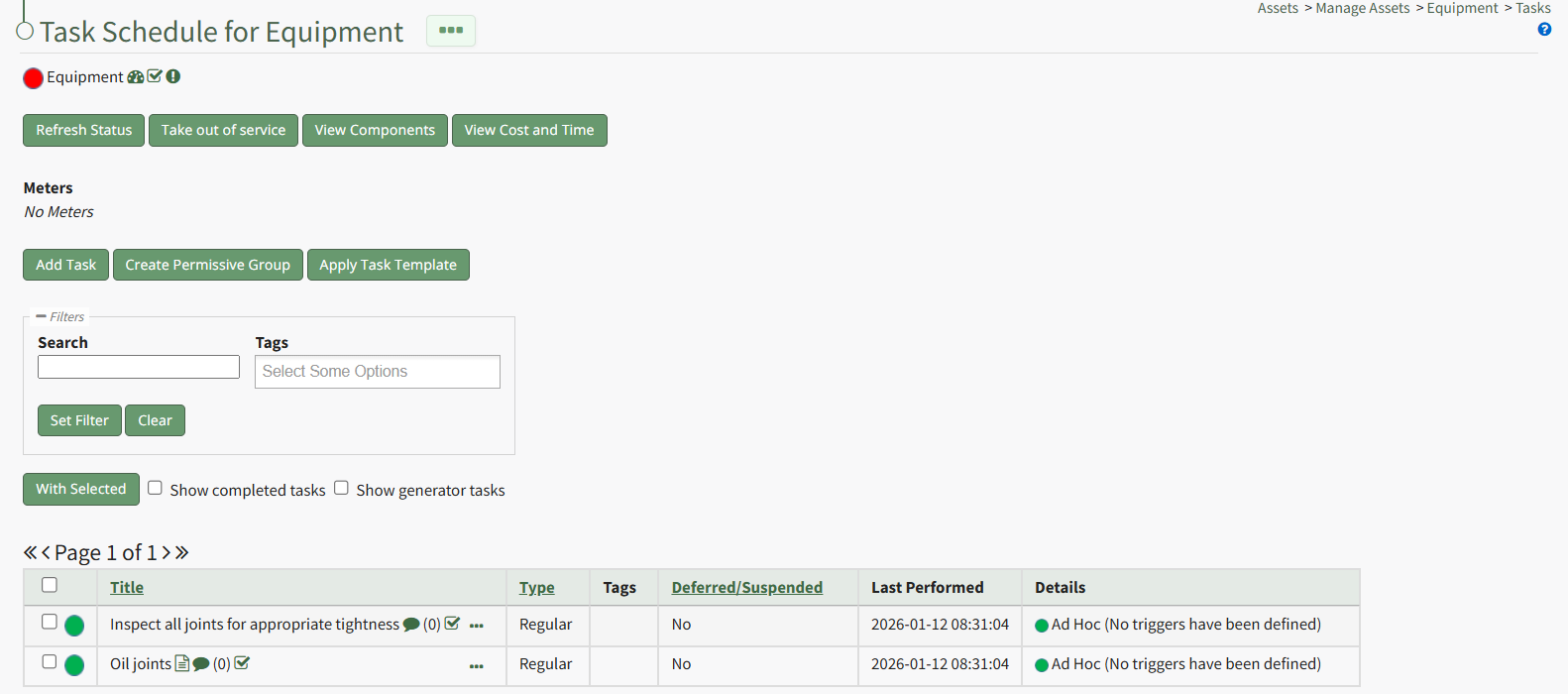
This opens the asset's Task Schedule Page.
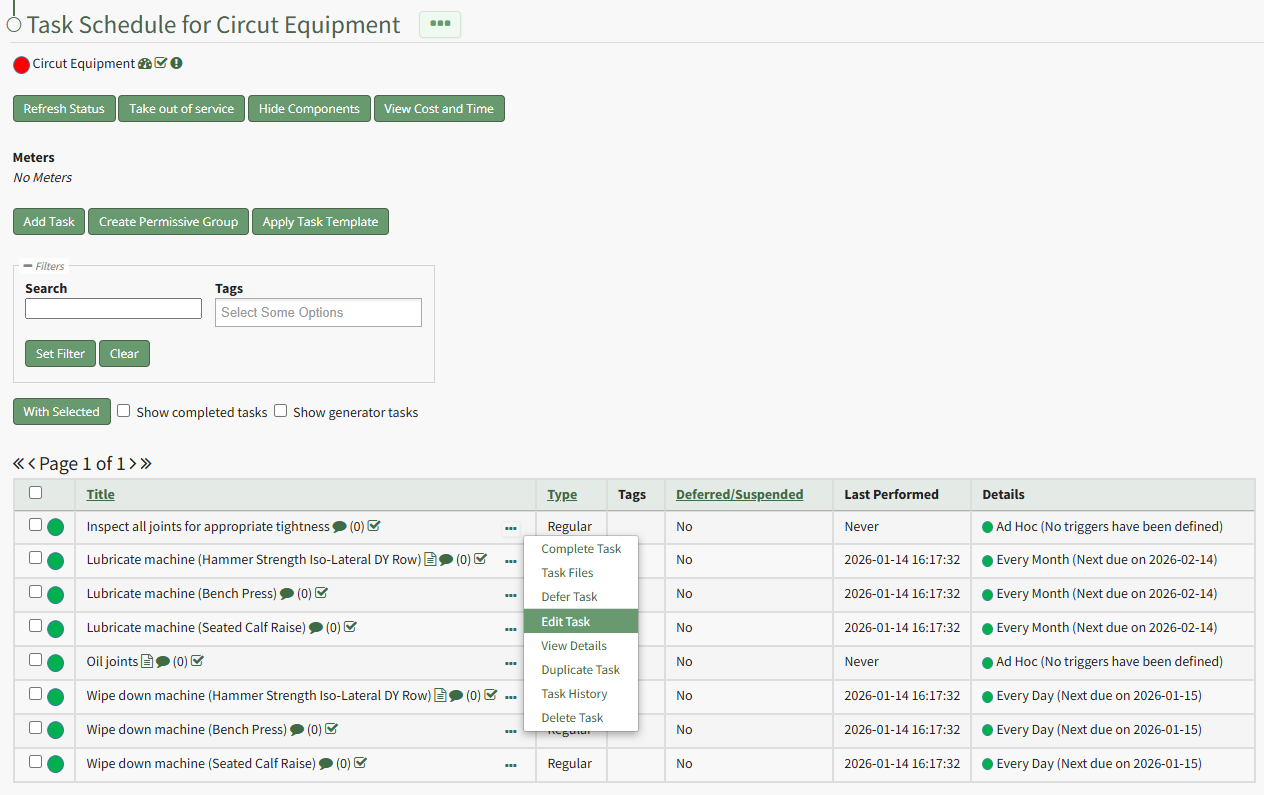
Click the three-dot icon to the right of the task you wish to edit opening the Task Management Context Menu. Select "Edit Task" opening the Edit Task Modal.
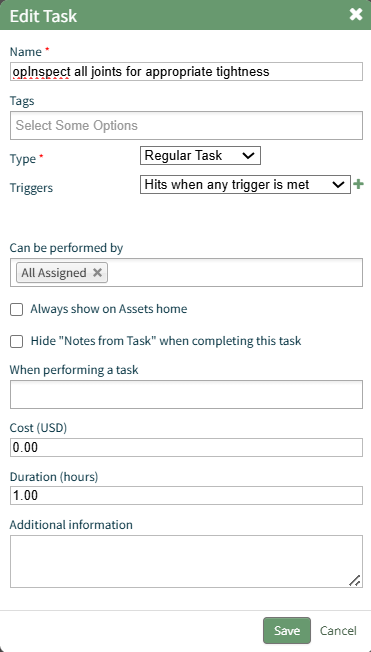
The Edit Task Modal allows you to alter the task name, add tags, change the task type and task trigger, alter who can perming the task, and other pertinent information.
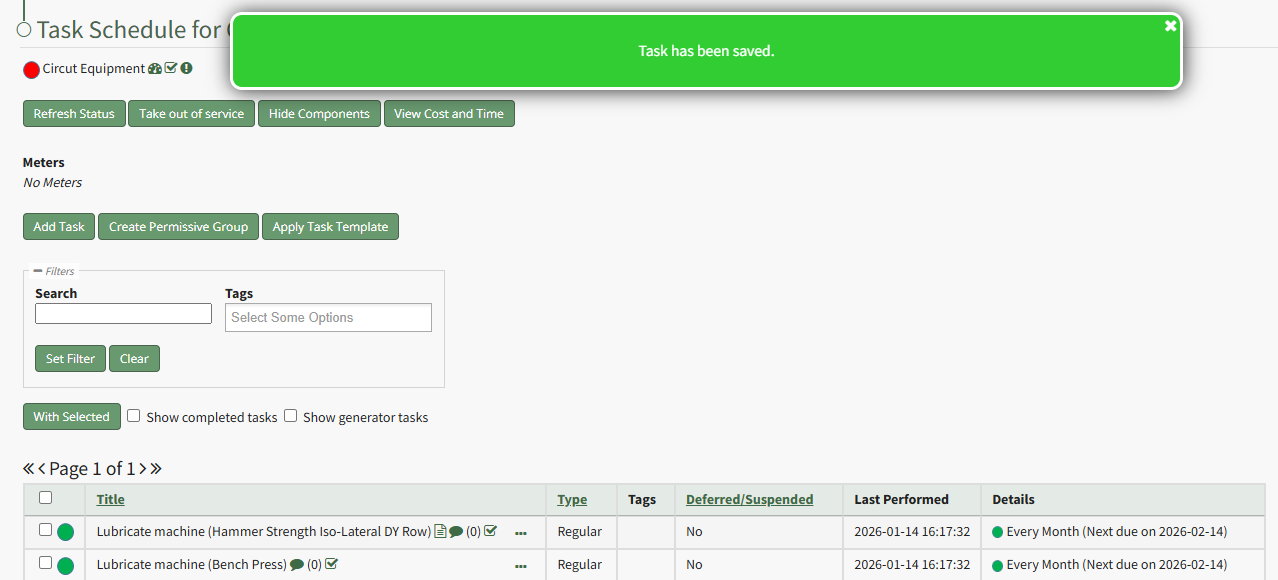
Select the "Save" button after making your desired changes and a popup confirms that the task edits were saved.
No comments to display
No comments to display