
Mark an Asset as Out of Service
To take an asset out of service and give it a grey task status, open the Manage Assets Page in the Assets Module.
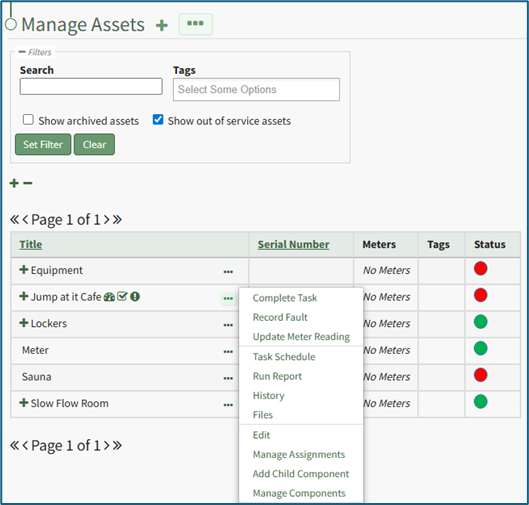
Click the three dot (…) icon to the right of the asset associated with the task you want to take out of service opening the context menu.
Select “Task Schedule” opening the asset's Task Schedule Page.
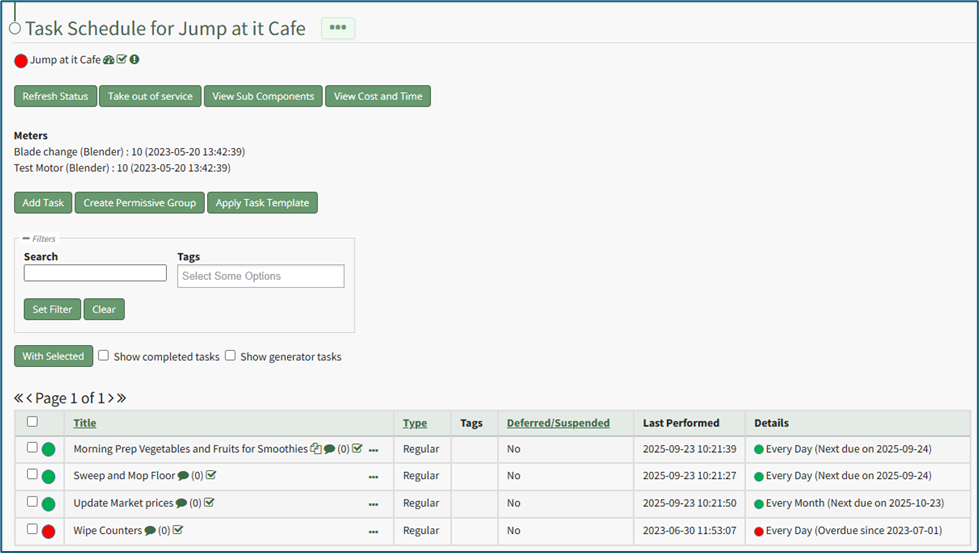
Select the “Take out of service” button opening a confirmation modal stating, “Are you sure you wish to take this asset out of service?”
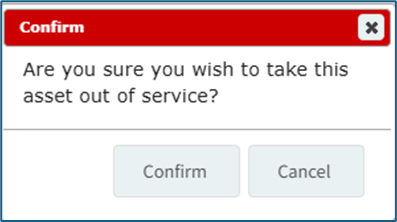
Select “Confirm” and the asset will be taken out of service. A modal will confirm that the asset was taken out of service.

The Task Status for the asset will now be gray.
No comments to display
No comments to display