
Add a Module Summary Widget to the Dashboard
To add a module summary widget to the dashboard, go to the Dashboard Module and select the specific Dashboard you wish to add widgets to.

Select the “+ Add Widget” button from the right-hand sign of the screen.

This opens a modal with three options: Speed dial, Module summary, and Chart.
Select the “Module Summary” icon opening the Add Module Summary Modal.
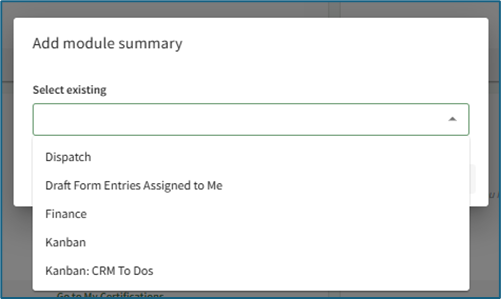
Any possible module summaries that are not yet included on the current dashboard will show in a dropdown menu on the modal.
Select the desired widget to be added to the dashboard. Multiple module summaries can be selected at once if desired.

Click the “Add Widget” button and the selected module summary will now show at the bottom of the Dashboard.
Module summary widgets can only be added to one dashboard at a time. For the widget to show on multiple dashboards, it must be added to each dashboard individually.
No comments to display
No comments to display