
Unlock a Submitted Budget Item for Editing
In order to edit an approved budget item, any existing approvals and rejections regarding the budget item will be cancelled. The budget item must then be unlocked before editing is possible.
To unlock a submitted budget item for editing, select the appropriate budget from the Active/Closed/Archived Budget tab. Click the budget title to be taken to the Budget Item Per Budget Table.
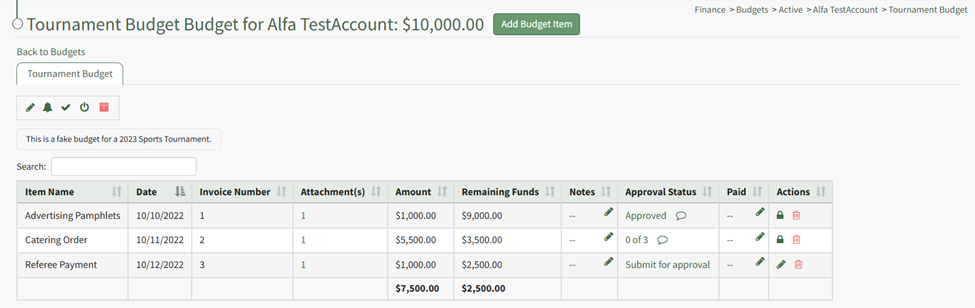
Click the lock icon in the actions column of the budget item you wish to edit.
The lock icon opens a Confirmation Modal which states, “Locked for editing. Would you like to cancel approvals and rejection and unlock editing?
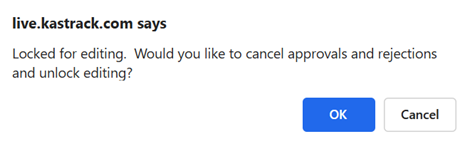
Select OK.
The lock icon is now replaced with the pencil icon in the actions column and the budget item is unlocked.

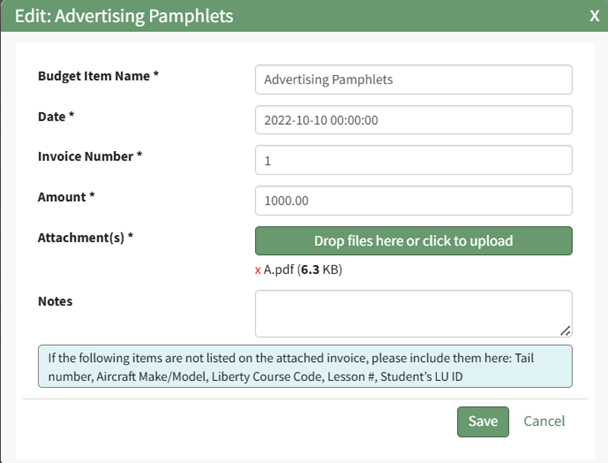
The pencil icon opens the Edit Budget Item Modal if clicked.
How To: Edit a Budget Item
Only active budgets can be edited. To edit a budget, go to the Active Tab of the Budgets Page in the Finance Module. Click the pencil icon in the Actions column of the Active Table.

This opens the Edit (BUDGET NAME) Modal.

Make any desired changes to the Budget Name, Description, Account, Amount, or Tags associated with the budget.
When done making changes, click the “Save” button and return to the Active Tab of the Budgets Page.
No comments to display
No comments to display