
Add an Individual Database Entry
To add a database entry, go to the Home Page of the Database Module. Click the three dot (…) icon to the right of the database you wish to add an entry to opening the context menu. Select “Add Entry”.
You can select “Add Entry” from any context menu in the Database Modal without returning to the Home Page.
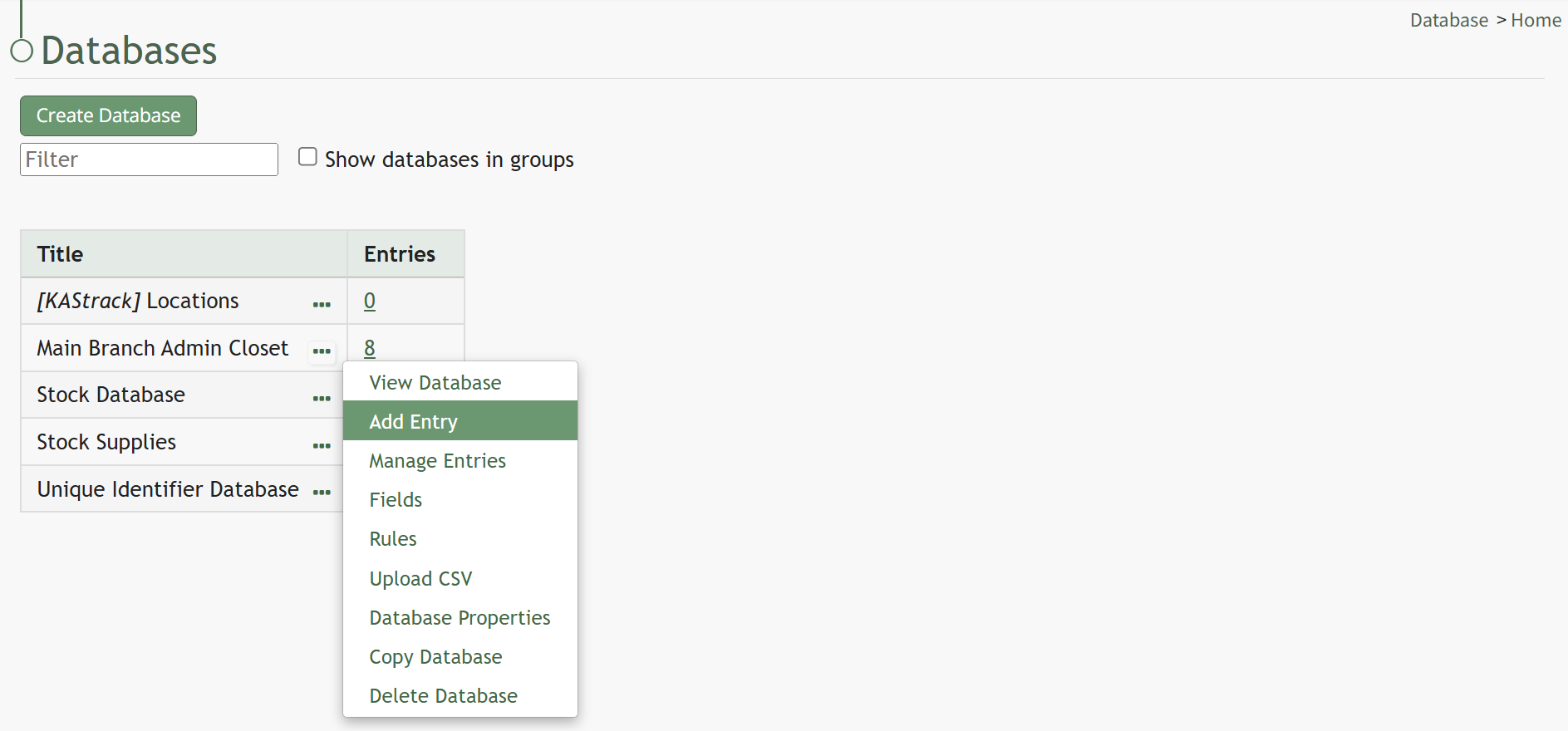
Selecting “Add Entry” opens the New Database Entry modal. Two visual examples of this modal have been included below.
The New Database Entry Modal will vary for every database, based on the fields that have been created for it.
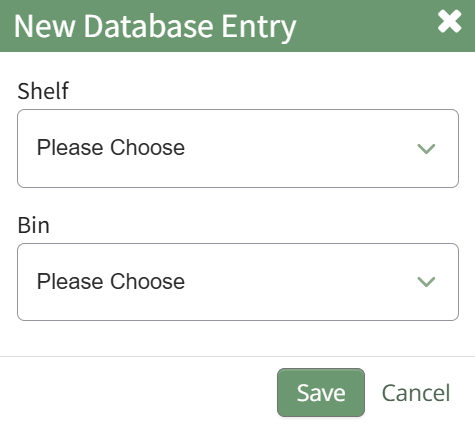
Input the entry data into the modal. Select “Save” for the new entry to be added to the database.
If no fields have been created for the database, the New Database Entry Modal will show without any fields as seen below.
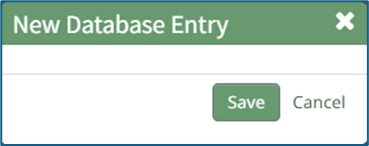
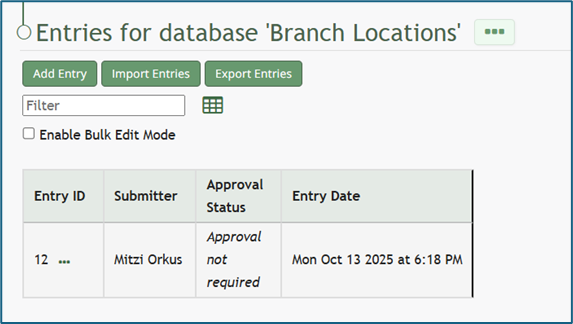
If you select to “Save” a database entry prior to the creation of database fields, an entry will be assigned an Entry ID by the system and will show in the Entries Table. The submitter, approval status, and entry date will be logged.
No comments to display
No comments to display