
Add Tags to a Folder
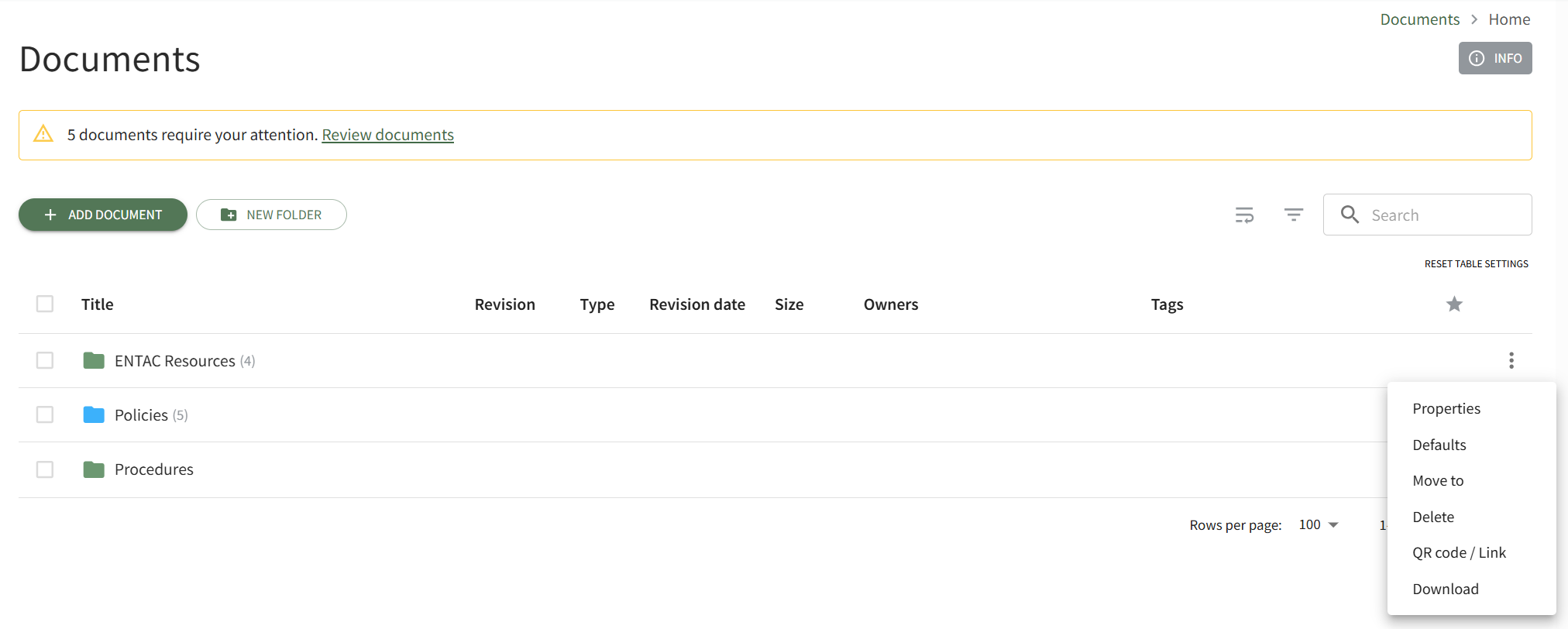
This opens the Folder Properties Modal.
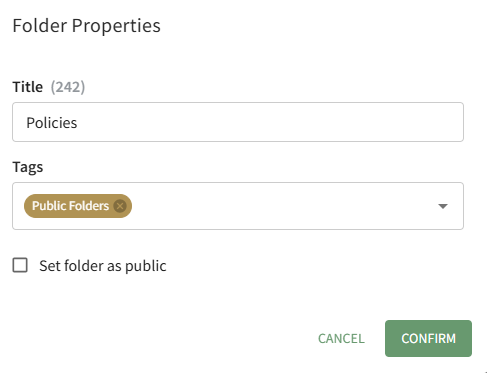
Select the pre-created desired tags from the dropdown menu and select confirm.
Tags cannot currently be created from within the Documents Module.
How To: Create a New Tag in the Tags Module
To create a new tag in the Tags Module, go to the Manage Page in the Tags Module.

Select the “New Tag” button, visible from both the Tags and Category Tabs, opening the New Tag Modal.
You can also select “Add Tag” from the vertical icon context menu to the far right of a category on the categories tab, which prefills adding a new Tag to the chosen Category.

Input the name of the new tag into the title field.
Emojis may be used in the tag title.
Select the category for the new tag from the dropdown menu. All categories created will show, as well as an “uncategorized” option.
Categories determine the appearance of tags (their color and formatting).
Select the tag behavior (open, permissive, or restrictive) from the dropdown menu.
Select “Add Tag” and the new tag will show on the Tags List on the Tags Tab.
No comments to display
No comments to display