
Defer a Certification for a Specified User
To defer a specific certification for a supervised user, open the Users Page of the People Module from the Main Menu. Click the name of the user whose certification you want to defer opening the user's Certifications Details Page.
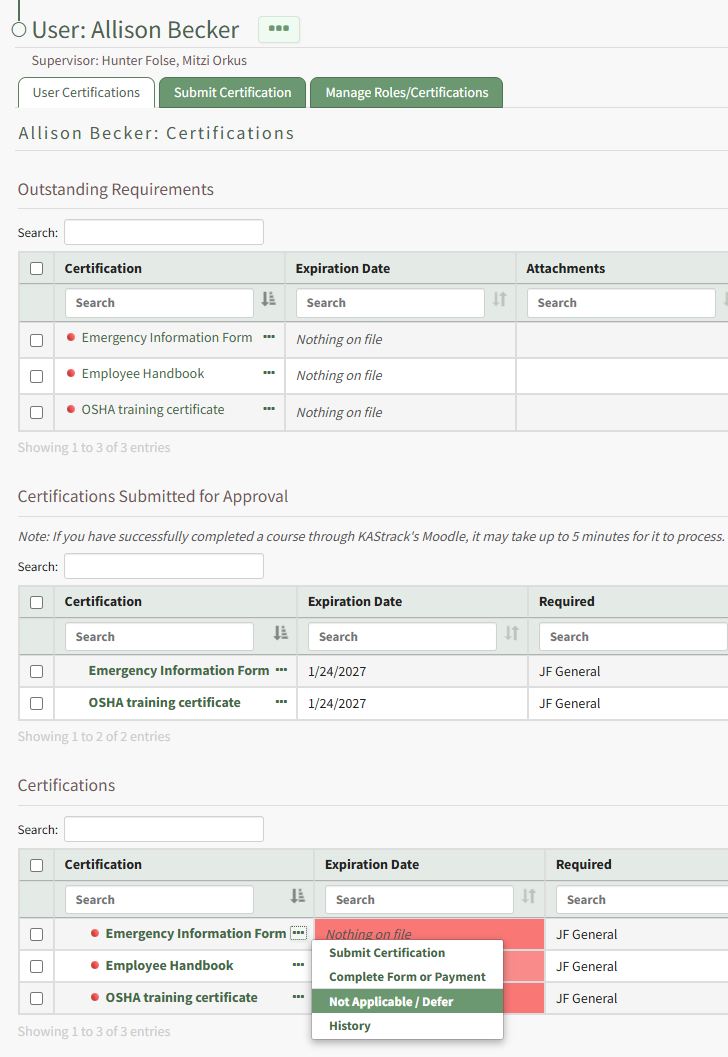
The Certifications Table will display the user's required certifications. Click the three-dot icon to the right of the user's certifications name opening the context menu and select Not Applicable / Defer. This opens the Defer Certification Modal.
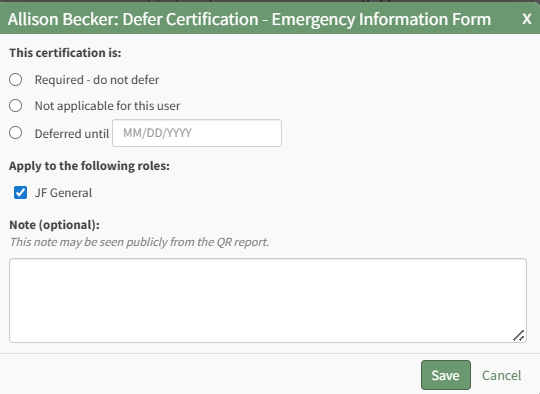
Click to indicate that the certification should be deferred and designate the date the deferment ends. Indicate any relevant notes
If the certification is deferred, a valid date is required to indicate the end of the deferment period.
Any notes made regarding the deferment on this modal will be publicly visible on the user's QR Report.

Select the Save button and the certification will now show as deferred on the Certifications Table. In the Expiration Date column, the number of days until deferment ends is displayed. In the notes column, the date the deferment ends is stated.
No comments to display
No comments to display