
Create, Define, and Assign Users to a New Certification Role
To create and define a new certification role, select Roles in the People Module on the Main Menu opening the Certification Roles Page.
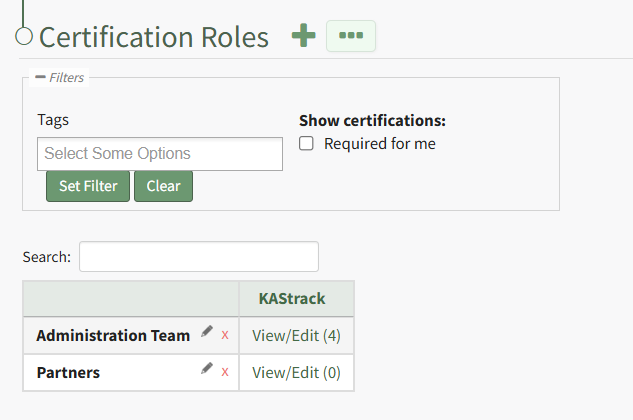
Click the plus sign icon to the right of the Certification Roles header to open the Add Role Name Modal.
Clicking the three-dot icon to the right of the header and selecting Add Role Name from the Certification Roles Page Context Menu will initiate the same action as selecting the plus sign icon.
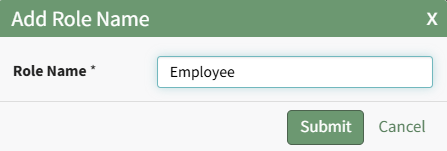
Input the new role's name and click the Submit button. The newly created role is now visible on the Certification Roles Table in alphabetical order.
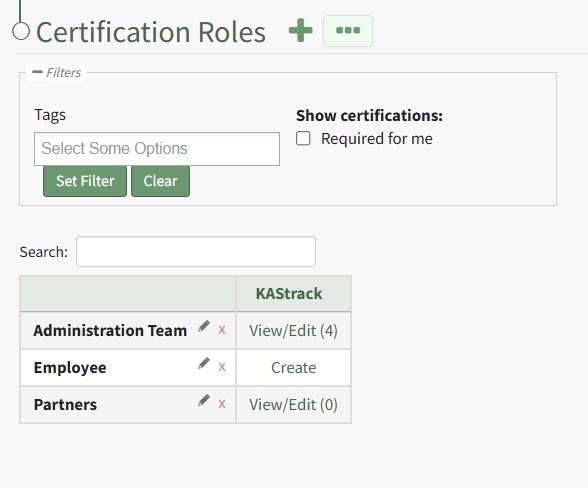
Select the clickable link to "Create" opening the Define Role Page.
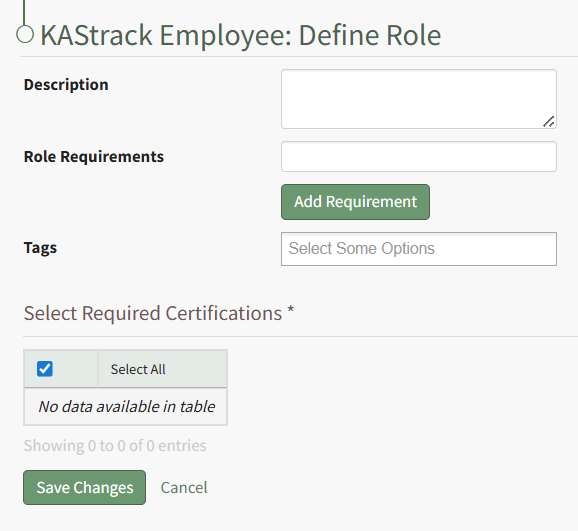
Input the role description and any relevant role requirements. Role requirements are specific to your organization. Multuple requirements can be included.
Any existing certifications will be listed in the table in the Select Required Certifications Table and can be selected via checkbox.
Certification roles are not required to have a certification associated with them.
Select "Save Changes" and certification role's Edit Users Page opens.
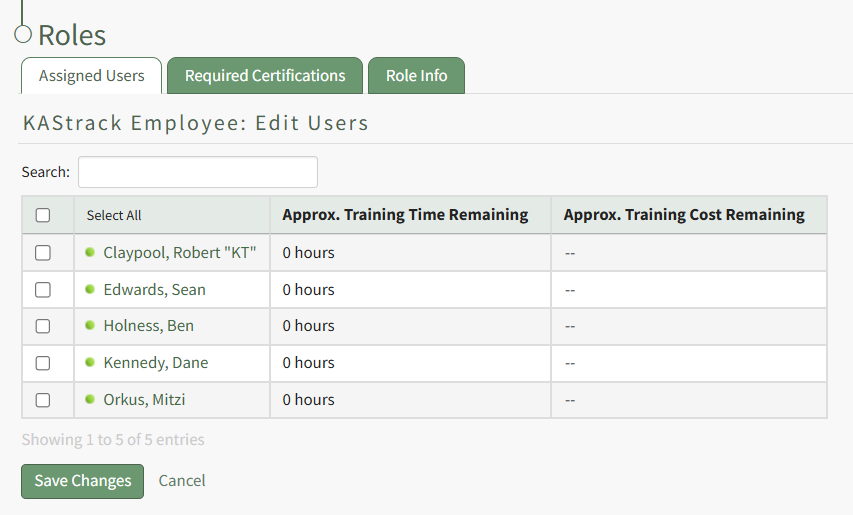
Identify the users that should be assigned to the certification role by selecting the checkbox to the left of the user's name.
Selecting the checkbox on the top row of the table will select/deselect all checkboxes in the table.
Click the Save Changes button below the table and the assigned users will now show in the newly created certification role.
No comments to display
No comments to display