
Add Interim Notes to a Task without Completion
To add interim notes to a task without completing the task, you will need to pull up the specific task you wish to add a note to. This could be done from the Upcoming Task Table or from an Asset's Task Schedule.
To Add Interim Notes from the Upcoming Task Table
To add interim notes to a task from the Upcoming Task Table, open the Assets Module Home Page from the Main Menu.
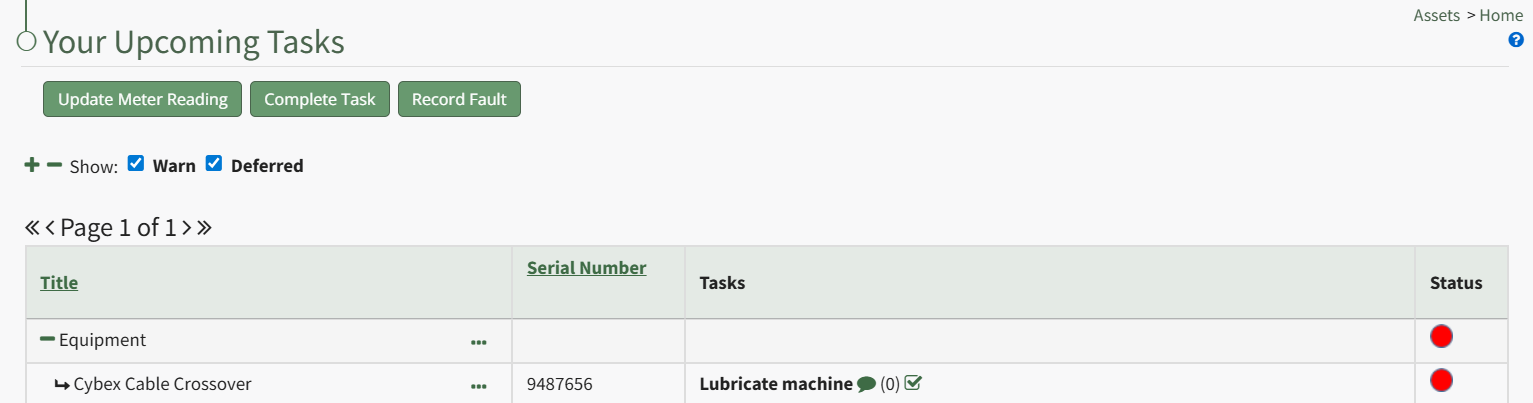
Click the dialogue icon to the right of the specific task title, which expands the Upcoming Task Table with a textbox for interim notes since the task was last completed. Input the interim notes and click the "Add" button.
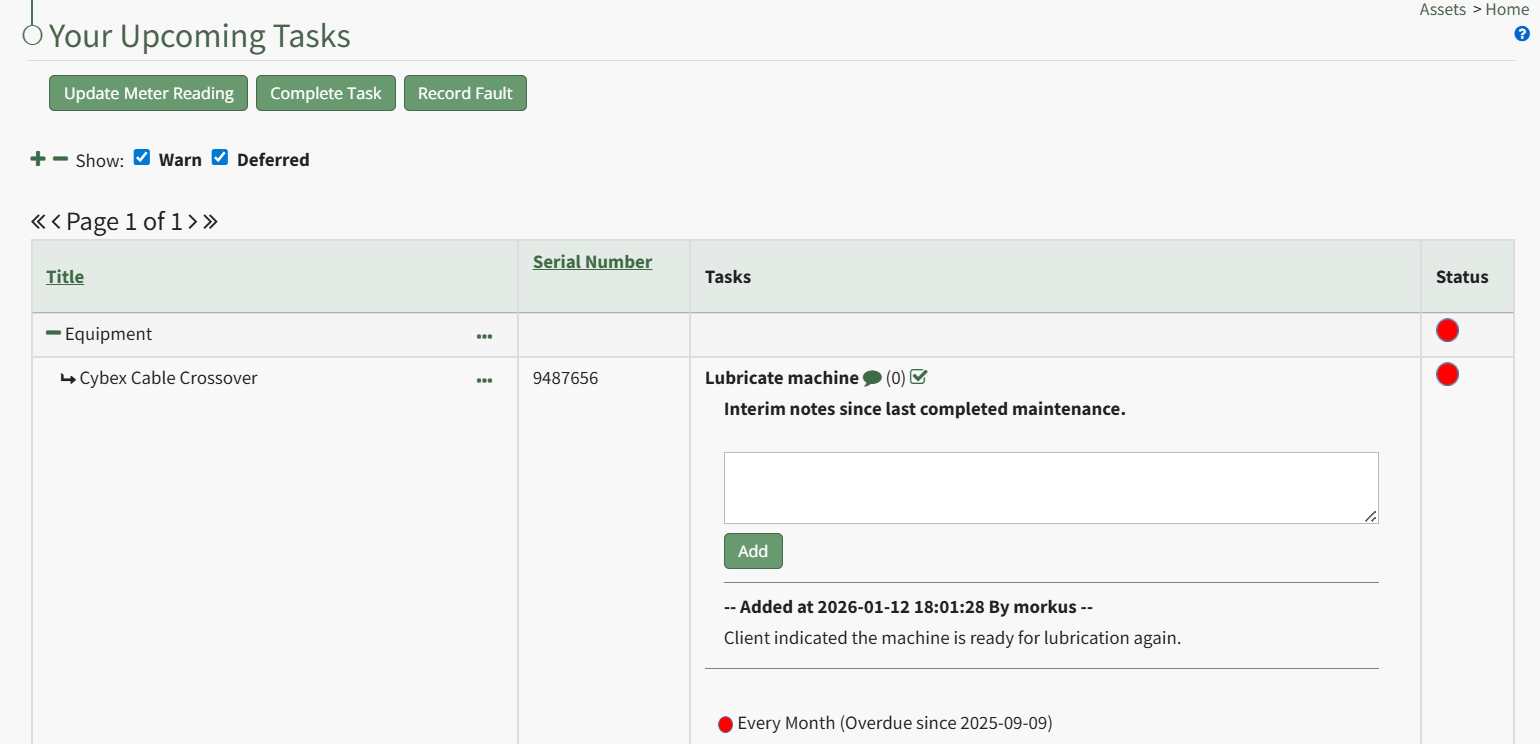
Any previously added notes will show beneath the text box, indicating the time, date, and user who made the interim notes.
To Add Interim Notes from an Asset's Task Schedule
To add interim notes to a task that is not visible on the Upcoming Task Table, select the My Assets Page in the Assets Module on the Main Menu. Identify the asset you wish you add interim notes to, and click the three-dot icon to the right of the asset/sub-component name opening the My Assets Context Menu.
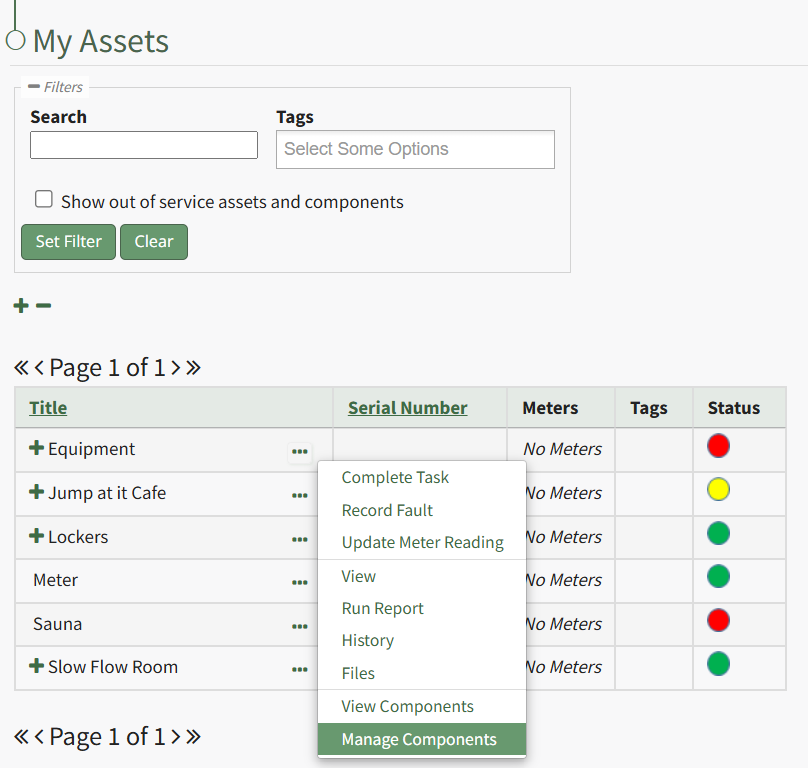
Select the "Manage Components" option, opening the Manage Asset Components Page.
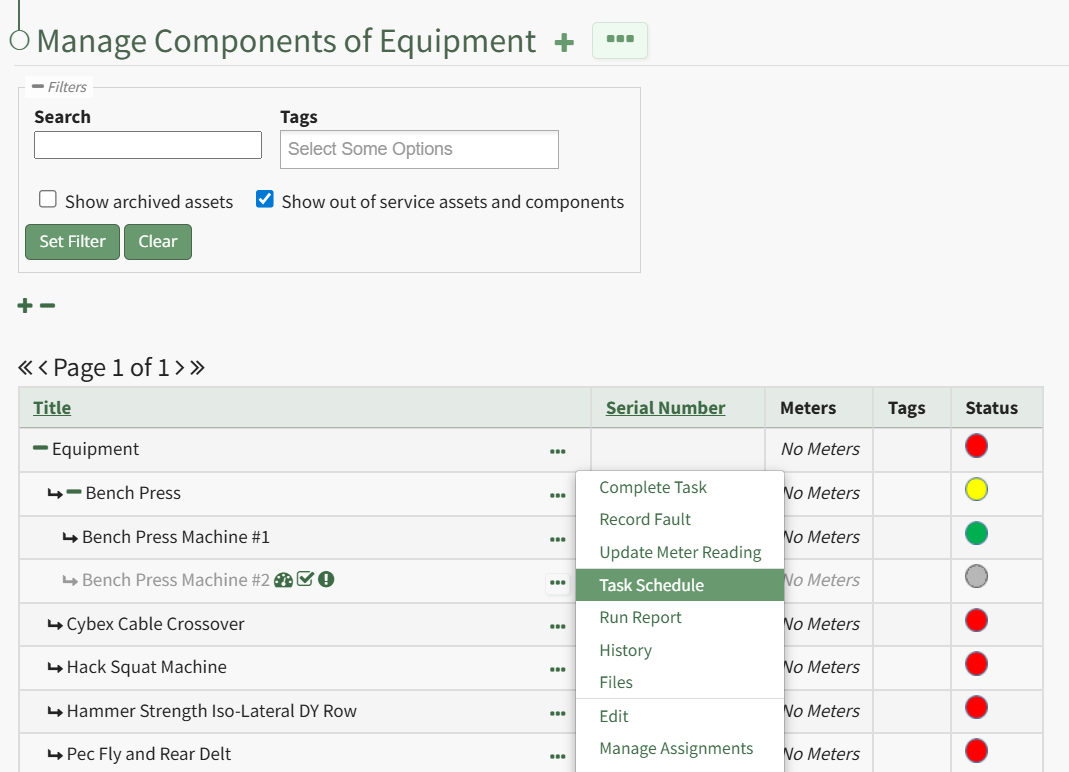
Select the three-dot icon to the right of the asset/component you wish to add interim notes to and select Task Schedule from the context menu.
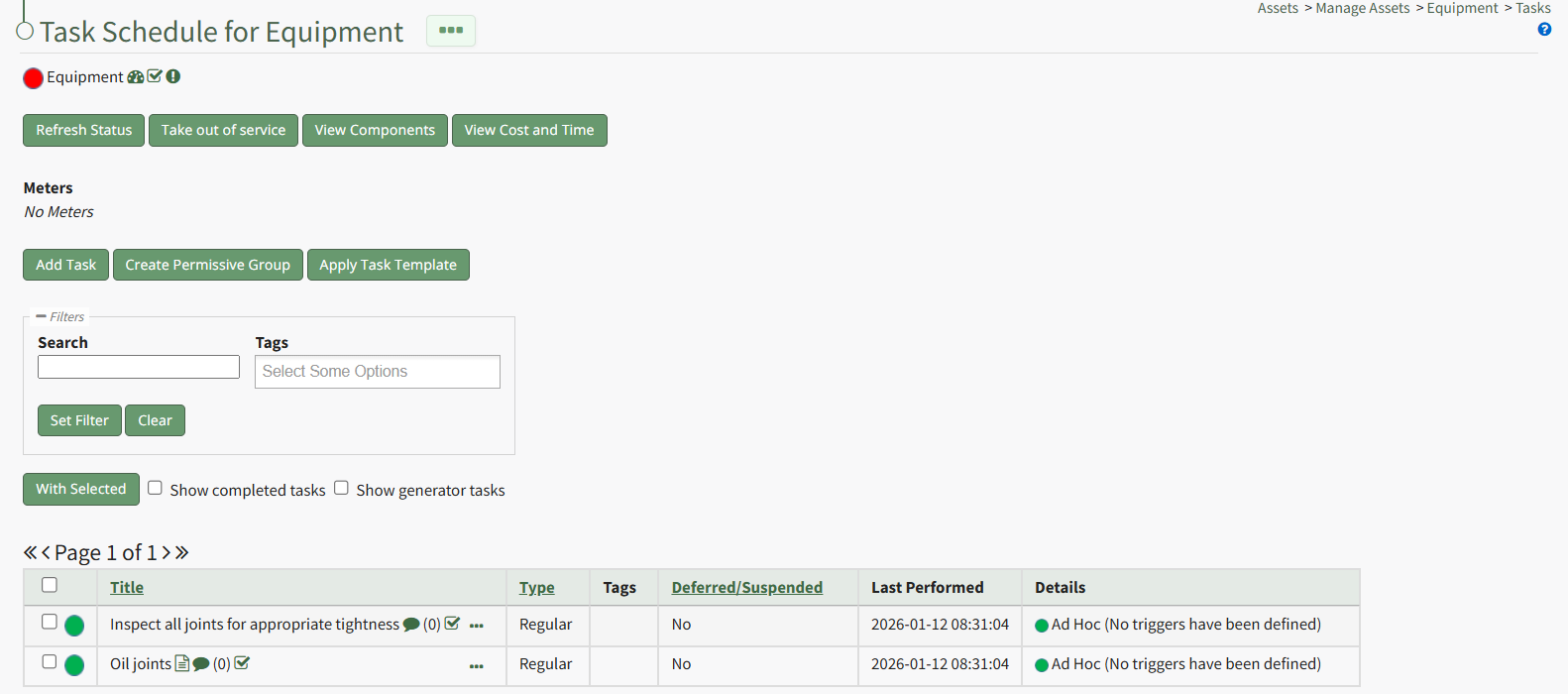
This opens the asset's Task Schedule Page.
Select the dialogue icon to the right of the task you wish to add a note to, expanding the task table to show a textbox for interim notes between maintenance.

Input the desired notes and select the "Add" button.
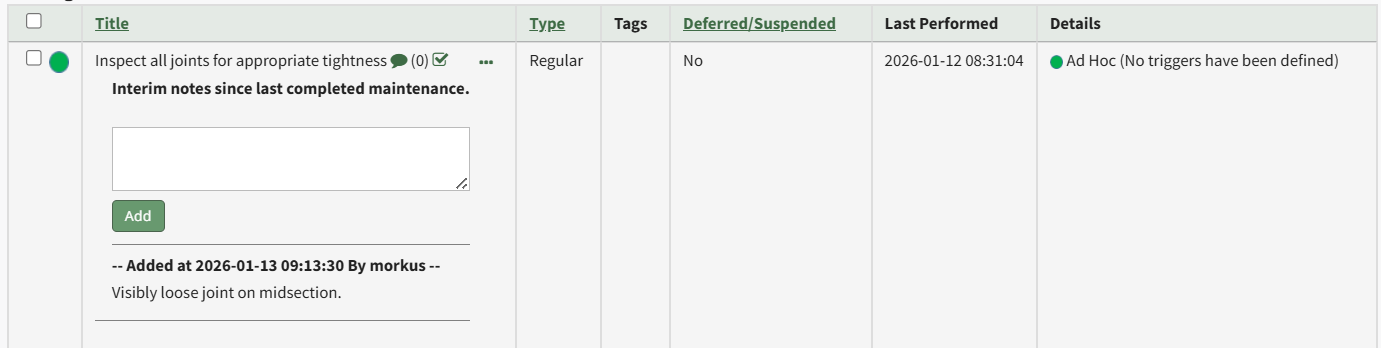
The note will now show beneath the textbox. The system automatically includes a time/date stamp and the User ID of the individual that added the note.
No comments to display
No comments to display