
Include Dynamic Restrictions on a Custom Report
To include dynamic restrictions on a date field in a custom report, go to the Custom Report Tab on the Manage Reports Page and select the three-dot icon next to the report title opening the context menu.
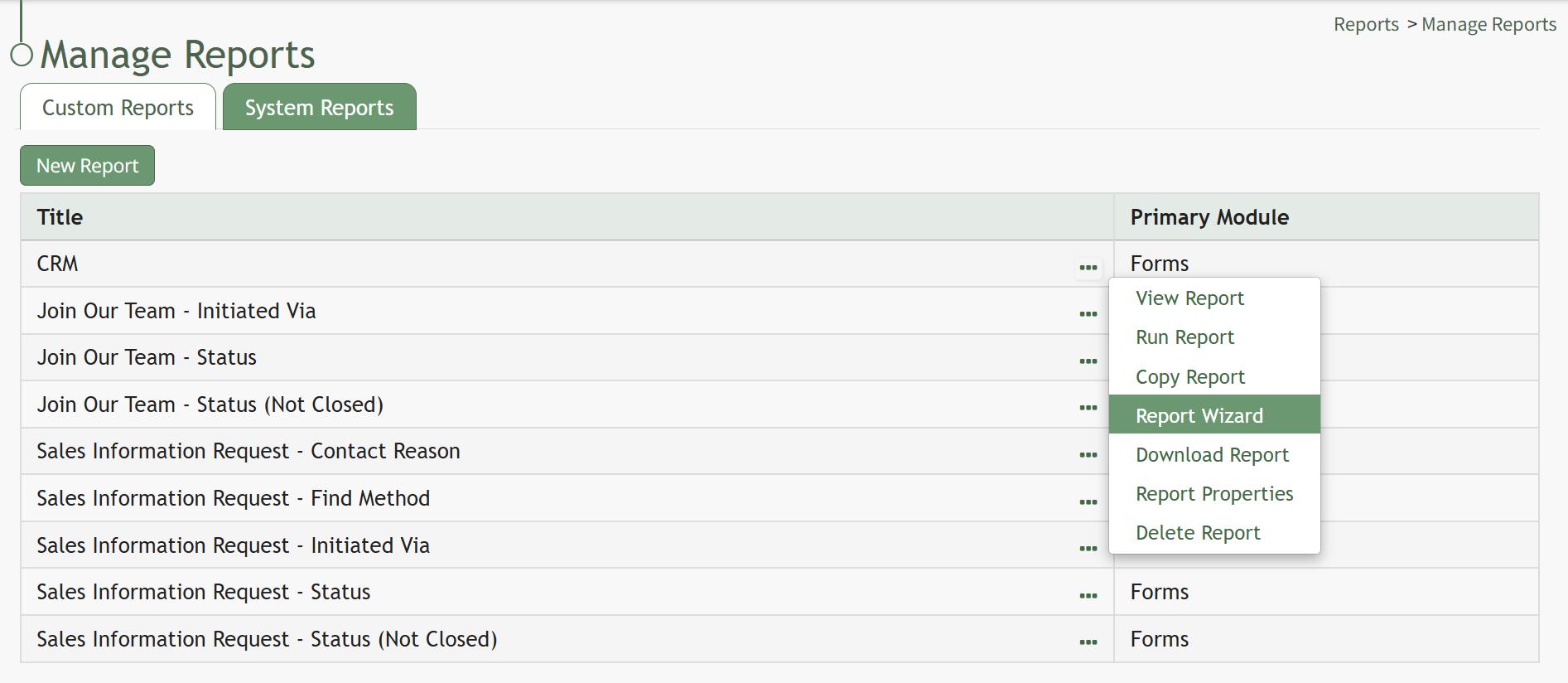
Select “Report Wizard” and open the Restrictions Tab on the Report Wizard Page. Select the plus “+” icon to open the New Restriction Modal.

Select the column for the date-related field you would like to add dynamic restrictions to from the dropdown menu options provided. Select “Save” on the modal.

The dynamic restriction field now shows on the Restrictions Tab. Select the “Save Tab” to save the dynamic restriction. When you run the report, the dynamic restrictions will now show and allow for additional filtering of the chosen date-related column.

No comments to display
No comments to display