
Create a New Calendar Event
To create a new calendar event, open the Home Page of the Calendar Module.

Select the “New Event” button on the left-hand side above the mini-monthly calendar view.
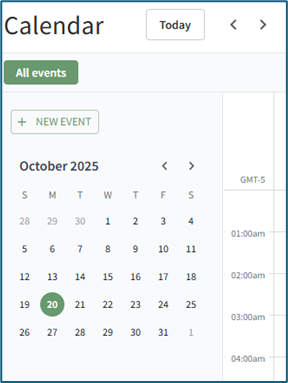
This opens the New Event Modal.
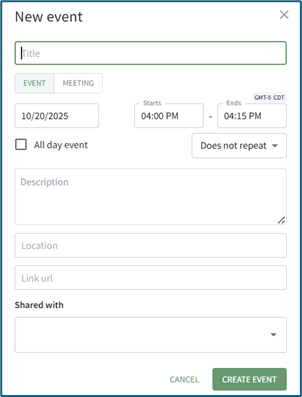
Input the title of the new event.
Select whether the new event is an event or meeting.
The selected value will be indicated by green text and a lightly filled background.
Select the calendar icon in the date field, opening a calendar modal. Select the date of the meeting/event.
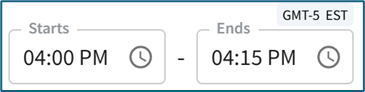
Input a start and end time.
The time zone is indicated above the end time.
Select the checkbox if the meeting / event takes place all day.

Use the dropdown menu to indicate if the meeting/event does not repeat, repeats daily / weekly / monthly / yearly, or every weekday.
Input a meeting / event description, location, and include a URL Link if relevant.
The meeting / event can be shared by selecting an individual, an access level, or a certification role. Users selected here will then be able to see the meeting / event on their Calendar,
Select the “Create Event” button, and the event will now show on the calendar.
No comments to display
No comments to display