
Edit Email Settings
To edit email requirements that help manage system emails for account management, open the Email Settings Tab in the Site Settings Module. The default system settings will show before changes are made.
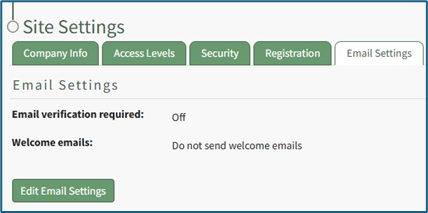
Select the “Edit Email Settings” button, opening an editable Email Settings Page.
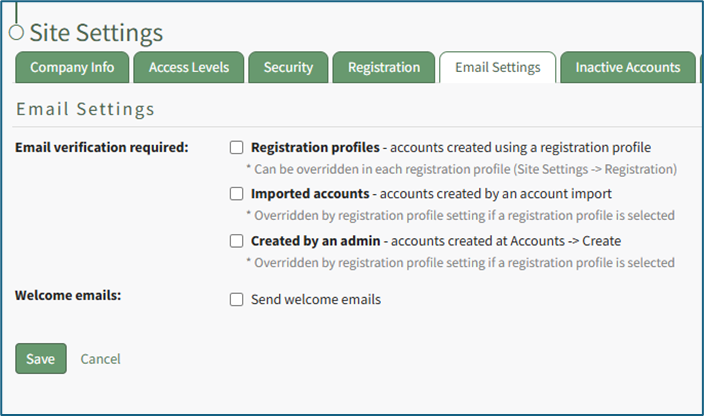
There are three different scenarios where email verification can be required. You can select all, none, or a combination of the available options based on your preferences. See the Email Verification Requirement Options Table below for an explanation of each checkbox.
Email Verification Requirement Options | |
Checkbox | Explanation |
Registration profiles | Selecting the Registration profiles checkbox will require email verification for any new user accounts that were created using a registration profile. This setting can be overridden by a selection in the registration profile. |
Imported accounts | Selecting the Imported accounts checkbox will require email verification for any new user accounts that are created through a CSV import. This selection can be overridden by a registration profile assigned to new user accounts during import account creation. |
Created by an admin | Selecting the Created by an admin checkbox will require email verification for any new user accounts created manually by an admin on the Create Tab of the Accounts Module. This selection can be overridden by a registration profile assigned to new user accounts during manual account creation. |
A checkbox can be selected to indicate if you would like the system to send welcome emails to new users by default.
Click “Cancel” to return to the Email Settings Tab without making any changes.
Select the “Save” button. The changes made and saved are now reflected on the Email Settings Tab.
No comments to display
No comments to display