
Download / Copy an Attendance Log QR Code
To download or copy an attendance log’s Sign In, Sign Out or Muster QR Code, go to the Home Page of the Attendance Module. Click the attendance log’s name or click the three-dot icon to the right of the attendance log you wish to download or copy the QR Code for, opening the context module.
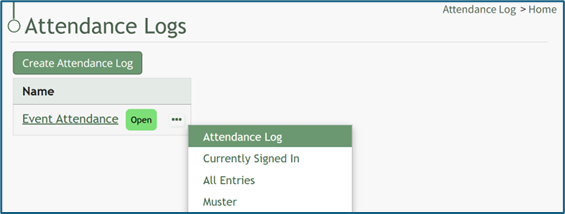
Select “Attendance Log”, opening the attendance log’s Information Page.
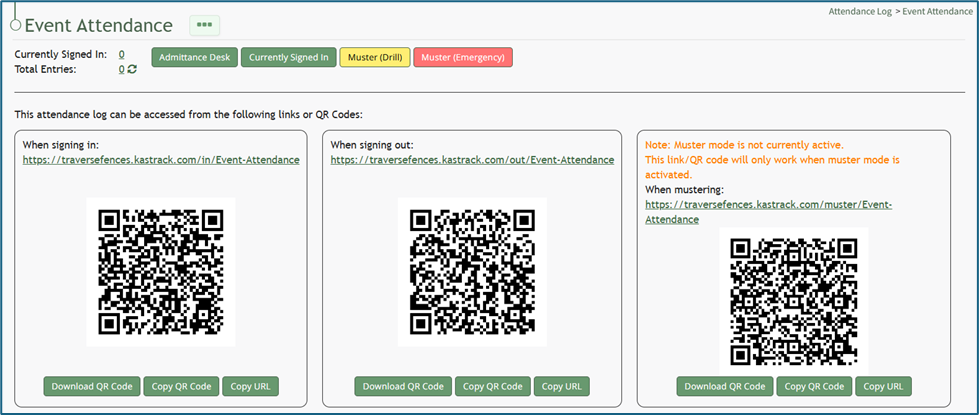
Within the Signing In, Signing Out, and Mustering sections of the Information Page, there are buttons to Download QR Code or Copy QR Code. To use the Mustering QR Code, muster mode should be activated first.
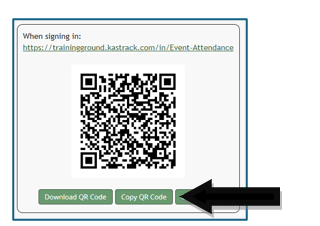
Click the desired button and the QR Code will be downloaded/copied to your device.
No comments to display
No comments to display