
Customize Trigger Settings Based on an On Expiry Period
Triggers with an On Expiry period can only have a time parameter.
An on-expiry trigger gives the user the ability to input the next due date (vs auto-calculating it like the other triggers based on task completion) when completing the task.
Select On Expiry from the Period dropdown menu. Clicking YYYY-MM-DD opens a calendar modal. Select the date the task expires on.
The task status will switch from green (or yellow if a warning is set) to red when it is past due, one day after the calendar date selected.
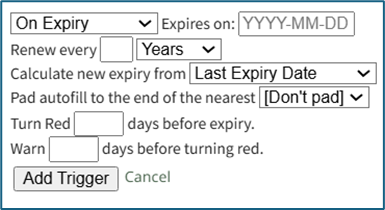
Input a numerical value for the task to renew and select the appropriate units (Days, Weeks, Months, or Years).
Use the dropdown menu to establish if the new expiry is calculated from the Last Expiry Date or Task Performed Date.
The user can select to pad the autofill to the end of the nearest Month, Quarter, 6 Months, Year, or to not pad the autofill.
Enter a numerical value to Turn Red ___ days before expiry.
Enter a numerical value to Warn ___ days before turning red.
Click “Add Trigger” to save.
No comments to display
No comments to display