
Apply a Task Template to the Task Schedule
To apply a task template to the task schedule for bulk task creation, open the Task Schedule Page of the asset you want to apply a task template to.
How To: Apply a Task Template to the Task Schedule
To apply a task template to the task schedule for bulk task creation, open the Task Schedule Page of the asset you want to apply a task template to.
How To: Apply a Task Template to the Task Schedule
To apply a task template to the task schedule for bulk task creation, open the Task Schedule Page of the asset you want to apply a task template to.
How To: Apply a Task Template to the Task Schedule
To apply a task template to the task schedule for bulk task creation, open the Task Schedule Page of the asset you want to apply a task template to.
How To: Apply a Task Template to the Task Schedule
{{@497}}
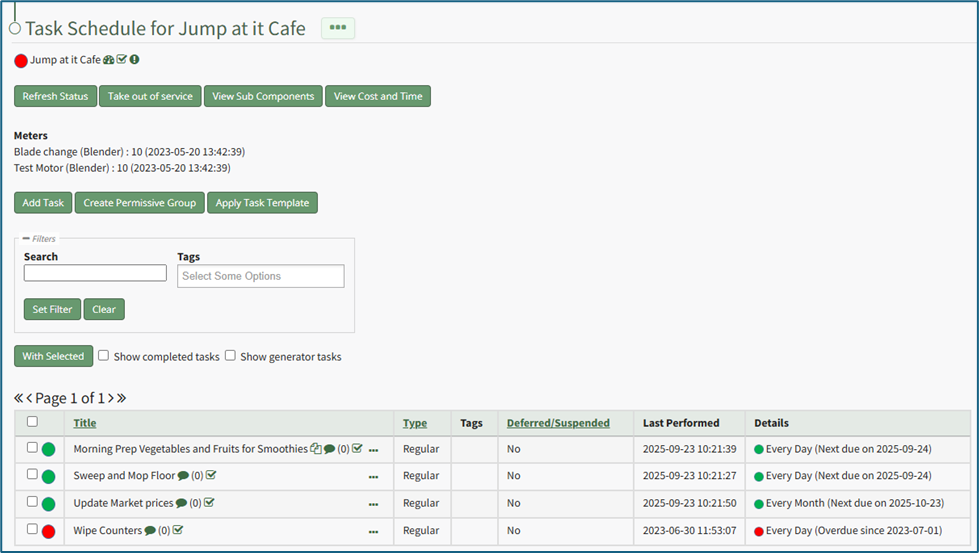
Selecting the “Apply Task Template” button opens the Apply Task Template Modal that allows the user to copy tasks from a template into the task schedule for an asset or its components. This feature allows a user to utilize bulk task schedule creation if they have to track several assets that share identical task schedules.
A user will still be required to establish meters, due dates, and meter readings for each individual task in the task template.
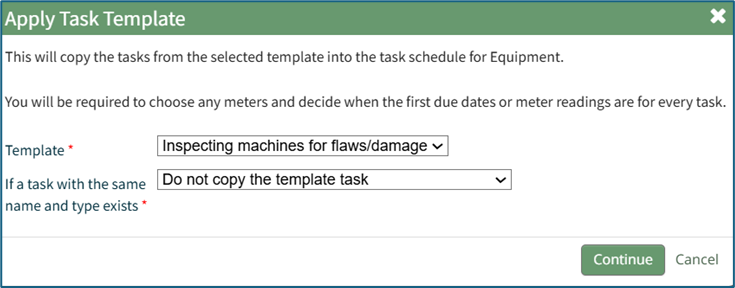
Select the template from the dropdown list that you with to utilize.
New Task Templates can be created on the Task Template Tab on the Settings Page of the Assets Module.
How To: Create a New Task Schedule Template
{{@471}}
Select the “Continue” button, opening the Configure Template Page.
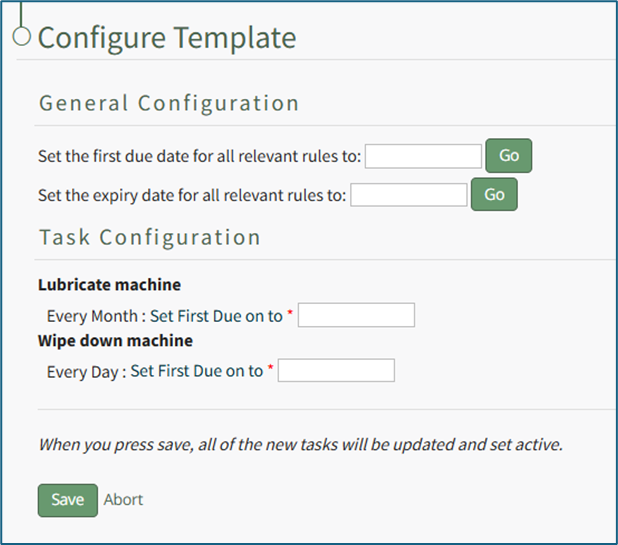
Input the first due date for all relevant rules under General Confirguration. Select the "Go" button to the right. The system will automatically input the dates for the Task Configuration.
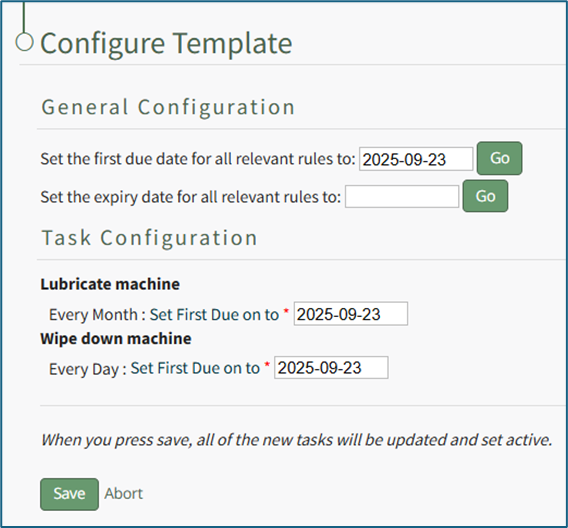
Once the task template has been configured, select “Save” and all of the new tasks will be updated and set active.
Select “Abort” and a Confirmation Modal opens, stating, “Are you sure you wish to abort this template configuration?”
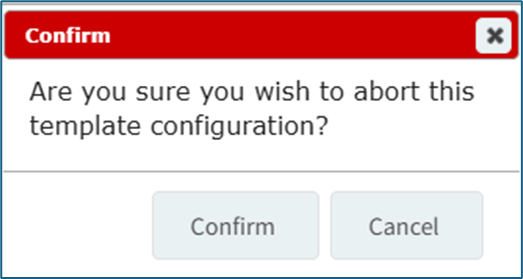
Select “Confirm” to return to the asset's Task Schedule Page without any changes made.
Selecting the “Apply Task Template” button opens the Apply Task Template Modal that allows the user to copy tasks from a template into the task schedule for an asset or its components. This feature allows a user to utilize bulk task schedule creation if they have to track several assets that share identical task schedules.
A user will still be required to establish meters, due dates, and meter readings for each individual task in the task template.
Select the template from the dropdown list that you with to utilize.
New Task Templates can be created on the Task Template Tab on the Settings Page of the Assets Module.
How To: Create a New Task Schedule Template
To create a new task schedule template, open the Task Template Tab on the Settings Page in the Assets Module.
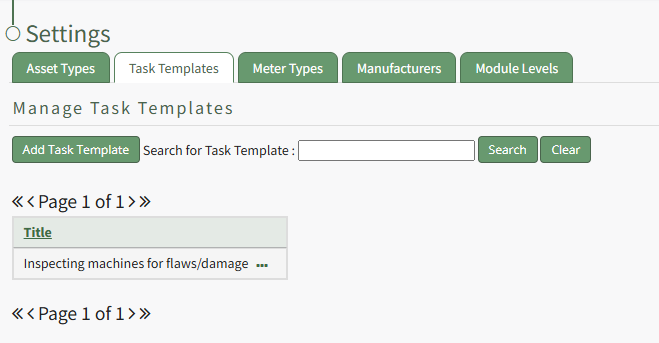
Click the “Add Task Template” button, opening the New Task Template modal.
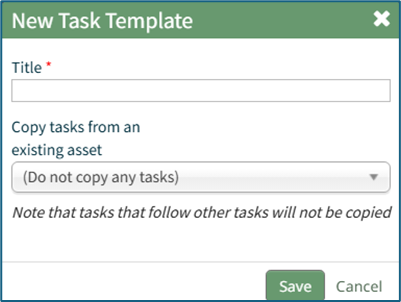
Input the desired Title for the new task template.
Select which asset or component whose task schedule you want to create the template from.
Click “Save” and the new task template will show in the Task Template Table.
Tasks that follow other tasks will not be copied into the Task Template.
Select the “Continue” button, opening the Configure Template Page.
Input the first due date for all relevant rules under General Confirguration. Select the "Go" button to the right. The system will automatically input the dates for the Task Configuration.
Once the task template has been configured, select “Save” and all of the new tasks will be updated and set active.
Select “Abort” and a Confirmation Modal opens, stating, “Are you sure you wish to abort this template configuration?”
Select “Confirm” to return to the asset's Task Schedule Page without any changes made.
Selecting the “Apply Task Template” button opens the Apply Task Template Modal that allows the user to copy tasks from a template into the task schedule for an asset or its components. This feature allows a user to utilize bulk task schedule creation if they have to track several assets that share identical task schedules.
A user will still be required to establish meters, due dates, and meter readings for each individual task in the task template.
Select the template from the dropdown list that you with to utilize.
New Task Templates can be created on the Task Template Tab on the Settings Page of the Assets Module.
How To: Create a New Task Schedule Template
To create a new task schedule template, open the Task Template Tab on the Settings Page in the Assets Module.
Click the “Add Task Template” button, opening the New Task Template modal.
Input the desired Title for the new task template.
Select which asset or component whose task schedule you want to create the template from.
Click “Save” and the new task template will show in the Task Template Table.
Tasks that follow other tasks will not be copied into the Task Template.
Select the “Continue” button, opening the Configure Template Page.
Input the first due date for all relevant rules under General Confirguration. Select the "Go" button to the right. The system will automatically input the dates for the Task Configuration.
Once the task template has been configured, select “Save” and all of the new tasks will be updated and set active.
Select “Abort” and a Confirmation Modal opens, stating, “Are you sure you wish to abort this template configuration?”
Select “Confirm” to return to the asset's Task Schedule Page without any changes made.
Selecting the “Apply Task Template” button opens the Apply Task Template Modal that allows the user to copy tasks from a template into the task schedule for an asset or its components. This feature allows a user to utilize bulk task schedule creation if they have to track several assets that share identical task schedules.
A user will still be required to establish meters, due dates, and meter readings for each individual task in the task template.
Select the template from the dropdown list that you with to utilize.
New Task Templates can be created on the Task Template Tab on the Settings Page of the Assets Module.
How To: Create a New Task Schedule Template
To create a new task schedule template, open the Task Template Tab on the Settings Page in the Assets Module.
Click the “Add Task Template” button, opening the New Task Template modal.
Input the desired Title for the new task template.
Select which asset or component whose task schedule you want to create the template from.
Click “Save” and the new task template will show in the Task Template Table.
Tasks that follow other tasks will not be copied into the Task Template.
Select the “Continue” button, opening the Configure Template Page.
Input the first due date for all relevant rules under General Confirguration. Select the "Go" button to the right. The system will automatically input the dates for the Task Configuration.
Once the task template has been configured, select “Save” and all of the new tasks will be updated and set active.
Select “Abort” and a Confirmation Modal opens, stating, “Are you sure you wish to abort this template configuration?”
Select “Confirm” to return to the asset's Task Schedule Page without any changes made.
No comments to display
No comments to display