
Add a Stock Item to the Inventory
To add an individual stock item to the inventory, go to the Inventory Module Home Page.
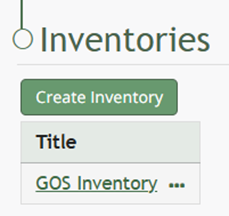
Click on the name of the inventory you want to add a new stock item into.
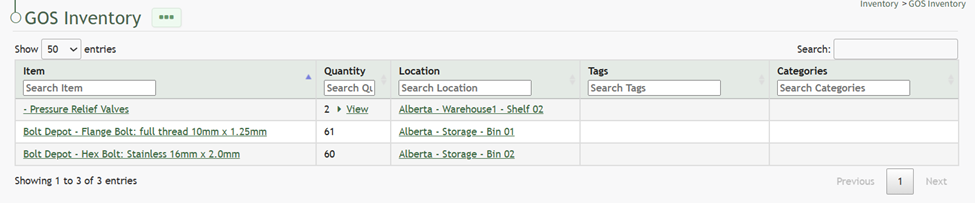
Click the three-dot icon to the right of the inventory name header opening the inventory context menu.
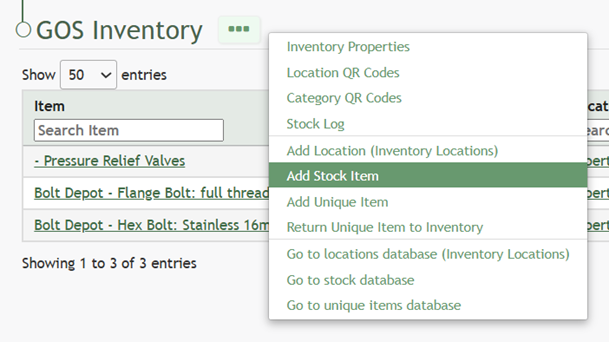
Select “Add Stock Item” opening the New Database Entry Modal.
The data fields requested by this modal for a new stock item will vary based on the way the inventory was setup.
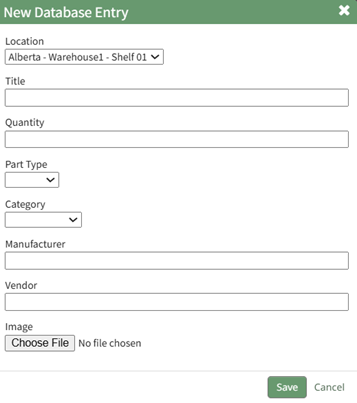
Input the information into the fields and select the “Save” botton.
The new stock item will now show in the inventory.
No comments to display
No comments to display