
Upload Files to a Task after a Task has been Completed
To upload files to a task after a task has been completed, open the relevant asset's History Page.
How To: View an Asset's Historical Logs
An asset's historical data can be accessed from an asset's History Page. To access an asset's history, go to the My Assets Page in the Assets Module on the Main Menu. Use the filters as needed to identify the access whose history you wish to view, and click the three-dot icon to the right of the asset name. This opens a context menu.
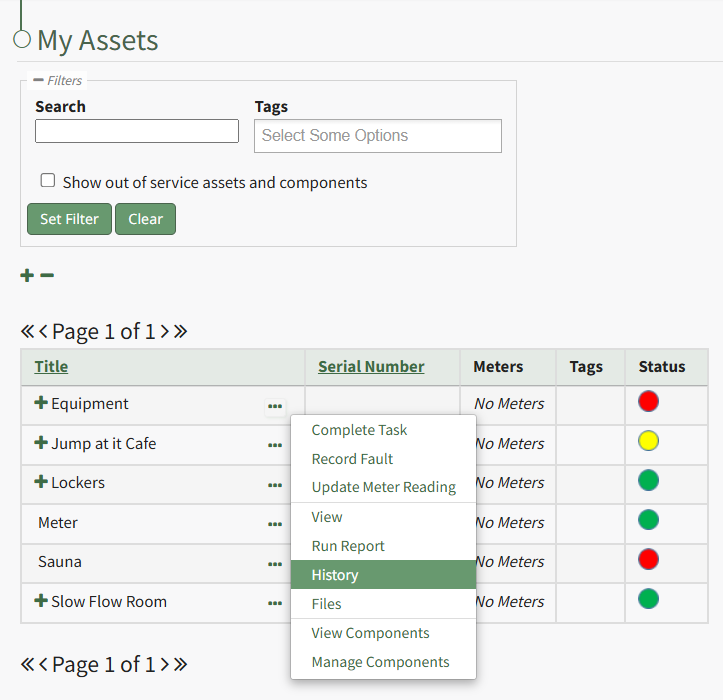
Select "History" from the context menu opening the Asset History Page.
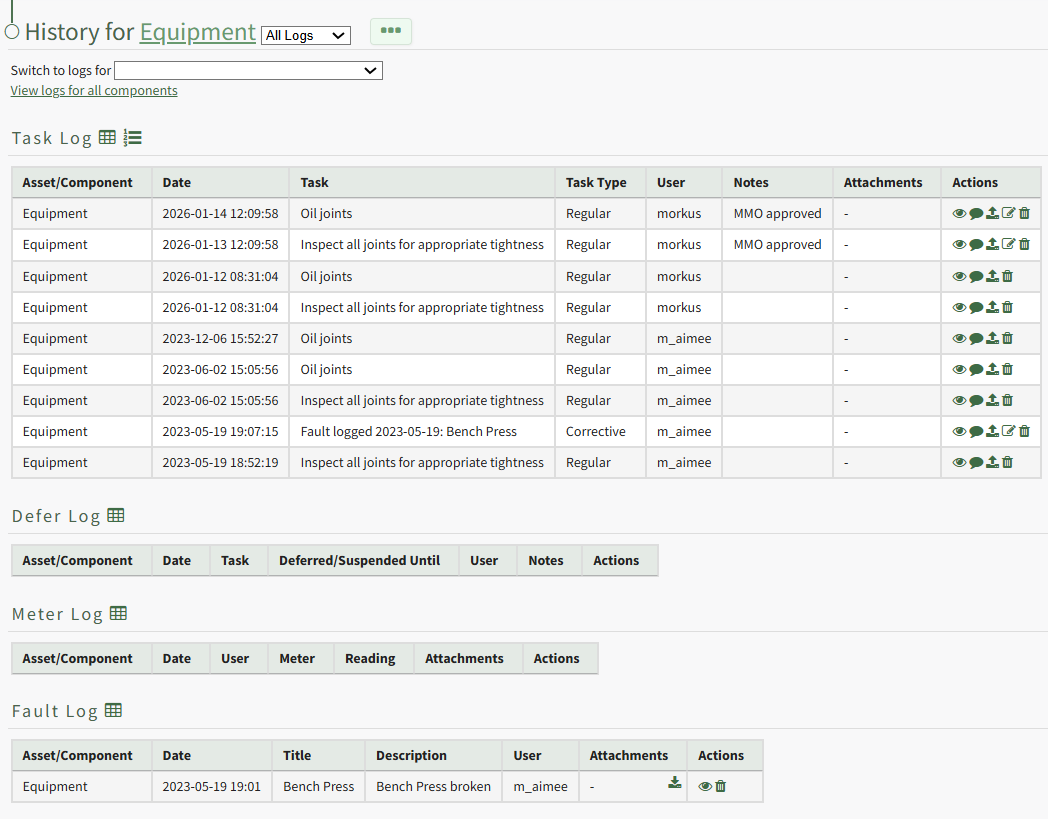
Click the upload icon in the Actions Column to the right of the task record you wish to upload a file to opening the Upload File Modal.
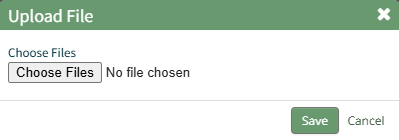
Click the Choose Files button and select the file you wish to upload from your personal device.
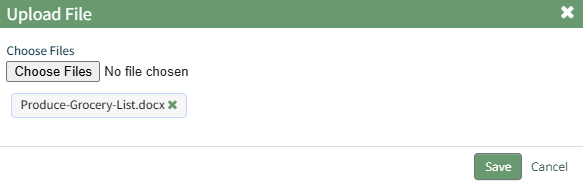
Click "Save" after selecting your file.

The file now shows in the Attachments Column of the Log Table.
No comments to display
No comments to display