
Update a Meter Reading
In order to update an asset's meter reading, go to the Assets Module Home Page opening the Upcoming Tasks Table. Click the “Update Meter Reading" button from the Asset Module Homepage.
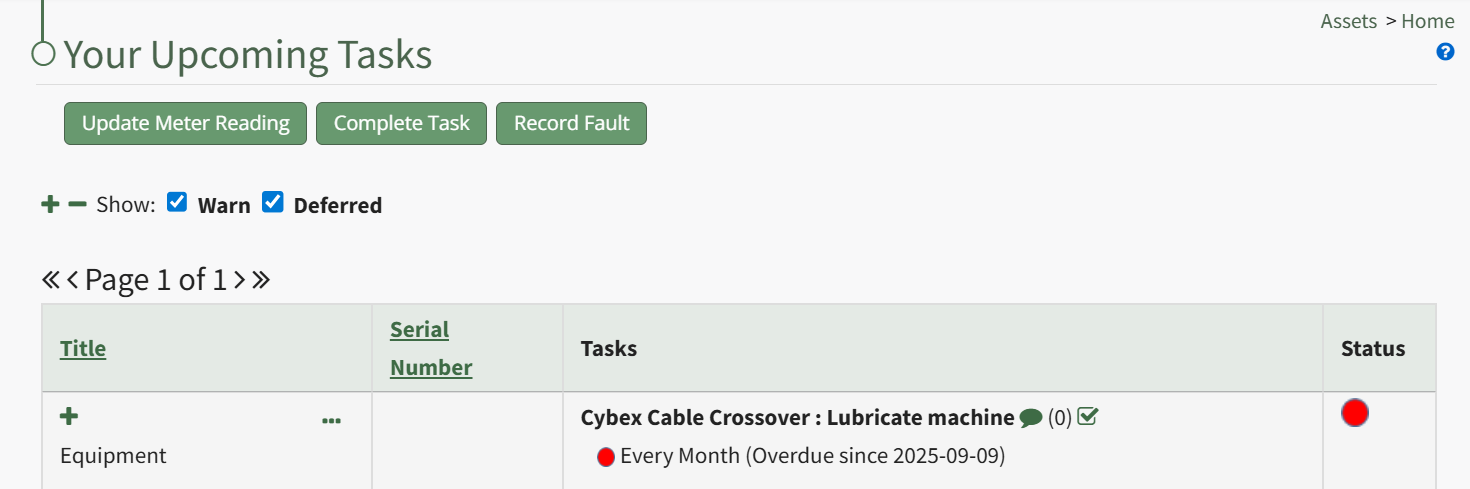
The Choose Asset Modal will prompt you to identify which asset you want to log data for. Click the bulleted list icon to access your assets. Selecting the plus sign “+” icon will expand the components within the Asset.
Selecting “Update Meter Reading” from the Upcoming Task Table Context Menu will open the same modal for the specified asset.
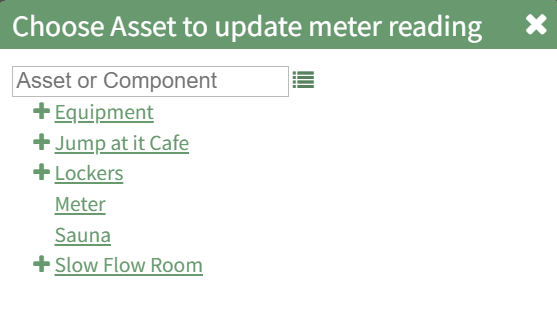
Select the appropriate asset, opening the Update Meter Reading Modal.
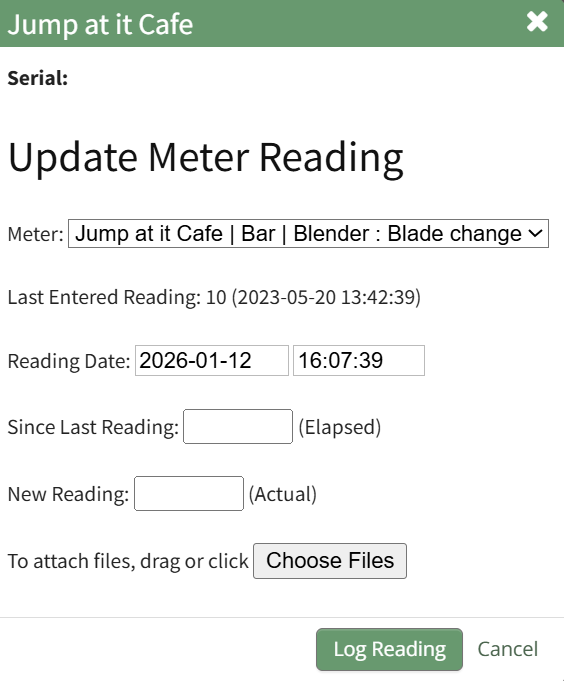
The meters associated with the asset/component selected show in a dropdown menu. Select the meter whose meter data you wish to record. The most recent meter reading shows in the Update Meter Reading Modal as the “Last Entered Reading.”
KAStrack automatically inputs the current date and time. The user can enter an elapsed value (if preferred) and KAStrack will input the new actual, or the user can input the new meter reading and the elapsed value will be automatically input.
Attach any files (if there are checklists, forms, etc.) associated with the meter reading.
Select the “Log Reading” button to update the meter usage. Click cancel to return to the Assets Module Homepage.
No comments to display
No comments to display