
Bulk Edit / Delete Database Entries
To bulk edit database entries, go to the Home Page of the Database Module. Click the three dot icon opening the database context menu.
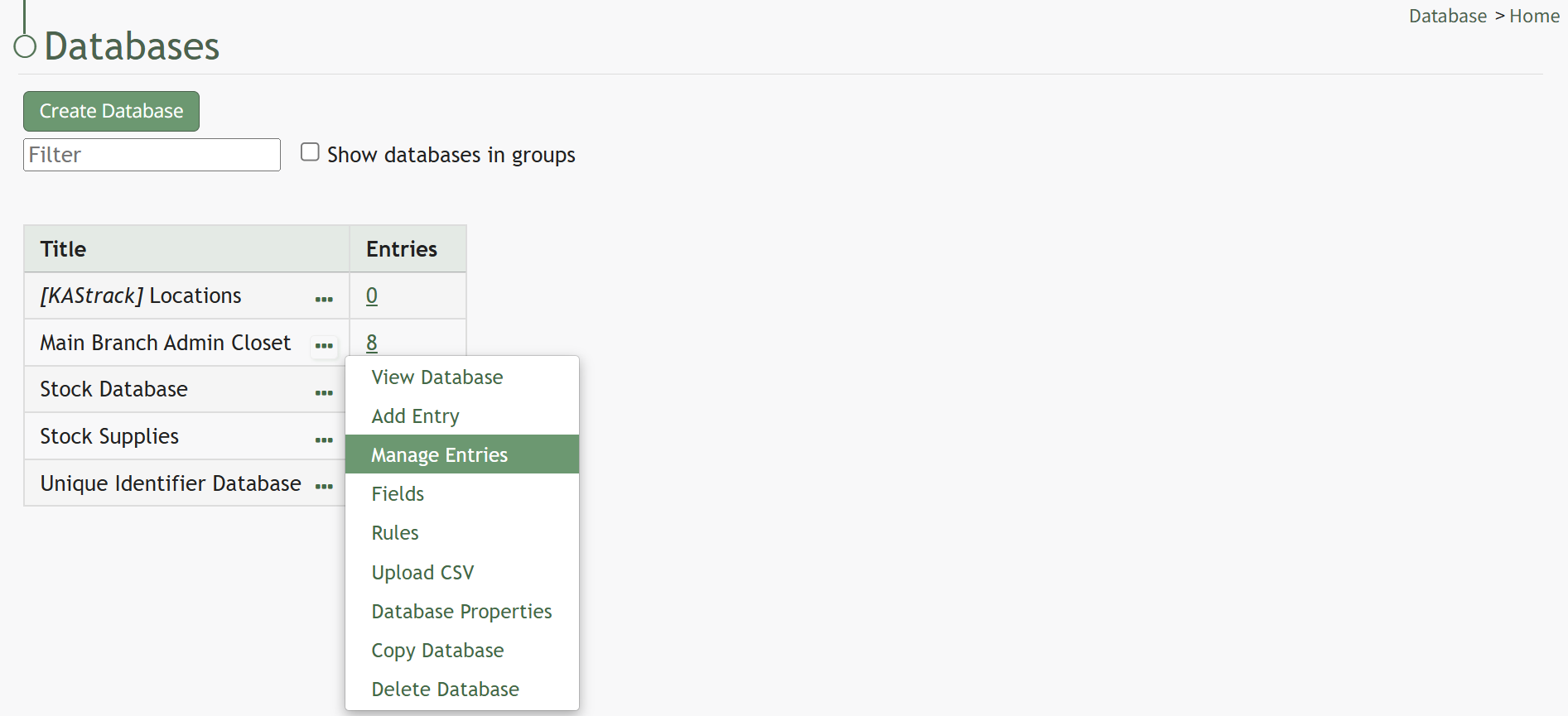
Select “Manage Entries” opening the Entries for database (DatabaseName) Page.
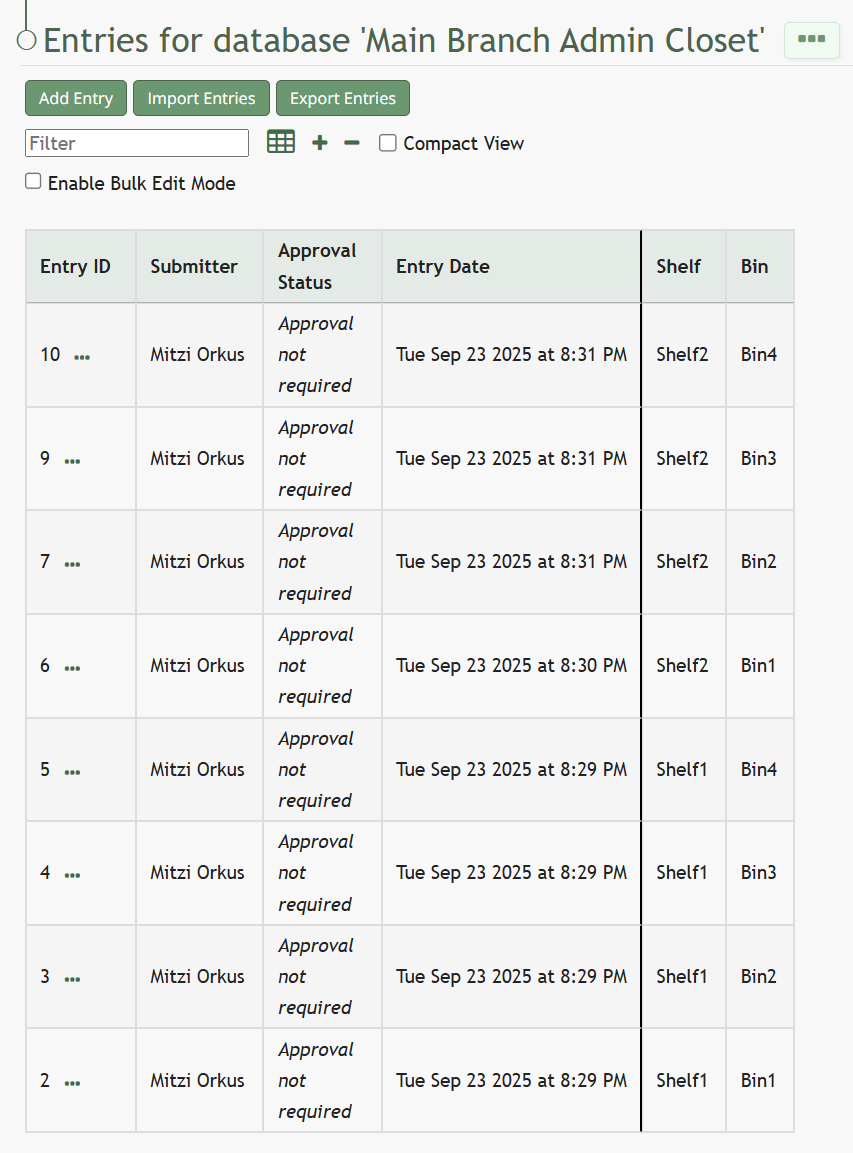
Select the “Enable Bulk Edit Mode” checkbox. A delete selected button appears. A checkbox now shows to the left of every Entry ID. Selecting checkboxes allows for the bulk deletion of entries.
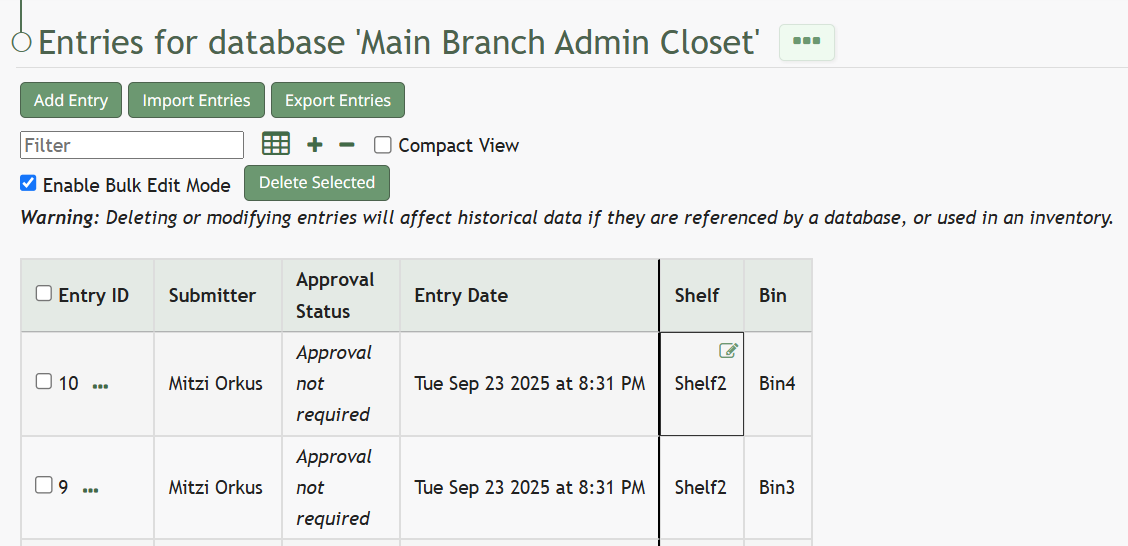
Hovering the cursor over any field entry will show an edit icon.
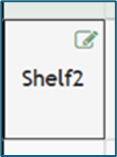
Click the edit icon, and the form field will now open for edits.
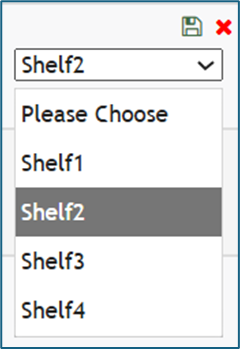
Click the disc icon for your changes to be saved by the system.
No comments to display
No comments to display