
Delete an Action
To delete an individual action, go to the Bulk Edit Tab of the Settings Page in the Actions Module.
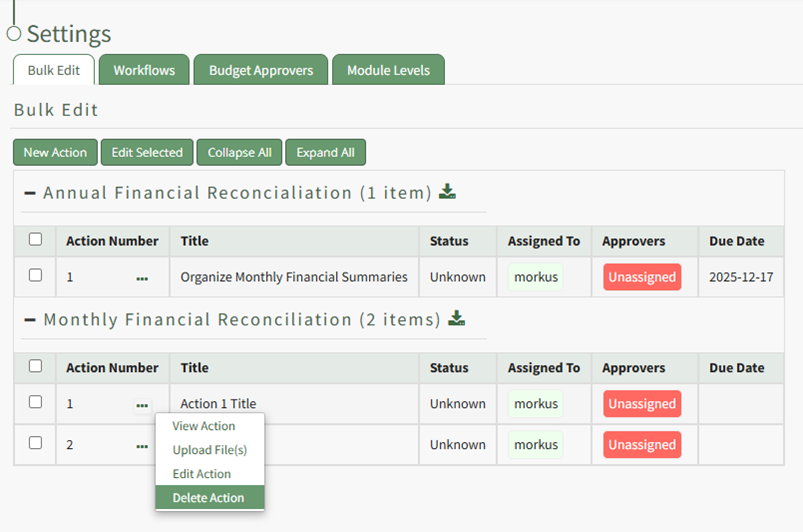
Identify the action you wish to delete and click the three dot icon to the right of the action title, opening the Bulk Edit Action Context Menu.
Select the option to “Delete Action” opening the Delete Action Confirmation Modal which states the title of the action to be deleted and asks the question, “Are you sure you want to delete this action?”
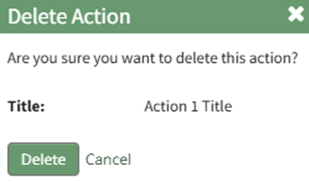
Clicking the “Delete” button changes the modal, which now states that the action has been deleted.
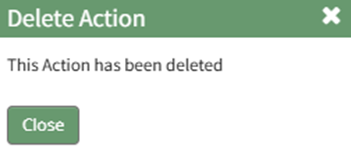
Select “Close” and return to the Bulk Edit Tab of the Settings Page. The action is no longer visible.
The assigned action numbers do not automatically update when an action is deleted. Be sure to edit the action group to correct the order after deleting an action.
No comments to display
No comments to display