
Mark Multiple Tasks as Complete on the Task Schedule
To mark multiple tasks as complete on a task schedule at the same time, open the Task Schedule you wish to edit in the Assets Module.
How To: View an Asset's Task Schedule
To view an asset's task schedule, open the Manage Assets Page in the Assets Module on the Main Menu. Use filters as needed and identify the asset/component whose task schedule you wish to view. Click the three-dot icon to the right of the asset title opening the Asset Management Context Menu.
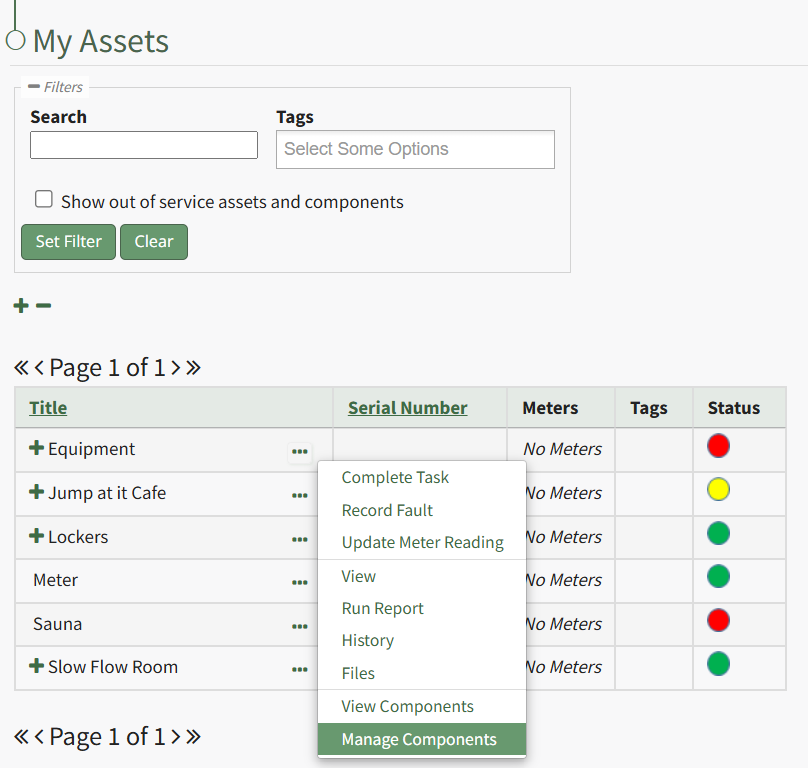
Select the "Manage Components" option, opening the Manage Asset Components Page. Select the three-dot icon to the right of the asset/component you wish to add interim notes to and select Task Schedule from the context menu.
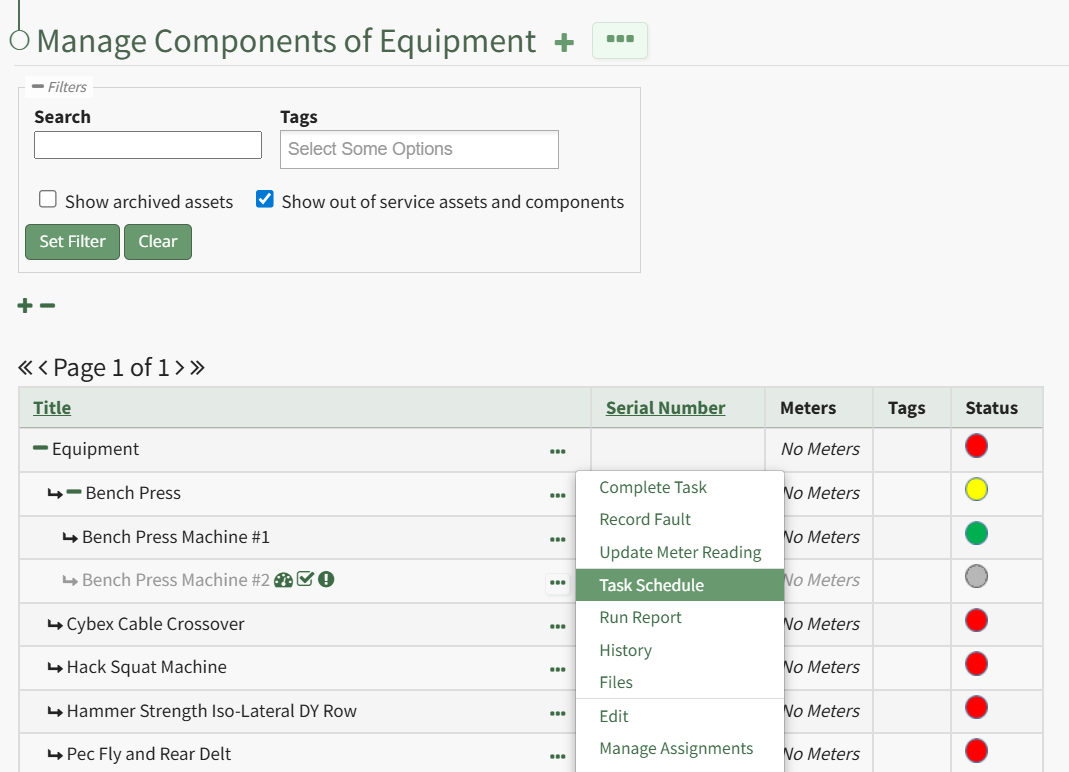
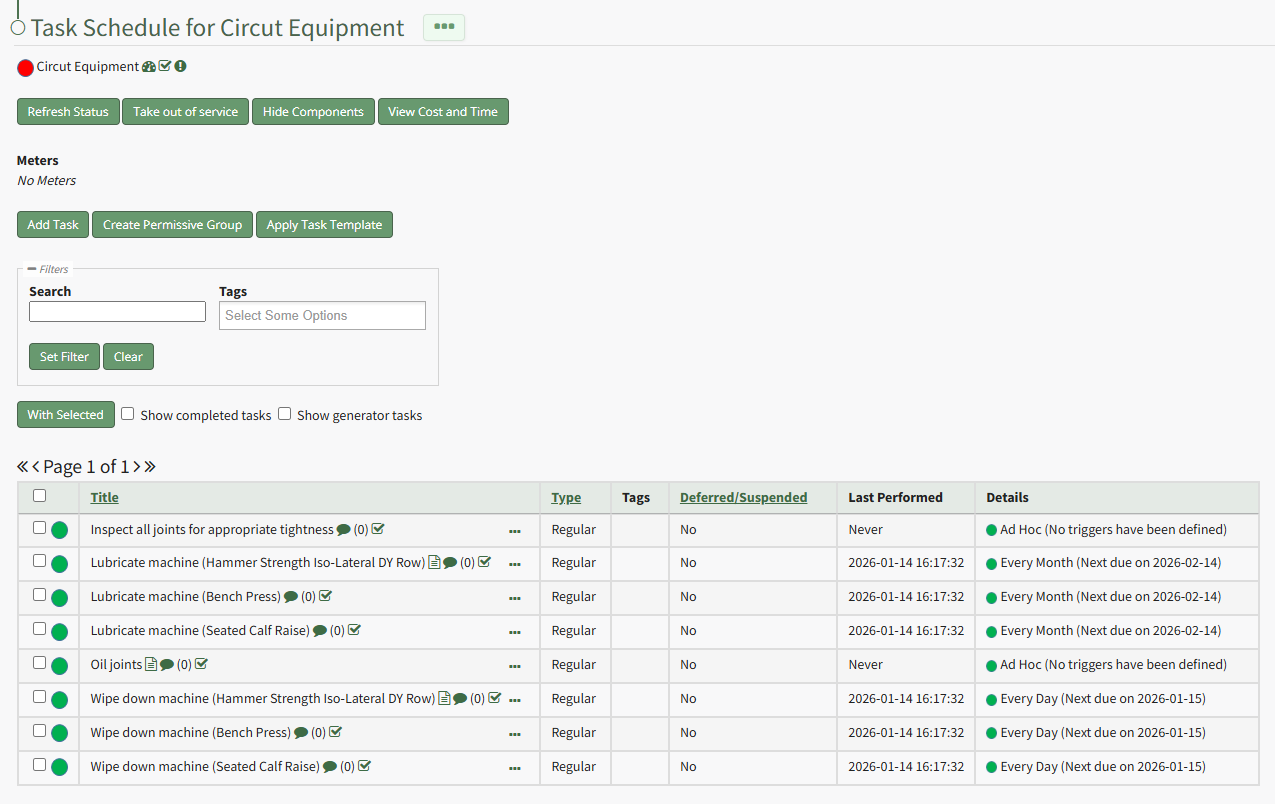
This opens the asset's Task Schedule Page.
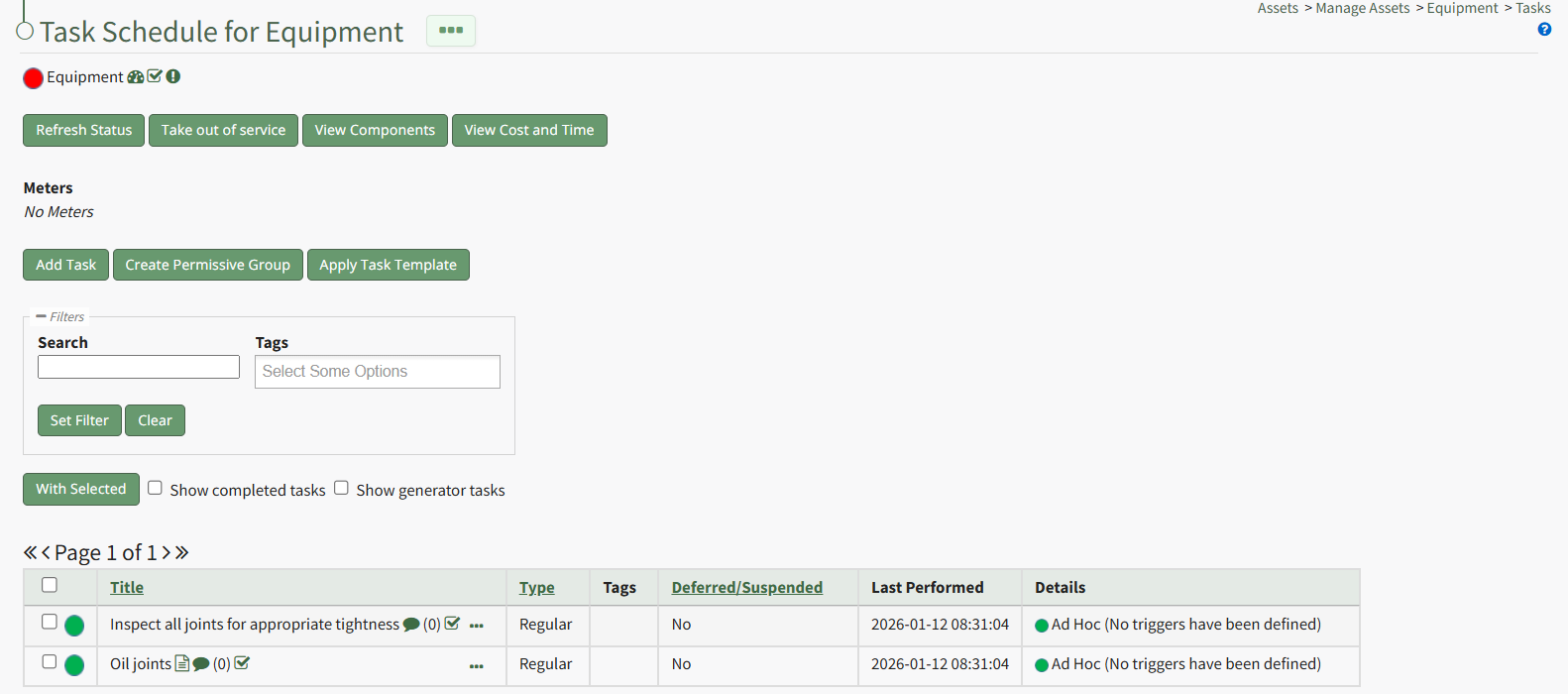
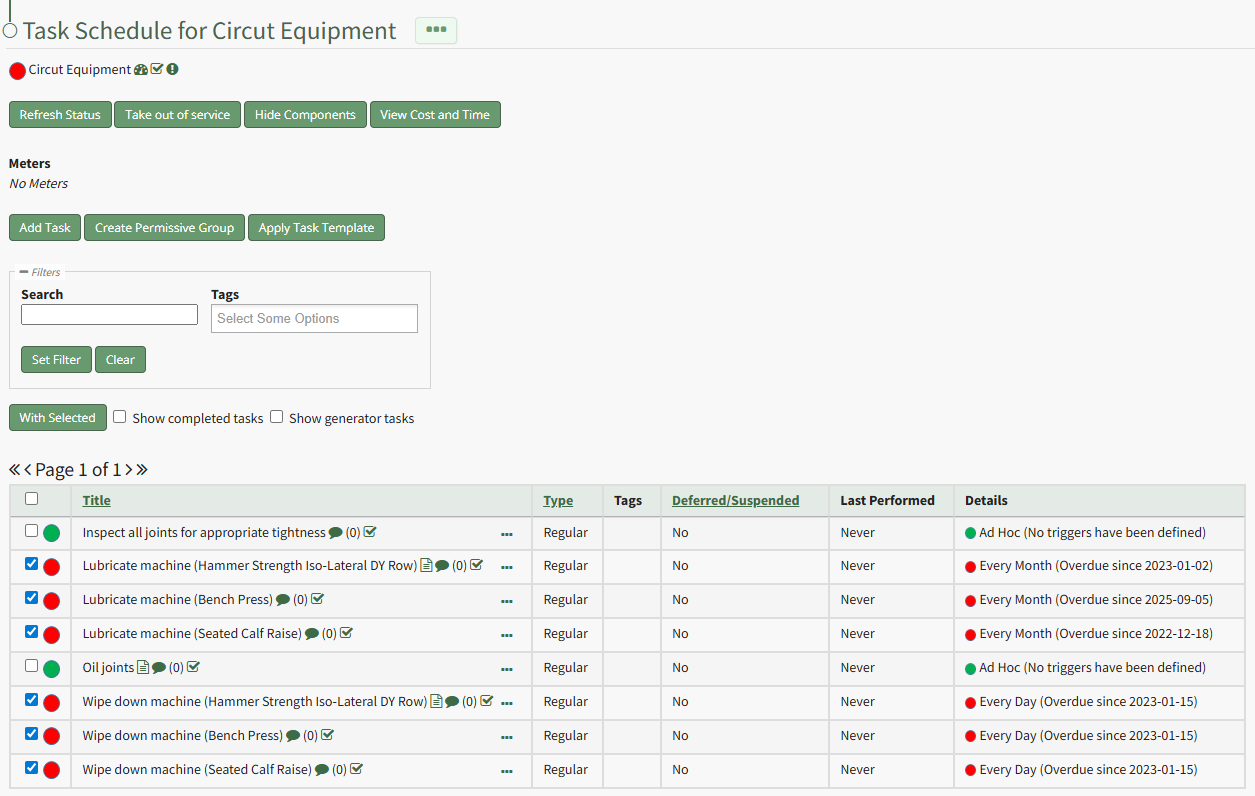
Select the checkboxes for all tasks you wish to mark as completed and click the "With Selected" button above the Task Schedule Table opening the With Selected Tasks Modal.
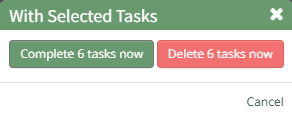
Click the "Complete # Tasks Now" button opening the Complete Task Modal.
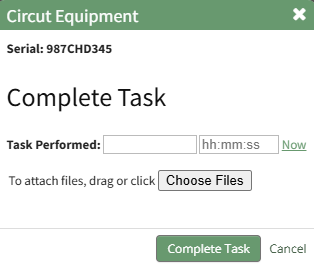
Input the date and time to be noted for task completion and upload any desired files. Click the "Complete Task" button on the modal and the Task Schedule automatically updates the new task status.
No comments to display
No comments to display