
Create a New Task on a Task Schedule
To create a new task for a specific asset, open the Task Schedule Page of the relevant asset.
How To: View an Asset's Task Schedule
To view an asset's task schedule, open the Manage Assets Page in the Assets Module on the Main Menu. Use filters as needed and identify the asset/component whose task schedule you wish to view. Click the three-dot icon to the right of the asset title opening the Asset Management Context Menu.
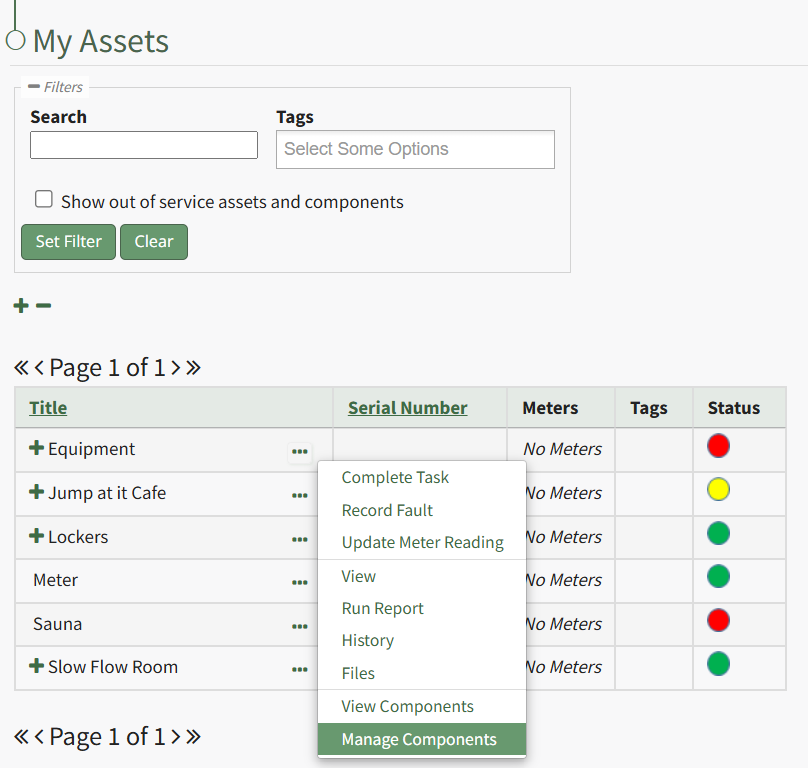
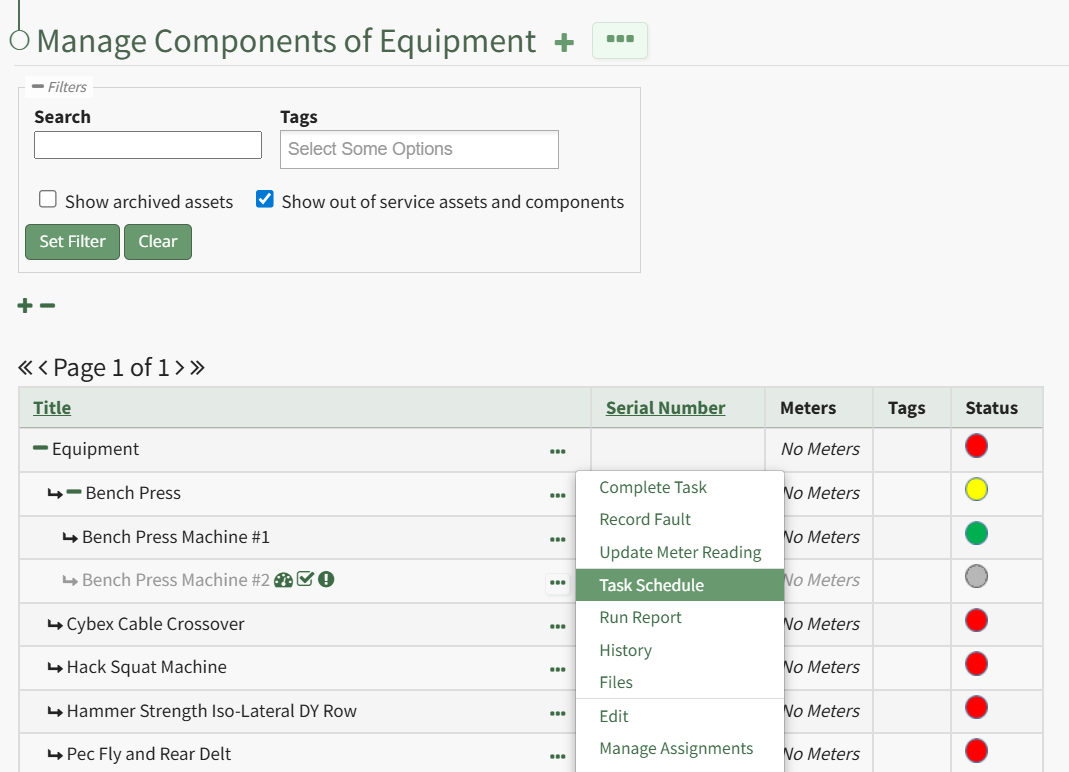
Select the "Manage Components" option, opening the Manage Asset Components Page. Select the three-dot icon to the right of the asset/component you wish to add interim notes to and select Task Schedule from the context menu.
This opens the asset's Task Schedule Page.
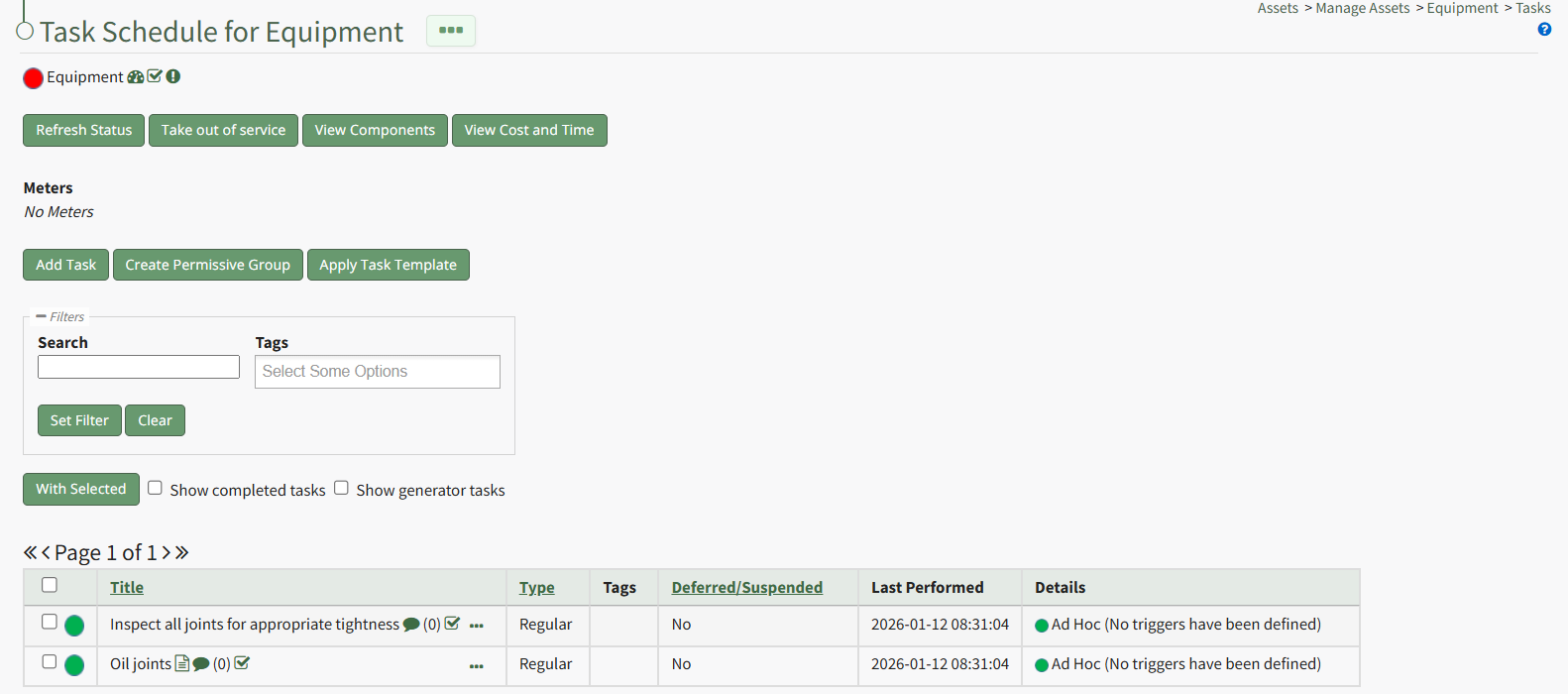
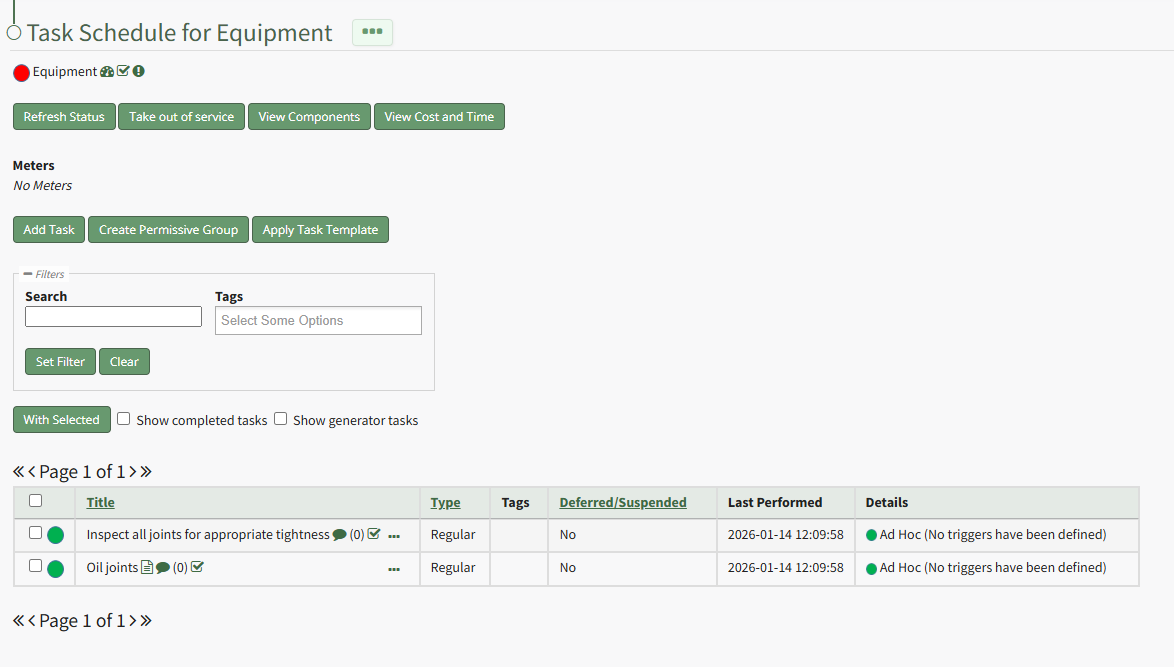
Select the "Add Task" button opening the New Task Modal.
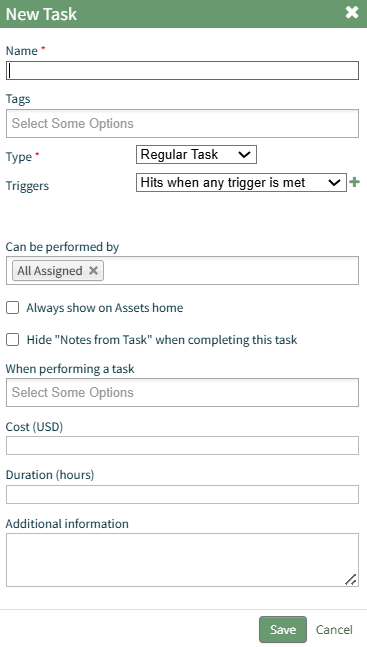
Input the Task Name and any tags you want to be associated with the task.
Select the Task Type and the Trigger Behavior from the dropdown menu. A detailed explanation of Task Trigger Settings has been included in the user manual.
Use the Customized Trigger Settings How To Links in the table below for ease in completing this modal when you select the plus sign icon to the right of the Trigger Behaviors dropdown menu.
Customized Trigger Settings How To Links Table |
Clicking the field beneath "Can be Performed by" opens a dropdown menu. The option "All assigned" allows any user assigned the asset the ability to complete the specific task. Individual users assigned the asset can be individually assigned to the new task.
Click the "Always show on Assets Home" checkbox if you would like this task to show on the Upcoming Task Table, regardless of the status.
Click the "Hide 'Notes from Task' when completing this task" checkbox if you want to hide notes regarding this task when logging the task as complete.
Clicking the field beneath "When performing a task" opens a dropdown menu with options to require a file upload when a task is completed and/or require a meter reading when a task is completed. All meters associated with the asset will be listed individually on the dropdown menu.
Inputting a Cost and Duration (time in hours) associated with a task allows the system to generate Cost/Time Summaries for an asset and its components. Additional information regarding the task can be included in the final textbox.
Select "Save" after inputting the task details.
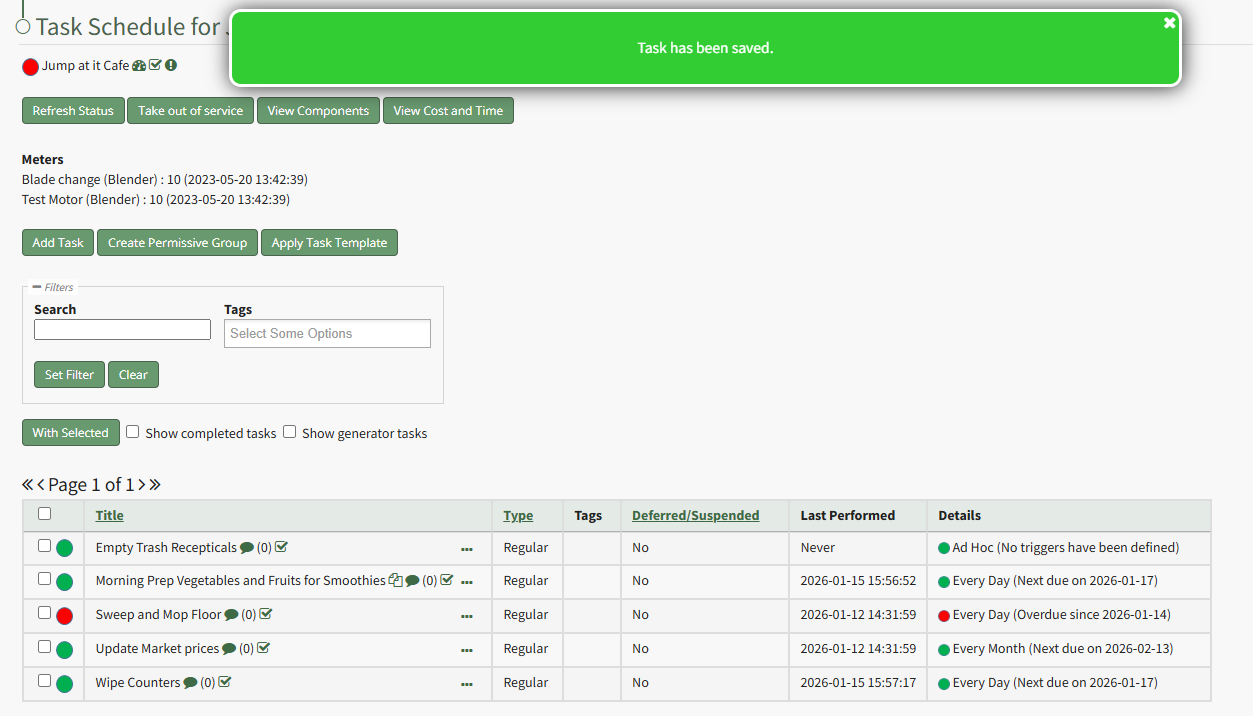
A popup confirms that the task has been saved. It now shows on the asset's Task Schedule Table.
No comments to display
No comments to display