
Add Distribution Lists to a Dispatch
Distribution Lists are the individuals designated to receive a PDF copy of the dispatch orders, sent through the KAStrack Communications Module. They can be pre-defined in the Dispatch Module
To add distribution lists to a dispatch, open the specific dispatch you wish to add a distribution list to. Go to the Dispatch Module Home Page and alter the filter view as needed. Click the Dispatch Number or Title to open the specific dispatch details page.

Distribution Lists can be added to a dispatch by selecting the plus sign icon to the right of the Distribution List column header.

Selecting the plus sign icon to the right of Distribution List opens the Add People and Certification Roles Modal.
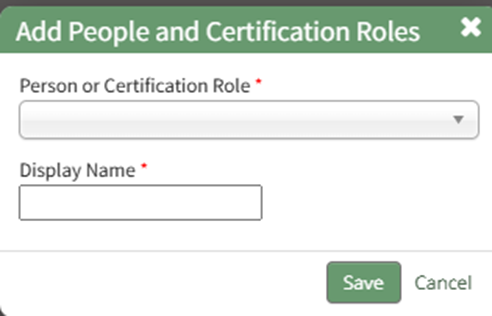
Pre-defined distribution lists, users, and certification roles can all be selected via the dropdown menu. Pre-existing distributions lists can be created within this module.
How To: Create a Pre-Defined Distribution List
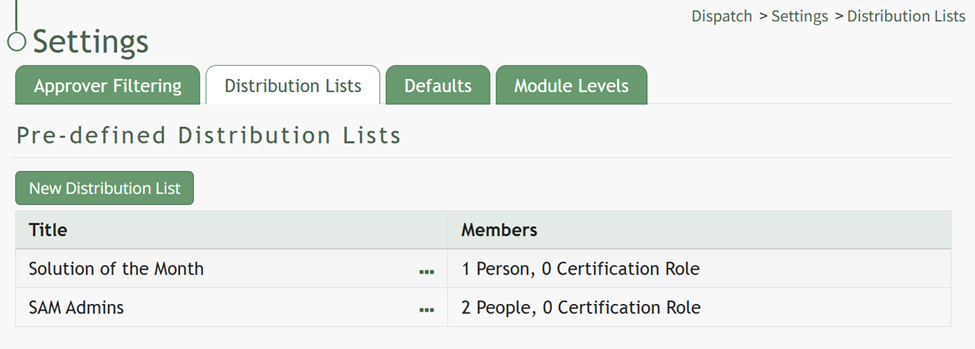
To create a new pre-defined distribution list, go to the Distribution Lists Tab on the Settings Page of the Dispatch Module.

Click the “New Distribution List” button above the Pre-Defined Distribution List Table opening the New Distribution List Modal.
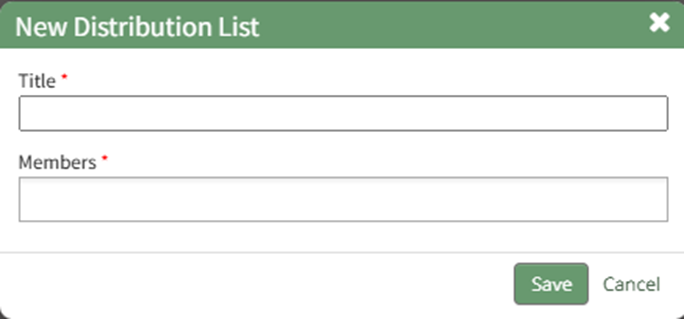
Input the Title of the new distribution list. Clicking the Members field will open a dropdown menu of all Users and Certification Roles that can be added to the Distribution Lists. Multiple selections can be made.
Select the “Save” button and the new distribution list will now show in the Pre-Defined Distribution List Table.
Edit the display name if desired and select the “Save” button. The individuals on the distribution list will now show on the dispatch details page.
An individual will only be listed once even if they are in multiple pre-defined distribution lists.
No comments to display
No comments to display