
Add a Meter to an Asset
To add a meter to an asset, the Meter Type must already be created through the Assets Settings Page.
How To: Create a Meter Type
To create a new meter type, open the Meter Types Tab on the Settings Page of the Assets Module.
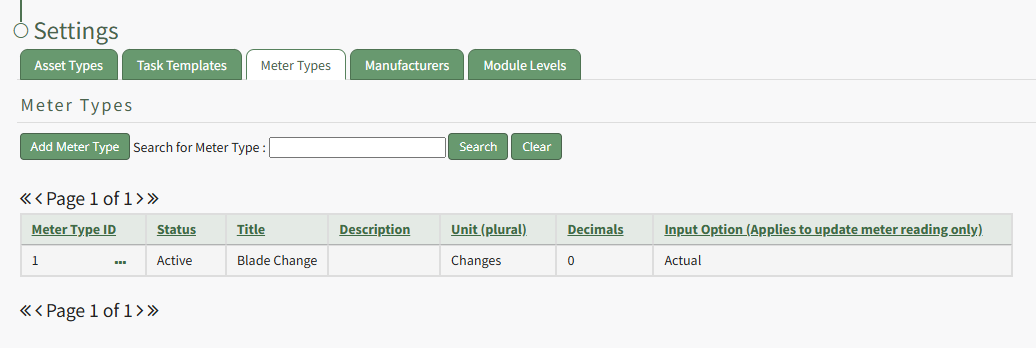
Select “Add Meter” opening the New Meter Type Modal.
This opens the New Meter Type modal.
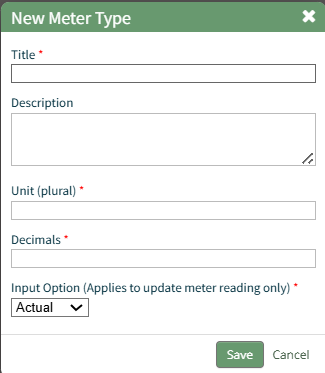
Input the desired meter type title and description.
Include the units associated with this meter type.
Meter units should always be entered in plural form.
Input an integer to determine the number of place values after the decimals you would like recorder. Input 0 if you do not want to see any values after the decimal.
The Input Option dropdown menu has three options: Actual, Elapsed, Both. If you select both, a user can input the actual reading and elapsed value will be calculated. A user can also input the elapsed reading and the actual will be calculated.
Select the “Save” button and the New Meter Type will be created and now shows on the Meters Tab on the Settings Page of the Assets Module.
To add a meter to an asset, select the Manage Assets Page from the Main Menu in the Assets Module. Use filters as needed and identify the asset/component you want to add a meter to. Click the three dot (…) icon next to the Asset/Component Title to open the Asset Management Context Menu.
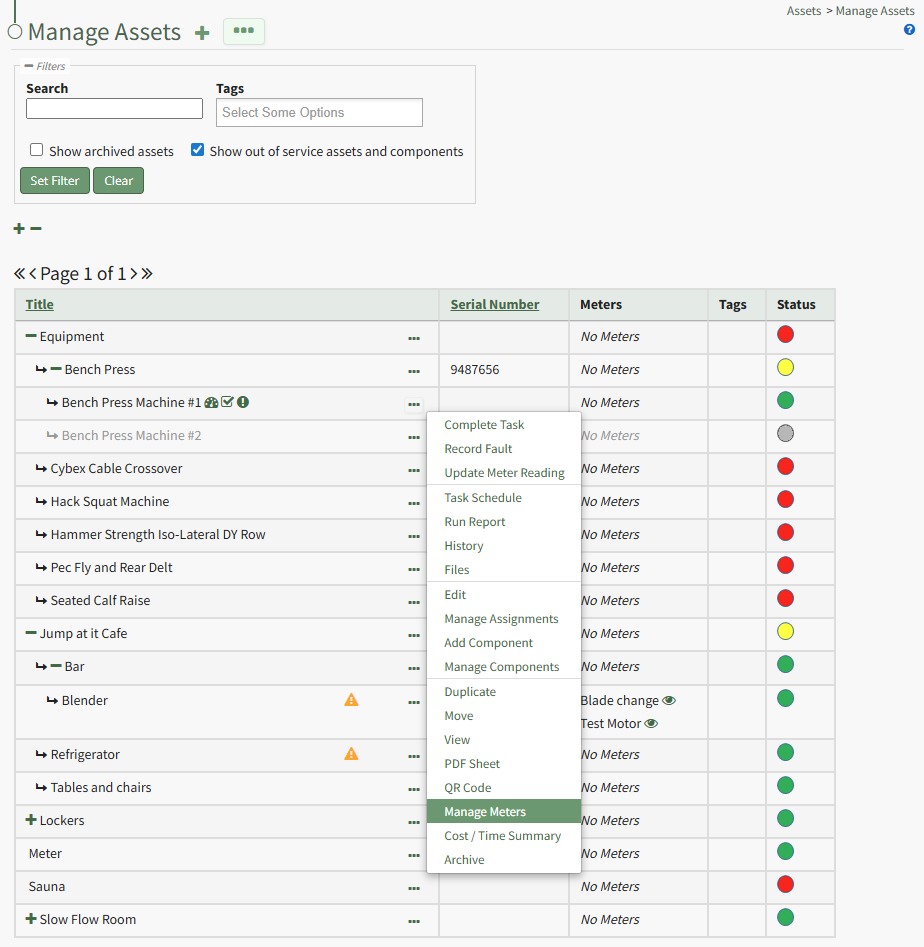
Selecting “Manage Meters” from the context menu opens the Asset Meters Modal.
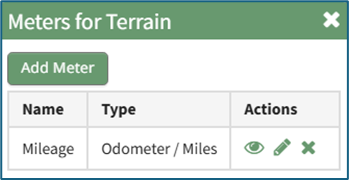
To add a new meter, select the “Add Meter” button opening the Add Meter to (Asset Name) Modal.
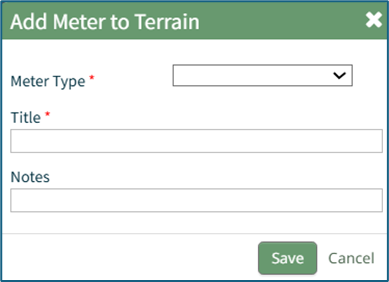
Select the Meter Type from the dropdown menu.
Input a title for the new Meter. Include any notes about the meter.
Select the “Save” button and the new meter is now shown when you select “Manage Meters” from the context menu.
No comments to display
No comments to display