
Create a New Course
To create a new course, open the Courses Module Home Page from the Main Menu.
The Courses Module is for the creation and management of courses only. For a user to access a course, create a Certification in the People Module with a required activity set to "Course - KAStrack".
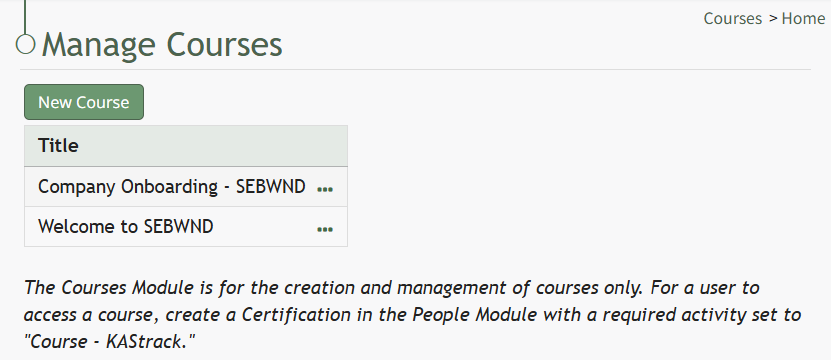
Click the “New Course” button beneath the Manage Courses header opening the New Course modal.
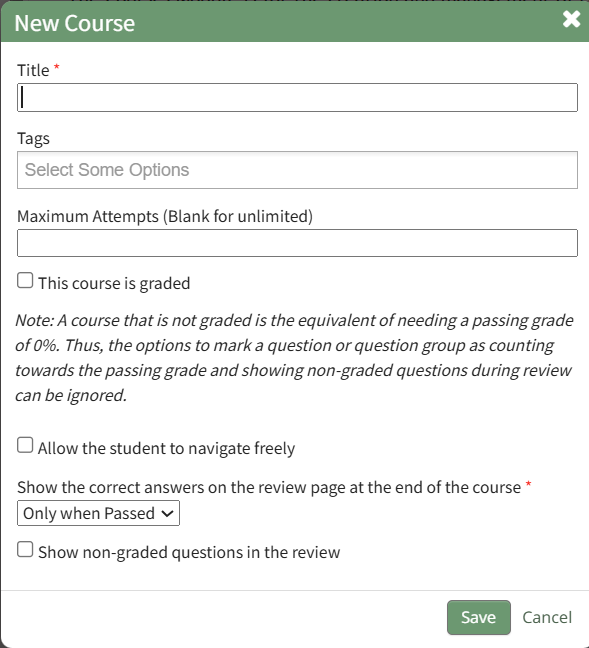
Input the desired course title and add tags for desired permissive/restrictive filters.
Input the maximum number of attempts an individual can take the course. Leave this field blank to allow for unlimited attempts.
A course that is not graded is the equivalent of needing a passing grade of 0%. Thus, options to mark a question or question group as counting towards the passing grade and showing non-graded questions during review can be ignored.
If the new course is to be graded, select the "This course is graded" checkbox. The modal will expand requiring you to input a grade that will qualify as passing the course.
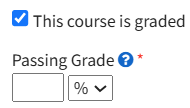
A passing grade can be calculated as the percentage or an absolute number of correctly answered eligible questions or question groups. Each question group has its own passing grade, and can be set to be part of the passing grade.
Select the “Allow the student to navigate freely” checkbox to give permission to navigate the entire course freely.
If you do not select this checkbox, you will have the ability to customize navigation options on each individual page in the course.
Click “Save” at the bottom of the modal to create the new course. The new course is now added to the table on the Course homepage.
No comments to display
No comments to display