
Edit Your Personal Account Info
To edit your own account information, select the Account Info Tab on the My Accounts Page of the Accounts Module.
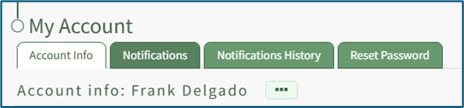
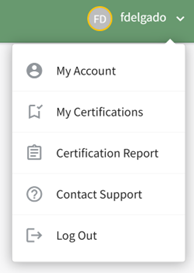
The Account Info Tab can also be accessed from the Main Menu or by clicking your username in the top right corner of the site and then choosing My Account.
When editing an existing account, only the username or the email fields can be changed at the same time.
Click the three dot (…) icon to the right of the Account info: (User Name) header to open the context menu. Select “Edit Account Info”.

This opens the Edit Account Info Page on the Account Info Tab.
An account profile picture can be uploaded through the User Photo field. The image can be cropped as part of the upload process.
It is recommended to upload an image less than 5MB.
By default, a user logging in to KAStrack will be taken to the Dashboard Module. The Home Page field allows a user to designate the URL within KAStrack of their preference. Enter the page URL in this field if you wish to start on a different page than the Dashboard. For example, if you’d like to start in the Documents Module after login, set Home Page to: https://sitename.kastrack.com/r/documents.
As a shortcut, you can also simply use the part after the .com, entering /r/documents in the field.
After making changes to the account information, select “Save” and the changes made will be reflected on the Account Info: (User Name) Page. Click “Cancel” and return to the Account Info: (User Name) Page without any information being altered.
No comments to display
No comments to display