
Delete a Page
To delete a page in a course, you must be on that course's Details Page. An explanation of how to access a course's Detail's Page is provided in the How To below.
How To: Access A Course's Details Page
To access a course's details page, open the Courses Module Home Page from the Main Menu. Click the three-dot icon to the right of the right of the course whose Details Page wish to access, opening the Course Context Menu.
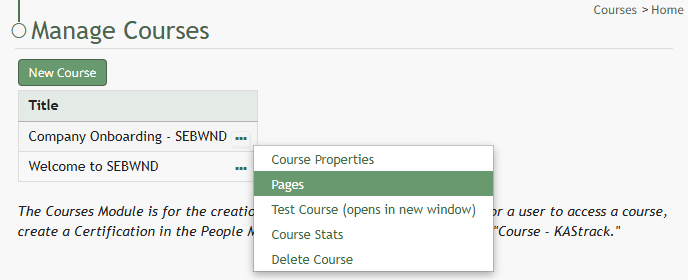
Select "Pages" from the Context Menu.
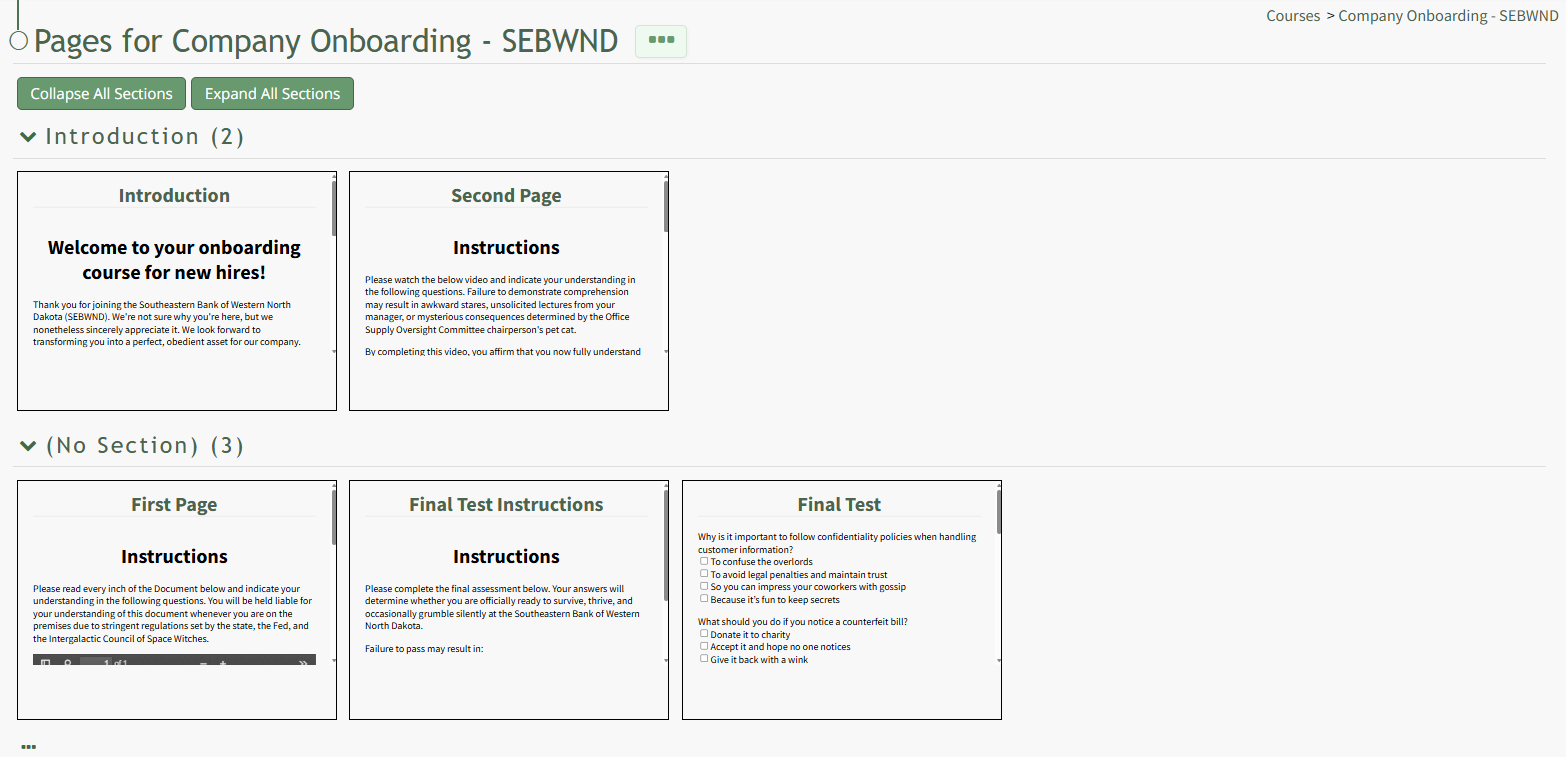
This opens the course's Details Page, displaying each page in the course grouped by sections.
Once you are on the course's Details Page, hover your cursor over the page you wish to delete, making the icons for quick actions visible.
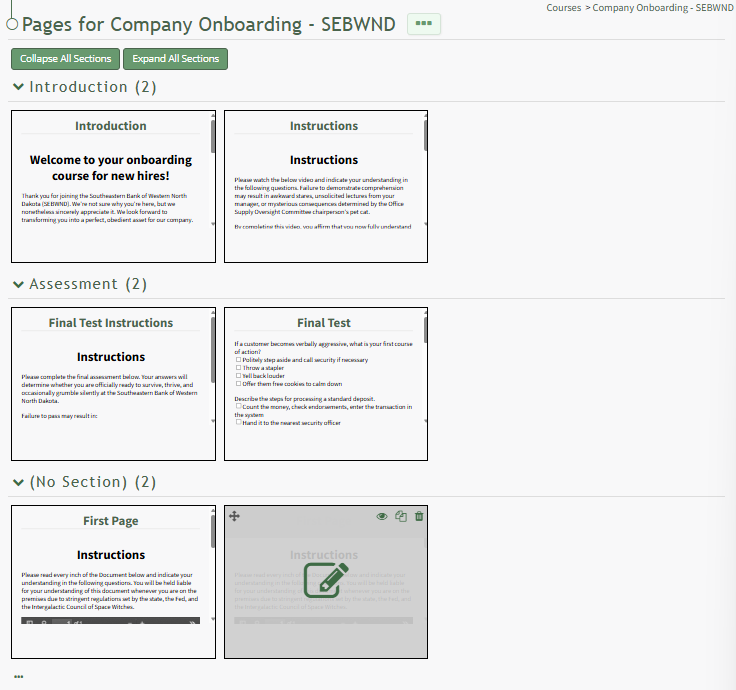
Click the trashcan icon opening the Delete Page Confirmation Modal which states, "Are you sure you want to delete this Page?" The modal identifies the title of the page to be deleted.
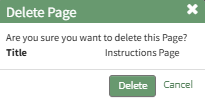
Click the "Delete" button.
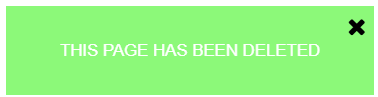
A pop-up confirms the page has been deleted.
No comments to display
No comments to display