
Upload a File as a Dispatch Document
To upload a PDF as a dispatch document, open the specific dispatch you wish to add a file to. Go to the Dispatch Module Home Page and alter the filter view as needed. Click the Dispatch Number or Title to open the specific dispatch page.

Files can be uploaded and added to a dispatch by selecting the upload icon to the right of the plus sign icon next to the Documents column header.

Selecting the Upload Icon opens the Upload File Modal. Select the “Choose File” button to upload the appropriate file from your personal device.
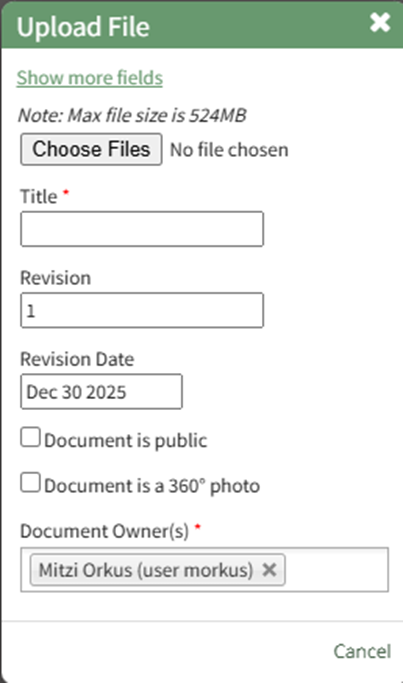
Input the File Title, revision number and revision date.
If the document is designated as public and available for anyone to access, select the “Document is public” checkbox.
If the file being uploaded is a 360 degree photo, select the “Document is a 360 degree photo” checkbox.
Indicate the document owners.
Select the “Save” button and a confirmation modal confirms the document was uploaded. It is now visible on the dispatch page in the documents column.
No comments to display
No comments to display