
Refresh the Currently Signed In Table
To refresh the Currently Signed In Table and reload the data currently shown in the table, open the attendance log you wish to refresh the table for by going to the Home Page of the Attendance Module and clicking the three-dot icon to the right of the attendance log’s name, opening the context menu.
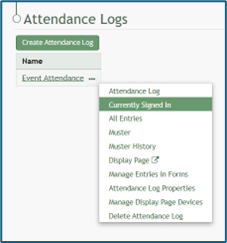
Select “Currently Signed In” opening the Currently Signed In Page.
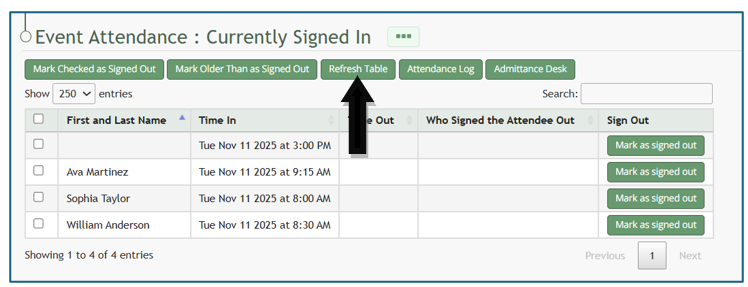
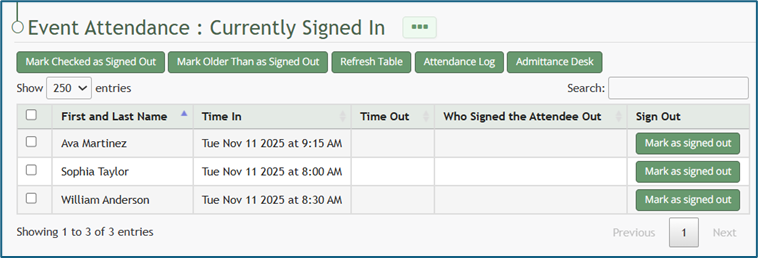
Click the “Refresh Table” button beneath the page header, and the latest records will replace the information currently shown on the table.
No comments to display
No comments to display