
Batch Submit Certifications in Bulk
To simultaneously submit a Certification for multiple users’ accounts, open the Batch Submit Certifications Tab on the Submissions page. Select the certification you would like to submit from the dropdown menu at the top of the page. The information for the selected certification is shown above the required bulk certification validation inputs.
Certifications with a required activity will show a green activity button in their Certification Information box above the required bulk certification validation inputs. Be aware that this button will launch the activity for your account as if you are personally completing the Certification. If you do not need to complete the certification yourself, you can ignore this button.
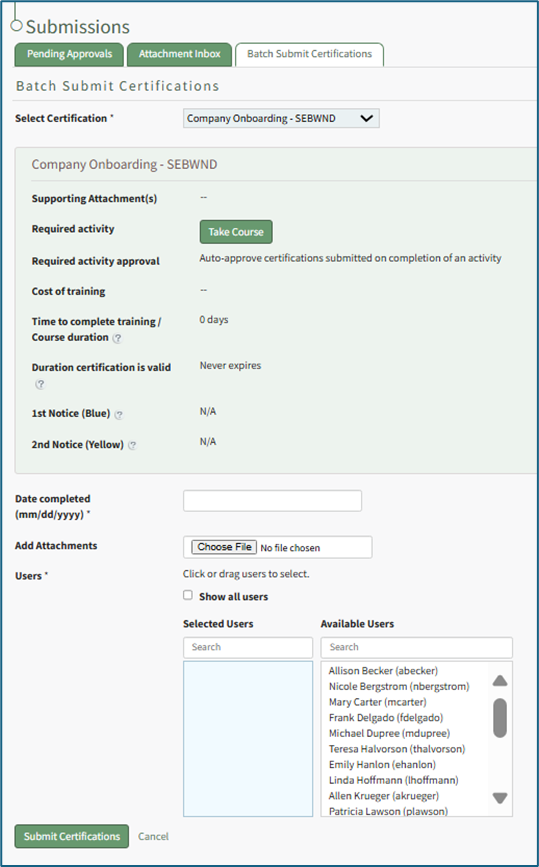
To batch submit, input the Date Completed in MM/DD/YYYY format. Select “Choose File” to upload any attachments.
By default, all available users associated with the selected certifications will show under Available Users. Select the “Show all users” checkbox to see all users in the system, regardless of if they are currently associated with the certification.
Click a user’s name to move it between the Selected Users and Available Users list. You can also drag and drop names.
Select “Submit Certifications” to complete the batch submission process, or select “Cancel” to reset the Batch Submit Certifications Tab.
No comments to display
No comments to display