
Create New Module Levels (Assets Module)
To create a new module level with customizable permissions in the Assets Module, go to the Module Level Tab on the Settings Page of the Assets Module.
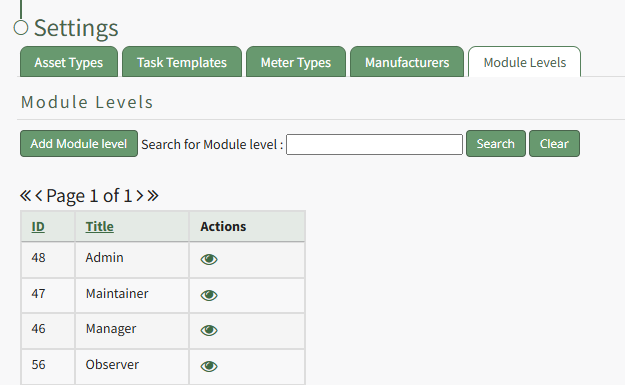
Select the “Add Module Level” button opening the New Module Level Modal.
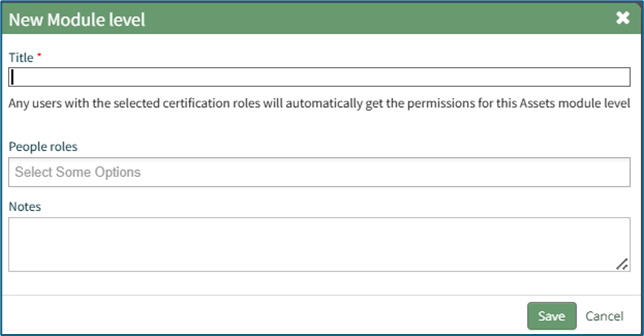
Selecting “New Module Level” on the Manage Module Levels page opens the New Module Level modal. Input the name of the customized model level.
Any users with the selected certification roles will automatically get the permissions for this Assets module level.
You have the option to assign the people associated with specific roles to the new module level and add any notes.
Select “Save.” Module levels will be listed alphabetically.
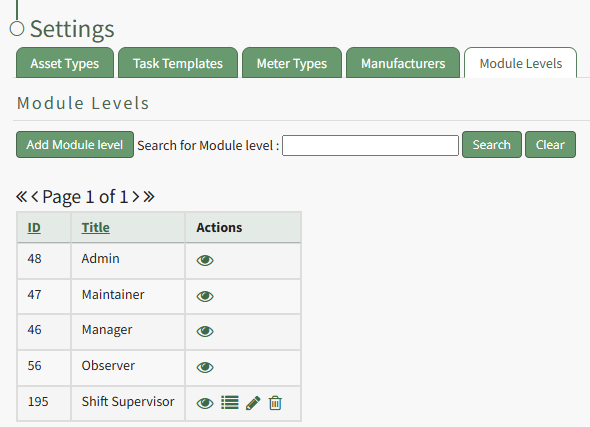
Users must select which permissions are allowed for a customized module level. Select the bullet list icon in the Actions Column of the new Module Level opening the Module Level Permissions Modal.
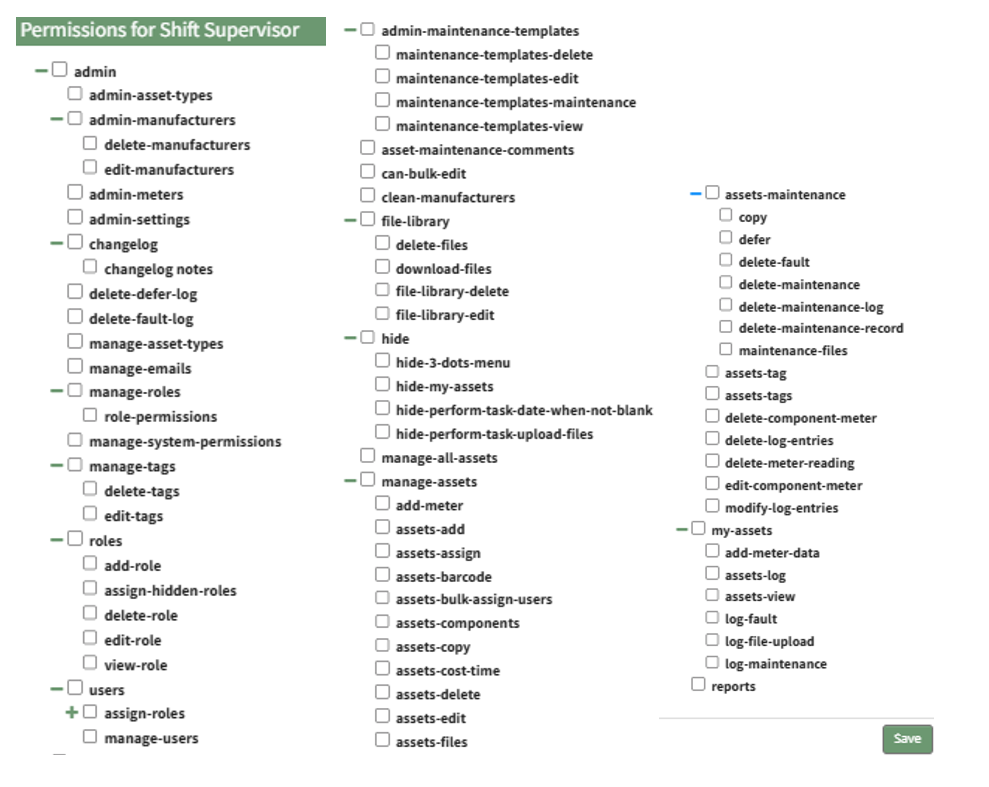
Click the checkboxes to assign permissions to the new Module Level.
Select “Save” and the permissions have been assigned to the Module Level.
Access levels for all modules can also be managed in the Site Settings Module under Access Levels.
No comments to display
No comments to display