
Reset the Password for Another User
To reset the password for another user, you must have Admin or Supervisor Module Level access for the Accounts Module. By default, both Admin and Supervisor Access Levels have the ability to change passwords. Access levels are customized in the Site Settings Module.
Open the Active Accounts Table on the Active Tab of the Accounts Page and select the three dot (…) icon next to the name of the user whose password you wish to reset.
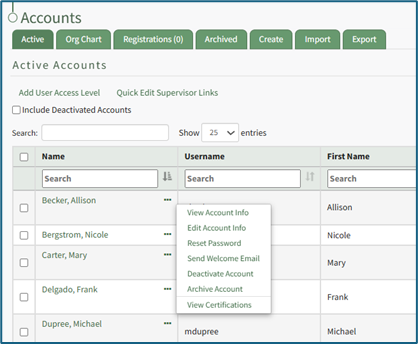
Select “Reset Password” from the context menu opening the Reset Password Tab on the Accounts Page.
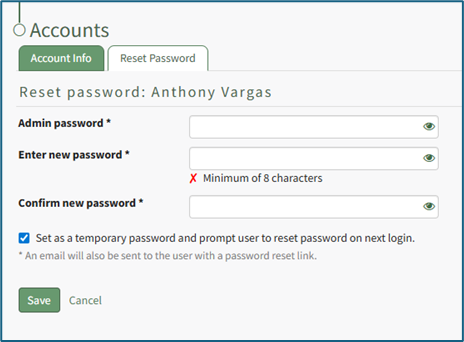
It is required that you enter your account password to reset another user’s password. Then enter the new password for the user selected in the “Enter new password” textbox. Default settings require the new password be a minimum of 8 characters. Re-enter the new password in the “Confirm new password” textbox to ensure the new password is as intended. The eyeball icon allows you to see what was entered and check for errors.
An email will be sent to the user with a password reset link. The user will not need the temporary password you selected to reset their password.
Password requirements can be altered by administrators for all users of the KAStrack system by visiting the Security page of the Site Settings Module.
How To: Edit Password Requirements
To edit password requirements, open the Security Tab in the Site Settings Module. The current settings will show before changes are made.

Select the “Edit Security Settings” button, opening an editable Password Requirements Page.

Input a whole number as your preferred minimum length requirement into the textbox.
Select the appropriate checkboxes to require users to have an uppercase letter, lowercase letter, special character, and/or number in the password.
Selecting the “Force users who do not meet requirements to reset on next login” checkbox will require any existing users whose password is no longer compliant to reset their password when they attempt to login next.
New users will be forced to meet the requirements when they login for the first time / register their account.

Click “Cancel” to return to the Security Tab without making any changes.
Select the “Save” button and return to the Security Tab. The changes made and saved are now reflected on the Security Tab.
If you select the “Set as a temporary password” checkbox, the user will be required to reset their password on their next login.
Select “Save” to reset the password and email the user the password reset link. Click “Cancel” and return to the Account Info: (User’s Name) Page without resetting the password.
No comments to display
No comments to display