
Create a Form Aggregation
To create a form aggregation, go to the Forms Home Page and select the “Form Aggregation” button.

This opens the Form Aggregation Page.
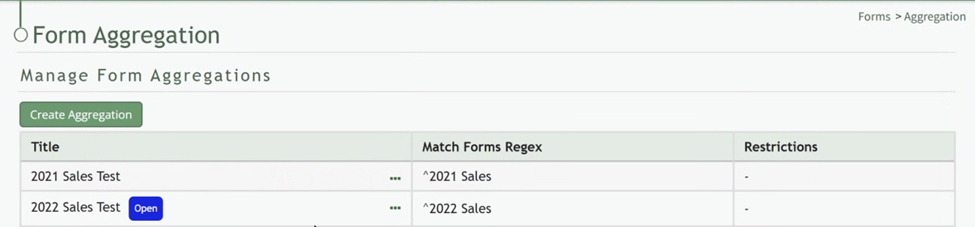
Select the “Create Aggregation” button opening the New Form Aggregation Modal.
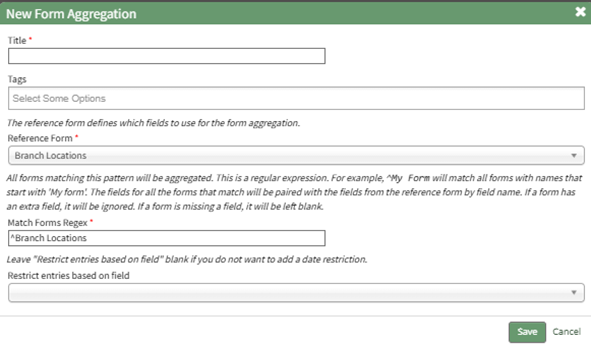
Input the form aggregation title, and any tags to be associated with the aggregation.
Select the reference form from the dropdown menu provided.
The reference form defines which fields will be used as column headers in the form aggregation report.
KAStrack will automatically input information to the Match Forms Regex Field, but it may not be the correct input for your aggregation. (Regex is way to match strings of text to other strings of text. The carrot symbol means “starts with.”) What follows the carrot symbol should be an identifier that would indicate the forms are related.
Contact KAStrack’s technical support team for additional guidance on setting up your aggregation if Regex is unclear.
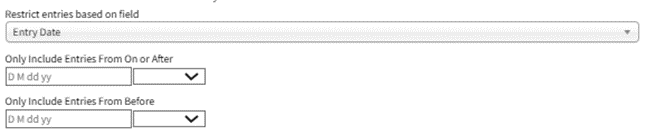
If you do not want to add a date restriction, leave the restrict entries based on field dropdown menu blank. If you would like to restrict entries, you can do so by 1) including entries from on or after a specific date OR by 2) including entries from before a specific date.
Select “Save” and your aggregation will now show in the Form Aggregation Table.
No comments to display
No comments to display