
Archive a Form
To Archive a form, it cannot be live. You must close the form first.
How To: Close a Form
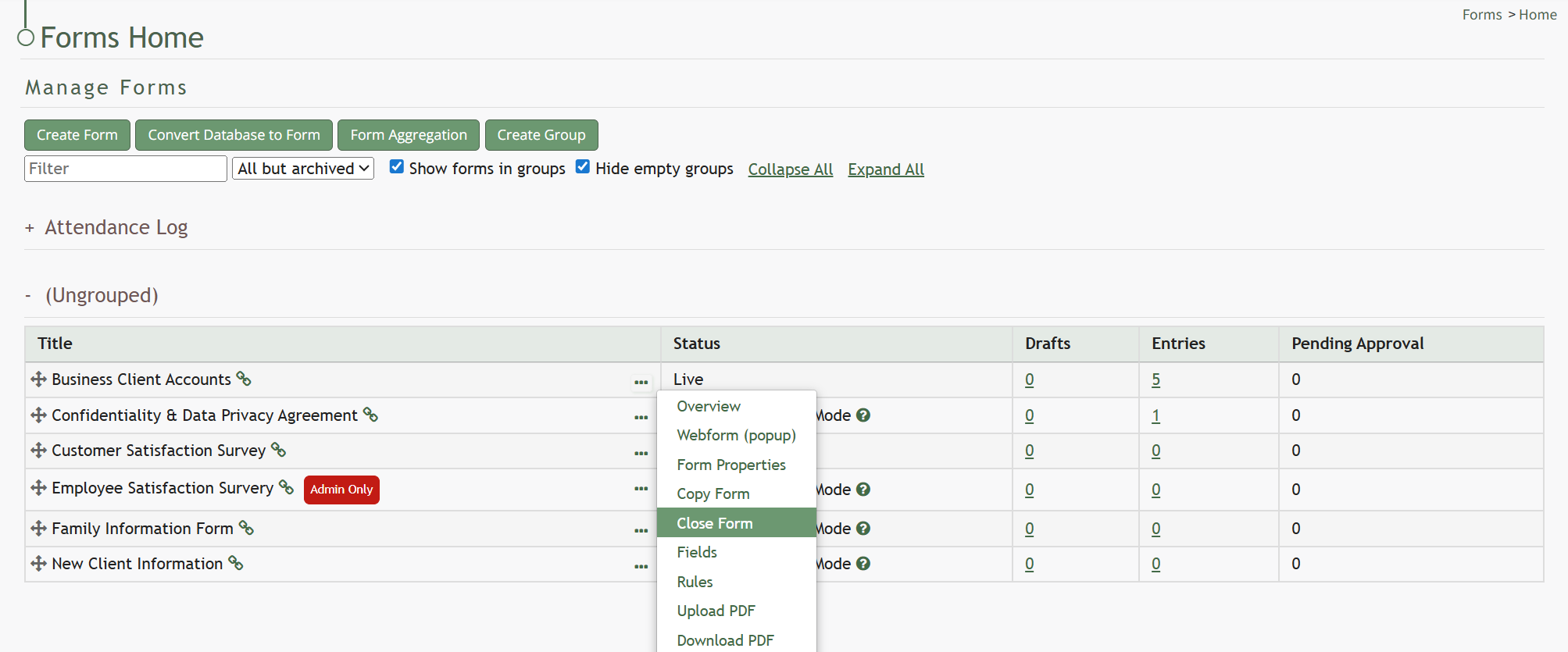
To close a live form, go to the Home Page of the Forms Module and click the three-dot icon to the right of the form that you wish to close. This opens the Form’s context menu. Select “Close Form”.
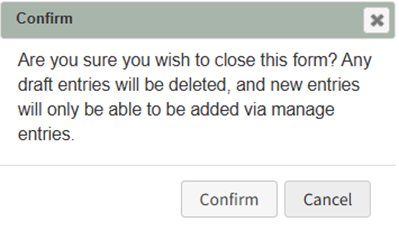
This opens the Close Form Confirmation Modal which states, “Are you sure you wish to close this form? Any draft entries will be deleted, and new entries will only be able to be added via manage entries.”
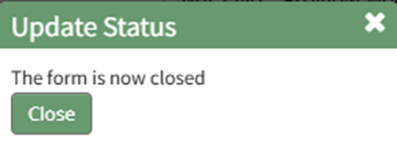
Select “Confirm” and an Update Status Modal appears stating, “The form is now closed.”
The status of the form will now show as closed in the Forms Table.

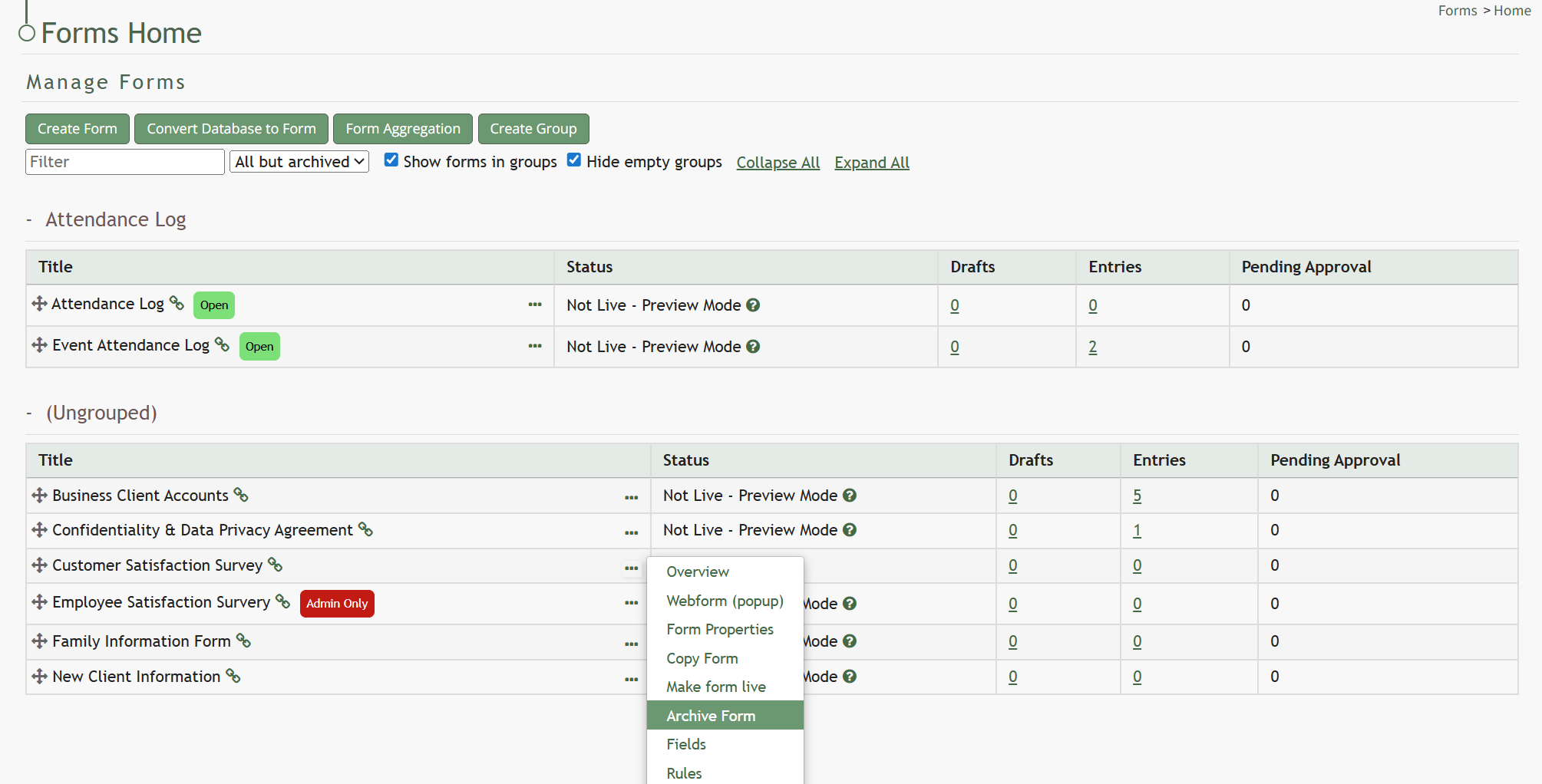
To archive a closed form, go to the Home Page of the Forms Module and click the three-dot icon to the right of the form that you wish to archive. This opens the Form’s context menu. Select “Archive Form”.
Selecting “Archive Form” will open a confirmation modal stating, “Are you sure you wish to archive this form? Any draft entries will be deleted, no new entries will be added and the form will no longer be available to reference.”
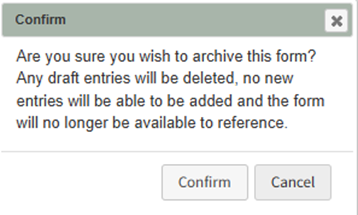
Select “Confirm” and an Update Status Modal will appear.
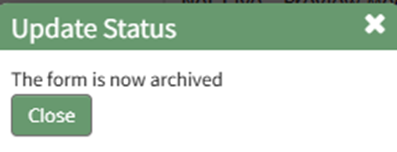
Click the “Close” botton and return for the Forms Home Page. The form will no longer be visible on the Home Page.
No comments to display
No comments to display