
Create a New Form Field Rule
To add a form field rule, go to the Home Page of the Forms Module. Click the three dot icon to the right of the form title that you want to create a rule for opening the Form context menu. Select “Rules”.
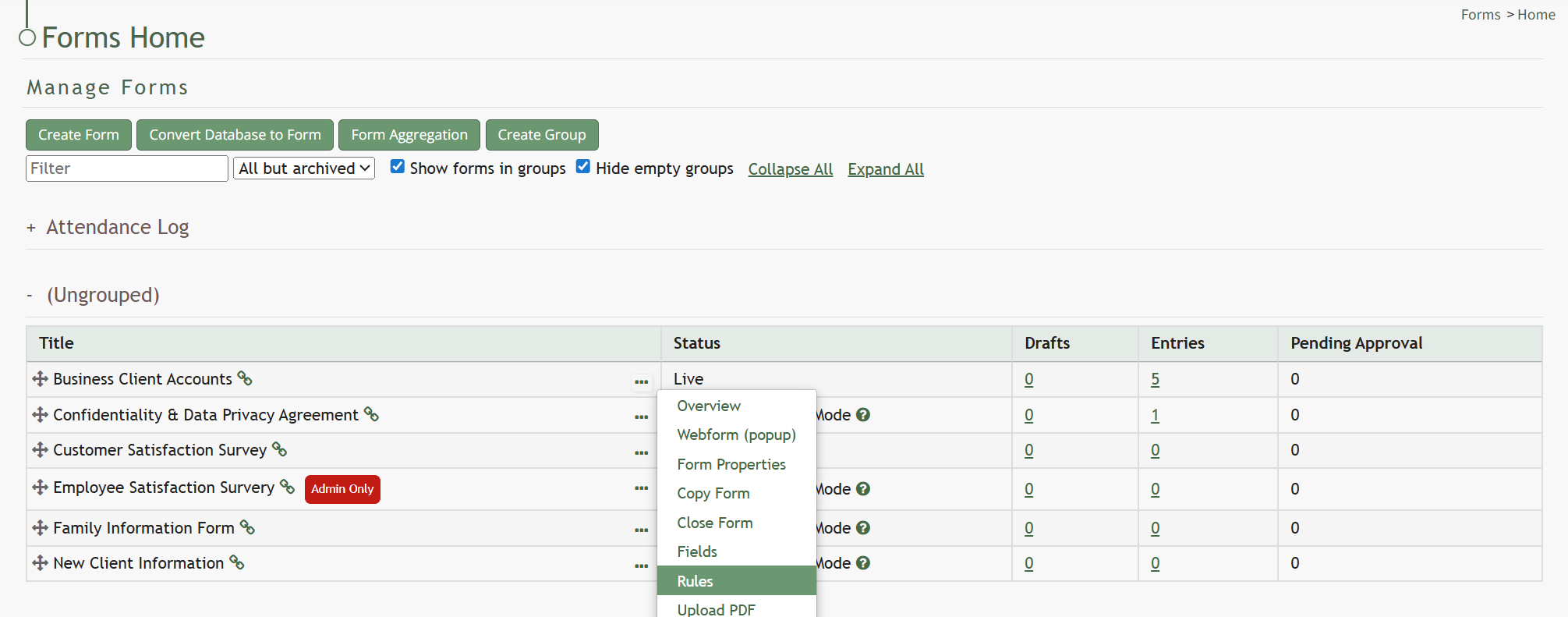
This opens the Rules Tab containing the Rule Table.
If your form is already live, you will be asked to enable editing before you can add a new rule to your form.
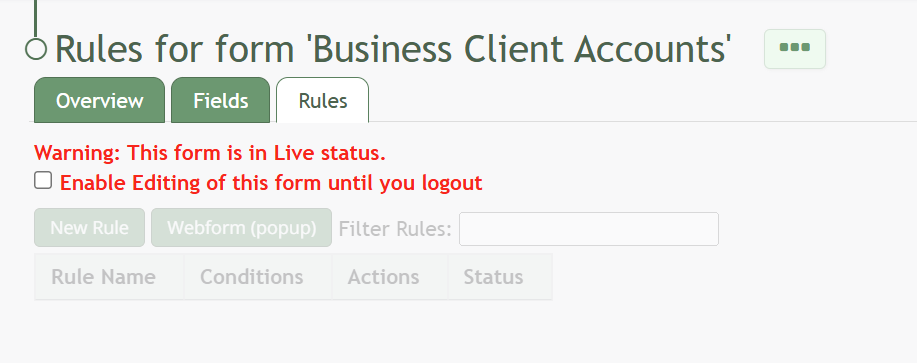
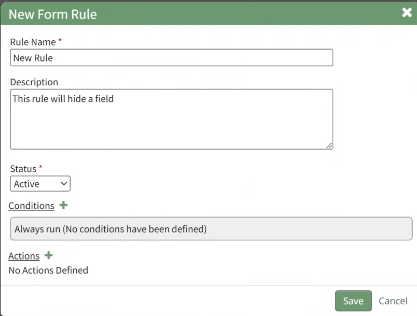
After enabling editing (if required), select the “New Rule” button opening the New Form Rule Modal.
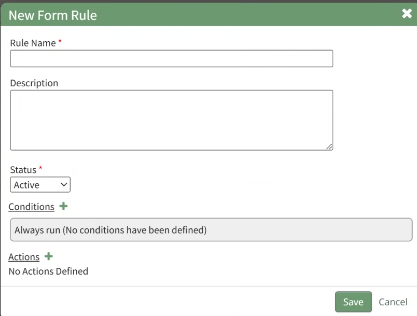
Input the Rule Name, Description, and Rule Status (a required field).
Click the plus icon to the right of Conditions to add a condition to the rule, expanding the section for the input of the trigger, what must be true, and what happens if it is true.
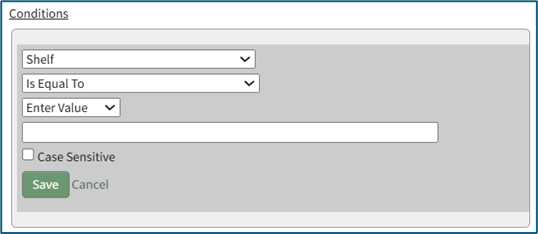
Once the condition has been entered, select “Save” to return to the New Form Rule Modal.

The condition created will show in the modal.
As many conditions as desired can be entered, as well as none at all.
Click the plus sign to the right of Actions to add an action to the rule, expanding the section for the configuration of the action to be taken when the conditions are met.
Once the rule has been entered, select “Save” to return to the New Form Rule Modal. The action will now show in the modal.
Select “Save”. A popup will confirm that the rule was saved stating, “Rule was saved.”

The rule will now show in the Rules Table.
No comments to display
No comments to display