
Set / Edit a Budget's Approvers and Approval Notifications
You can only edit approvers and approval notifications for an active budget.
To set or edit a budget’s approvers and / or approval notifications, go to the Active Tab of the Budgets Page in the Finance Module. Select the check icon in the Actions column of the Active Accounts Table.
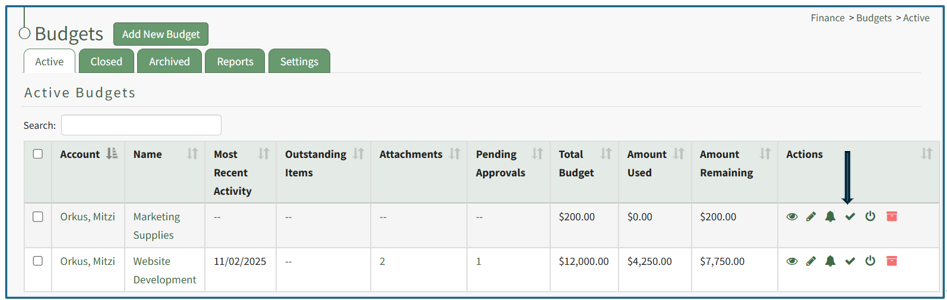
This opens the Edit Approvers Modal.

There are five options of who the system should notify when a budget has received all required approvals or when it has been rejected: the user who submitted the budget item, the users who have approved the budget item, all users in all approval groups, the account holder, and the account holder’s supervisor(s). Multiple, all, or no checkboxes can be selected.
To add an approver, click the “+ Add An Approver” button and the modal expands.
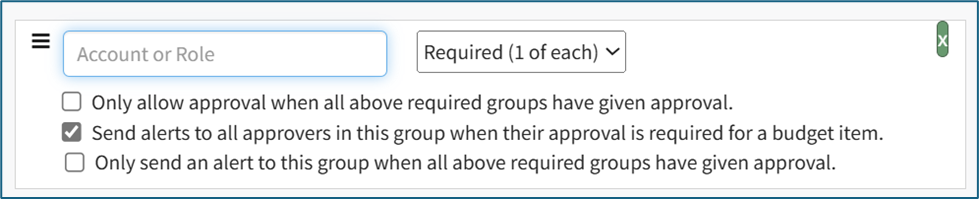
Add an individual account or a certification role and identify if their approval is required or optional. Multiple approvers can be added in this expansion, or you can click “+Add an Approver” again if the permissions/requirements need to be different for the different approvers.
There are two checkboxes associated with adding an approver. The first is in regard to when approval will be given. The “Only allow approval when all above required groups have been given approval” checkbox will not mark a budget item as approved until all required groups have been approved.
The second checkbox impacts when alerts regarding a budget will be sent. The “Send alerts to all approvers in this group when their approval is required for a budget item” opens an additional checkbox when selected. Select the “Only send an alert to this group when all above required groups have been given approval” to send an alert when a required signatures have been received.
After making the appropriate selections, the modal will state how many budget items will be affected by the changes being made.

You have the choice to “Mark as Approved any budget items that will become fully approved when this form is saved” or to “Clear existing approvals for any budget items that will become fully approved when this form is saved.” You cannot select both.
Once all changes to approvers and approval notifications for the budget have been made, select the “Save” button and you will return to the Active Tab of the Budgets Page.
No comments to display
No comments to display