
Edit a Database Entry
To edit a database entry, go to the Home Page of the Database Module and click the three-dot icon to the right of the database you wish to edit opening the database context menu.
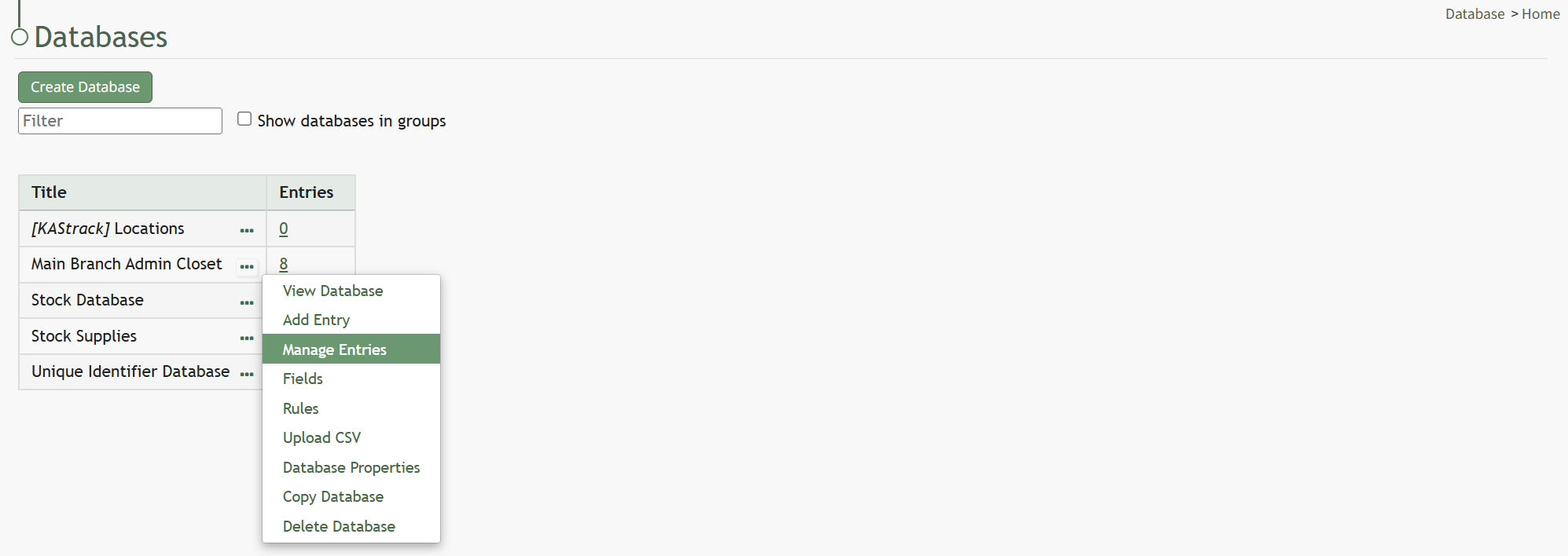
Select “Manage Entries” from the context menu opening the Entries for database (DatabaseName) Page.
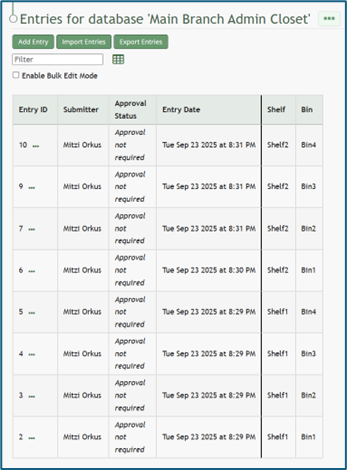
To the right of every Entry ID is a three-dot icon. Click the three-dot icon for the entry you wish to edit opening the Database Entries Table context menu.
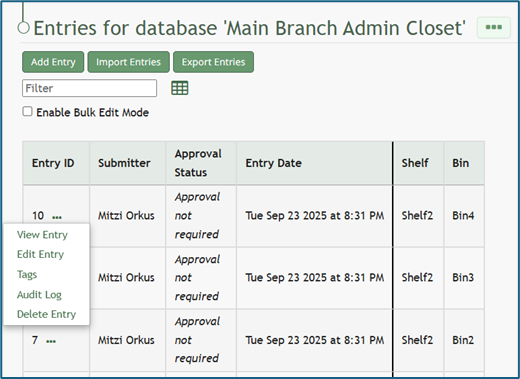
Selecting “Edit Entry” from the Database Entries Table opening the Edit Database Entry Modal.
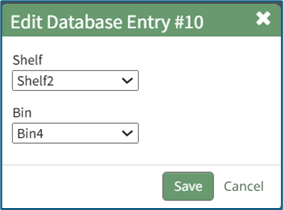
Make changes as desired to edit the entry and select the “Save” button.
Your edits will now show in the Database Entries Table.
No comments to display
No comments to display