
Edit a Company Specific Certification Role Description
To edit a company's certification role description, select the Companies in the People Module of the Main Menu to open the Companies Page and click on the Company Name in the Companies Table. Click the name of the company whose certification role you wish to edit in the Companies Table.
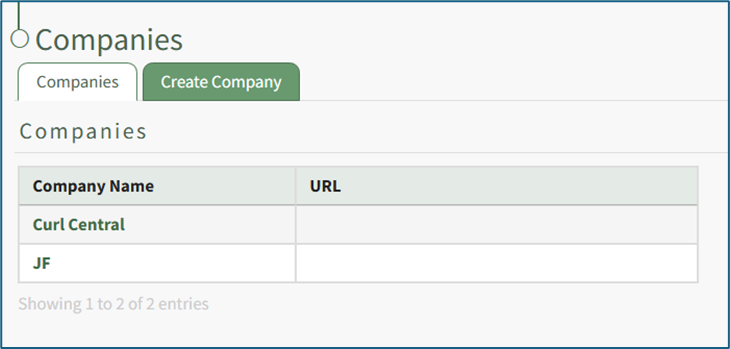
Clicking on the name of a Company will open the company's Detail Page that displays the Company Roles with their description.

Select the “Edit Company Roles” button to open the Company Roles Description Table.
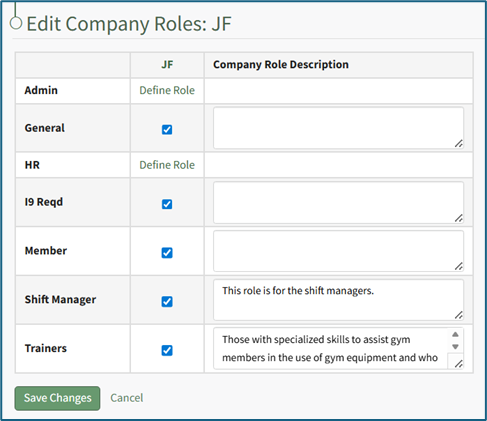
Certification roles will be listed in the first column. A checked checkbox indicates that the Certification Role has been defined and applies the company. Unchecking a checked checkbox means that this role should no longer be associated with this company. A role that is not associated with this Company will show the clickable text Define Role.
Add or alter the desired description by placing the cursor in the Role Description textbox and editing the information. Select the "Save Changes" button and return to the company's Details Page.
No comments to display
No comments to display