
Update Assigned Certification Records from the Matrix Table
To update assigned certification records directly from the Matrix Table, open the Matrix Page of the People Module from the Main Menu.
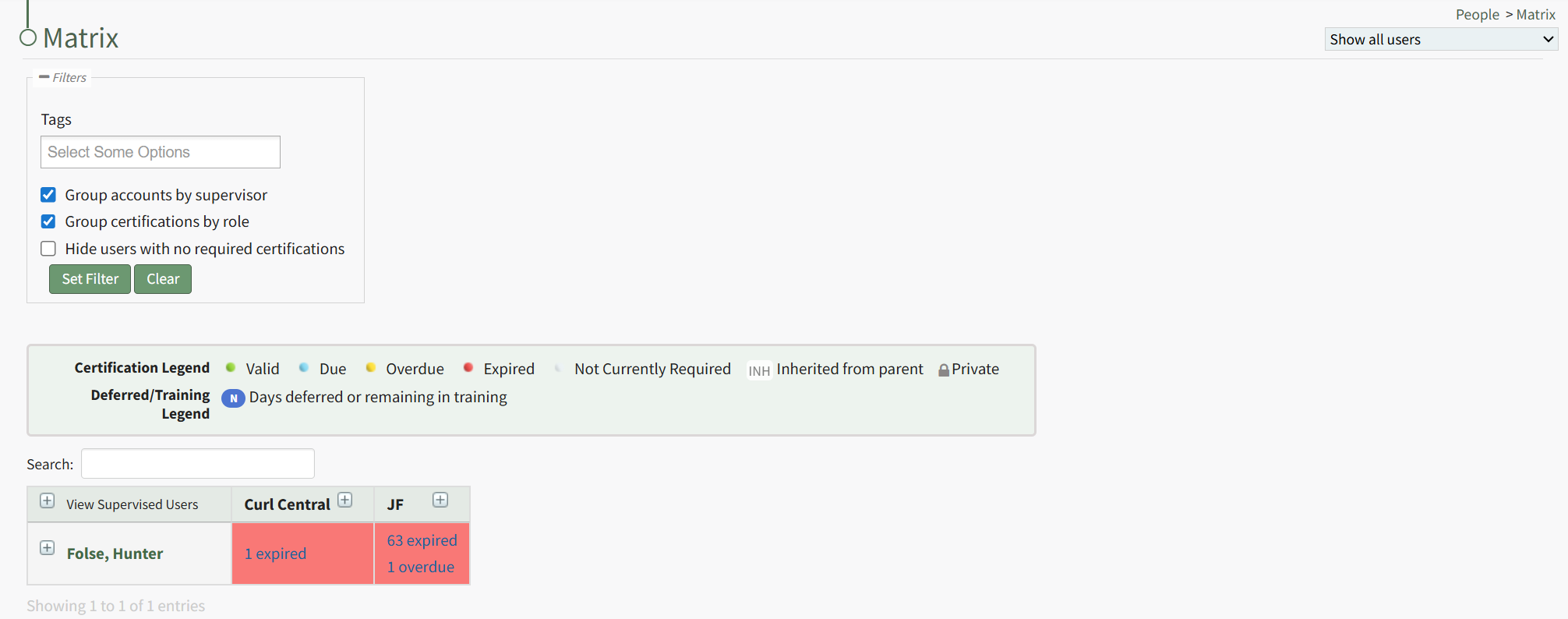
When the Matrix Page is initially opened, it is in a collapsed view. Expand the view as need to identify the relevant user and the specific certifications whose records you wish to update. The date or statement in each cell is a clickable link that when selected opens the specific user's Certification Details Modal.
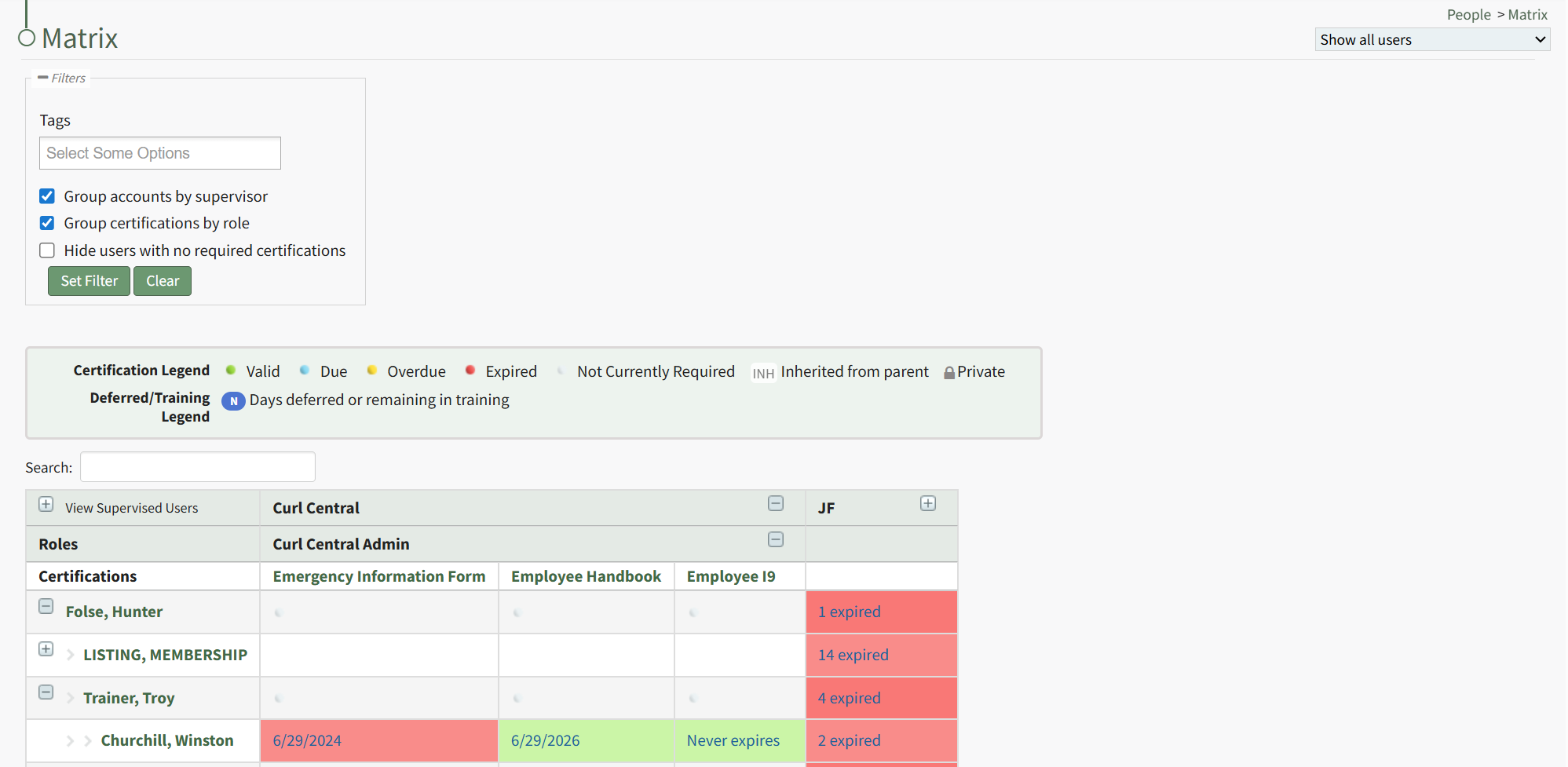
The date or statement in each cell is a clickable link that when selected opens the specific user's Certification Details Modal.
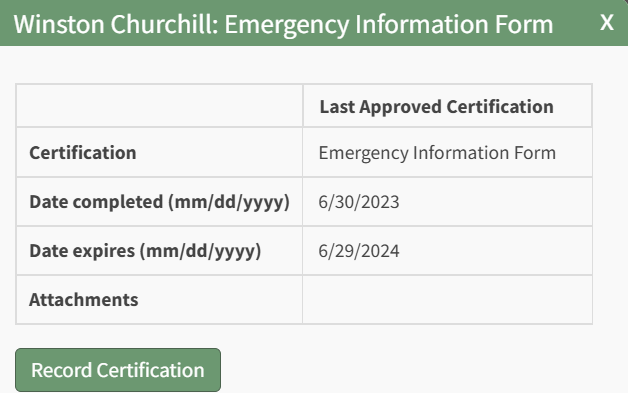
The modal lists the certification name, the date completed, the date the certification expires, and any file attachment. Click the "Record Certification" button to update the assigned certification. This opens the Submit Certifications Tab on the specific individual's User Page.
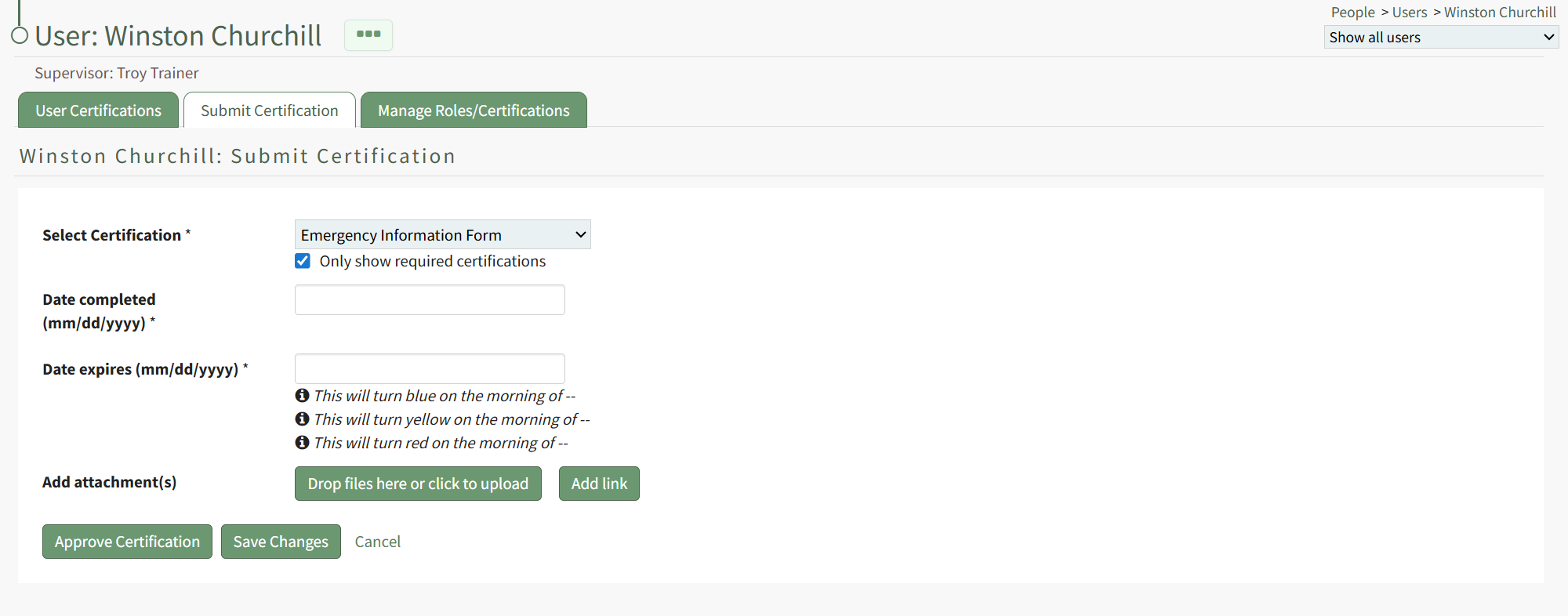
The certification being recorded is already indicated on the tab. Both the date completed and the date of expiration are required fields.
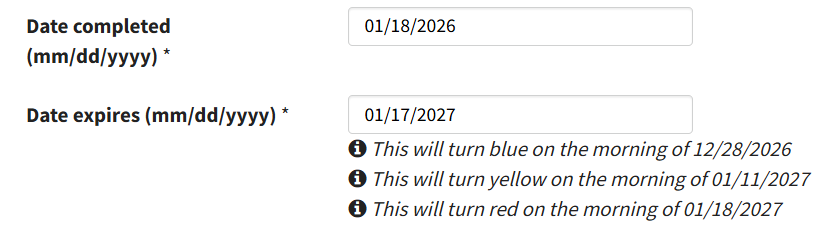
After inputting the completion date, the system fills out the date the certification expires and includes the dates the status will change from green to blue, blue to yellow, and yellow to red. (These details are determined by the specifics associated with the certification.)
Files or links can be included with the certification record.
Select the Save Changes button. If no links or files were attached, a Certification Record Confirmation Modal appears stating, "You have not included any attachments. Do you want to submit this certification without an attachment?"
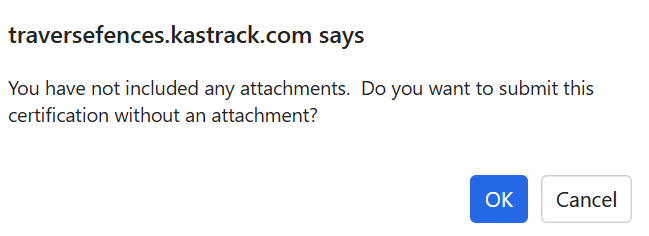
Select "OK".
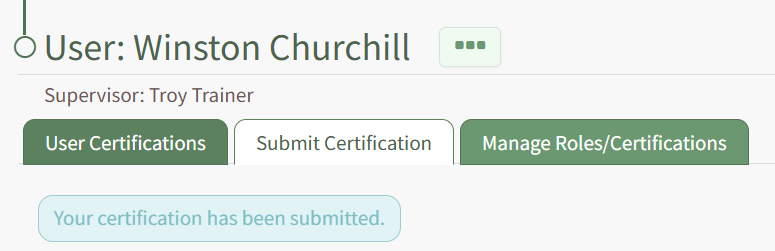
Your submission will be confirmed beneath the User Page tabs.
No comments to display
No comments to display